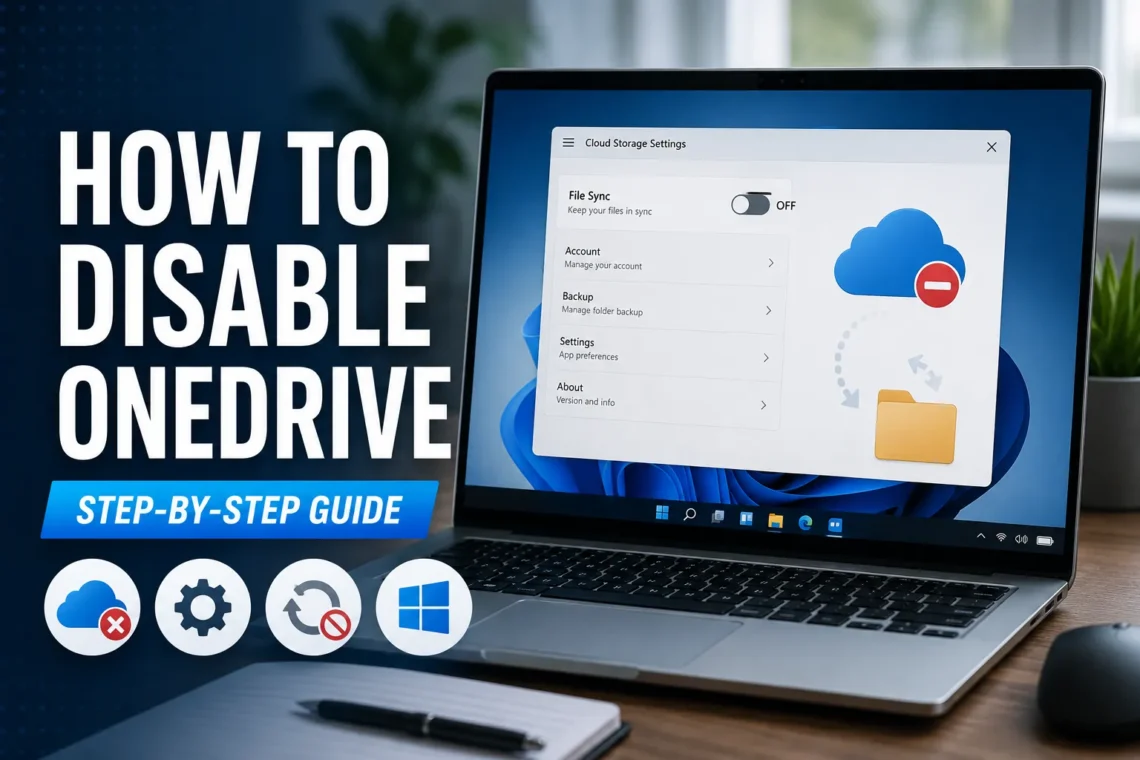
Microsoft OneDrive is built into Windows and provides cloud storage for your files, photos, and documents. While many people find it useful for automatic backups and syncing across devices, others prefer not to use it. You might want to save system resources, stop automatic syncing, use another cloud storage service, or simply keep your files stored locally.
The good news is that you don’t have to uninstall OneDrive to stop using it. Windows offers several ways to disable or disconnect OneDrive depending on how permanent you want the change to be.
In this guide, you’ll learn how to disable OneDrive on Windows 11 and Windows 10, stop file syncing, prevent it from starting automatically, and understand the difference between disabling and uninstalling the app.
What Happens When You Disable OneDrive?
Before making any changes, it’s helpful to know what disabling OneDrive actually does.
When you disable OneDrive:
- File syncing stops.
- OneDrive no longer runs in the background.
- Your local files remain on your computer.
- Files already stored in the cloud stay in your OneDrive account.
- You can enable it again whenever you want.
Disabling OneDrive is reversible, making it a good option if you’re unsure whether you’ll need it later.
Disable OneDrive by Unlinking Your PC
One of the easiest methods is to disconnect your Windows computer from your Microsoft OneDrive account.
Step 1: Open OneDrive
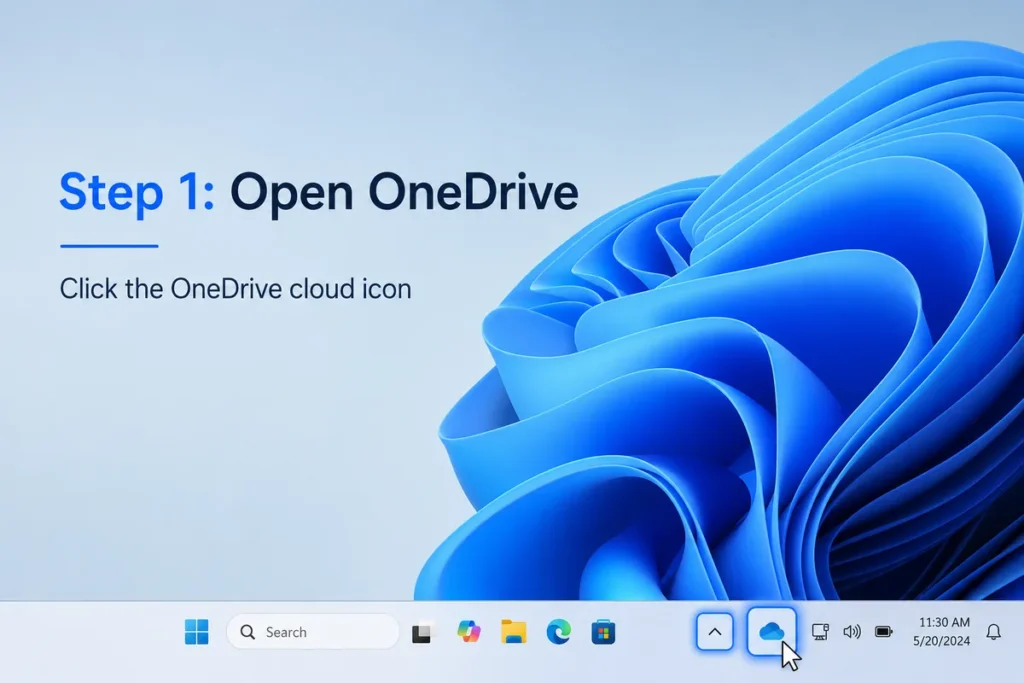
Click the OneDrive cloud icon in the Windows taskbar.
If you don’t see it, click the Show Hidden Icons arrow.
Step 2: Open Settings
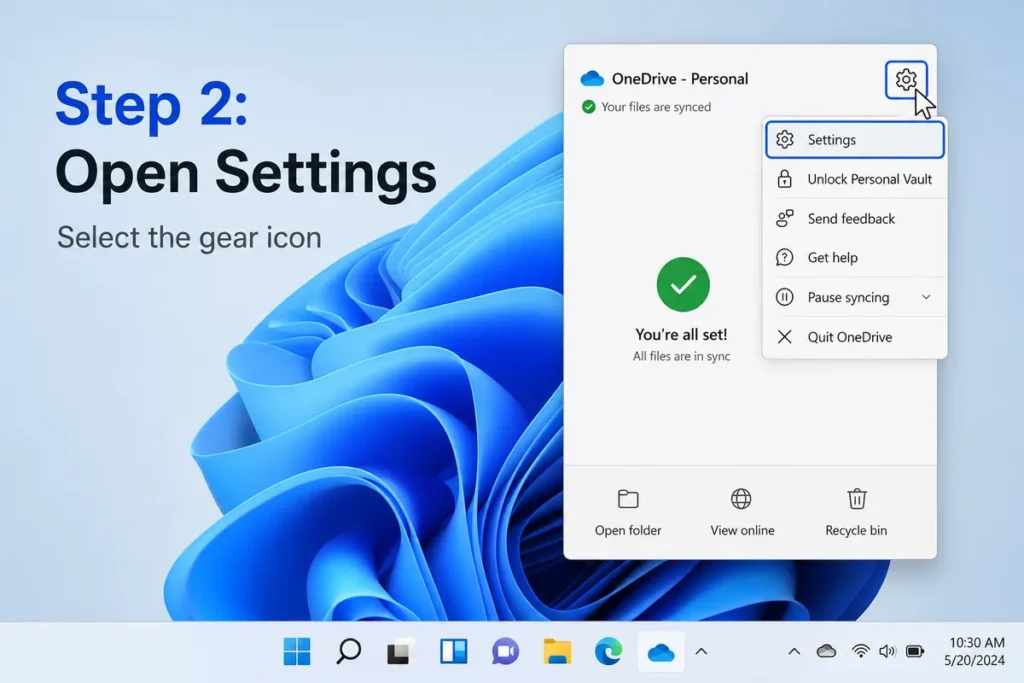
Select the Settings (gear icon).
Choose:
Settings
Step 3: Open the Account Tab
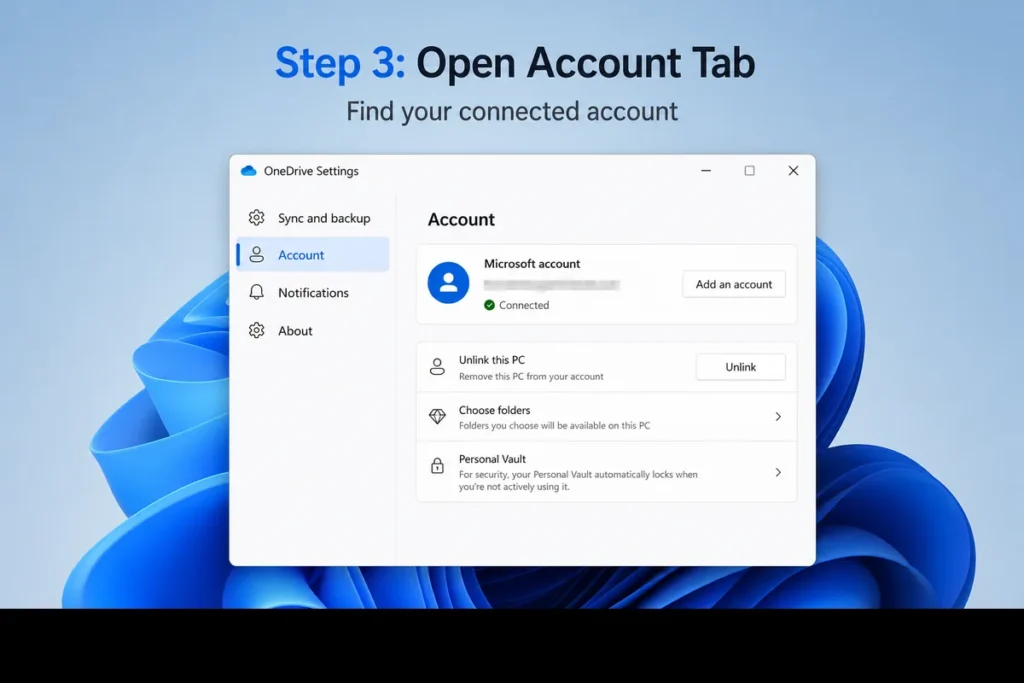
Click the Account tab.
You’ll see your connected Microsoft account.
Step 4: Unlink This PC
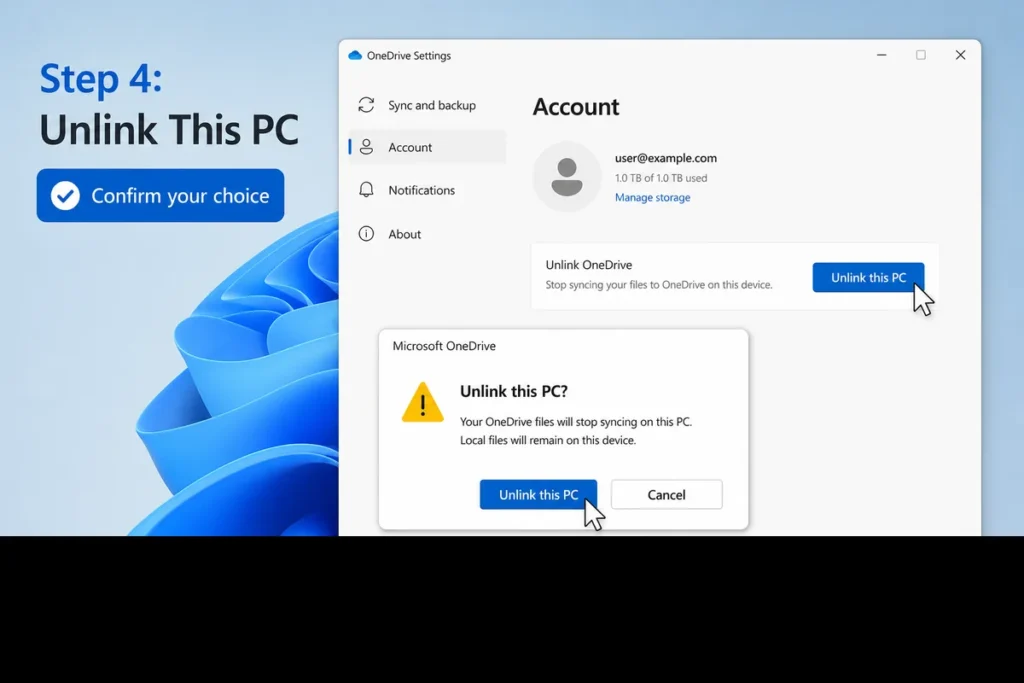
Click:
Unlink this PC
Confirm your choice.
After unlinking, OneDrive stops syncing files with your computer.
Stop OneDrive from Starting Automatically
If you rarely use OneDrive, preventing it from launching during startup can improve boot time.
Step 1: Open OneDrive Settings
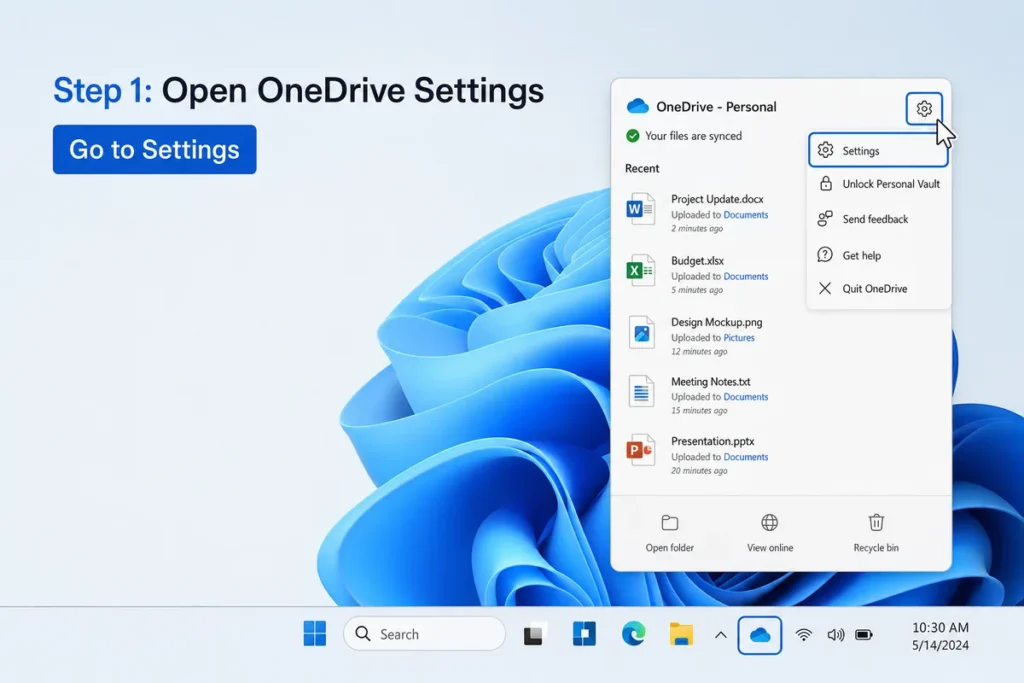
Open the OneDrive application.
Go to:
Settings
Step 2: Disable Startup
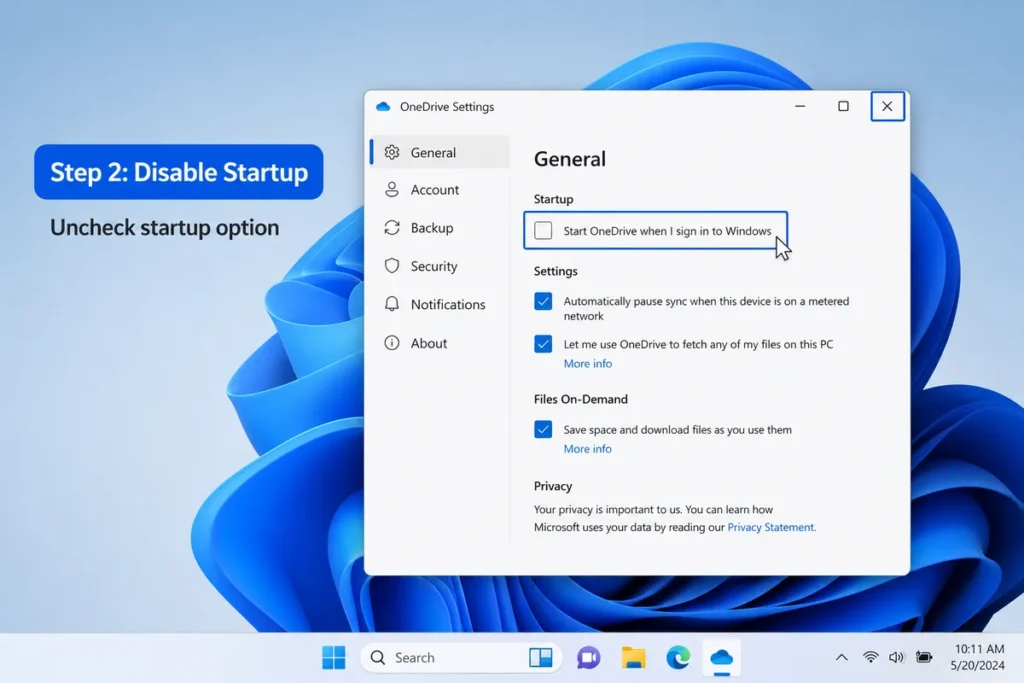
Under the General tab, uncheck:
Start OneDrive when I sign in to Windows
Close the settings window.
OneDrive will no longer launch automatically each time Windows starts.
If your Windows computer is running slowly because of background apps, you may also find our guide on How to Force Quit on Windows useful for closing unresponsive programs.
Pause OneDrive Sync Temporarily
Sometimes you only want to stop syncing for a short period.
Step 1: Click the OneDrive Icon
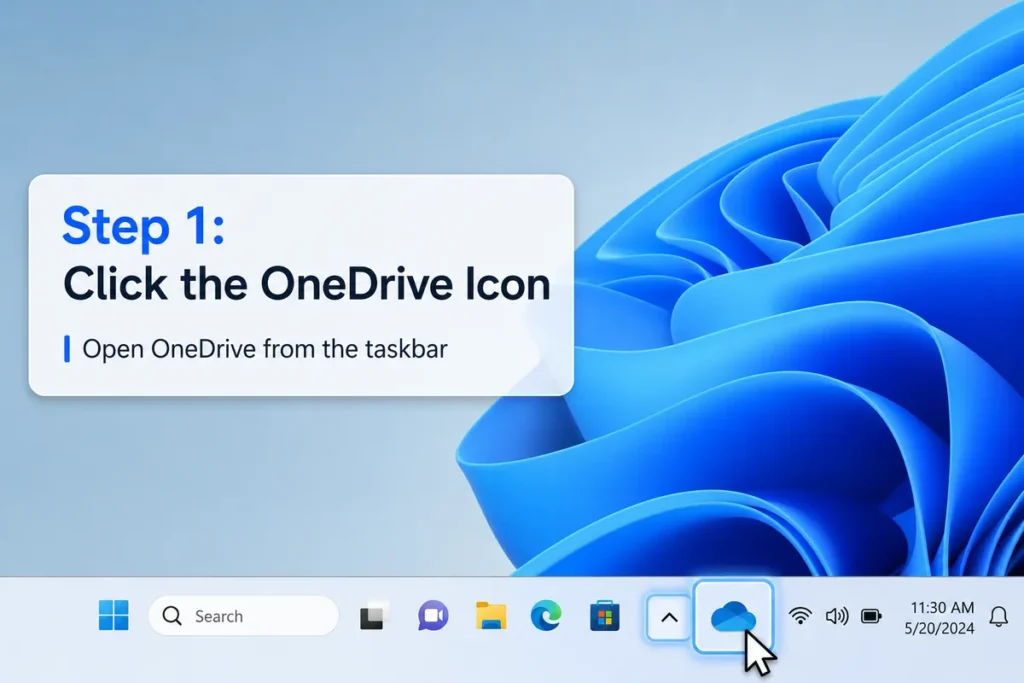
Open OneDrive from the taskbar.
Step 2: Select Pause Syncing
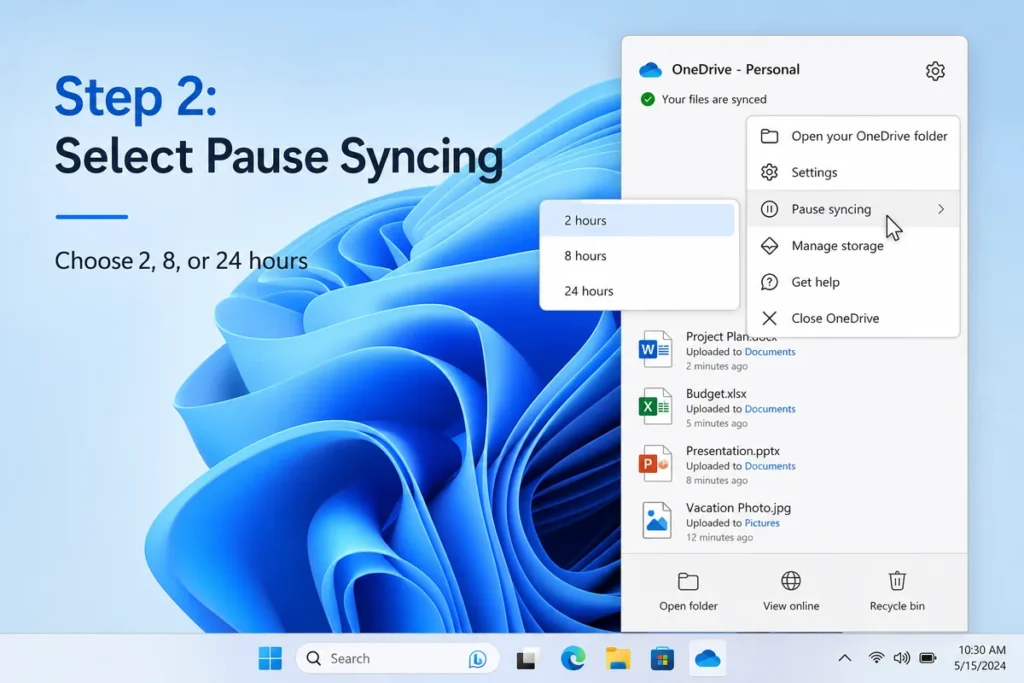
Choose:
Pause Syncing
You can pause for:
- 2 hours
- 8 hours
- 24 hours
This option is useful when you’re using limited internet bandwidth or performing large downloads.
Disable OneDrive Using Windows Group Policy (Windows Pro)
Windows Professional editions include Group Policy, which allows administrators to disable OneDrive.
Step 1: Open Group Policy Editor
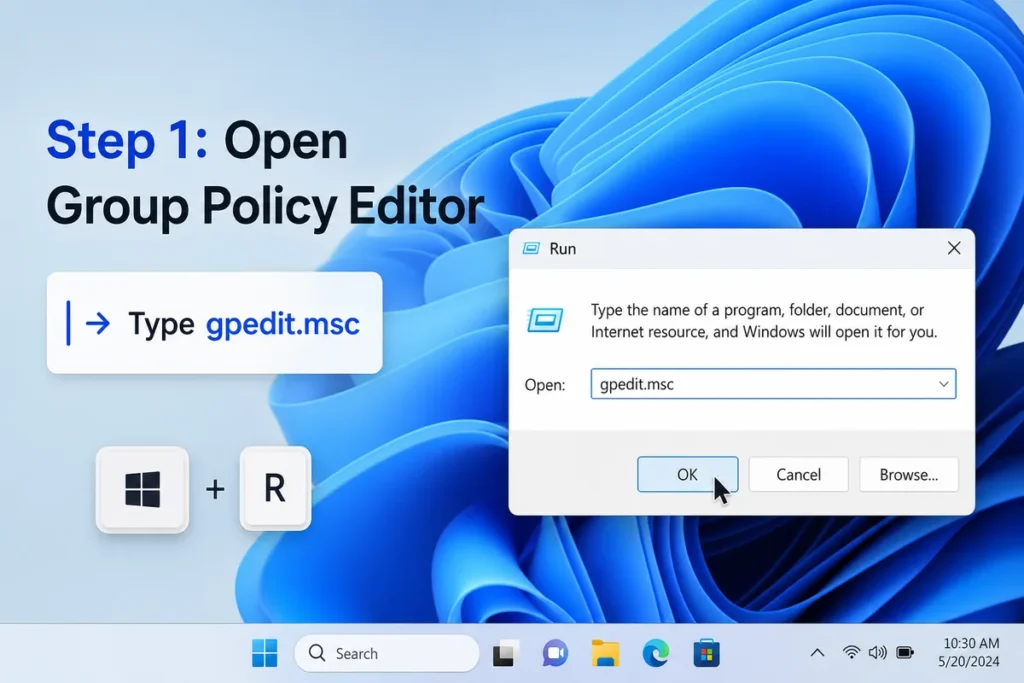
Press:
Windows + R
Type:
gpedit.msc
Press Enter.
Step 2: Navigate to OneDrive Policy
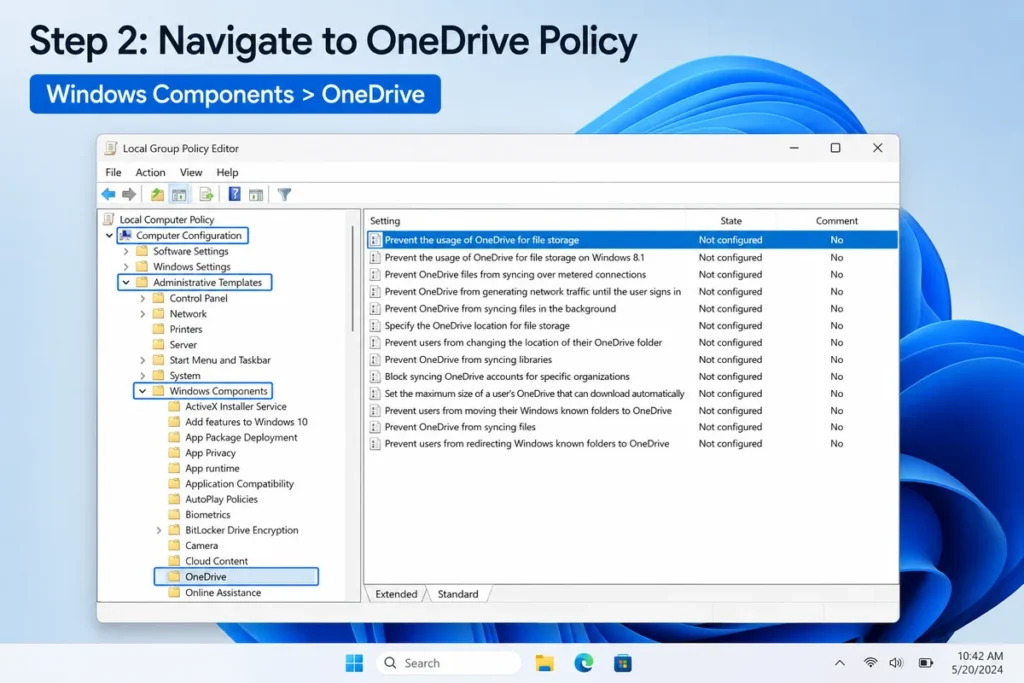
Open:
Computer Configuration → Administrative Templates → Windows Components → OneDrive
Step 3: Prevent OneDrive Usage
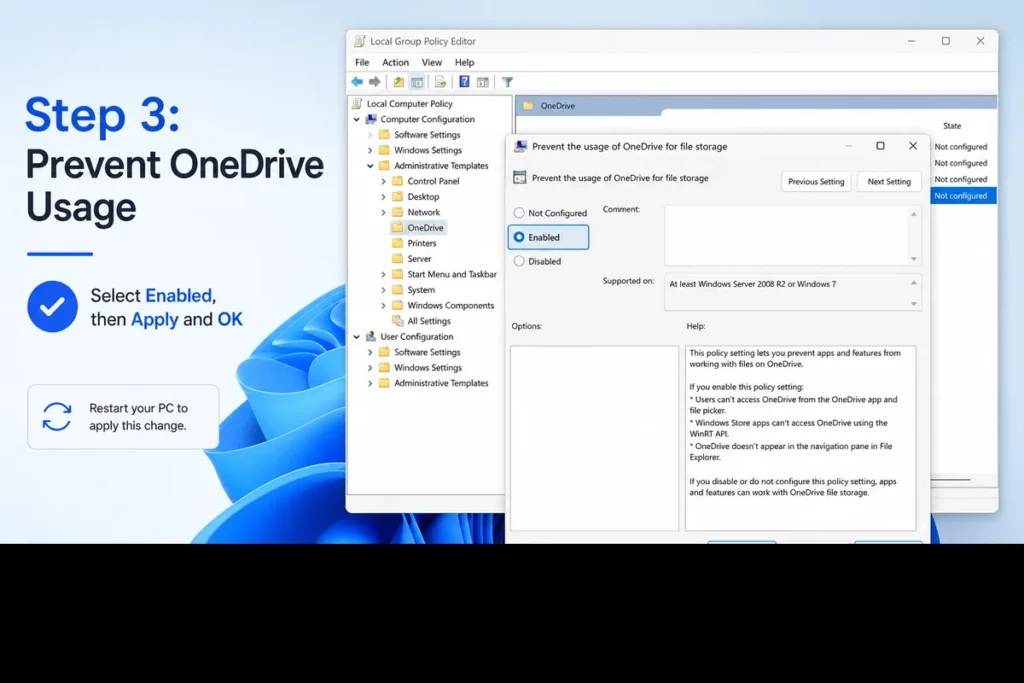
Double-click:
Prevent the usage of OneDrive for file storage
Select:
Enabled
Click Apply, then OK.
Restart your computer.
If you’re learning more about your Windows PC, our guide on How to Check Motherboard Model can help you identify your computer’s hardware.
Disable OneDrive Using the Registry (Advanced Users)
If you’re using Windows Home, you may need to use the Registry Editor because Group Policy isn’t available.
Step 1: Open Registry Editor
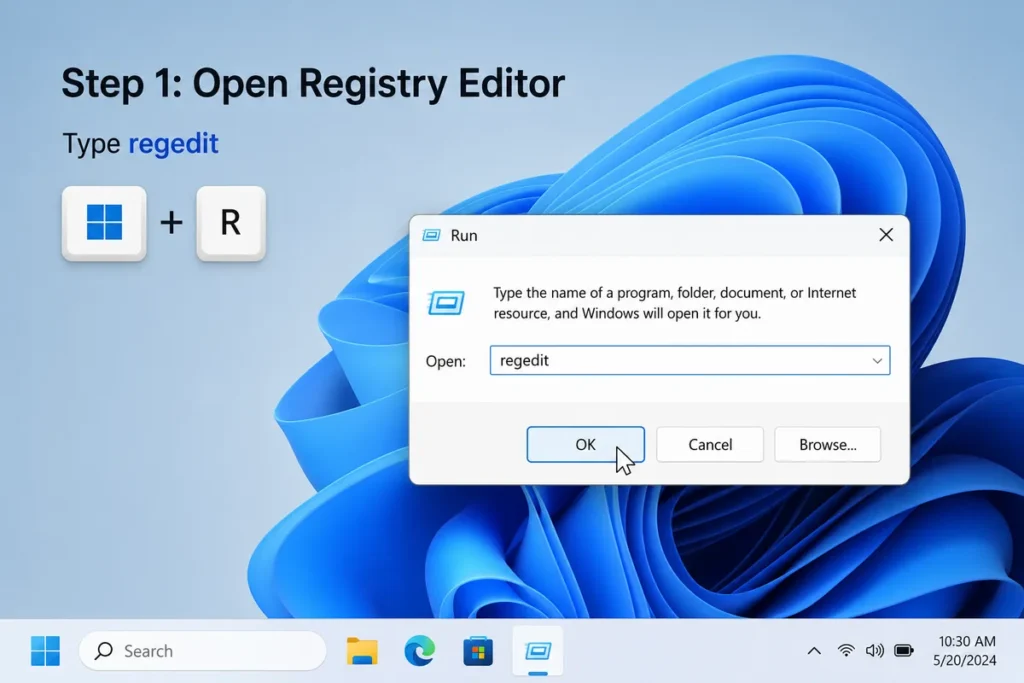
Press:
Windows + R
Type:
regedit
Press Enter.
Step 2: Navigate to the Windows Policies Key
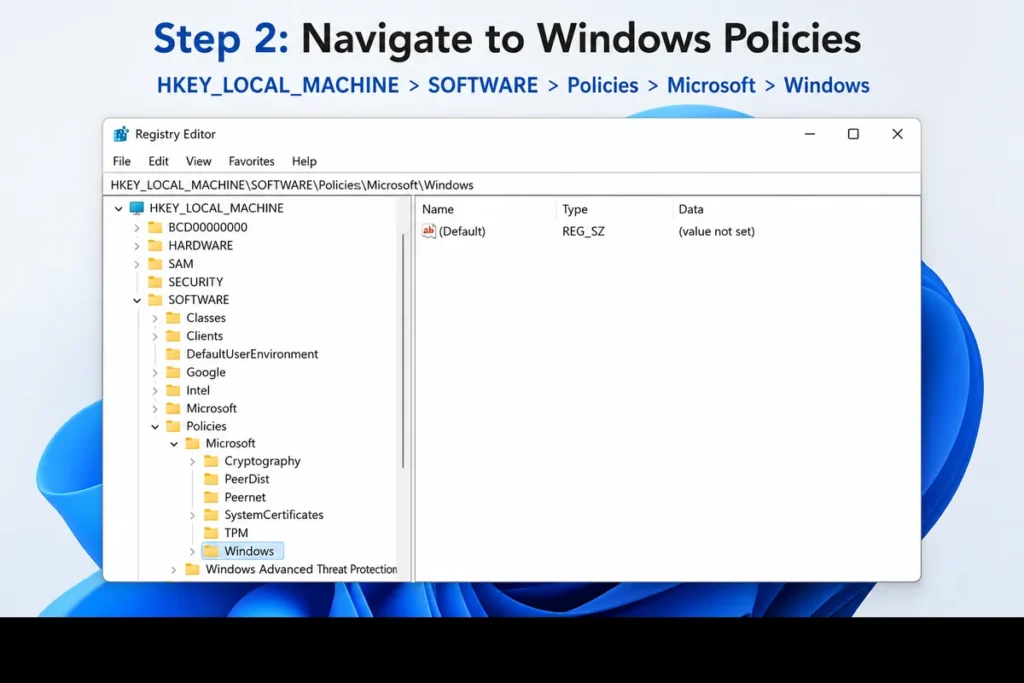
Go to:
HKEY_LOCAL_MACHINE\SOFTWARE\Policies\Microsoft\Windows
Step 3: Create OneDrive Key
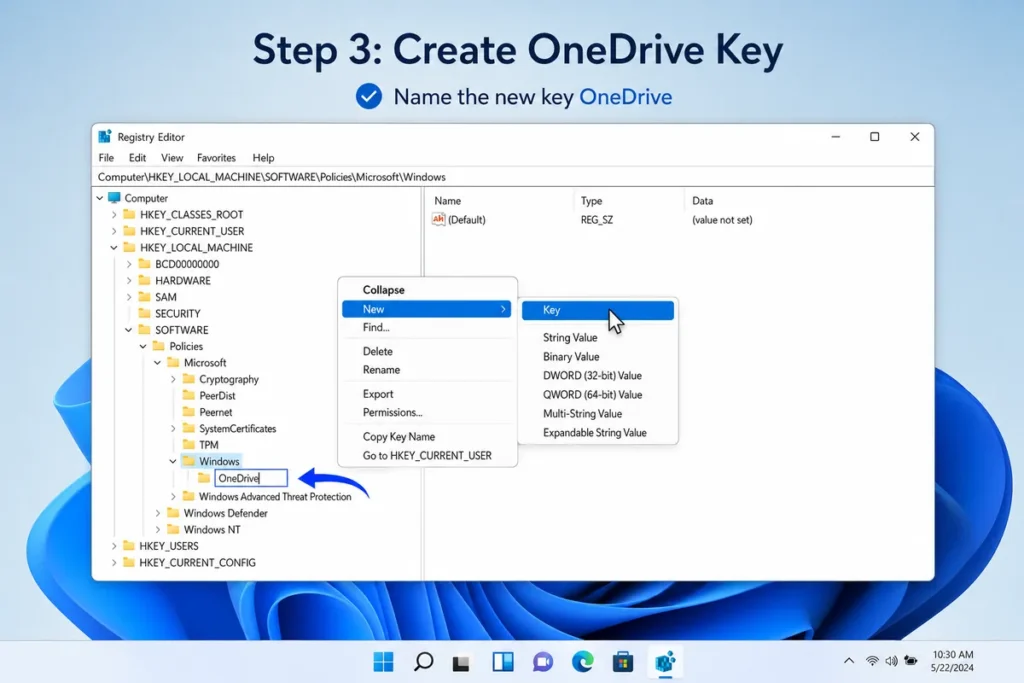
If it doesn’t exist, create a new key named:
OneDrive
Step 4: Create DWORD Value
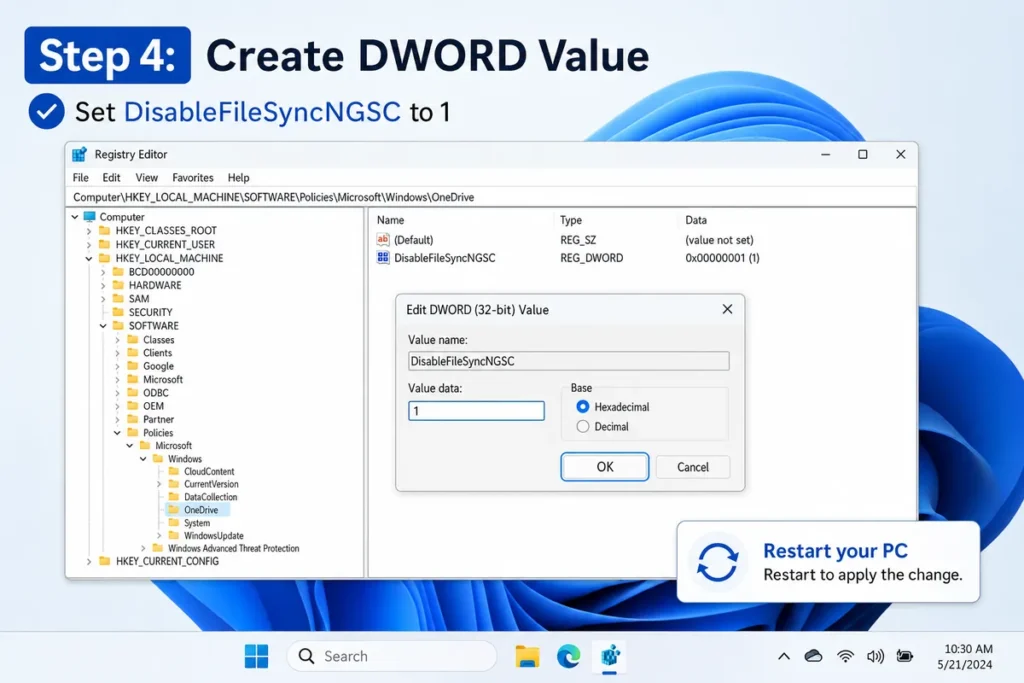
Create a DWORD (32-bit) value named:
DisableFileSyncNGSC
Set its value to:
1
Restart Windows.
Note: Editing the Windows Registry incorrectly can cause system issues. Only make changes if you’re comfortable using Registry Editor.
Disable OneDrive Folder Backup
Many users only want to stop automatic backup of Desktop, Documents, and Pictures.
Step 1: Open OneDrive Settings
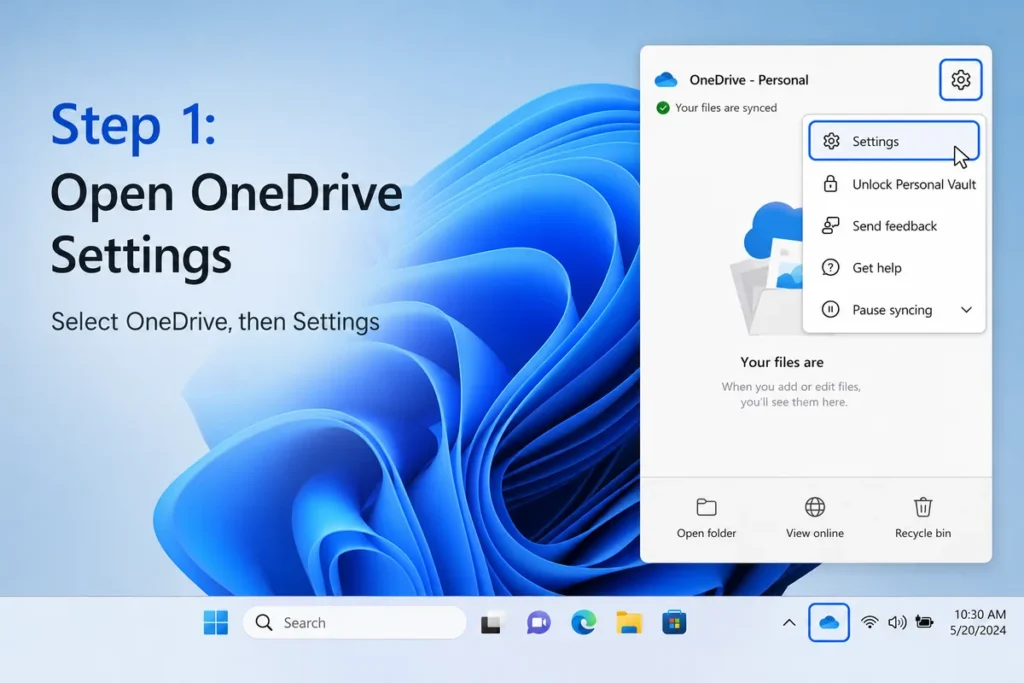
Select the OneDrive icon.
Open:
Settings
Step 2: Manage Backup
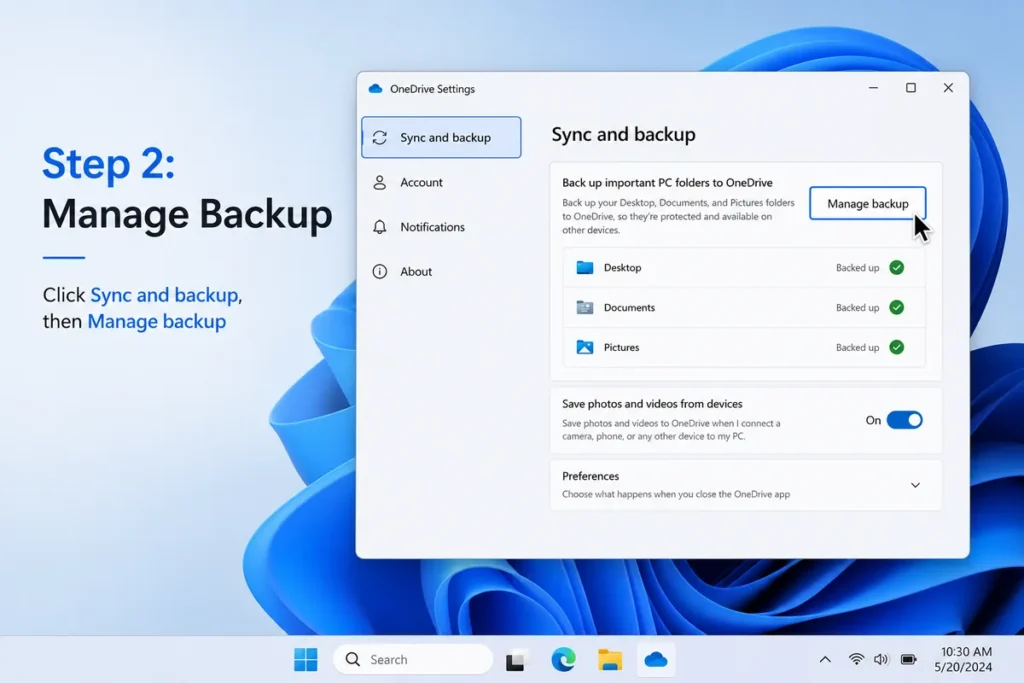
Click:
Sync and Backup
Then choose:
Manage Backup
Step 3: Turn Off Backup
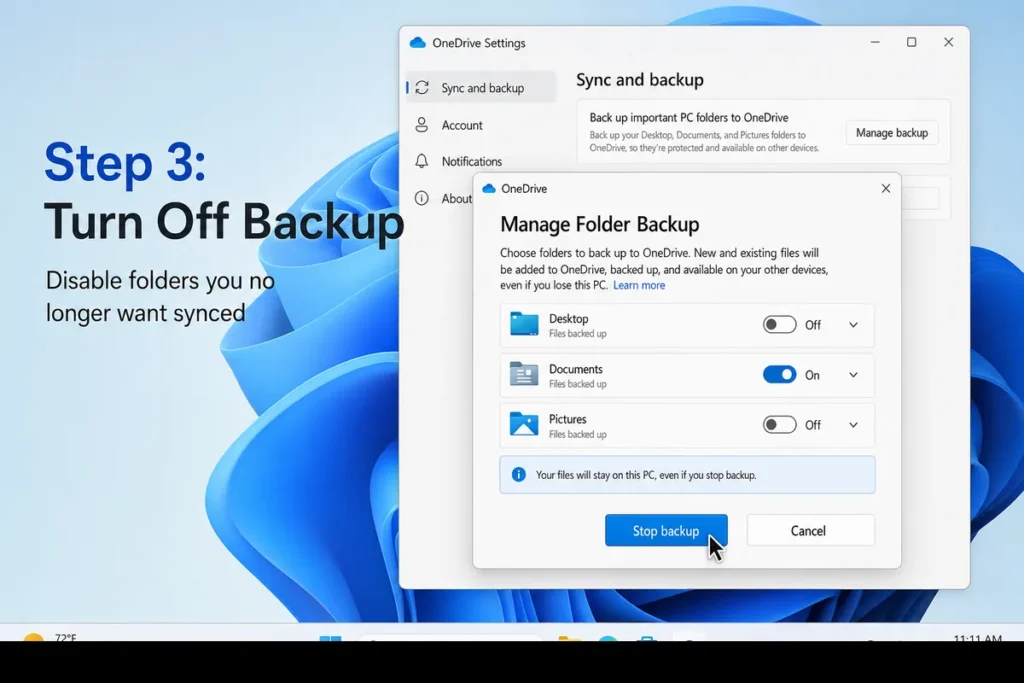
Disable backup for folders you no longer want synced.
Your local copies remain on your computer.
How to Completely Uninstall OneDrive
If you’re certain you won’t use OneDrive, uninstalling it is another option.
Step 1: Open Settings
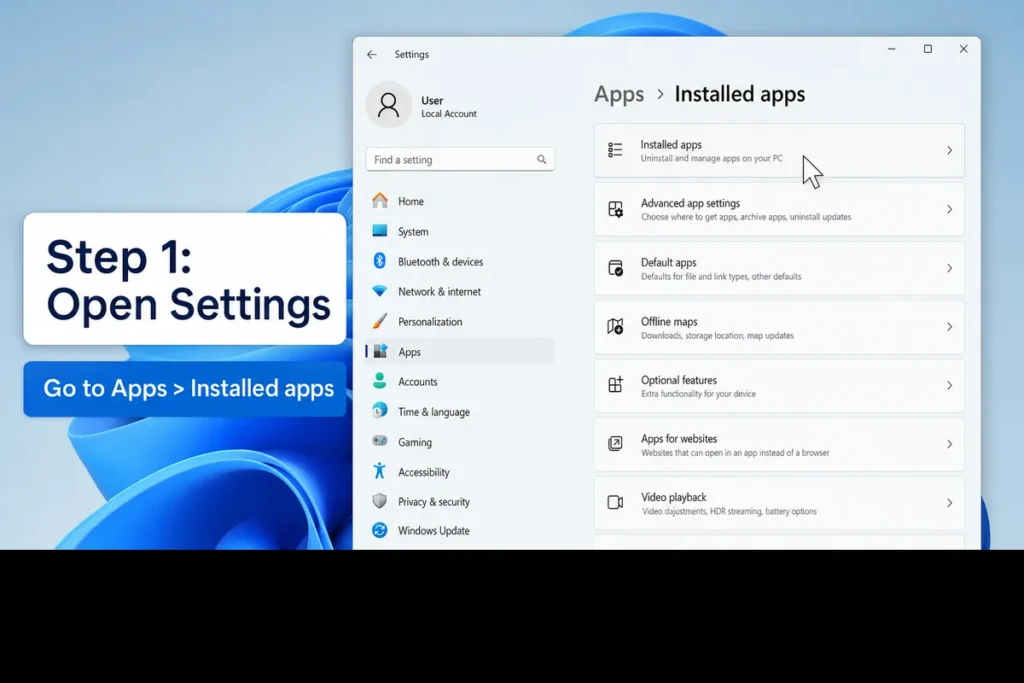
Go to:
Settings → Apps → Installed Apps
Step 2: Find Microsoft OneDrive
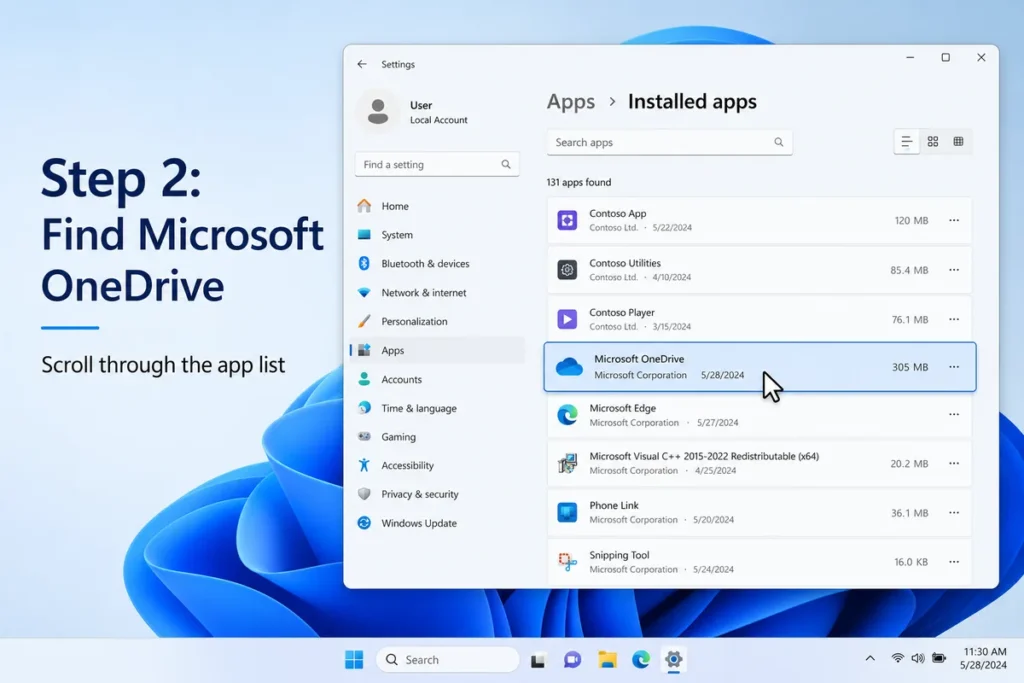
Scroll through the app list.
Step 3: Select Uninstall
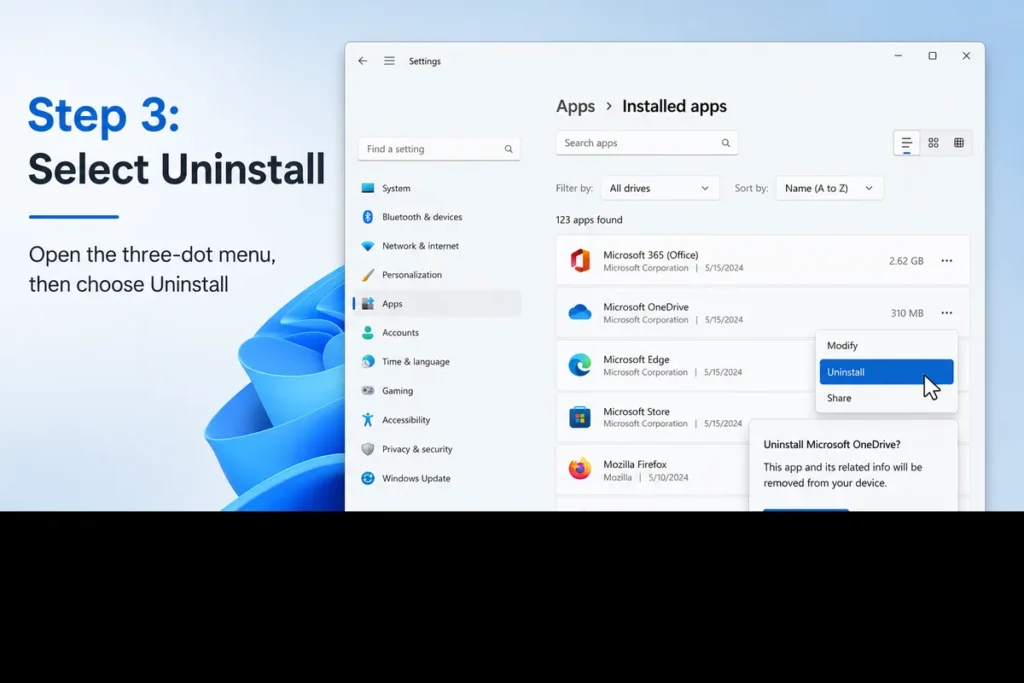
Click the three-dot menu.
Choose:
Uninstall
Follow the prompts.
Windows removes the application from your computer.
Disable OneDrive on Windows 10
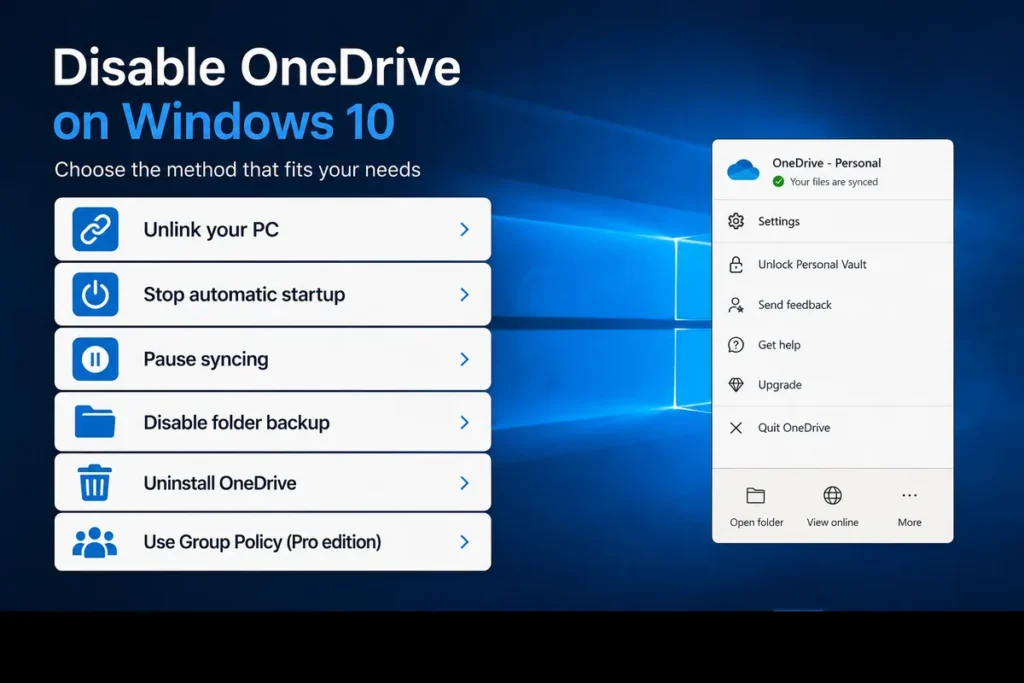
Most of the steps above also work on Windows 10.
The menu layout may look slightly different, but you can still:
- Unlink your PC
- Stop automatic startup
- Pause syncing
- Disable folder backup
- Uninstall OneDrive
- Use Group Policy (Pro edition)
Why Some People Disable OneDrive
There are many legitimate reasons to stop using OneDrive.
Common reasons include:
- Using Google Drive or Dropbox instead.
- Wanting local file storage only.
- Saving internet bandwidth.
- Improving startup performance.
- Reducing background apps.
- Keeping sensitive files offline.
- Avoiding automatic cloud syncing.
The best option depends on how you use your computer.
Many Windows users also improve productivity by scheduling emails instead of sending them immediately. See our guide on How to Schedule Send in Outlook.
Can You Re-Enable OneDrive Later?
Yes.
You can sign back into your Microsoft account at any time.
Once you reconnect, OneDrive resumes syncing your selected folders and cloud files.
This flexibility makes disabling safer than permanently deleting your cloud storage.
Common Problems After Disabling OneDrive
Some users notice changes after turning off OneDrive.
Missing Desktop Files
If your Desktop was backed up to OneDrive, the files are still available. You may need to copy them back to your local Desktop folder.
Sync Errors
Restart OneDrive and sign back in if you decide to enable syncing again.
OneDrive Keeps Opening
Check both OneDrive settings and Windows Startup Apps to make sure automatic launch is disabled.
Files Show Cloud Icons
Those icons simply indicate files that were previously synced.
Tips Before Disabling OneDrive
Before making permanent changes:
- Download important cloud-only files.
- Verify your backups.
- Make sure important documents exist locally.
- Consider unlinking instead of uninstalling.
- Keep Windows updated.
Taking a few minutes to prepare helps prevent accidental data loss.
Final Thoughts
Learning how to disable OneDrive gives you more control over how your files are stored and synced. Whether you simply want to stop automatic syncing, prevent OneDrive from starting with Windows, or remove it entirely, Windows offers several easy methods to fit your needs. If you ever decide to use OneDrive again, you can re-enable it by signing back into your Microsoft account, making these changes flexible rather than permanent.
FAQs
1. Does disabling OneDrive delete my files?
No. Your local files remain on your computer, and cloud files stay in your OneDrive account.
2. Can I turn OneDrive back on later?
Yes. Simply sign back into OneDrive to resume syncing.
3. Is disabling OneDrive the same as uninstalling it?
No. Disabling stops syncing, while uninstalling removes the application from Windows.
4. Will Windows still work without OneDrive?
Yes. Windows works normally even if OneDrive is disabled or removed.
5. Can I disable OneDrive on Windows 11 Home?
Yes. You can unlink your PC, disable startup, pause syncing, or uninstall OneDrive. Some advanced options like Group Policy are only available in Windows Pro.
📚 Related Guides
Looking for more Windows and Microsoft tutorials? Explore these step-by-step guides: