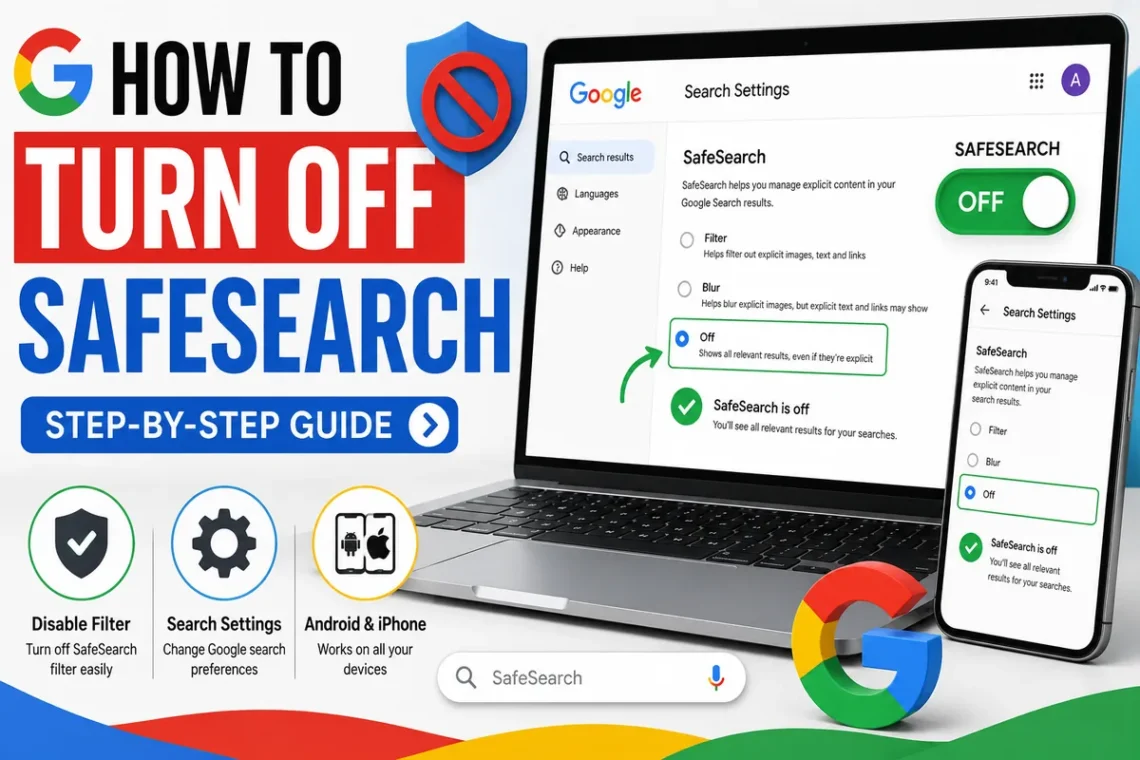
SafeSearch is a helpful feature that filters explicit content from search results on search engines like Google, Bing, and others. While it’s useful for families, schools, and shared devices, there are times when you may want to disable it. For example, you might need unrestricted search results for research, education, or personal browsing.
If you’ve tried turning it off but the setting keeps switching back, you’re not alone. SafeSearch can sometimes be controlled by your Google account, your browser, parental controls, your network administrator, or even your internet provider.
In this guide, you’ll learn how to turn off SafeSearch, why it may be locked, and what to do if you can’t disable it.
What Is SafeSearch?
SafeSearch is a filtering feature that hides explicit images, videos, and websites from search results. Its main purpose is to reduce the chances of viewing adult content accidentally.
Most major search engines offer a SafeSearch option, including:
- Bing
- Yahoo
Many schools, workplaces, and family devices keep SafeSearch enabled to provide a safer browsing experience.
Why Would You Turn Off SafeSearch?
There are several legitimate reasons to disable SafeSearch.
Some of the most common include:
- Conducting academic research
- Accessing uncensored search results
- Looking for professional medical information
- Viewing artistic or educational content
- Personal browsing on a private device
If you’re the owner of the device and there are no parental restrictions, you can usually manage this setting yourself.
How to Turn Off SafeSearch on Google (Desktop)
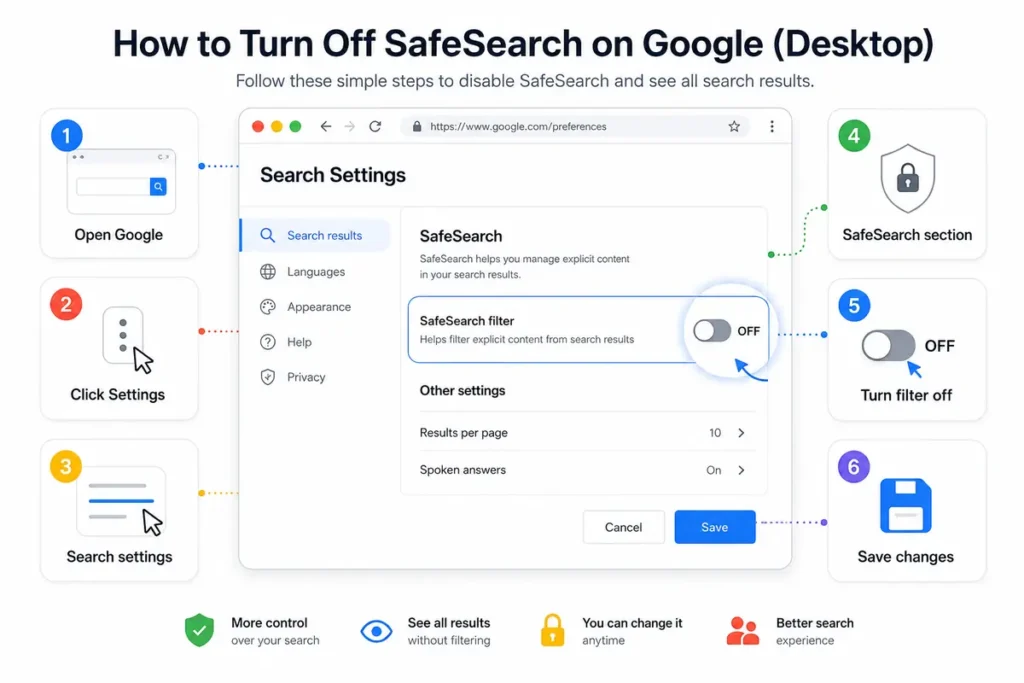
If you use Google Search on a computer, follow these steps.
Step 1
Open your web browser and visit Google.
Step 2
Click Settings near the bottom of the page.
Step 3
Select Search settings.
Step 4
Find the SafeSearch section.
Step 5
Turn off the SafeSearch filter.
Step 6
Save your changes if prompted.
Refresh your search results to confirm the setting has been updated.
How to Turn Off SafeSearch on Android
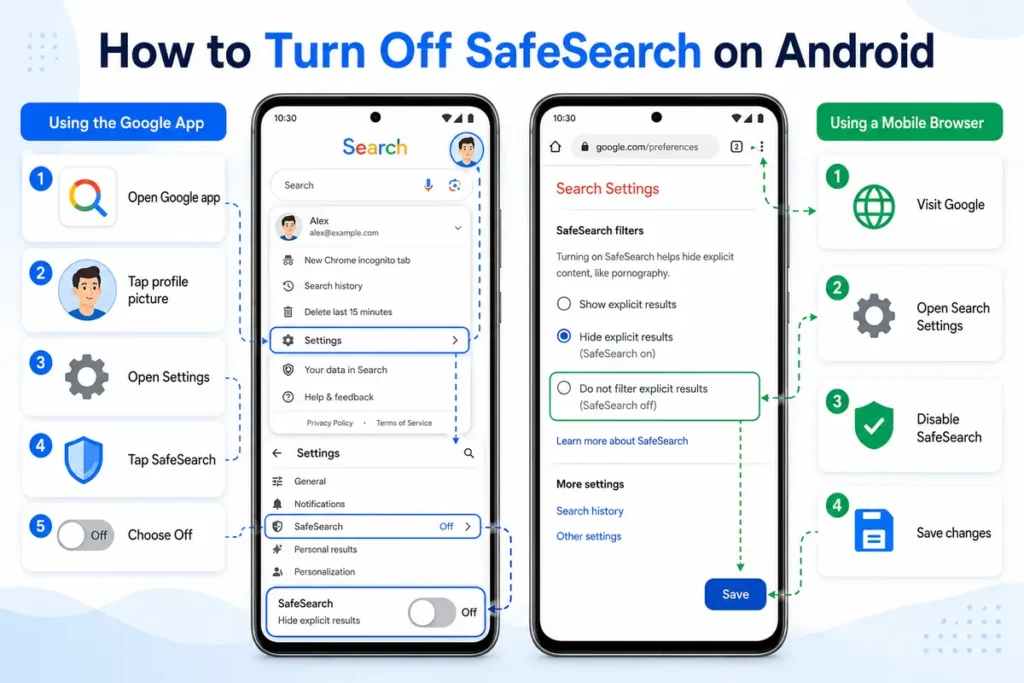
Android users can disable SafeSearch through the Google app or a browser.
Using the Google App
- Open the Google app.
- Tap your profile picture.
- Open Settings.
- Tap SafeSearch.
- Choose Off.
Using a Mobile Browser
- Visit Google.
- Open Search Settings.
- Disable SafeSearch.
- Save your changes.
How to Turn Off SafeSearch on iPhone
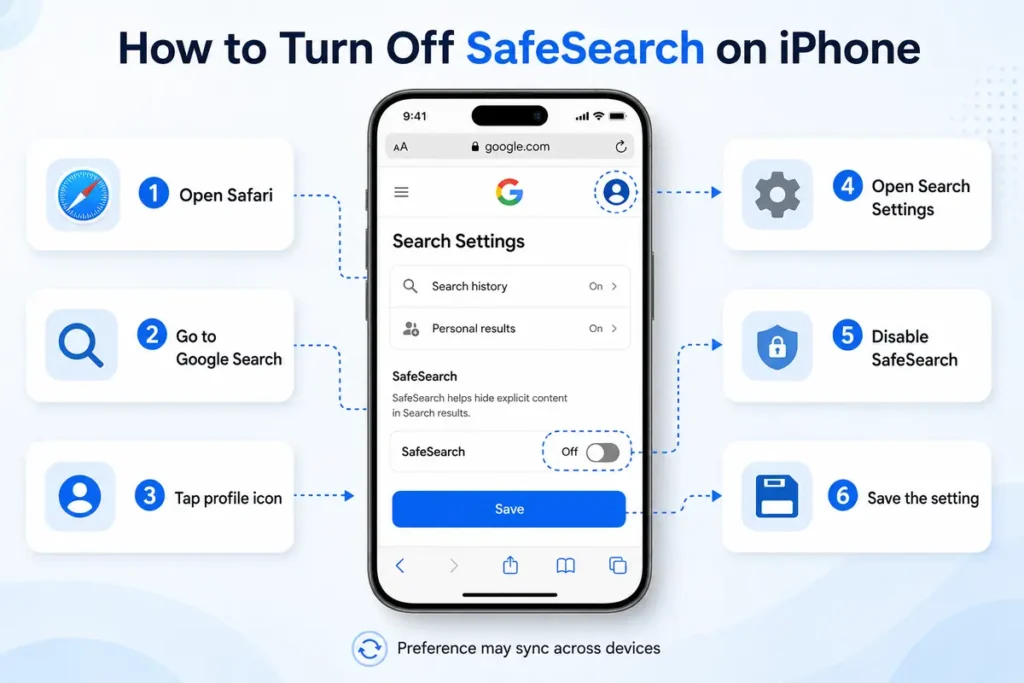
The process on iPhone is very similar.
Step 1
Open Safari or another browser.
Step 2
Go to Google Search.
Step 3
Tap your profile icon.
Step 4
Open Search Settings.
Step 5
Disable SafeSearch.
Step 6
Save the setting.
If you’re signed into your Google account, the preference may sync across your devices.
How to Turn Off SafeSearch on Bing
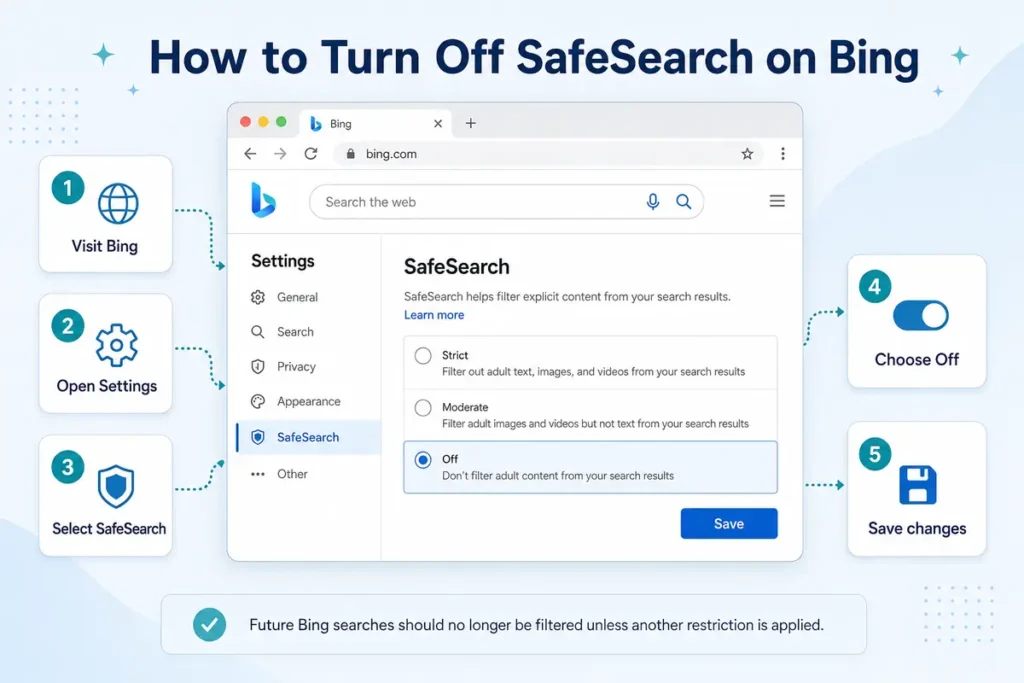
If Bing is your preferred search engine:
- Visit Bing.
- Open Settings.
- Select SafeSearch.
- Choose Off.
- Save your changes.
Your future Bing searches should no longer be filtered unless another restriction is applied.
Why Is SafeSearch Locked?
Sometimes the SafeSearch option appears grayed out or automatically turns back on.
This usually happens for one of the following reasons.
Family Link
If your Google account is supervised through Family Link, SafeSearch may be enforced.
School or Work Device
Organizations often lock SafeSearch through administrator policies.
Managed Browser
Some browsers are managed by companies or schools.
Router or ISP Filtering
Certain internet providers or routers include family-safe filtering.
Device Restrictions
Parental control apps may automatically enable SafeSearch.
What to Do If You Can’t Turn Off SafeSearch
If SafeSearch won’t stay disabled, try these troubleshooting steps.
Sign Into the Correct Google Account
Make sure you’re changing the setting for the account you actually use.
Clear Browser Cache
Old browser data may prevent updated settings from loading correctly.
Disable Browser Extensions
Privacy or parental-control extensions may override search settings.
Restart Your Browser
Close and reopen the browser after changing SafeSearch.
Check Family Controls
Review Family Link, Microsoft Family Safety, or Apple Screen Time settings.
Try Another Browser
Testing another browser can help identify browser-specific problems.
Does Turning Off SafeSearch Affect Privacy?
No.
Turning off SafeSearch only changes the type of search results you see.
It does not:
- Change your browsing history
- Disable antivirus software
- Affect website security
- Remove malware protection
It simply removes Google’s content filter for explicit search results.
Can You Turn SafeSearch Back On?
Yes.
You can re-enable SafeSearch at any time by returning to your search settings and selecting the filtering option again.
This is especially useful if children also use the same device.
Tips for Safe Browsing Without SafeSearch
If you decide to browse without SafeSearch enabled, consider these tips.
- Visit trusted websites.
- Avoid suspicious downloads.
- Keep your browser updated.
- Use reliable antivirus software.
- Never share personal information on unknown websites.
These habits help improve online safety regardless of your search settings.
Common Mistakes to Avoid
Many users think SafeSearch is broken when the real issue is elsewhere.
Avoid these common mistakes:
- Forgetting to save changes
- Using the wrong Google account
- Ignoring parental controls
- Assuming browser settings control everything
- Not checking organization-managed devices
Taking a few extra minutes to verify these settings often solves the problem.
Final Thoughts
Learning how to turn off SafeSearch is usually a quick process, but the exact steps depend on your device, search engine, and account settings. If the option is locked, the restriction is often caused by parental controls, Family Link, a managed device, or network policies rather than a technical issue. Once you understand where the restriction comes from, you can decide whether it’s appropriate to disable the filter or leave it enabled for safer browsing.
FAQs
1. Can I turn off SafeSearch on my phone?
Yes. You can disable it through the Google app or your mobile browser.
2. Why is SafeSearch locked?
It may be controlled by Family Link, your school, workplace, or parental controls.
3. Does turning off SafeSearch remove security protection?
No. It only changes search result filtering.
4. Can I disable SafeSearch on Bing?
Yes. Bing includes its own SafeSearch settings.
5. Will SafeSearch stay off on every device?
If you’re signed into the same Google account, your preference may sync across supported devices.