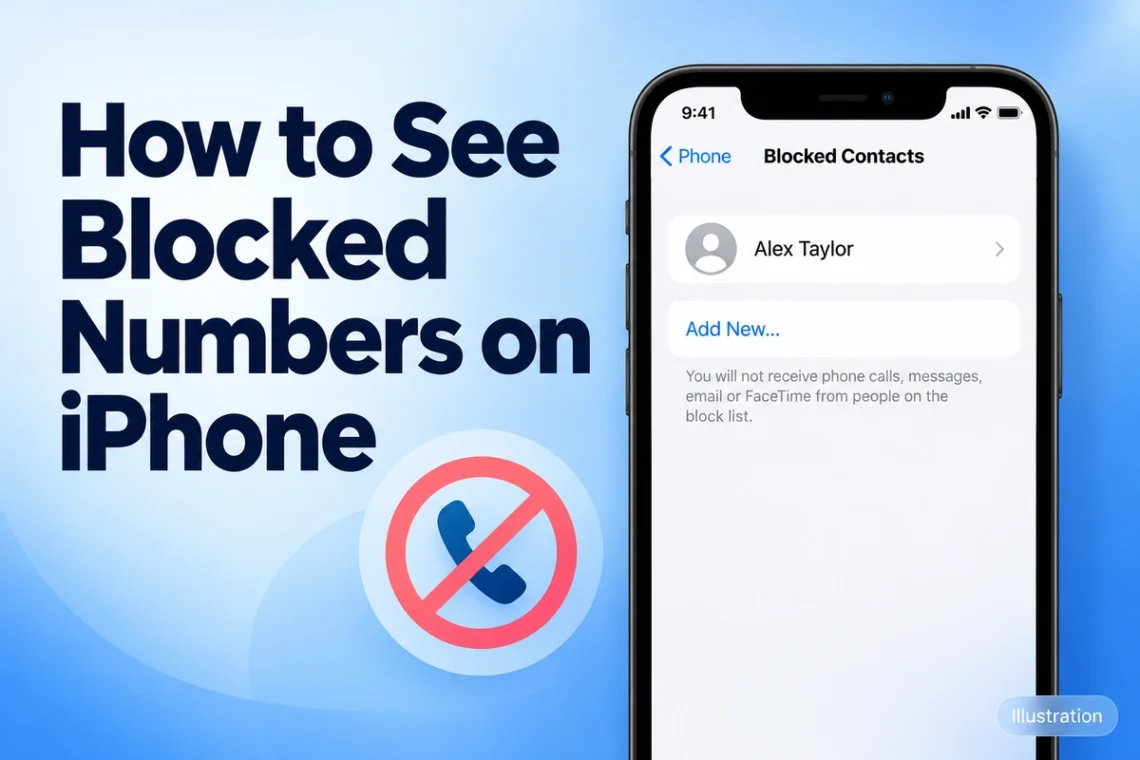
If you want to check whether you blocked someone by mistake or review unwanted callers, your iPhone keeps a list you can access through Settings. You do not need to install another app. However, the location of that list depends on your iOS version, which explains why some instructions might not match your screen.
This guide explains how to see blocked numbers on iPhone, find the correct settings on newer and older software, and unblock a contact when needed. It also explains the difference between a blocked number and a call that your phone simply silences or filters.
Quick Answer: Where Are Blocked Numbers on iPhone?
On iOS 26 and iOS 27, open Settings → Privacy & Security → Blocked Contacts. This is the central location for reviewing your blocked contacts. Apple introduced this centralised list in iOS 26.
If your iPhone runs an older version, use the matching route below:
| iOS version | Where to find blocked numbers |
|---|---|
| iOS 26 and iOS 27 | Settings → Privacy & Security → Blocked Contacts |
| iOS 18 | Settings → Apps → Phone → Blocked Contacts |
| iOS 17 | Settings → Phone → Blocked Contacts |
Apple’s version-specific guides show the additional Apps menu in iOS 18 and the direct Phone settings route in iOS 17.
Check Your iOS Version First
Before following the steps, check which software your phone uses:
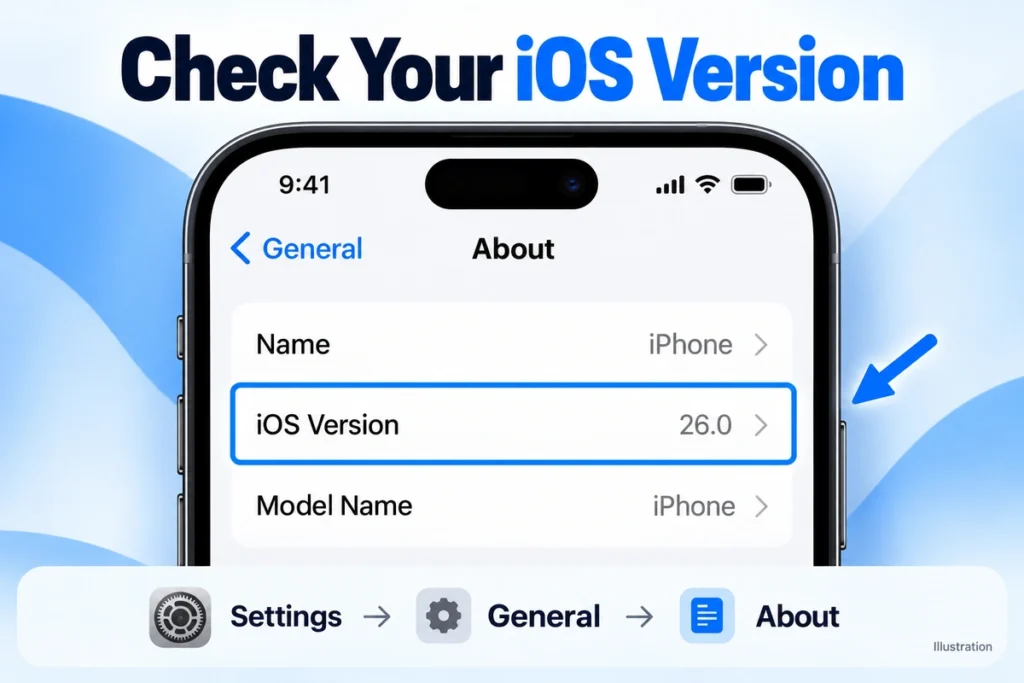
- Open Settings.
- Tap General.
- Select About.
- Find the iOS Version entry.
Use that version number to choose the relevant instructions below. Apple also recommends checking your software version before managing blocked contacts because the settings differ between releases.
Your iPhone model alone does not tell you which route to use. Start with the software version shown on your device rather than choosing instructions based only on its model name.
Method 1: See Blocked Numbers on iOS 26 and iOS 27
On these versions, start in Privacy & Security:
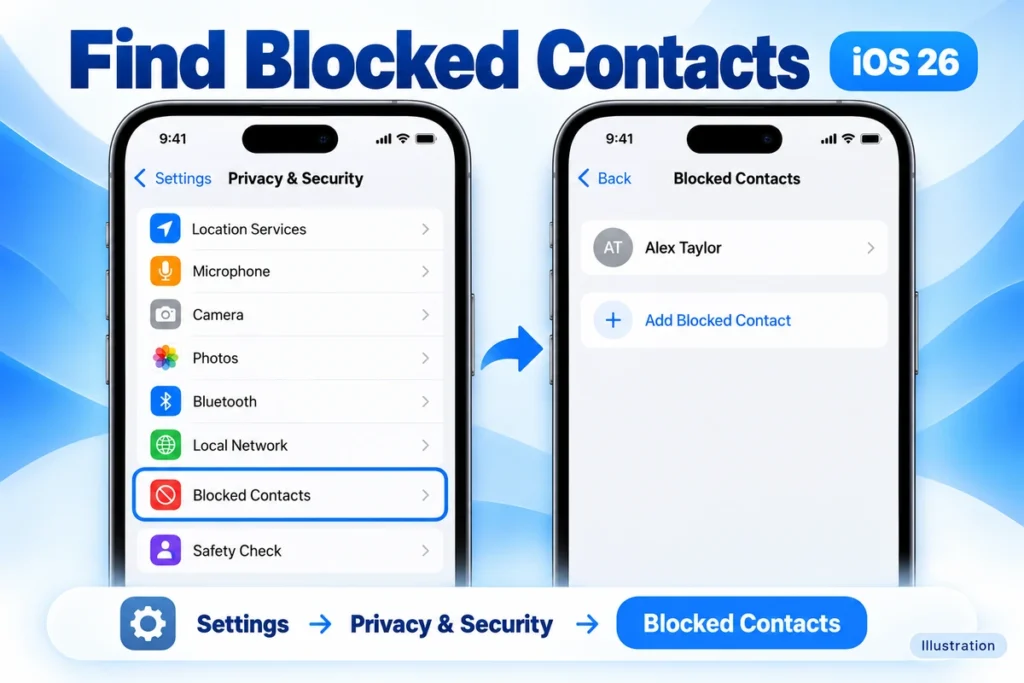
- Unlock your iPhone and open Settings.
- Scroll to Privacy & Security and tap it.
- Open Blocked Contacts.
- Review the entries shown.
You can inspect the list without removing anyone. If you only want to check whether a particular contact appears, leave the blocking settings unchanged after reviewing it. Apple’s current iPhone guide places contact blocking and unblocking in this same menu.
If you see an Unknown Contacts entry or section, open it to review those entries as well. Apple’s instructions distinguish this area when explaining how to manage blocked contacts.
Method 2: See Blocked Numbers on iOS 18
On iOS 18, you can find the list through the Phone app’s settings:
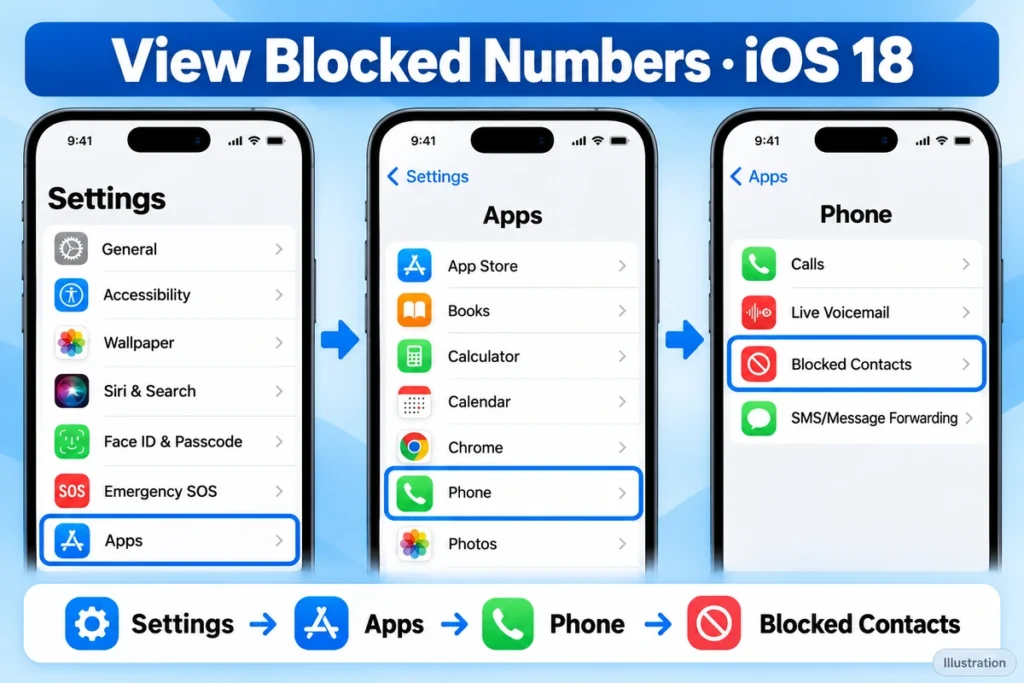
- Open Settings.
- Scroll down and tap Apps.
- Find and select Phone.
- Tap Blocked Contacts.
- Review the list.
The important detail is the Apps step. If you follow an older guide that tells you to tap Phone directly from the main Settings screen, you may struggle to find it.
You do not need to search through individual calls in Recents to reach this list. Apple documents Settings → Apps → Phone → Blocked Contacts as the route for managing blocked contacts on iOS 18.
Method 3: See Blocked Numbers on iOS 17
If your iPhone runs iOS 17, follow these steps:
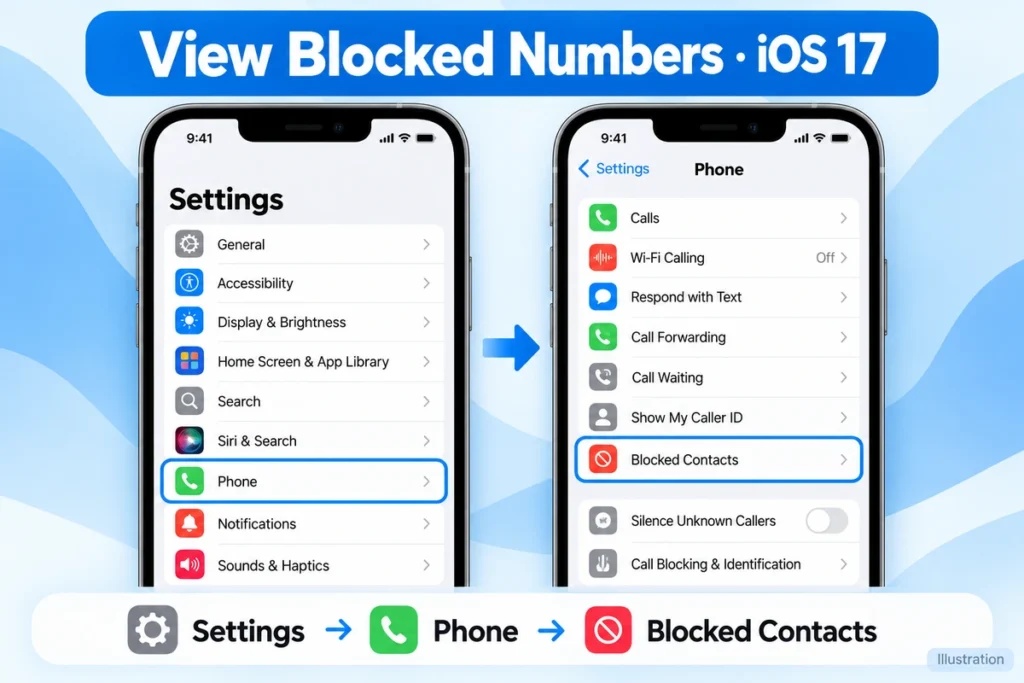
- Open Settings.
- Scroll down to Phone.
- Tap Phone.
- Select Blocked Contacts.
- Look through the entries.
This version does not require the separate Apps menu used in iOS 18. The Phone settings contain the blocked-contact controls directly.
If your screen looks different, return to Settings → General → About and double-check the version. Matching the instructions to your software is the most useful first step before assuming that the option is missing.
How to Unblock a Number on iPhone
Once you find the contact, you can remove the block. Check the name or number carefully first, particularly if several entries look similar.

On iOS 26 and iOS 27:
- Open Settings → Privacy & Security → Blocked Contacts.
- Select the contact you want to unblock.
- Scroll down.
- Tap Unblock Contact.
Apple’s current user guide documents this contact-card method.
You may also see list-editing controls. Apple describes tapping Edit, selecting the remove button beside an entry, and confirming Unblock. For unknown entries, open Unknown Contacts first if that option appears.
On iOS 18:
- Go to Settings → Apps → Phone → Blocked Contacts.
- Tap Edit.
- Tap the red remove button beside the contact.
- Select Unblock.
On iOS 17, reach the same controls through Settings → Phone → Blocked Contacts.
What If You Cannot Find Blocked Contacts?
First, check that you are looking in the correct place. On iOS 18, Phone sits inside Apps. On iOS 26 and iOS 27, the central list sits inside Privacy & Security.
Also consider where you originally blocked the person. Apple’s blocked-contact controls manage communications in Apple apps. Third-party apps have their own blocking settings, so a person you blocked inside another messaging app may need to be managed there instead.
Use this checklist:
- Confirm your iOS version.
- Follow the matching Settings route.
- Check any Unknown Contacts section shown.
- Review the relevant third-party app if you blocked the person there.
- Compare the exact phone number or email address, not just the name.
If someone appears blocked unexpectedly, Apple suggests checking whether their contact details overlap with a contact you deliberately blocked.
Blocked Numbers, Silenced Calls and Spam Are Different
A call that does not ring is not automatically evidence that you blocked the caller.
Your iPhone also offers controls for unknown callers and suspected spam. These can silence or filter calls without you manually adding each number to Blocked Contacts. Apple documents these separately from its contact-blocking controls.
| Setting or feature | What it does |
|---|---|
| Blocked Contacts | Manages specific contacts or numbers you have blocked |
| Unknown-caller screening | Requests information from an unknown caller before ringing, where available |
| Unknown-caller silencing | Sends applicable unknown calls to voicemail without ringing |
| Spam filtering | Handles calls identified as potential spam by supported services |
If you are investigating a missed call, check these settings as well as your blocked list. The available controls depend on your software and supported services.
Can You See Messages or Voicemails From Blocked Numbers?
Viewing your blocked list does not open a folder of blocked text messages. Apple states that messages from blocked numbers or contacts are not delivered. The list helps you manage the block; it does not provide those undelivered messages to read.
Voicemail works differently. A blocked caller can still leave a voicemail, but your iPhone does not notify you about it. Apple also says the contact does not receive a notification that you blocked their call or message.
Keep these differences in mind when checking the list. Finding an entry confirms its blocking status, but it does not show everything that person may have tried to send.
Final Thoughts
Learning how to see blocked numbers on iPhone starts with checking your iOS version. Use Privacy & Security on iOS 26 and iOS 27, Apps → Phone on iOS 18, or Phone directly on iOS 17. Once you reach Blocked Contacts, review the entries carefully and remove a block only when you intend to allow contact again.
FAQs
Where can I find blocked numbers on my iPhone?
On iOS 26 and iOS 27, go to Settings → Privacy & Security → Blocked Contacts. Older versions use the Phone settings routes explained above.
Can I view blocked numbers without unblocking them?
Yes. Open Blocked Contacts and review the list. You only remove a block when you select and confirm an unblocking action.
Why is Phone missing from my main Settings screen?
On iOS 18, Phone settings sit inside Settings → Apps → Phone. Check your iOS version if your menus differ.
Can a blocked number still leave a voicemail?
Yes. Apple says blocked callers can leave voicemail, but you will not receive a notification for it.
Does the iPhone blocked list include blocks from other messaging apps?
Third-party apps manage their own blocking controls. Check the relevant app to review anyone you blocked there.