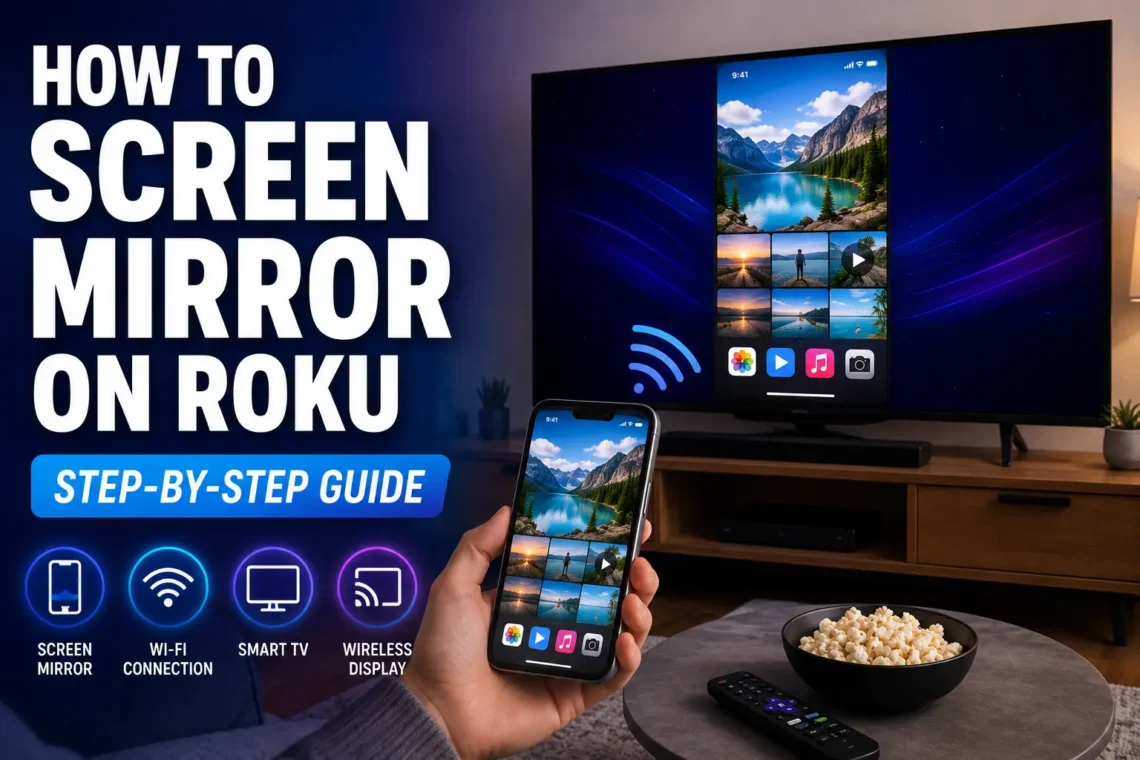
Screen mirroring is one of the easiest ways to enjoy content from your phone, tablet, or computer on a larger screen. Instead of crowding around a small display, you can instantly share photos, videos, presentations, games, or even apps directly on your TV using your Roku device.
Whether you’re using an Android phone, Windows PC, or another compatible device, Roku includes built-in screen mirroring features that are simple to set up. Once enabled, you can wirelessly project your screen without needing HDMI cables or extra hardware.
In this guide, you’ll learn how to screen mirror on Roku, how to enable the feature, connect different devices, troubleshoot common issues, and get the best streaming experience.
What Is Screen Mirroring on Roku?
Screen mirroring lets your Roku TV or Roku streaming device display exactly what’s happening on another device.
Unlike casting, which often streams only specific media, screen mirroring duplicates your entire screen. Everything you see on your phone or computer—including apps, photos, web pages, and presentations—appears on your TV.
This feature is useful for:
- Watching videos
- Viewing family photos
- Playing mobile games
- Sharing presentations
- Browsing websites
- Demonstrating apps
- Online learning
Which Devices Support Roku Screen Mirroring?
Not every device supports screen mirroring in the same way.
Generally, Roku works with:
- Android phones
- Windows 10 and Windows 11 computers
- Many Android tablets
- Some Samsung Galaxy devices using Smart View
Apple devices use AirPlay instead of standard screen mirroring, provided your Roku model supports AirPlay.
If you’re using a Windows PC and need to close an unresponsive app before connecting to Roku, check out our guide on How to Force Quit on Windows.
Before You Start
A few simple checks can save time during setup.
Make sure:
- Your Roku is connected to Wi-Fi.
- Your phone or computer is connected to the same Wi-Fi network.
- Roku software is up to date.
- Your mobile device has screen mirroring enabled.
- Bluetooth is turned on if your device recommends it.
Using the same wireless network is essential for a successful connection.
Enable Screen Mirroring on Roku
Before connecting another device, you’ll need to allow screen mirroring on Roku.
Step 1: Open Settings
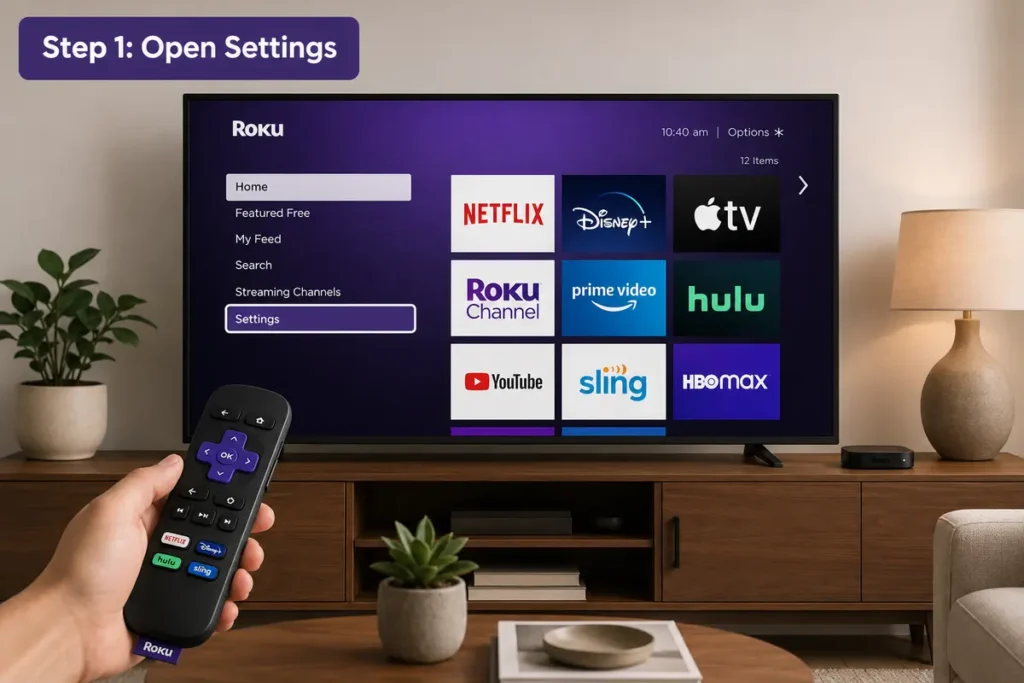
Using your Roku remote, go to:
Settings
Step 2: Select System
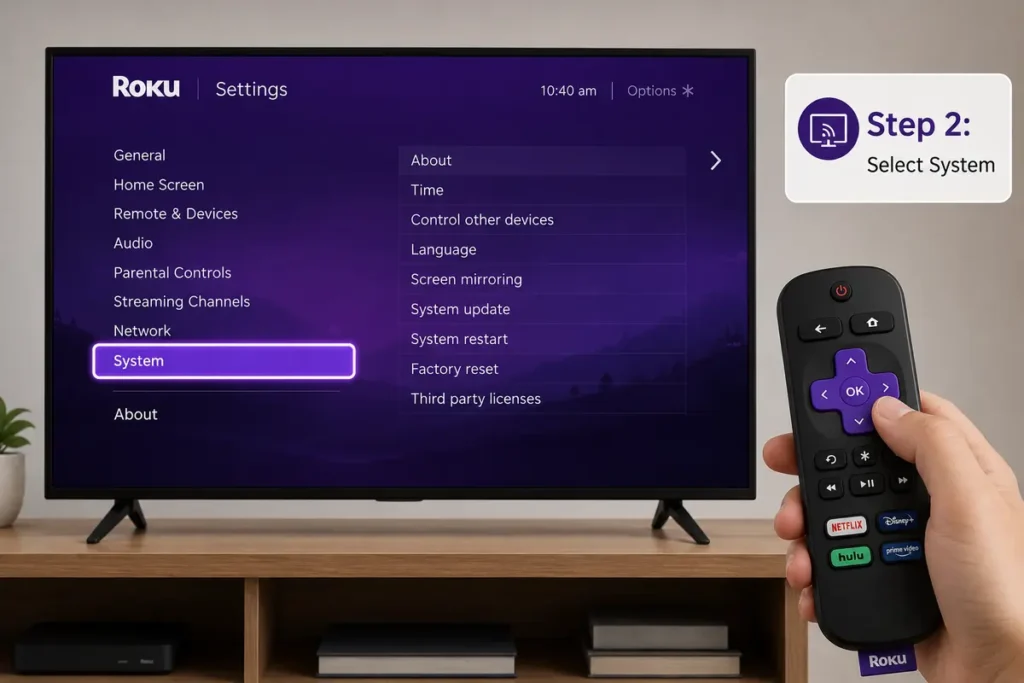
Scroll down and open:
System
Step 3: Open Screen Mirroring
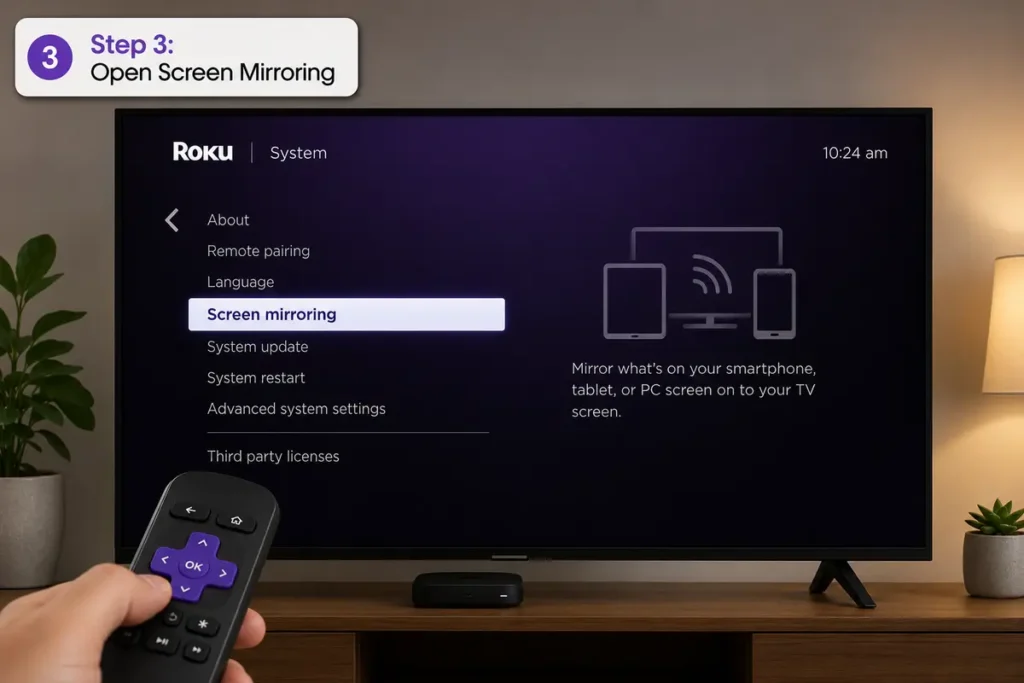
Choose:
Screen Mirroring
Here you’ll find several options.
Step 4: Choose Screen Mirroring Mode
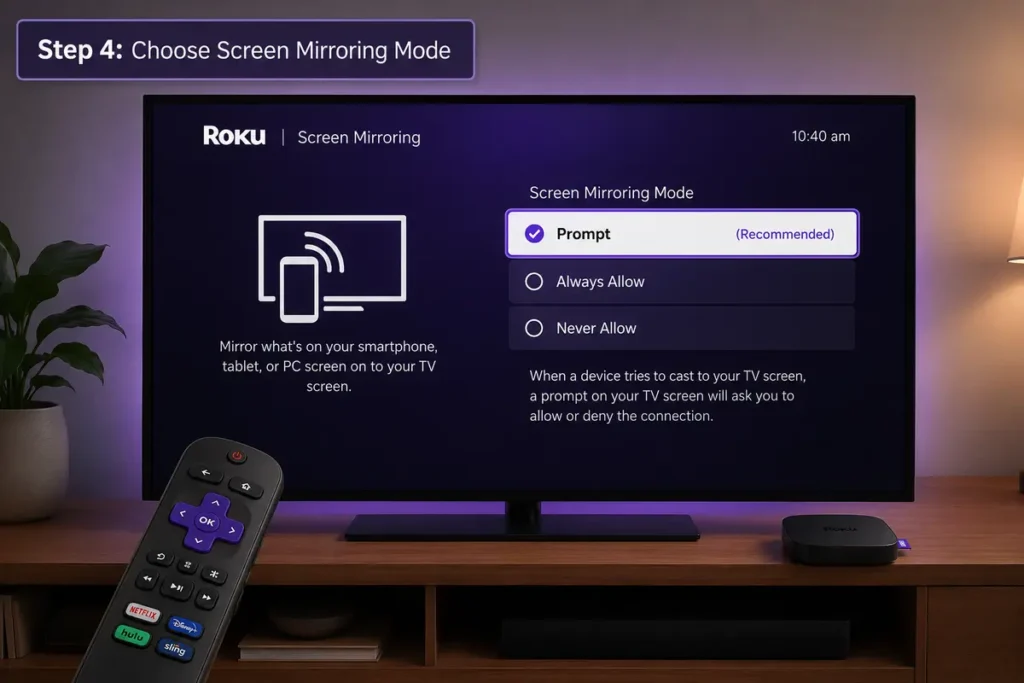
Roku typically offers:
- Prompt – Roku asks for permission each time.
- Always Allow – Devices connect automatically.
- Never Allow – Blocks all screen mirroring.
For most users, Prompt provides a good balance between convenience and security.
How to Screen Mirror on Roku from an Android Phone
Android devices support wireless screen mirroring through different names depending on the manufacturer.
Common names include:
- Smart View
- Cast
- Wireless Display
- Screen Cast
- MirrorShare
- Smart Cast
Step 1: Open Quick Settings
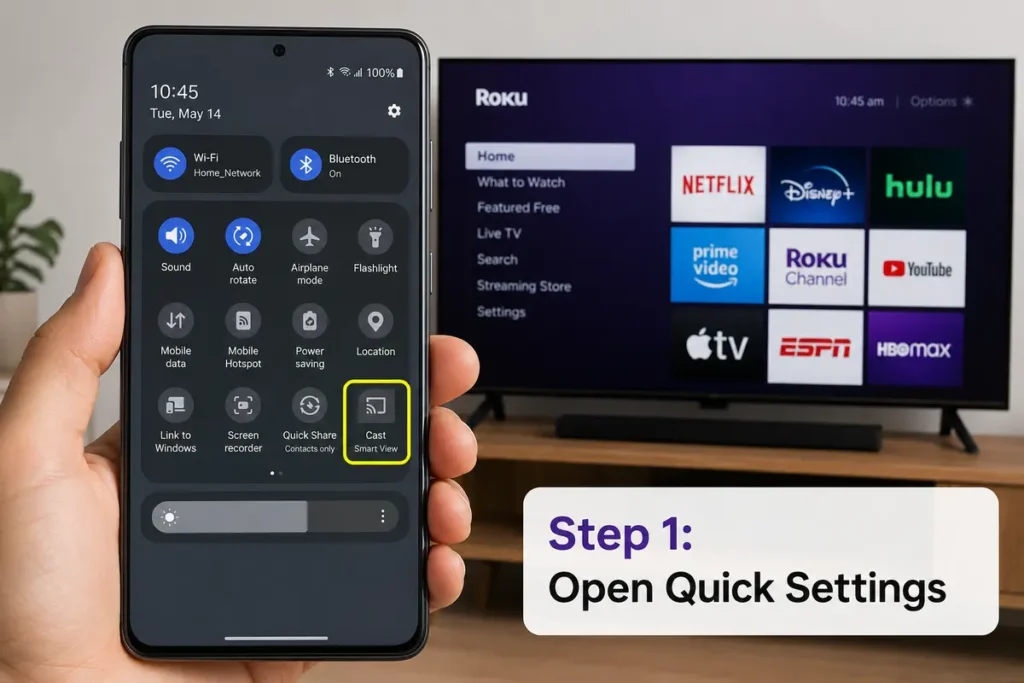
Swipe down from the top of your screen.
Locate the screen mirroring option.
Step 2: Turn On Screen Mirroring
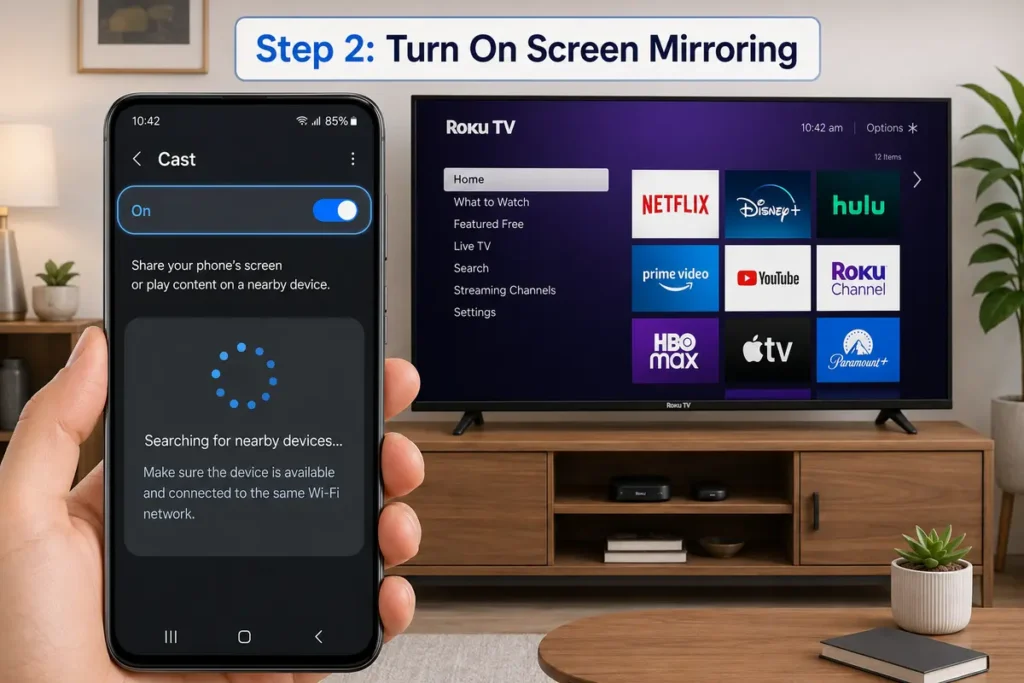
Tap the appropriate feature.
Your phone begins searching for nearby devices.
Step 3: Select Your Roku Device
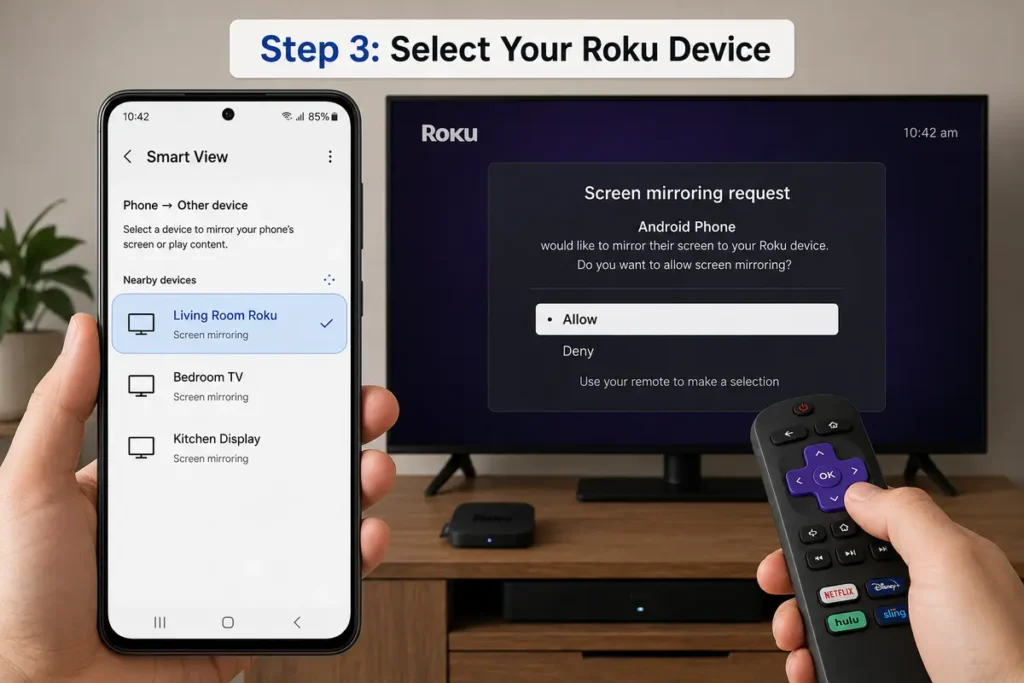
Choose your Roku from the list.
If prompted, approve the connection using your Roku remote.
Step 4: Start Mirroring
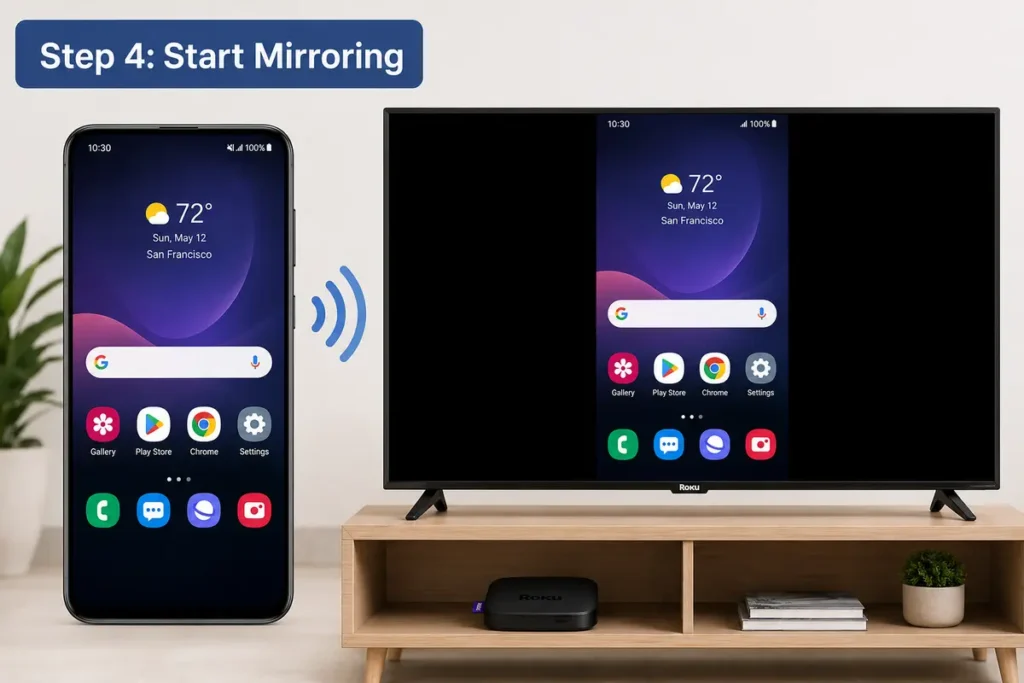
Within a few seconds, your phone’s display appears on the TV.
You can now browse apps, play videos, or share photos.
How to Screen Mirror on Roku from a Windows PC
Windows computers also support wireless display technology.
Step 1: Open Quick Settings
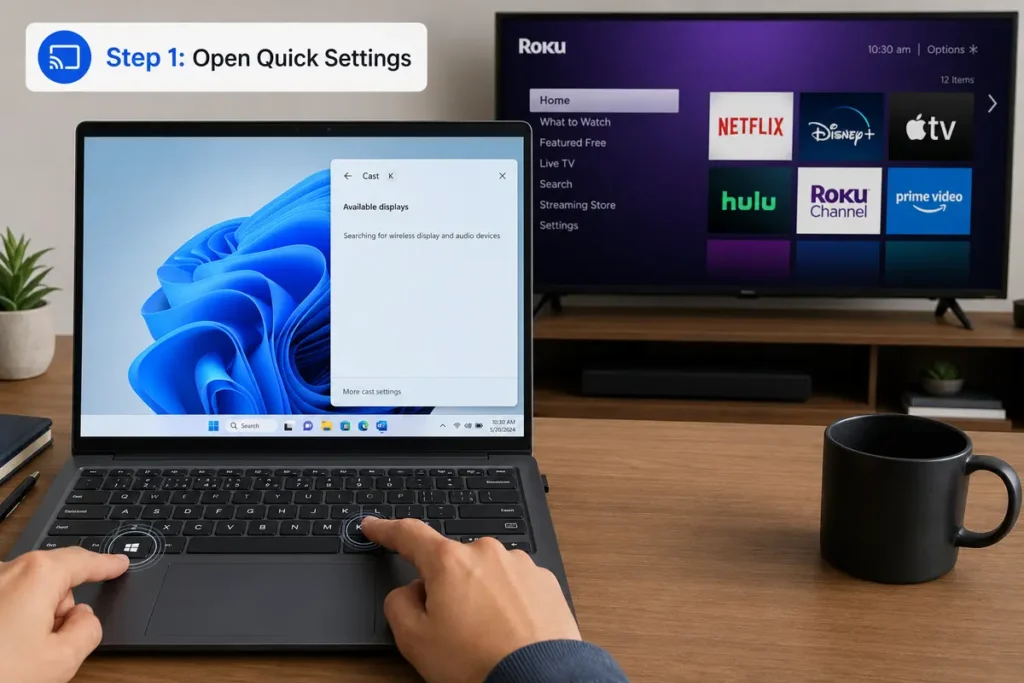
Press:
Windows + K
or
Open:
Settings → Bluetooth & Devices → Devices
Step 2: Connect to Wireless Display
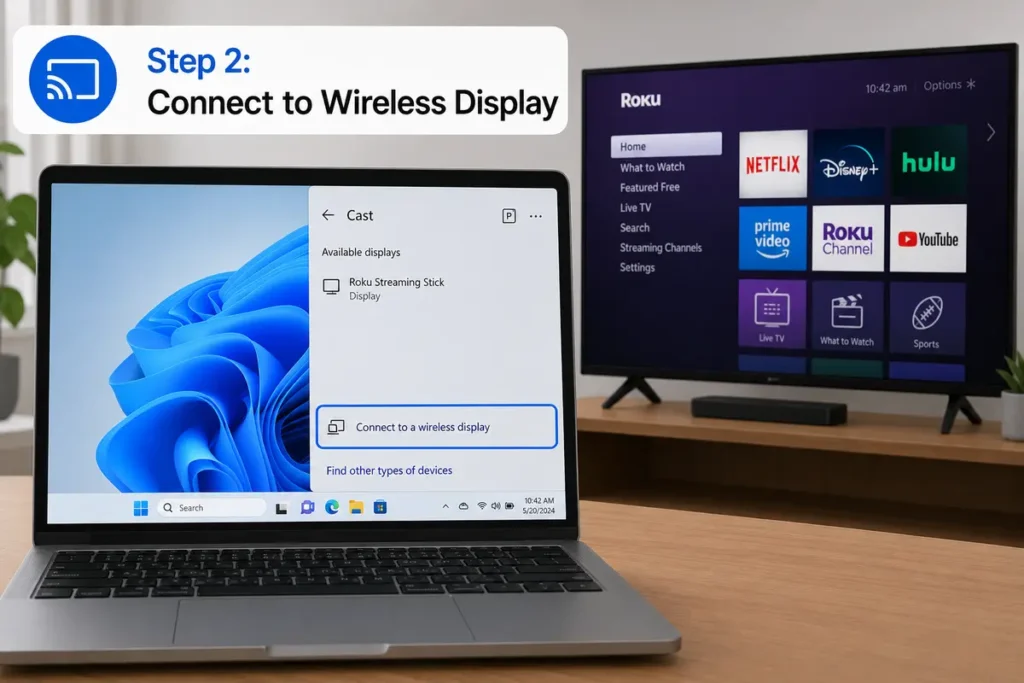
Choose Cast or Connect to a Wireless Display.
Step 3: Select Roku
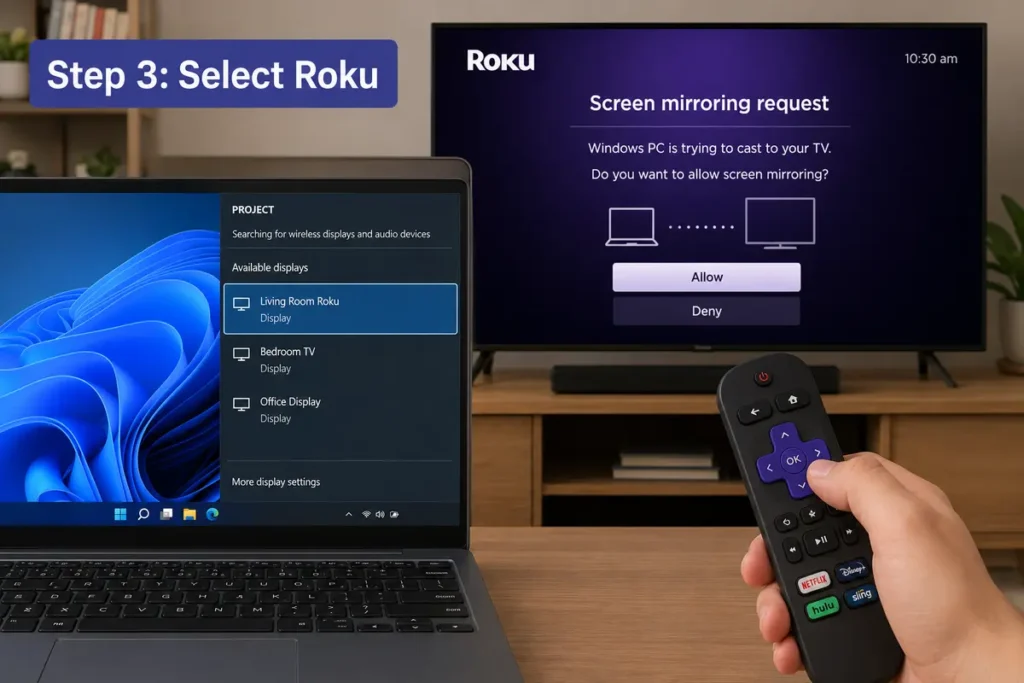
Click your Roku device.
If Roku asks for permission, approve the connection.
Step 4: Begin Mirroring
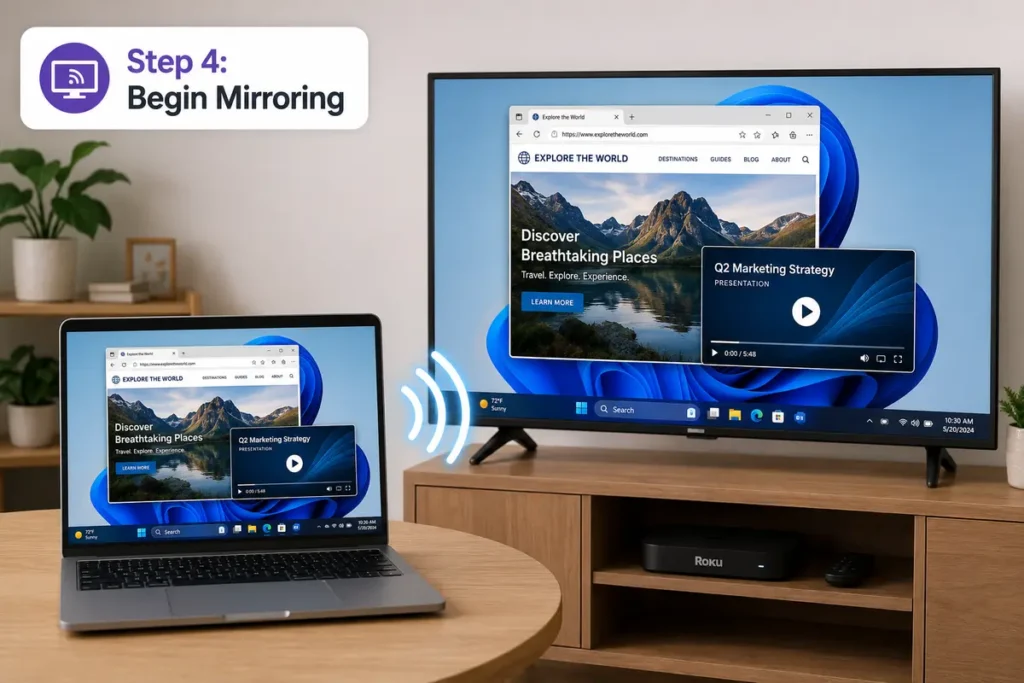
Your desktop now appears on the television.
This works well for presentations, videos, and web browsing.
If you’re creating tutorials or demonstrations on your computer, you may also find our guide on How to Screen Record on Chromebook helpful for recording your screen.
How to Use AirPlay with Roku on iPhone and iPad
If your Roku supports Apple AirPlay, connecting an iPhone or iPad is simple.
Step 1: Enable AirPlay on Roku
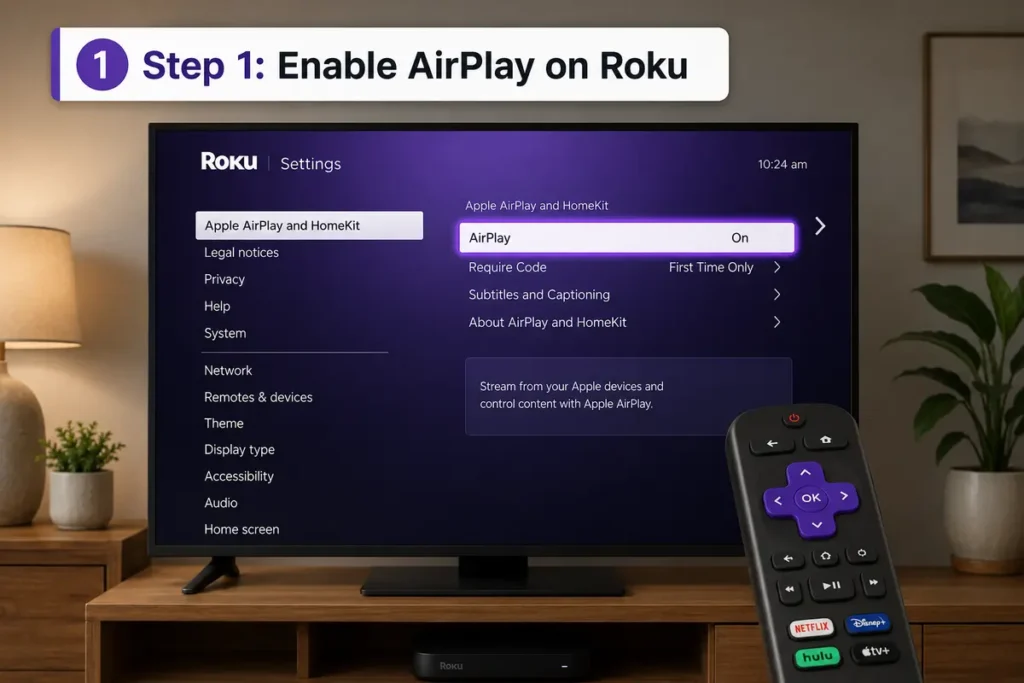
Go to:
Settings → Apple AirPlay and HomeKit
Turn AirPlay on.
Step 2: Open Control Center
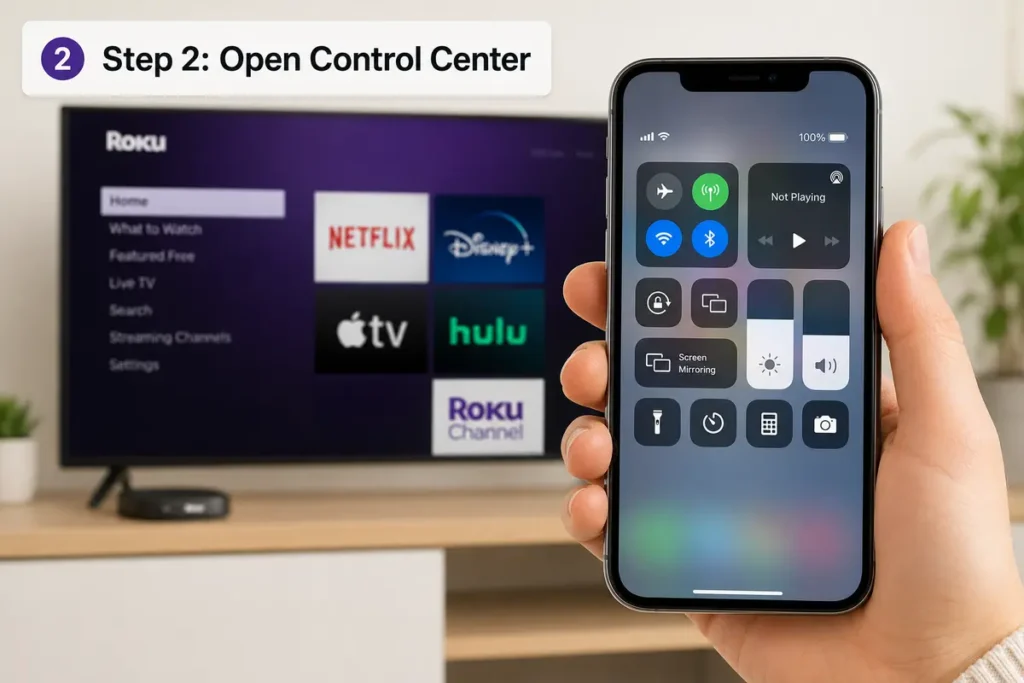
Swipe down from the top-right corner of your iPhone or iPad.
Step 3: Tap Screen Mirroring
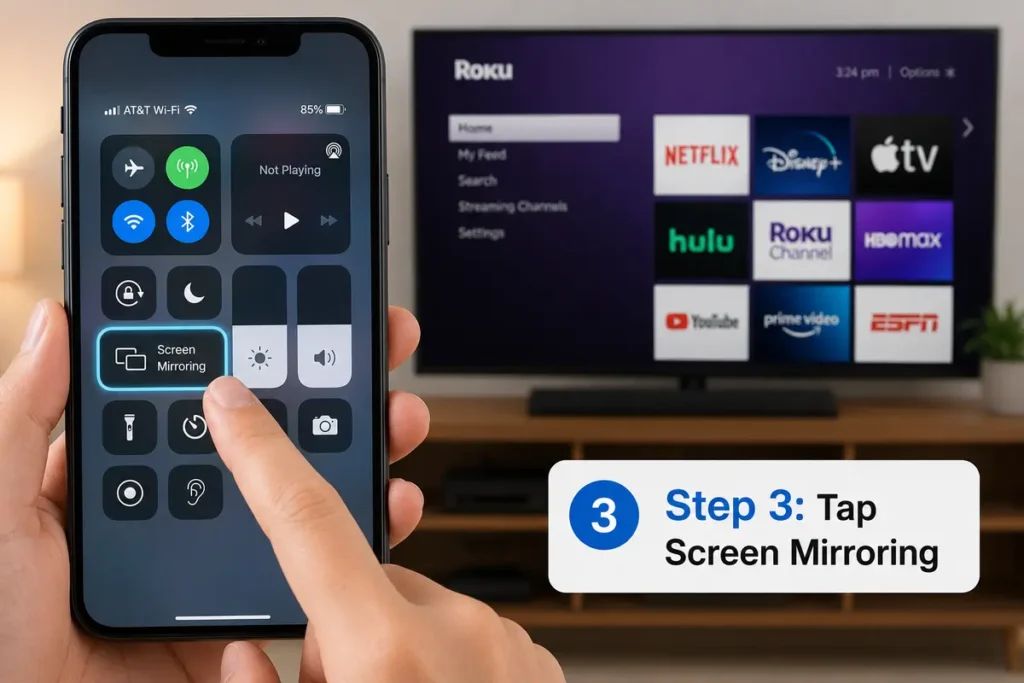
Select:
Screen Mirroring
Step 4: Choose Roku
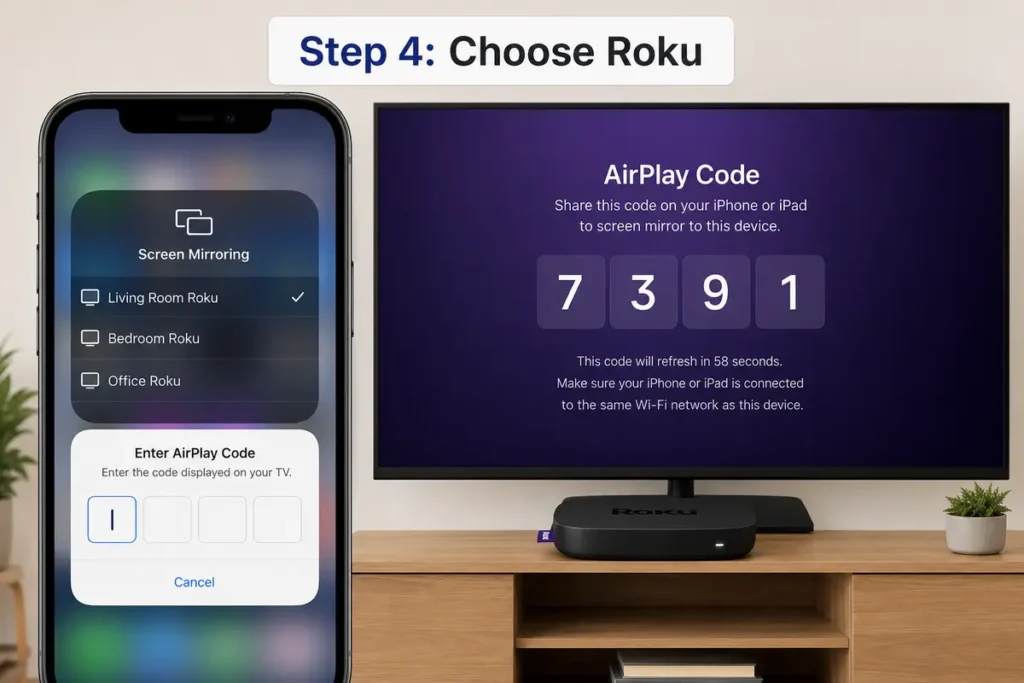
Tap your Roku device.
If a code appears on the TV, enter it on your iPhone.
Your screen should now display on the television.
What Can You Do with Screen Mirroring?
Once connected, you can enjoy many activities on a larger screen.
Popular uses include:
- Watching videos
- Showing vacation photos
- Sharing presentations
- Viewing documents
- Playing supported games
- Following workout videos
- Browsing social media
- Demonstrating apps
The experience feels much more immersive than using a small screen.
Common Screen Mirroring Problems
Sometimes devices don’t connect immediately.
Here are the most common issues.
Roku Doesn’t Appear
Check that both devices are using the same Wi-Fi network.
Connection Keeps Dropping
Restart both your Roku and your phone or computer.
Black Screen
Update your Roku software and reconnect.
Audio Isn’t Playing
Verify your TV volume and restart the connection.
Device Not Supported
Older phones may not support wireless display technology.
If you’re troubleshooting other computer-related issues, our guide on How to Check Motherboard Model can help you identify your PC hardware.
Tips for Better Screen Mirroring Performance
A few adjustments can improve performance.
- Stay close to your Wi-Fi router.
- Close unnecessary apps.
- Keep software updated.
- Use a strong Wi-Fi signal.
- Avoid downloading large files while mirroring.
- Restart devices occasionally.
A stable network usually provides the best experience.
Screen Mirroring vs Casting
Although people often use the terms interchangeably, they’re different.
Screen Mirroring
- Displays your entire screen.
- Everything you do appears on the TV.
- Great for presentations and apps.
Casting
- Streams only supported content.
- Lets you continue using your phone separately.
- Often provides smoother video playback.
Both features are useful depending on what you’re trying to do.
Is Screen Mirroring Safe?
Yes.
Roku includes permission settings that help control who can connect.
For additional security:
- Use Prompt mode.
- Remove unknown paired devices.
- Keep Roku updated.
- Avoid connecting on public Wi-Fi networks.
These simple precautions help protect your privacy.
Final Thoughts
Learning how to screen mirror on Roku makes it easy to enjoy your favorite content on a larger display without cables. Whether you’re using an Android phone, Windows PC, or an Apple device with AirPlay, Roku offers a quick and convenient way to share your screen. By enabling screen mirroring, keeping your devices on the same Wi-Fi network, and following the setup steps, you’ll be able to stream photos, videos, presentations, and more with ease.
FAQs
1. Can I screen mirror to any Roku device?
Most modern Roku devices support screen mirroring, but compatibility may vary by model.
2. Why can’t my phone find my Roku?
Ensure both devices are connected to the same Wi-Fi network and that screen mirroring is enabled on Roku.
3. Can iPhones screen mirror to Roku?
Yes, if your Roku model supports Apple AirPlay.
4. Is screen mirroring the same as casting?
No. Screen mirroring shares your entire display, while casting usually streams only supported media.
5. Does screen mirroring require internet?
You generally need both devices connected to the same local Wi-Fi network, but an active internet connection isn’t always required once they’re connected.
📚 Related Guides
Looking for more helpful tech tutorials? Explore these step-by-step guides: