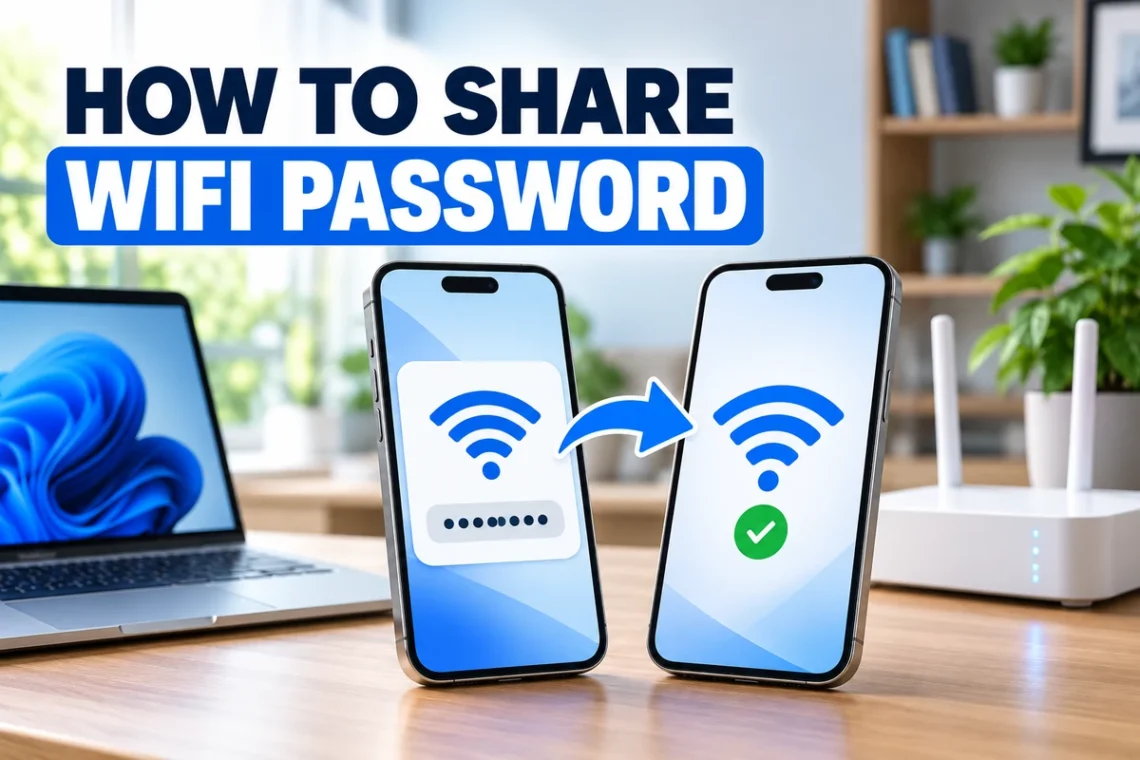
Sharing your internet connection should be simple, but a long Wi-Fi password can make it frustrating. One incorrect capital letter or missed symbol is enough to stop someone from connecting. Fortunately, many phones and computers offer built-in tools that save you from reading the password aloud or searching for the router’s label.
This guide explains how to share WiFi password details on iPhone, Android and Windows. Follow the instructions for your device to share access through a nearby prompt, display a QR code or reveal a saved password for manual entry.
Choose the Right Wi-Fi Sharing Method
The easiest method depends on the device you already have connected and the device your visitor wants to use.
| Your device | Receiving device | Method to use |
|---|---|---|
| iPhone | iPhone, iPad or Mac | Apple’s nearby password-sharing prompt |
| iPhone with the QR option | Compatible Android or Apple device | QR code in the Passwords app |
| Supported Android phone | Compatible phone or tablet | QR code in Wi-Fi settings |
| Windows 11 computer | Phone, tablet or computer | Display the saved password or QR code |
These options come from the devices’ built-in sharing tools. Their availability and menu names depend on the software installed.
How to Share WiFi Password from iPhone to iPhone
Apple’s nearby sharing feature lets another Apple device join your network without manually entering the password.
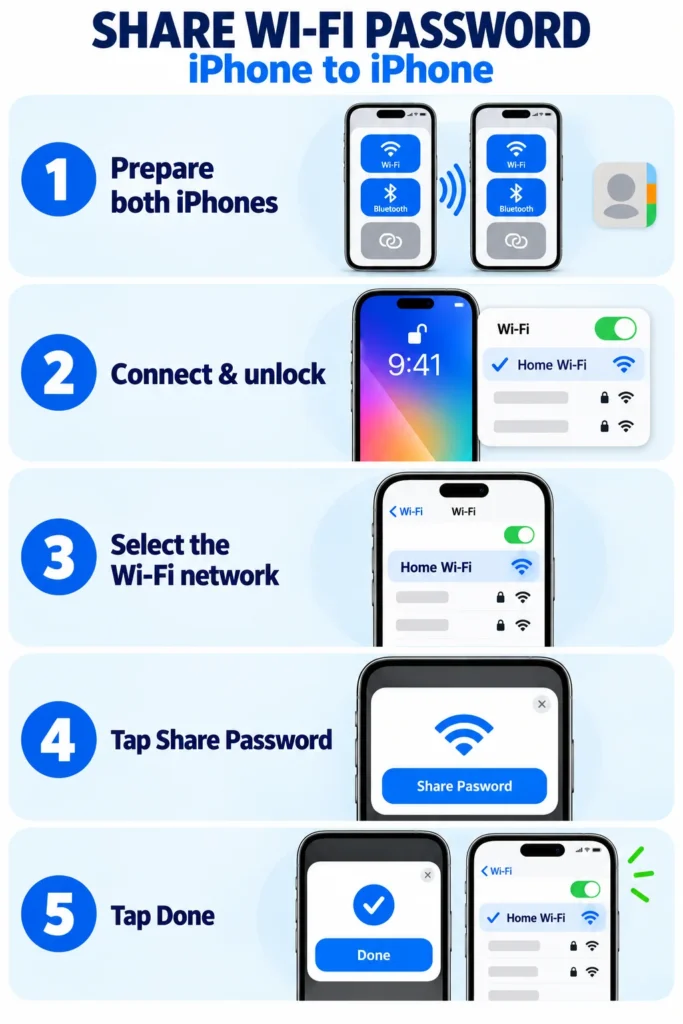
Step 1: Prepare both devices
Turn on Wi-Fi and Bluetooth, turn off Personal Hotspot, and keep the devices close together. Each person should sign in to their own Apple Account and save the other person’s Apple Account email address or phone number in Contacts.
Step 2: Connect and unlock your iPhone
Make sure your iPhone is connected to the Wi-Fi network you want to share. Leave it unlocked.
Step 3: Select the network on the receiving device
Ask the other person to open Settings → Wi-Fi and tap your network’s name.
Step 4: Approve the request
When the sharing prompt appears on your iPhone, select Share Password.
Step 5: Finish the connection
Tap Done after sharing completes. The other device should now connect to the network. Apple recommends keeping both devices’ software updated for this feature.
How to Share WiFi Password from iPhone to Android
An iPhone can display a Wi-Fi QR code that a compatible Android device can scan.
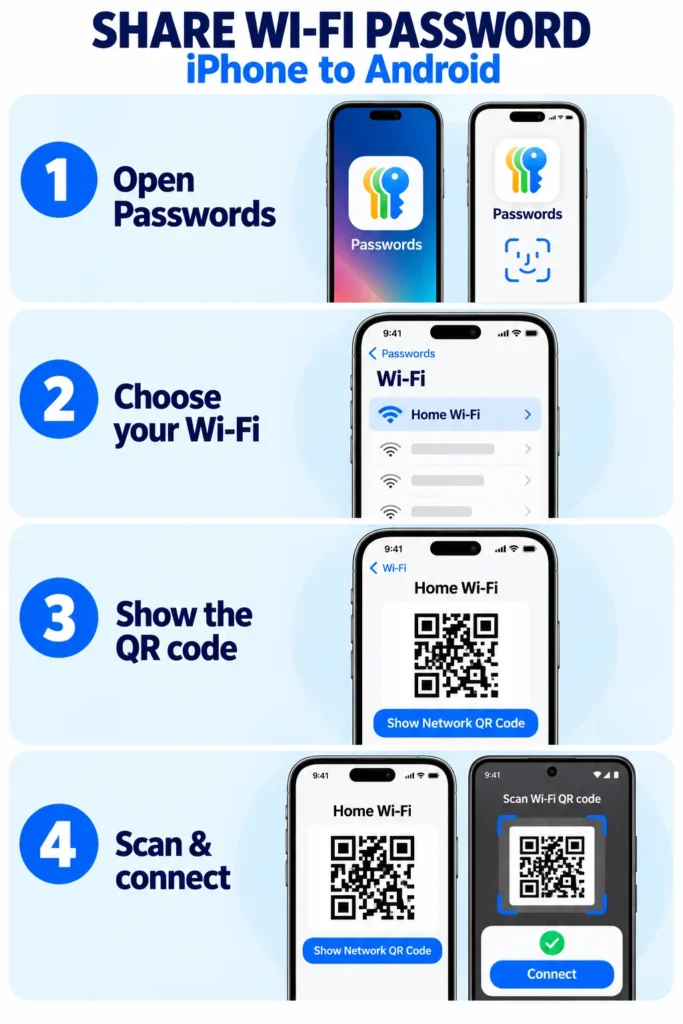
Step 1: Open the Passwords app
Find Passwords on your iPhone and authenticate when prompted.
Step 2: Find the network
Select Wi-Fi, then tap the network you want to share.
Step 3: Display its QR code
Tap Show Network QR Code and leave the code visible.
Step 4: Scan and connect
Ask the Android user to scan it using a compatible camera or Wi-Fi scanner, then accept the connection prompt.
Apple documents this QR option as an alternative way for friends and family to join a network. If your iPhone does not display it, use the saved-password method below.
How to Find Your Wi-Fi Password on iPhone
Revealing the password is useful when you need to connect a device that cannot scan a code.
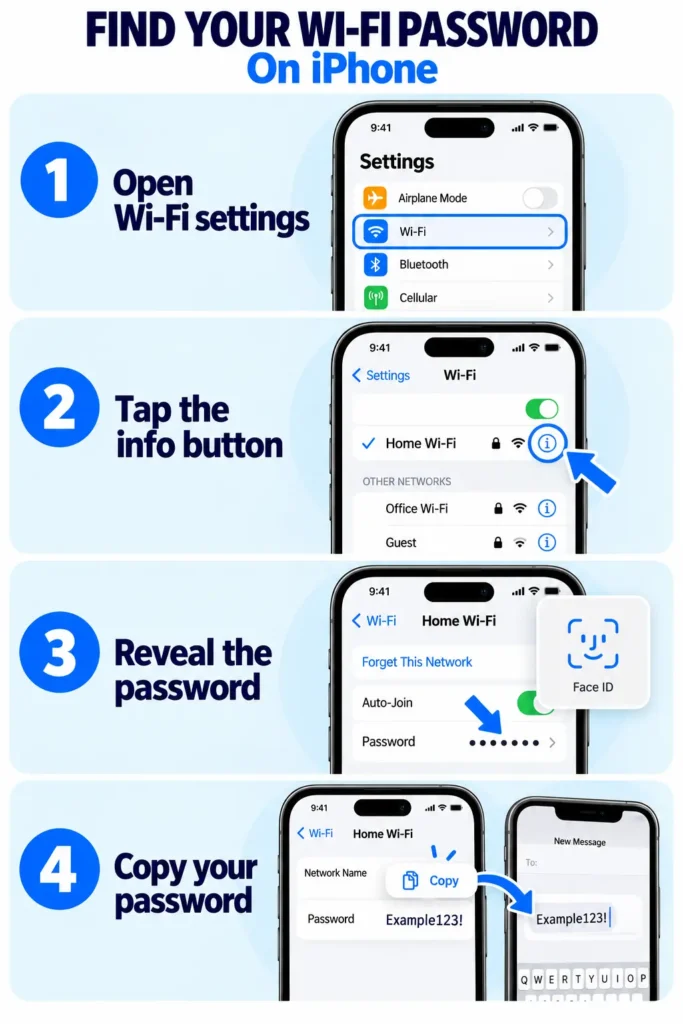
Step 1: Open Wi-Fi settings
Go to Settings → Wi-Fi on your iPhone.
Step 2: Open the network information
Find your connected network and tap the information button beside its name.
Step 3: Reveal the password
Tap Password, then authenticate with Face ID, Touch ID or your passcode.
Step 4: Copy or enter it
Copy the password or carefully enter it on the receiving device.
This Settings method is available on iOS 16 and later. On iOS 18 and later, you can also open Passwords → Wi-Fi, choose a saved network and tap its password field.
Before entering the password elsewhere, check that you have selected the correct network. Similar network names can make it easy to choose the wrong one.
How to Share WiFi Password on Android
On supported Android phones, the sharing option generates a QR code from your network settings.
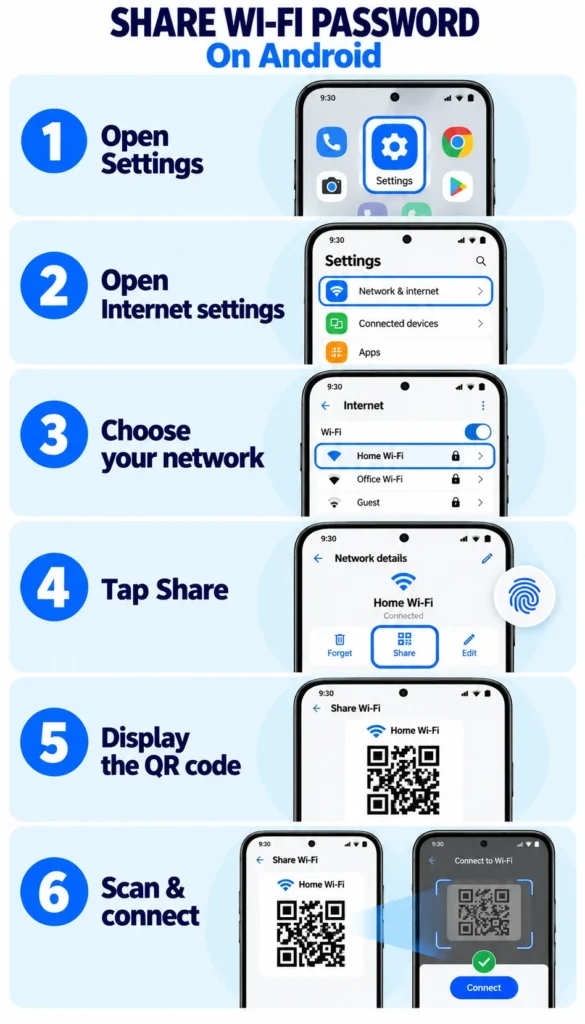
Step 1: Open Settings
Unlock your phone and launch the Settings app.
Step 2: Find your internet settings
Select Network & internet → Internet.
Step 3: Choose the network
Tap the Wi-Fi network you want to share.
Step 4: Open the sharing option
Select Share and complete any authentication your phone requests.
Step 5: Display the code
Keep the generated QR code visible on your screen.
Step 6: Connect the other device
Ask the recipient to scan the code and follow the connection prompt.
These are Google’s standard instructions. Some steps in its current guide require Android 12 or later, and manufacturers may use different menu labels. If your screen looks different, search Settings for “Wi-Fi” and check the network’s details for a sharing option.
How to Share a Wi-Fi Password from Windows 11
You can use a Windows 11 computer to reveal a saved network password or display a QR code for another device.
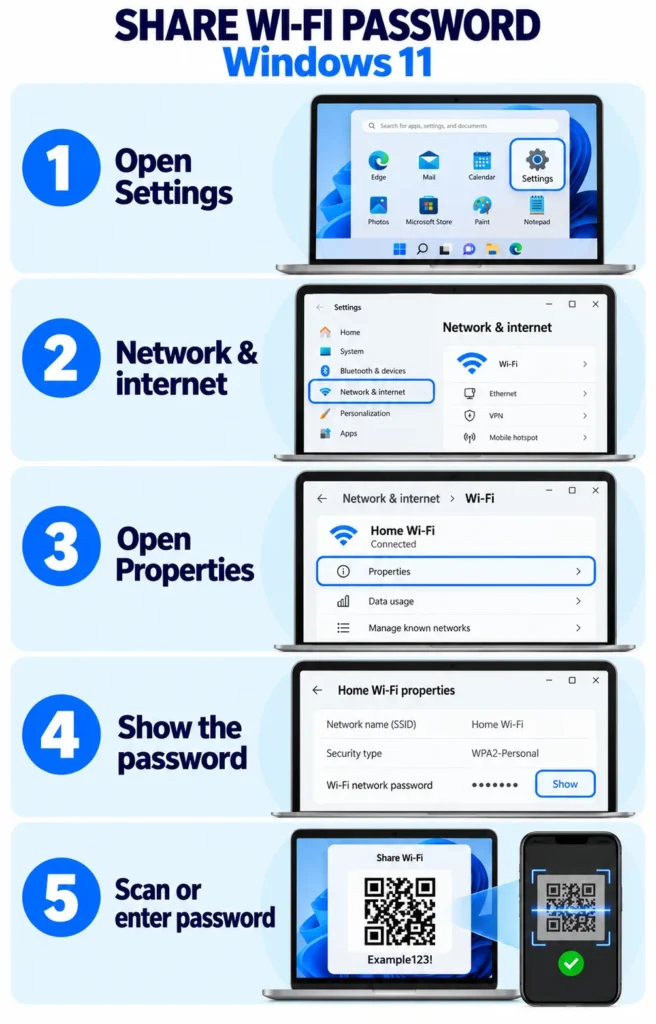
Step 1: Open Settings
Open the Start menu and select Settings.
Step 2: Open network settings
Select Network & internet.
Step 3: View the connection
Open Properties for your connected network.
Step 4: Display the password
Find Wi-Fi network password and select Show.
Step 5: Connect the receiving device
Scan the displayed QR code with a compatible device, or enter the revealed password manually.
To access a previously saved network, open Network & internet → Wi-Fi → Manage known networks. Choose the network and select the option to show its password.
How to Fix Wi-Fi Password Sharing Problems
If sharing fails, identify whether the problem involves the sharing prompt, the scanner or manual password entry.
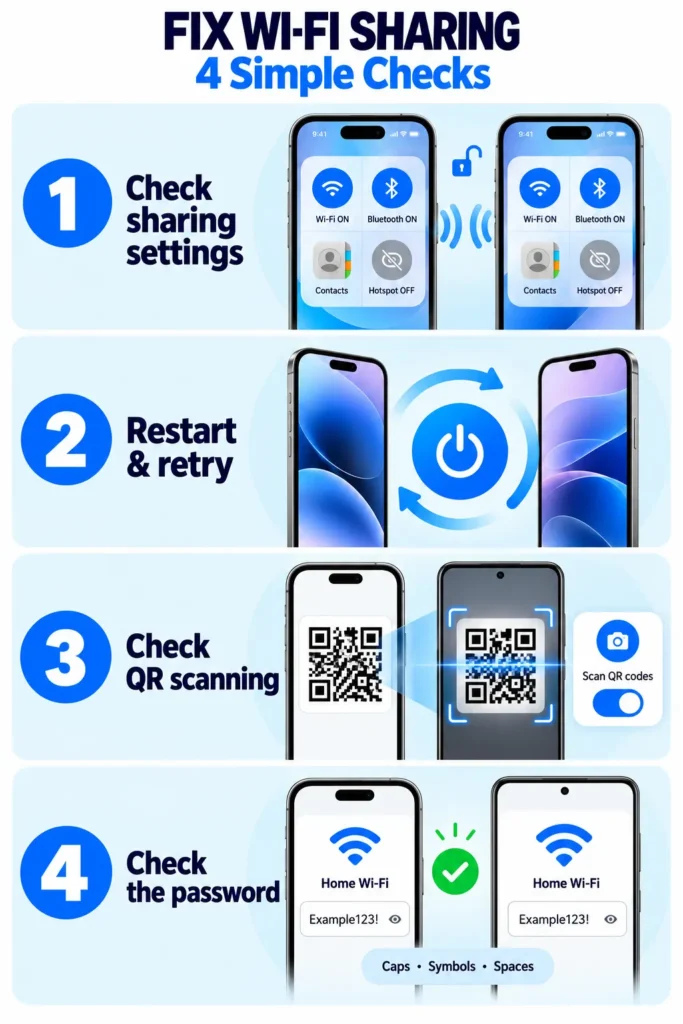
Step 1: Check the iPhone sharing requirements
If Apple’s prompt does not appear, recheck Contacts, Wi-Fi, Bluetooth and Personal Hotspot. Keep the sharing phone unlocked and both devices nearby.
Step 2: Restart and retry
Restart both Apple devices if the prompt still does not appear. If necessary, reveal the password and enter it manually.
Step 3: Check QR scanning
Keep the entire QR code visible and let the camera focus. Move it slightly closer or farther away if the code is not recognised.
On supported Samsung phones, enable Camera → Settings → Scan QR codes, or open Scan QR code from Quick Settings.
Step 4: Review manual entry
Compare the entered password carefully with the saved version. Check capital letters, symbols and accidental spaces. Also confirm that the recipient selected the network whose password you shared.
Does Sharing a QR Code Hide Your Wi-Fi Password?
A QR code makes connecting easier, but it does not guarantee that the password remains hidden. Someone with access to the code may be able to read the network credentials it contains. Samsung specifically highlights this limitation in its QR sharing guidance.
Treat your Wi-Fi code like the written password. Show it directly to the person who needs access, and check for visible network details before sharing screenshots publicly.
Conclusion
Learning how to share WiFi password details saves time when connecting a visitor’s phone or setting up another device. Use Apple’s nearby prompt between compatible Apple devices, a QR code when supported, or the saved password for manual entry.
Choose the instructions that match your device and work through them in order. If a sharing option is missing, check the alternative method before installing another app.
FAQs
Can I share Wi-Fi without knowing the password?
Yes. If your device has saved the network credentials and supports sharing, you can use its built-in prompt or QR code without memorising the password.
Can I share a Wi-Fi password from Android to iPhone?
Yes, where the Android phone offers a Wi-Fi QR code and the receiving iPhone supports scanning it to join the network.
Where can I find an old Wi-Fi password on iPhone?
Open Settings → Wi-Fi → Edit, authenticate, select the information button beside the saved network and tap its password field.
Can I share a Wi-Fi password from my laptop?
Yes. On supported Windows 11 systems, open the network’s properties and select Show beside Wi-Fi network password.
Do I need a separate Wi-Fi sharing app?
No additional app is needed when your device includes the sharing features described in this guide. Availability depends on the device and software version.