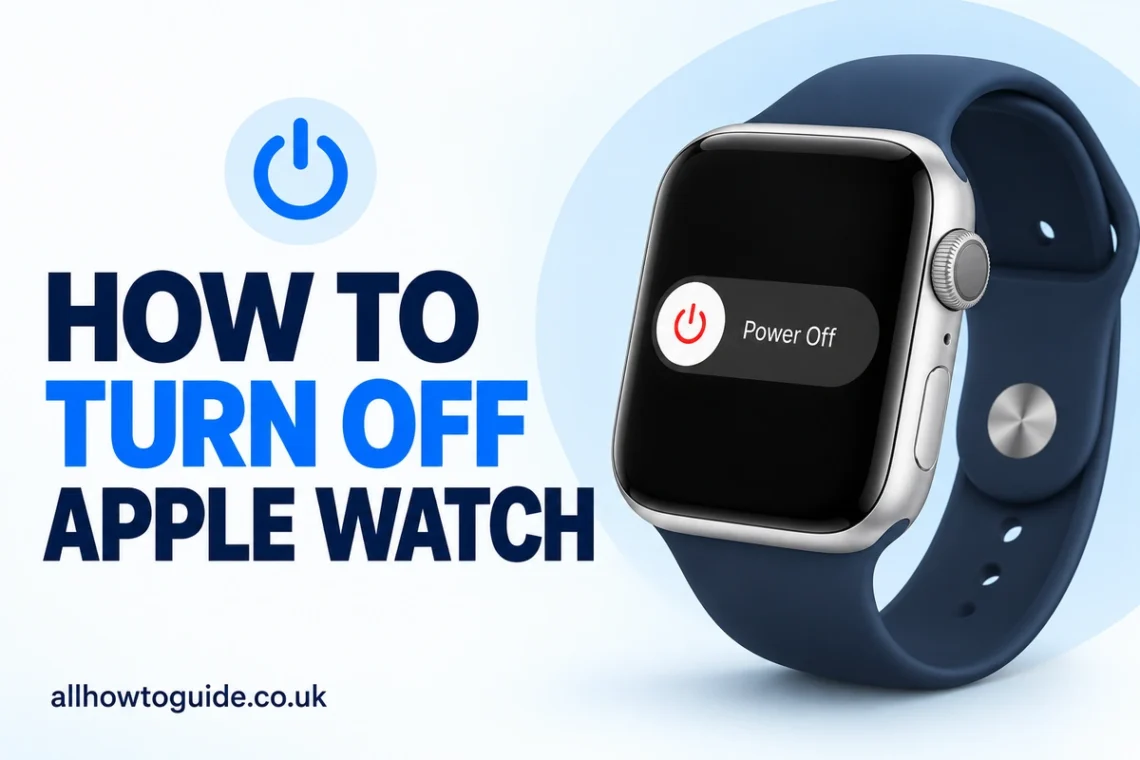
Wondering how to turn off Apple Watch? Remove it from its charger, press and hold the side button, tap the power icon, then drag the Power Off slider to the right. This is the standard shutdown method in Apple’s current instructions.
However, switching off your watch can feel confusing when you press the wrong button, the screen stops responding, or the display stays dimly lit. This guide explains the normal shutdown process, what to do when it fails, and how to turn off the Always On display if you only want a darker screen.
Before You Start: Find the Correct Button
Apple Watch has two controls that people often confuse: the Digital Crown, which is the round rotating dial, and the side button, the separate elongated button beside it.
Use the side button to open the power options. Holding the Digital Crown alone does not perform a normal shutdown. On Apple Watch Ultra models, the separate Action button has other functions, so use the side button beside the Crown for this task.
A quick press and a long press also do different things. On current software, pressing the side button once opens Control Centre; holding it opens the controls used to switch off the watch.
Method 1: How to Turn Off Apple Watch Using the Side Button
Use this method when your watch responds normally to button presses and screen touches.
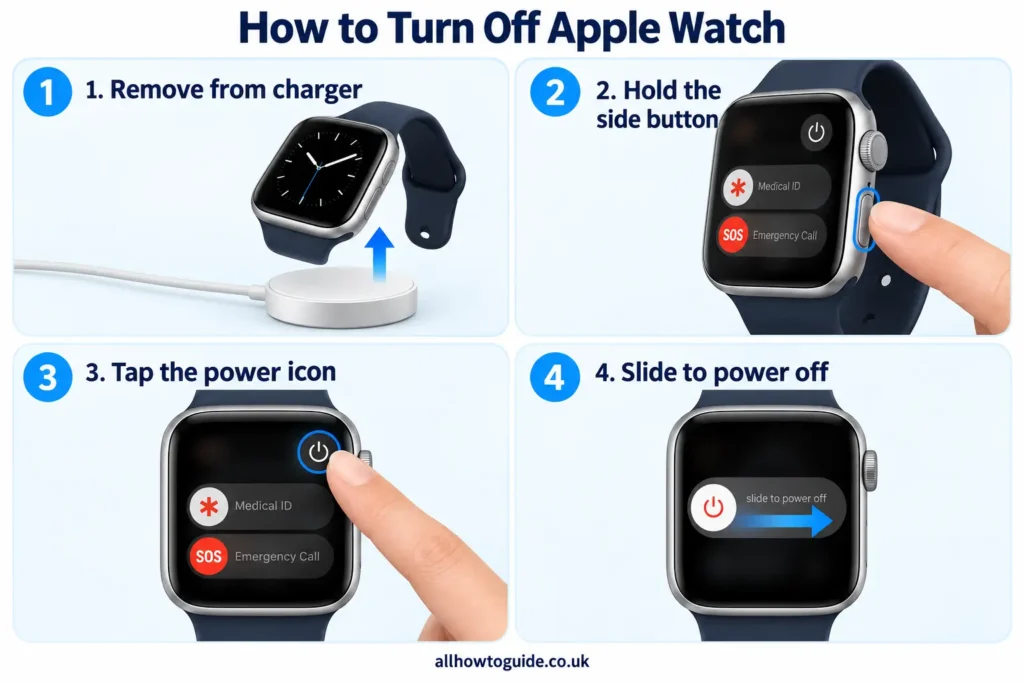
Step 1: Remove your watch from its charger
Lift the watch away from its magnetic charging cable or charging stand.
Step 2: Press and hold the side button
Keep the side button pressed until the on-screen sliders appear, then release it.
Step 3: Tap the power icon
Select the small power symbol in the top-right corner of the screen.
Step 4: Drag the Power Off slider
Move the slider to the right to shut down your watch.
Method 2: Restart a Frozen Apple Watch, Then Switch It Off
If the screen has frozen, you may be unable to tap the power icon or move the slider. In that situation, a force restart can help restore control.
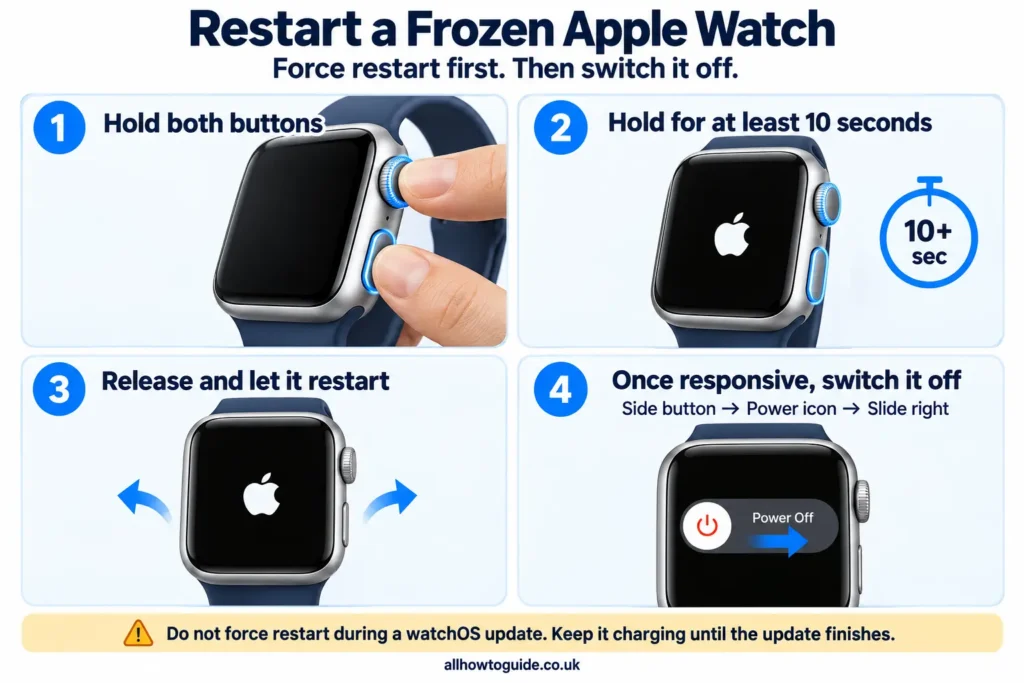
A force restart turns the watch back on. It does not leave the device switched off, so you will need to perform a normal shutdown afterwards.
- Press and hold the side button and Digital Crown together.
- Keep both buttons pressed for at least 10 seconds, until the Apple logo appears.
- Release the buttons and allow the watch to restart.
- Once it responds again, follow Method 1 to switch it off.
Use this option only when a normal restart is not possible.
Do not interrupt a watchOS update. If an update is installing, leave the watch on its charger and allow the process to finish. Apple instructs users not to restart the watch during installation; it restarts automatically when the update is complete.
Why Won’t My Apple Watch Turn Off?
Before assuming the watch has a hardware problem, check these common causes.
It is still charging
Apple Watch cannot shut down while it is charging. Disconnect it before trying the power controls again.
You are only pressing the side button briefly
If Control Centre opens, you have probably given the button a quick press. Press and hold it to reach the shutdown controls instead.
The screen is unresponsive
If the power menu opens but the slider will not move, the watch may need a force restart. Use the second method only if you cannot restart it normally.
A case is blocking the button
Remove any protective case or film that might interfere with the side button. Check for dirt around it and clean the watch according to its care instructions. If the button remains damaged, unreliable, or completely unresponsive, arrange a repair.
How to Turn Off the Apple Watch Always On Display
If your concern is that the watch face remains visible when you lower your wrist, you may only need to disable Always On. This setting keeps a dimmed version of the display visible on supported models.
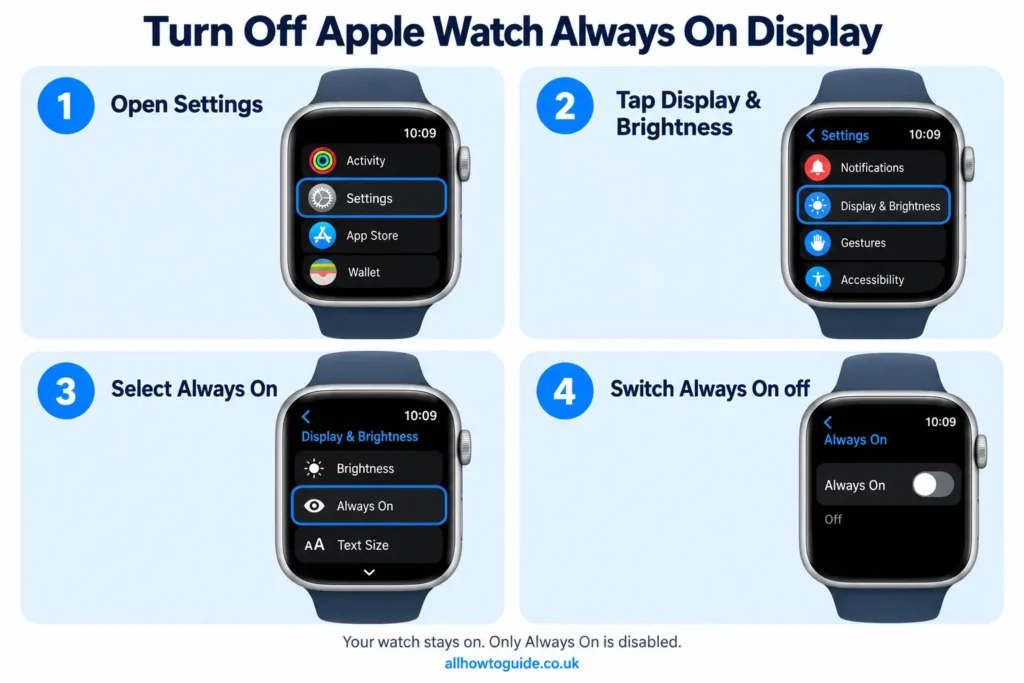
To turn it off:
- Open Settings on your Apple Watch.
- Tap Display & Brightness.
- Scroll down and select Always On.
- Switch Always On off.
Your watch remains powered on, but the display no longer stays continuously visible through this feature. Disabling it can also help improve battery life.
This option is useful when you want to keep using your watch without having the time and other information constantly showing. Its availability depends on your model.
How to Save Battery Without Switching Off Your Watch
If battery life is your main concern, consider Low Power Mode. It reduces power use while allowing you to continue using the watch, although some features become unavailable or update less frequently.
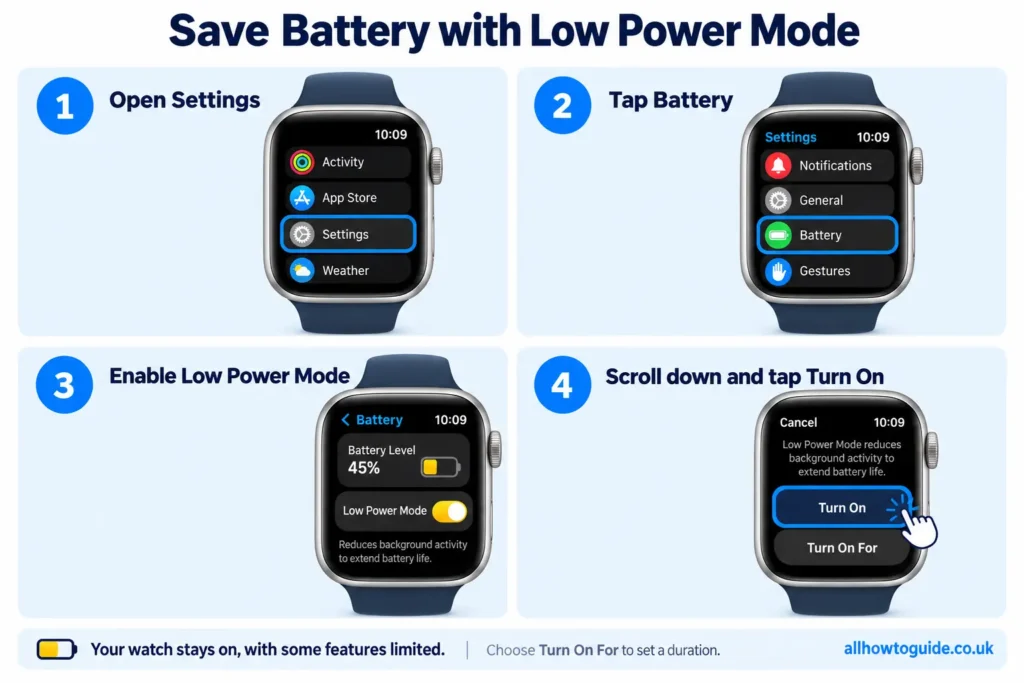
Follow these steps:
- Open Settings on your Apple Watch.
- Scroll down and tap Battery.
- Turn on Low Power Mode.
- Read the information screen, scroll down, and select Turn On.
You can also choose Turn On For to enable it for a set number of days.
Low Power Mode disables features such as Always On and background heart-rate measurements. It also affects connectivity and incoming notifications when your iPhone is not nearby, so read the information shown before enabling it.
How to Turn Your Apple Watch Back On
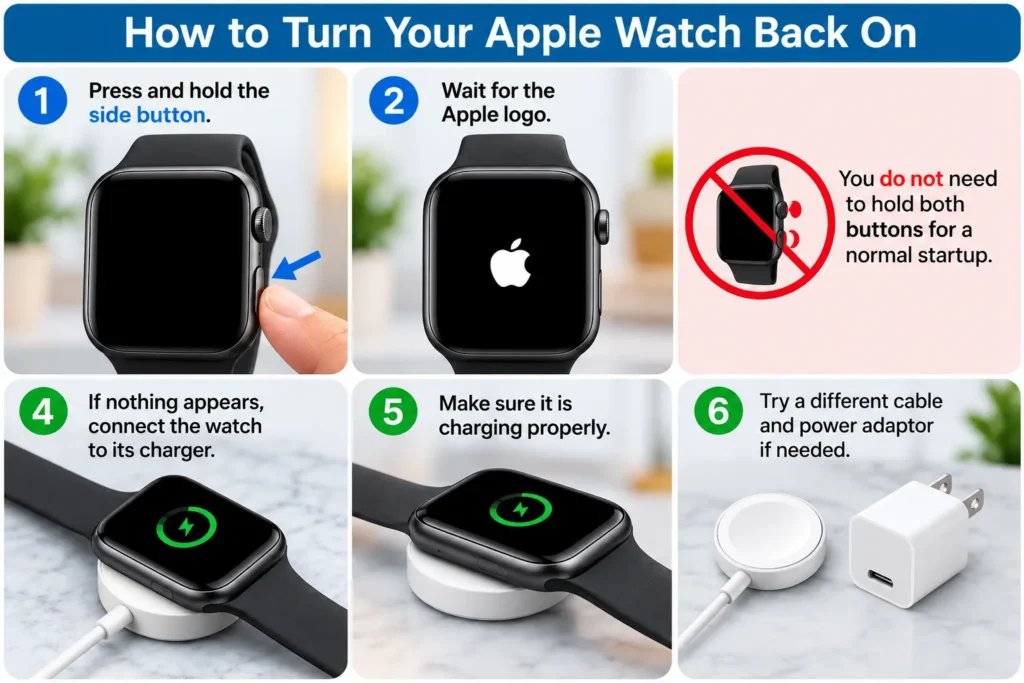
Press and hold the side button until the Apple logo appears. Allow the watch to finish starting before using it.
You do not need to hold both buttons for a normal startup. The two-button combination is reserved for a force restart when troubleshooting an unresponsive watch.
If nothing appears on the screen, connect the watch to its charger. A fully depleted battery may need up to 30 minutes of charging before the watch can turn on.
Check that the charging cable is connected properly and that the watch sits correctly on the magnetic charger. If charging still fails, try a different compatible charging cable and power adaptor. Persistent charging or startup problems may require service.
FAQs
Can I turn off Apple Watch while it is charging?
No. Remove it from its charger before attempting to shut it down.
Which button turns off Apple Watch?
Use the elongated side button beside the Digital Crown. Hold it to access the power controls.
How do I turn off Apple Watch if the touchscreen is frozen?
Try a force restart by holding the side button and Digital Crown for at least 10 seconds, until the Apple logo appears. Once the screen responds, shut down normally.
Why is my Apple Watch screen still showing the time?
If you have only lowered your wrist, Always On may be keeping the display visible. Disable it through Settings → Display & Brightness → Always On.
Can I switch off Apple Watch without a working side button?
Apple’s standard shutdown instructions require the side button. Remove anything blocking it and check for dirt; if it still fails, arrange a repair.