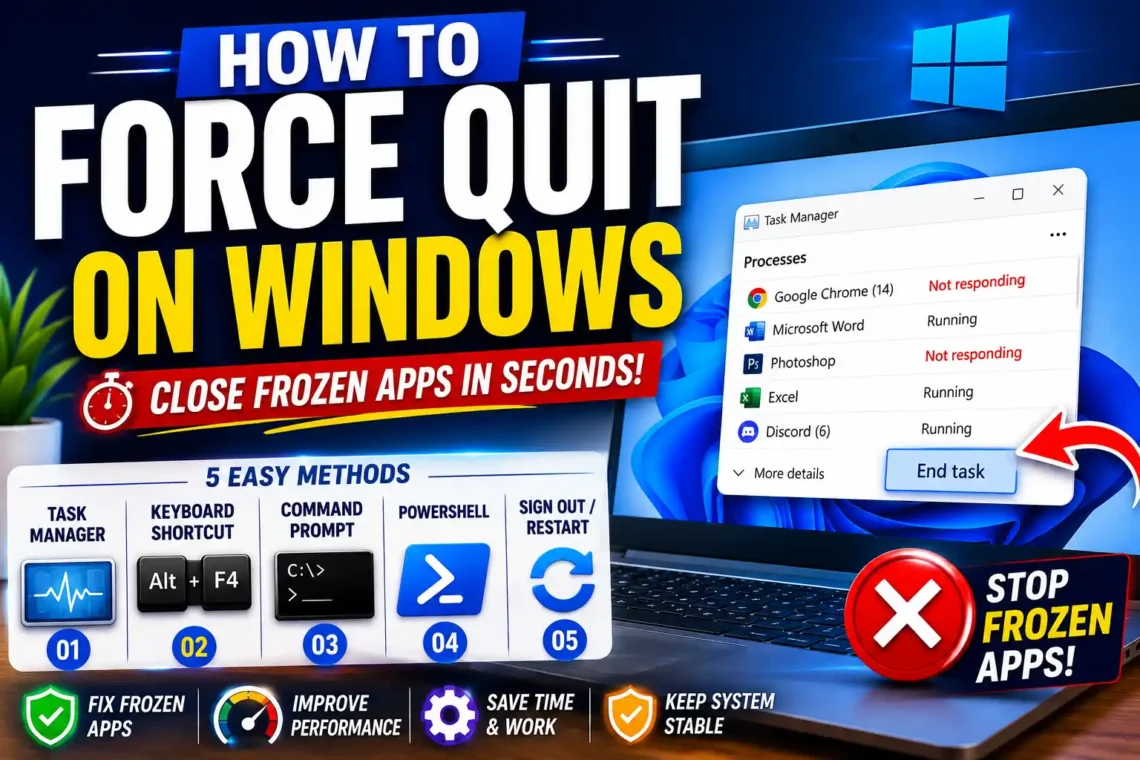
There are few things more frustrating than working on your computer only to have an application suddenly freeze. The window stops responding, buttons no longer work, and even clicking the close button has no effect. Whether you’re editing a document, browsing the web, or playing a game, an unresponsive app can interrupt your work and waste valuable time.
Fortunately, Windows includes several built-in methods to close frozen programs without restarting your computer. Learning how to force quit on Windows can help you regain control of your system quickly while minimizing the risk of losing your work.
In this guide, you’ll learn multiple ways to force close applications, understand why programs freeze, and discover practical tips to prevent the problem from happening again.
What Does Force Quitting Mean?
Force quitting simply means closing a program that is no longer responding to normal commands. Instead of waiting for the application to recover, Windows immediately ends the process running in the background.
Unlike clicking the standard X button, force quitting bypasses the normal shutdown process. Because of this, any unsaved changes inside the application may be lost.
For that reason, force quitting should be used only when an application is completely unresponsive.
Why Programs Freeze on Windows
Applications can stop responding for many different reasons. Understanding the cause can help prevent future problems.
Common causes include:
- Running out of available memory (RAM)
- Software bugs
- Corrupted application files
- Driver conflicts
- Too many background programs
- Overheating hardware
- Windows updates running in the background
- High CPU or disk usage
In many cases, the rest of Windows continues working normally even though one application has frozen.
Method 1: Use the Close Button
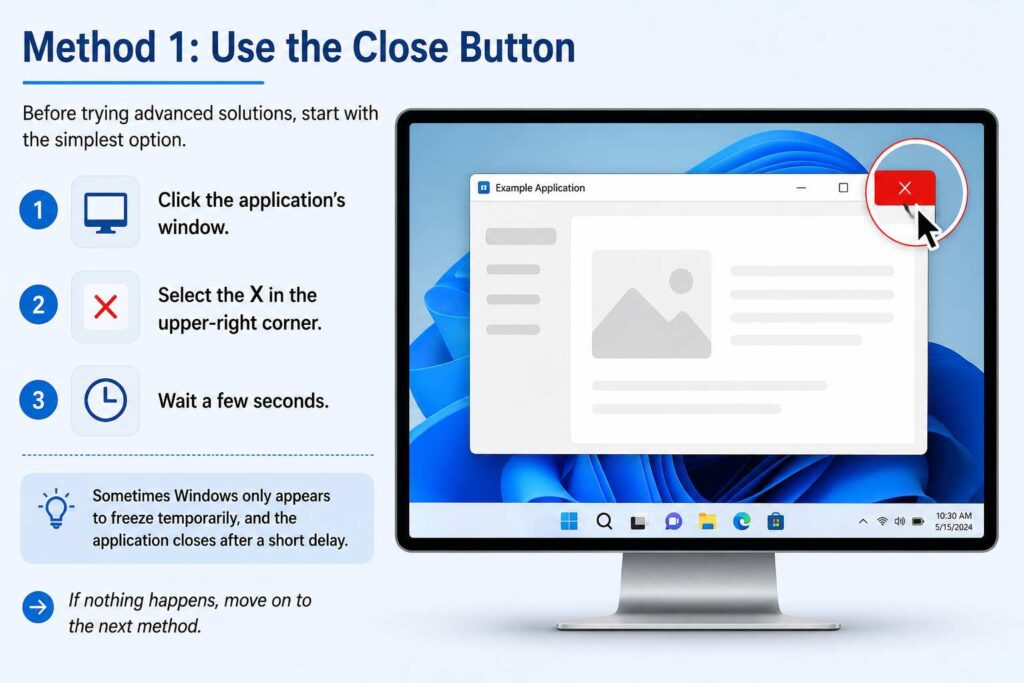
Before trying advanced solutions, start with the simplest option.
- Click the application’s window.
- Select the X in the upper-right corner.
- Wait a few seconds.
Sometimes Windows only appears to freeze temporarily, and the application closes after a short delay.
If nothing happens, move on to the next method.
Method 2: Use the Keyboard Shortcut
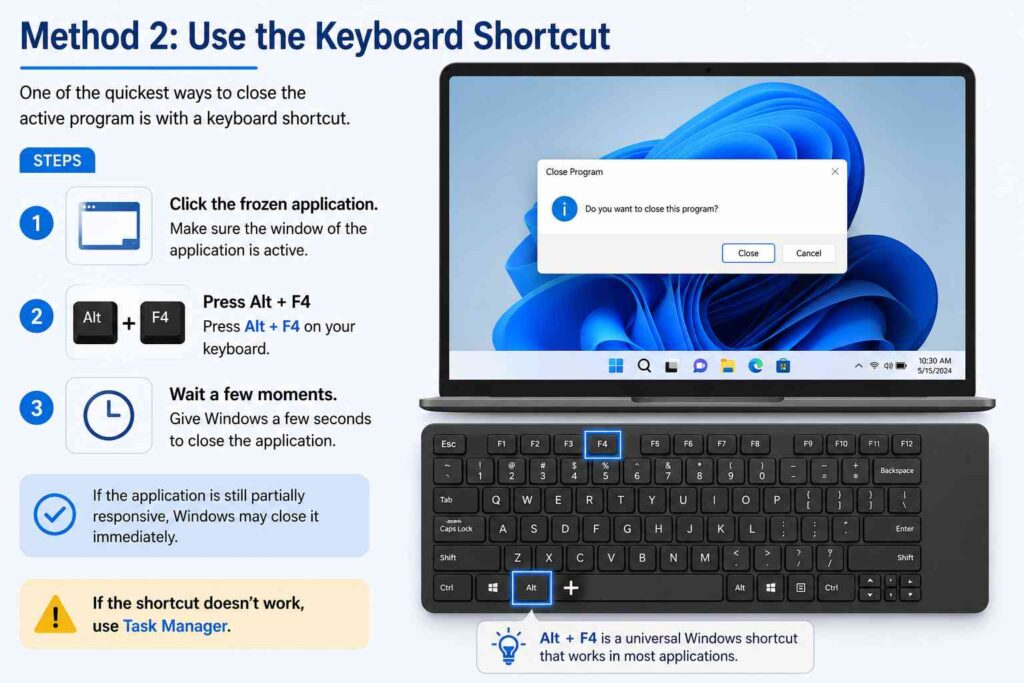
One of the quickest ways to close the active program is with a keyboard shortcut.
Steps
- Click the frozen application.
- Press Alt + F4 on your keyboard.
- Wait a few moments.
If the application is still partially responsive, Windows may close it immediately.
If the shortcut doesn’t work, use Task Manager.
Method 3: Force Quit Using Task Manager
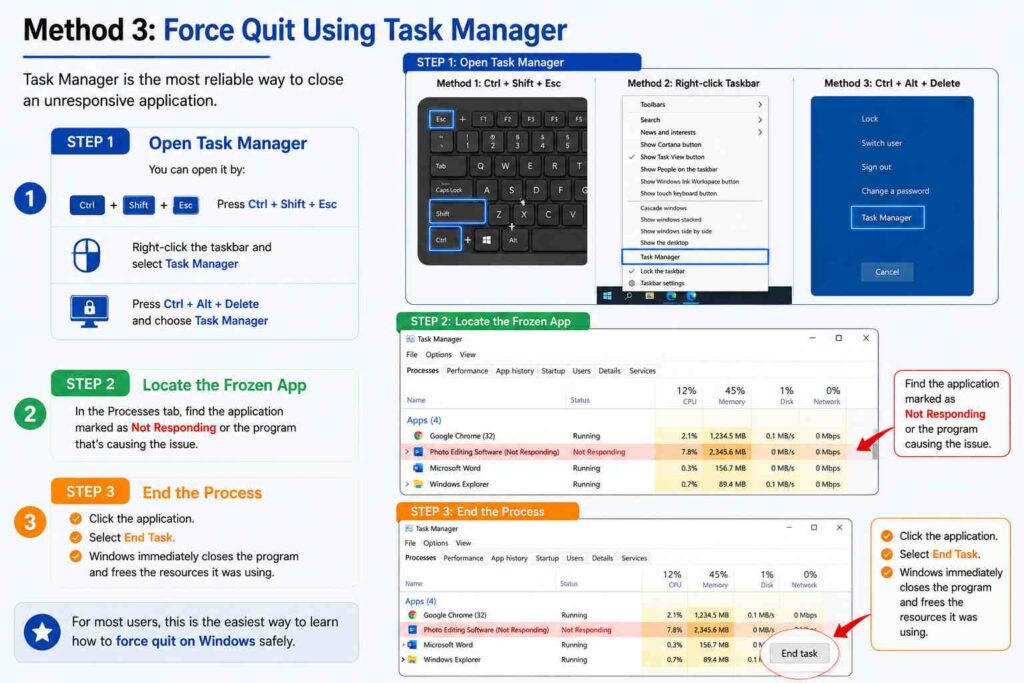
Task Manager is the most reliable way to close an unresponsive application.
Step 1: Open Task Manager
You can open it by:
- Pressing Ctrl + Shift + Esc
- Right-clicking the taskbar and selecting Task Manager
- Pressing Ctrl + Alt + Delete and choosing Task Manager
Step 2: Locate the Frozen App
In the Processes tab, find the application marked as Not Responding or the program that’s causing the issue.
Step 3: End the Process
Click the application.
Select End Task.
Windows immediately closes the program and frees the resources it was using.
For most users, this is the easiest way to learn how to force quit on Windows safely.
Method 4: Use Command Prompt
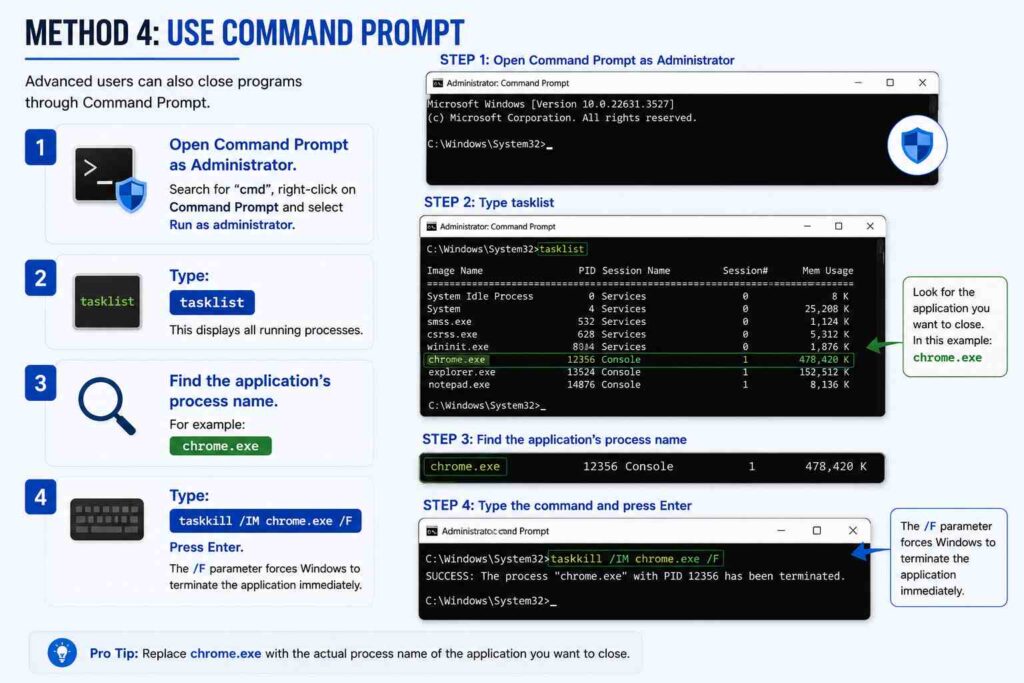
Advanced users can also close programs through Command Prompt.
Step 1
Open Command Prompt as Administrator.
Step 2
Type:
tasklistThis displays all running processes.
Step 3
Find the application’s process name.
For example:
chrome.exeStep 4
Type:
taskkill /IM chrome.exe /FPress Enter.
The /F parameter forces Windows to terminate the application immediately.
Method 5: Use Windows PowerShell
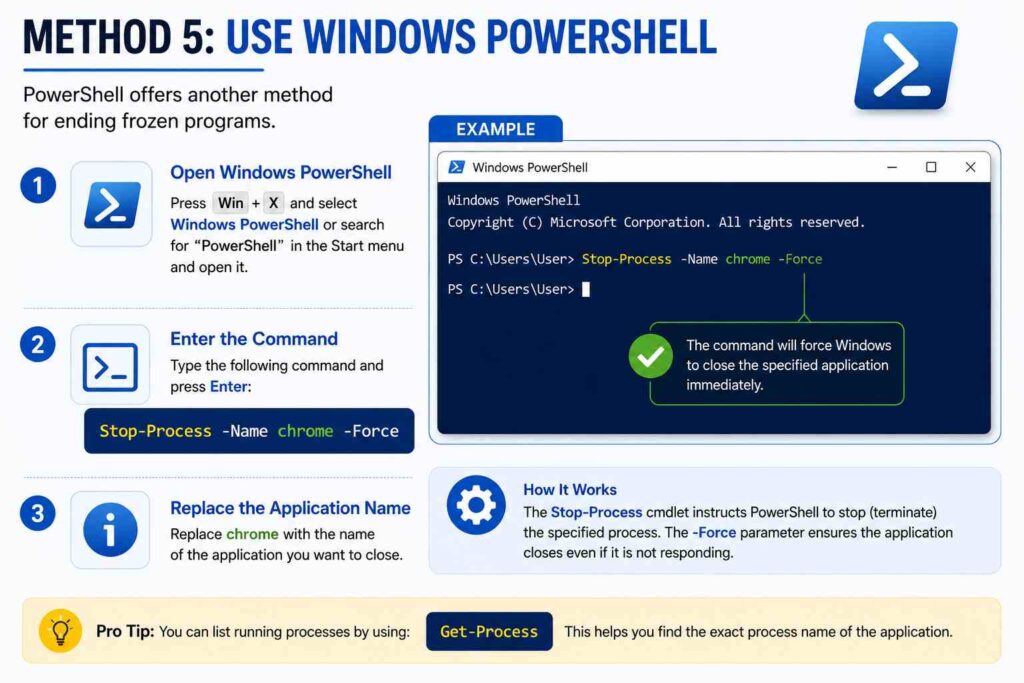
PowerShell offers another method for ending frozen programs.
Open PowerShell and enter:
Stop-Process -Name chrome -ForceReplace chrome with the name of the application you want to close.
This method works similarly to Command Prompt but uses PowerShell commands.
What Happens After Force Quitting?
Once Windows closes the application:
- Memory used by the program is released.
- CPU usage returns to normal.
- The frozen window disappears.
- You can reopen the application if needed.
However, any unsaved work inside the program is usually lost.
Some modern applications may recover unsaved files automatically the next time they open.
What to Do If Task Manager Won’t Open
Occasionally, the system may become so busy that even Task Manager doesn’t respond.
If that happens:
- Wait one or two minutes.
- Try Ctrl + Shift + Esc again.
- Press Ctrl + Alt + Delete.
- Sign out of Windows.
- Restart the computer if necessary.
If Windows becomes completely unresponsive, holding the computer’s power button for several seconds may be the only option. This should be used only as a last resort.
Tips to Prevent Programs from Freezing
Although force quitting solves the immediate problem, preventing freezes is even better.
Here are a few practical tips:
Keep Windows Updated
Install the latest Windows updates to improve stability and fix known bugs.
Update Applications
Older software versions may contain issues that have already been fixed by developers.
Close Unused Programs
Running too many applications at once can consume system memory and slow your computer.
Scan for Malware
Malicious software can affect system performance and cause applications to freeze.
Restart Your Computer Regularly
A fresh restart clears temporary files and frees up system resources.
Check Available Storage
A nearly full hard drive can reduce overall performance.
Common Mistakes to Avoid
When dealing with frozen applications, avoid these common errors:
Repeatedly Clicking the Program
Constant clicking usually makes the situation worse because Windows continues processing extra commands.
Restarting Immediately
Try closing only the affected application before restarting the entire computer.
Ending Unknown Processes
In Task Manager, avoid ending system processes unless you’re certain they aren’t required. Closing critical Windows processes may cause instability.
Ignoring Frequent Freezes
If the same application freezes regularly, reinstalling it or updating its drivers may solve the issue.
When Should You Restart Instead?
Sometimes force quitting isn’t enough.
Restart your computer if:
- Multiple applications freeze at once.
- Windows becomes unusually slow.
- Task Manager won’t respond.
- The desktop stops working.
- System updates require a restart.
A restart refreshes Windows and often resolves temporary performance problems.
Final Thoughts
Knowing how to force quit on Windows is an essential troubleshooting skill for every computer user. Whether you use the Alt + F4 shortcut, Task Manager, Command Prompt, or PowerShell, Windows provides several effective ways to close unresponsive applications without immediately restarting your PC.
While force quitting is useful during unexpected freezes, it’s equally important to identify why applications become unresponsive in the first place. Keeping Windows updated, maintaining enough free storage, and limiting unnecessary background programs can significantly reduce the chances of future freezes.
By understanding these methods, you’ll be able to handle frozen applications quickly and keep your computer running more smoothly.
(FAQs)
1. What is the fastest way to force quit a program on Windows?
The quickest method is usually opening Task Manager with Ctrl + Shift + Esc, selecting the frozen application, and clicking End Task.
2. Does force quitting delete my files?
No. It only closes the application. However, any unsaved work inside that program may be lost.
3. Can I force quit using the keyboard?
Yes. Try Alt + F4 first. If that doesn’t work, use Ctrl + Shift + Esc to open Task Manager.
4. Why does my application keep freezing?
Common causes include software bugs, insufficient memory, outdated drivers, corrupted files, or running too many programs simultaneously.
5. Is force quitting safe?
Yes, when used occasionally. It safely closes an unresponsive application, but it should only be used when normal closing methods no longer work.