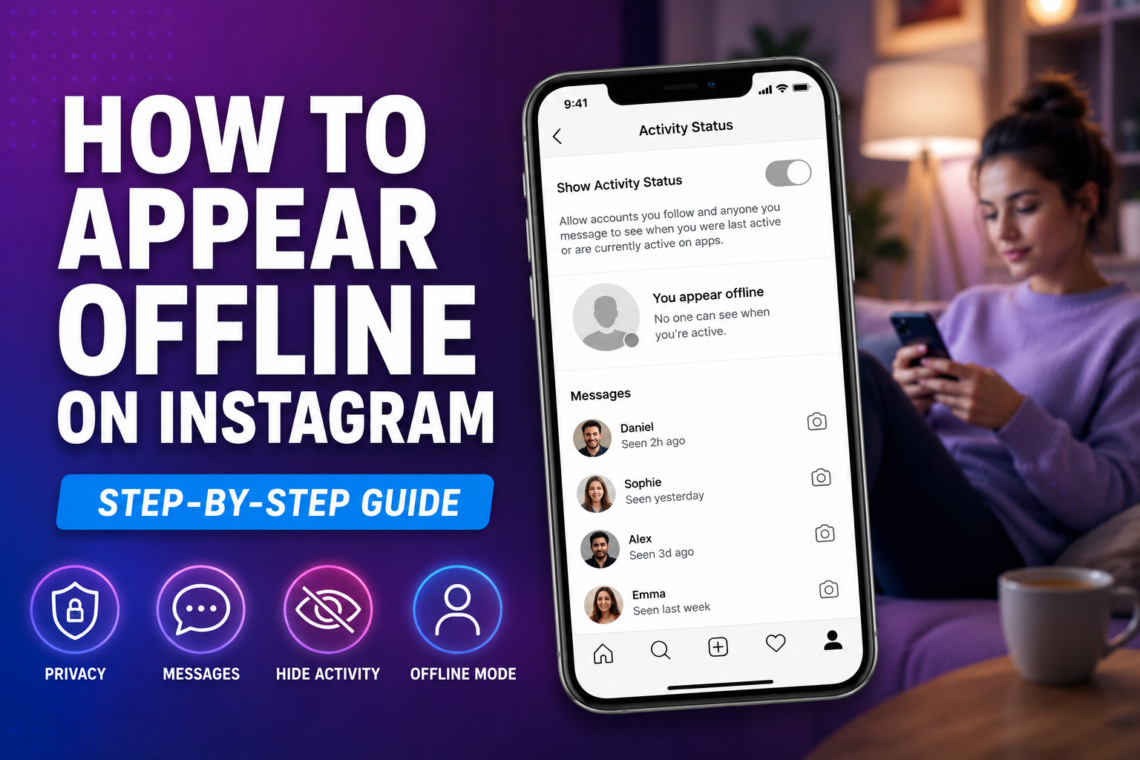
Instagram is a great way to stay connected with friends, family, and followers, but there are times when you want to browse without letting everyone know you’re online. Maybe you’re taking a break, focusing on work, or simply prefer a little more privacy. Thankfully, Instagram allows you to hide your activity status so others can’t see when you’re active.
If you’ve been wondering how to appear offline on Instagram, you’re in the right place. This guide explains exactly how to hide your online status, what happens after you turn it off, and a few extra privacy settings that can make your Instagram experience more comfortable.
What Does “Appear Offline” Mean on Instagram?
When your Activity Status is turned on, Instagram shows a green dot next to your profile picture in Direct Messages (DMs). It can also display messages like “Active now” or “Active 15 minutes ago.”
When you turn Activity Status off:
- Other users can’t see when you’re online.
- The green online indicator disappears.
- Your last active time is hidden.
- You can browse Instagram privately.
However, there’s one important trade-off—you also won’t be able to see other people’s activity status.
Why People Choose to Appear Offline
Everyone uses Instagram differently. Some people enjoy chatting all day, while others simply want to scroll through posts without feeling pressured to reply immediately.
Common reasons include:
- Protecting personal privacy
- Avoiding unwanted conversations
- Browsing without interruptions
- Focusing on work or studying
- Reducing social pressure
- Managing screen time more comfortably
Turning off your activity status gives you more control over when and how you interact with others.
If you’re reducing your social media activity altogether, you may also want to read our guide on How to Delete Snapchat Account.
How to Appear Offline on Instagram Using the Mobile App
Whether you use Android or iPhone, the process is almost identical.
Step 1: Open Instagram
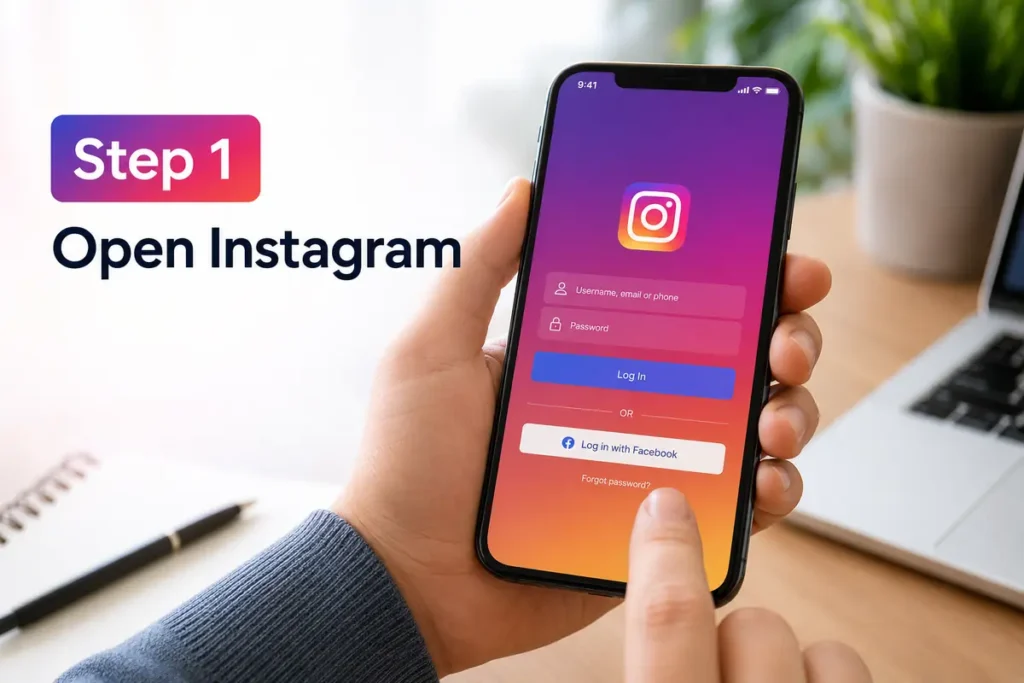
Launch the Instagram app and sign in to your account if you aren’t already logged in.
Step 2: Go to Your Profile
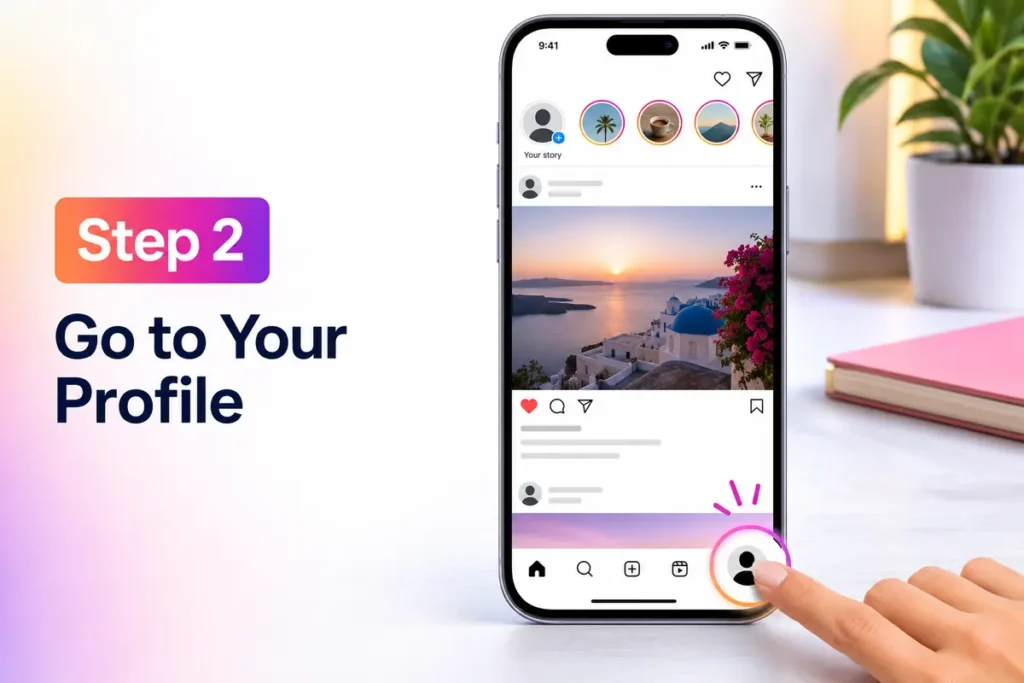
Tap your profile picture in the bottom-right corner.
This opens your profile page.
Step 3: Open the Menu
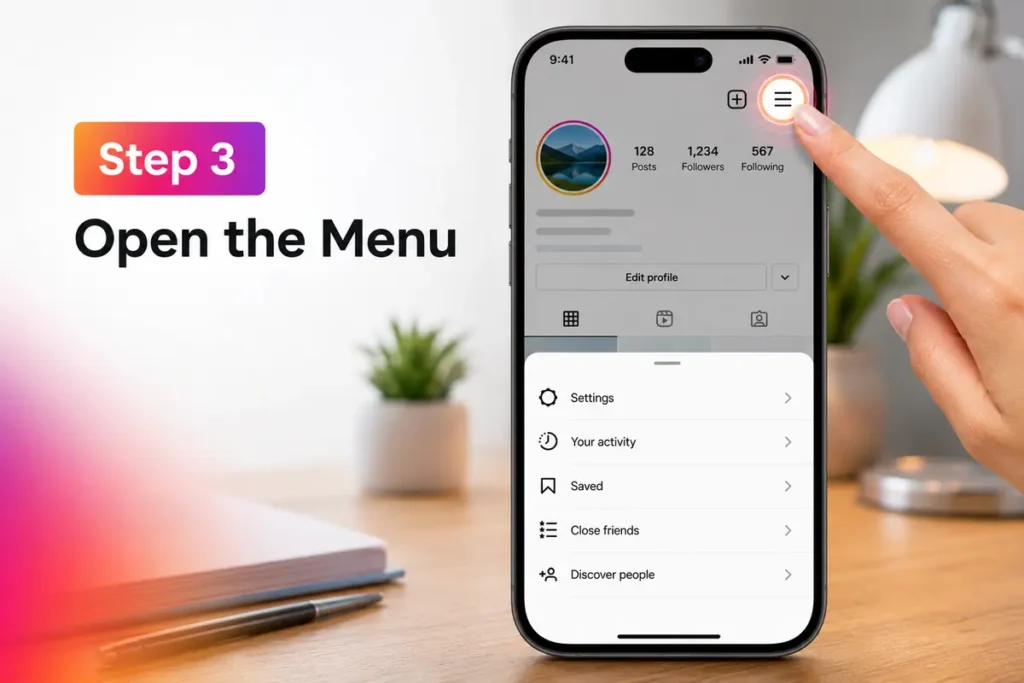
Tap the three horizontal lines in the upper-right corner.
A settings menu will appear.
Step 4: Open Privacy Settings
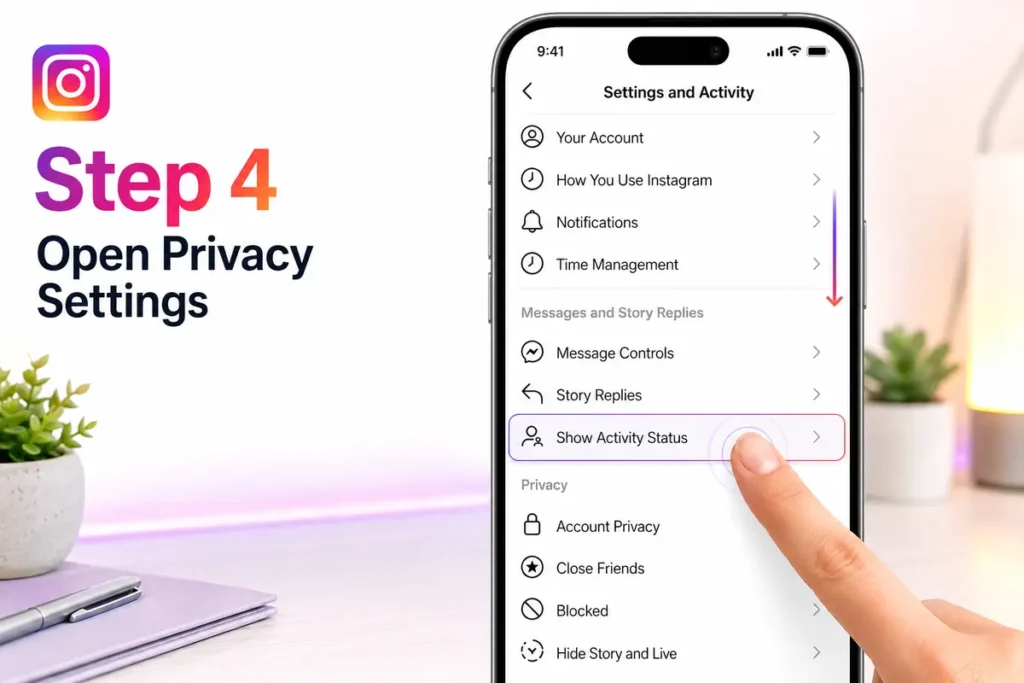
Tap Settings and Activity.
Scroll until you find the Messages and Story Replies section.
Then select Show Activity Status.
Depending on your Instagram version, this option may appear under Privacy.
Step 5: Turn Off Activity Status
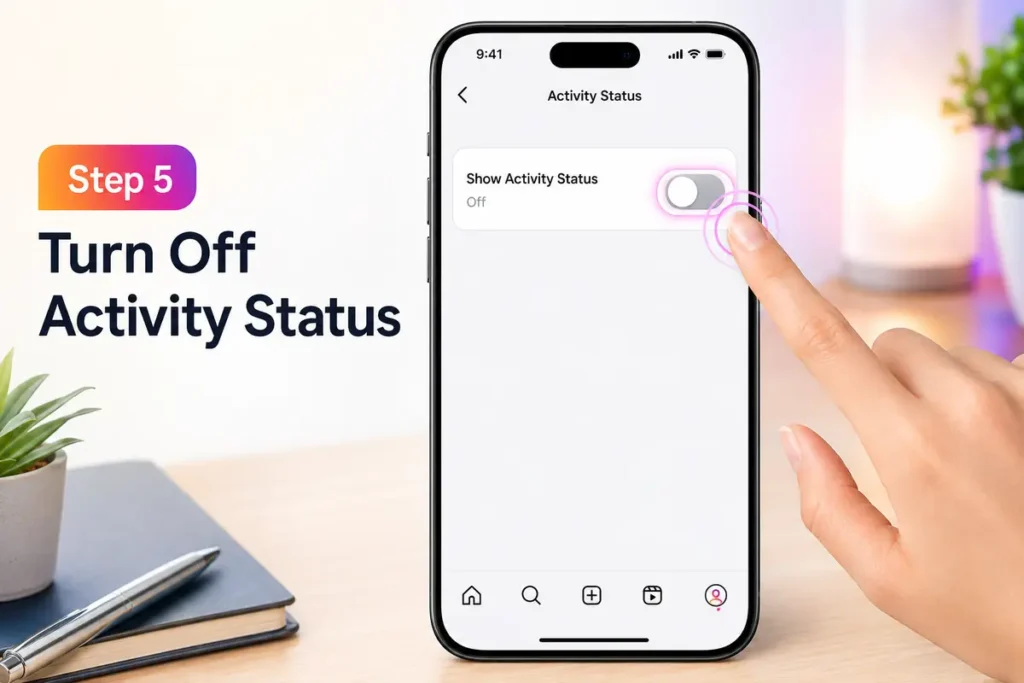
You’ll see a switch labeled:
Show Activity Status
Turn the switch Off.
Your online status will immediately become hidden.
How to Appear Offline on Instagram Using a Web Browser
If you use Instagram on your computer, you can also hide your activity status there.
Step 1: Visit Instagram

Open Instagram in your preferred browser and sign in.
Step 2: Open Settings
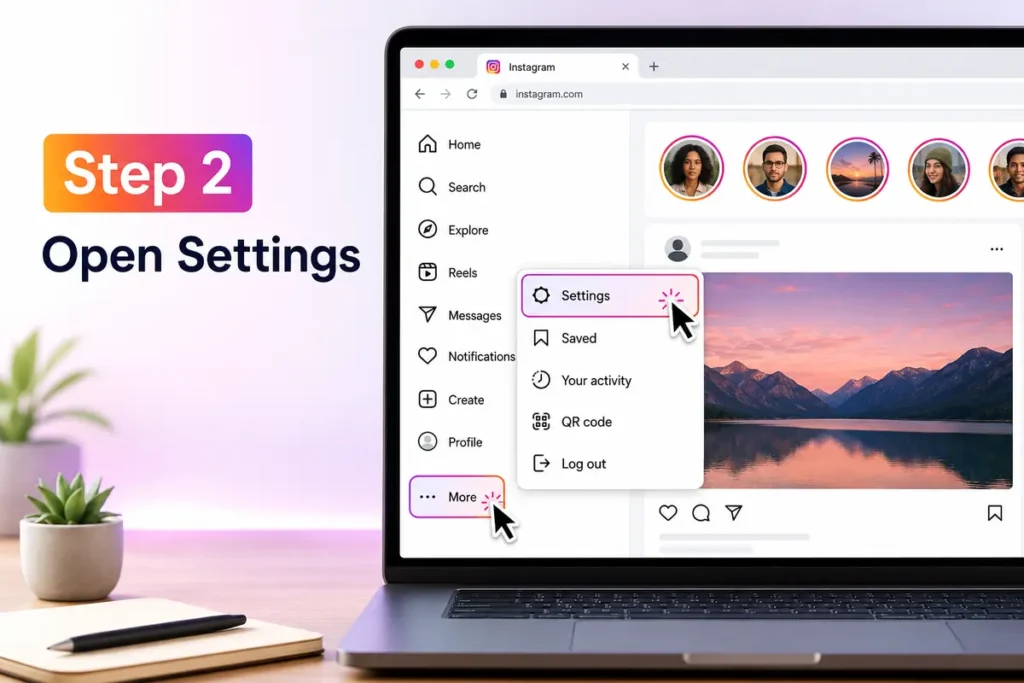
Click More in the lower-left corner.
Choose Settings.
Step 3: Open Privacy Settings
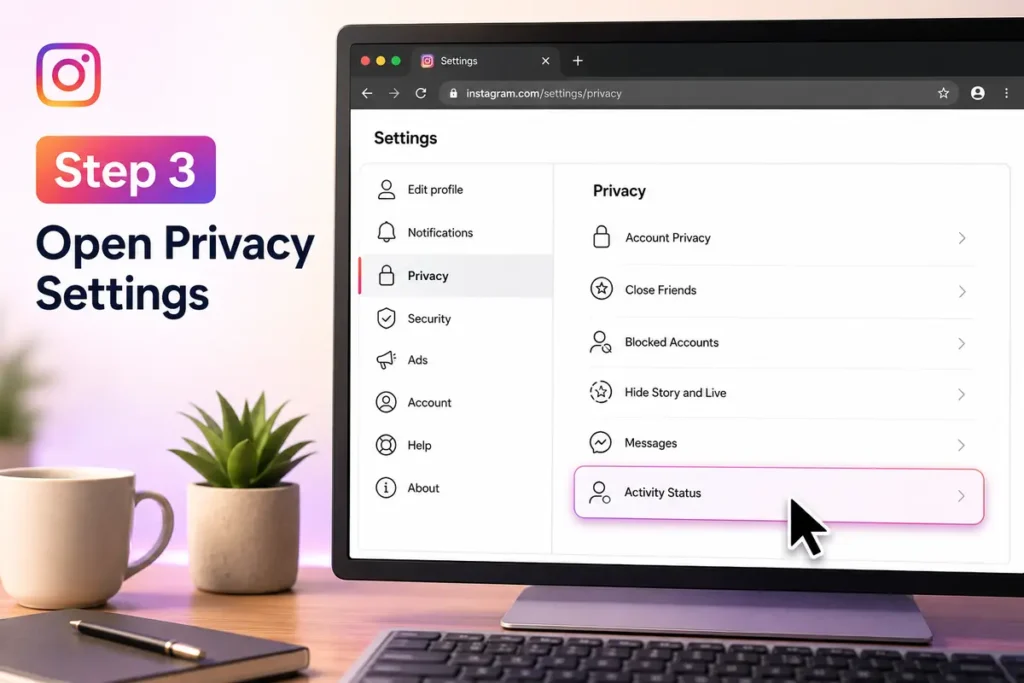
Navigate to the Activity Status option.
Step 4: Disable Activity Status
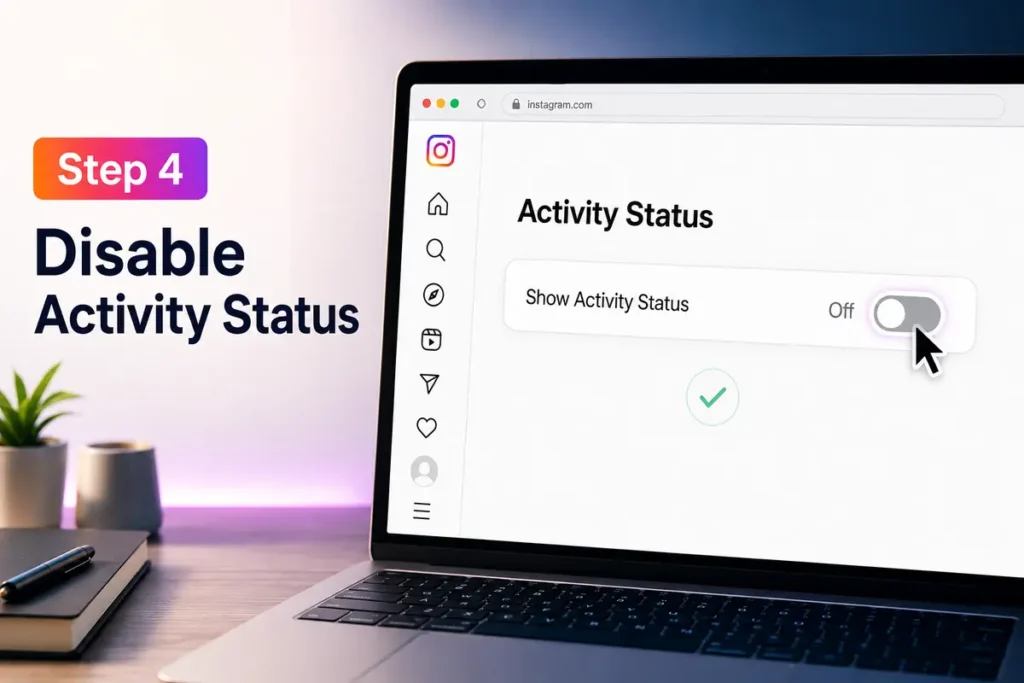
Turn off Show Activity Status.
Your changes are saved automatically.
What Happens After You Turn Off Activity Status?
Once Activity Status is disabled:
- Your followers won’t know when you’re online.
- Friends won’t see your last active time.
- The green dot disappears from Direct Messages.
- You won’t see other users’ activity status either.
This privacy setting works both ways to keep things fair.
Can Specific People Still See You’re Online?
No.
If Activity Status is turned off, Instagram doesn’t show your online status to anyone through its Activity Status feature.
However, people may still guess you’re active if:
- You like their posts.
- You comment on recent content.
- You respond instantly to messages.
- You upload Stories or Reels while chatting.
Although your activity status is hidden, your actions on Instagram remain visible.
Additional Privacy Settings Worth Using
If privacy is important to you, consider adjusting a few more Instagram settings.
Make Your Account Private
A private account lets you control who follows you and sees your content.
Restrict Unwanted Accounts
The Restrict feature limits interactions without blocking someone completely.
Mute Conversations
Muting notifications helps you avoid distractions without leaving chats.
Hide Story From Specific People
You can prevent certain followers from viewing your Stories.
Manage Message Requests
Filtering message requests keeps unwanted conversations separate from your main inbox.
Using these settings together creates a much more private Instagram experience.
For even better online privacy, you can also learn How to Turn Off SafeSearch to control explicit search results across supported search engines.
Common Reasons Activity Status Won’t Turn Off
Sometimes users think the setting isn’t working.
Possible reasons include:
Instagram Needs Updating
Older app versions may display settings differently.
Update the app and try again.
Multiple Devices
If you’re logged into Instagram on multiple devices, make sure your settings are synchronized.
Temporary App Issues
Occasionally, logging out and back in fixes minor glitches.
Cached Data
Restarting the app or clearing its cache may resolve unexpected behavior.
Tips for Staying Private on Instagram
Hiding your online status is only one part of protecting your privacy.
You can also:
- Review your follower list regularly.
- Limit who can message you.
- Disable read receipts where possible.
- Avoid sharing your location publicly.
- Keep personal information out of your bio.
- Review your privacy settings every few months.
Small adjustments can significantly improve your overall privacy.
Can You Still Send Messages While Offline?
Yes.
Turning off Activity Status does not affect your ability to:
- Send messages
- Receive messages
- Watch Stories
- Upload photos
- Post Reels
- Browse Instagram normally
The only change is that your online status remains hidden.
Is Appearing Offline the Same as Logging Out?
No.
Logging out completely disconnects you from Instagram.
Appearing offline simply hides your Activity Status while allowing you to continue using the app normally.
This makes it a better option if you want privacy without interrupting your browsing experience.
Final Thoughts
Learning how to appear offline on Instagram is a simple way to enjoy more privacy while using the app. By turning off your Activity Status, you can browse, message friends, and explore content without showing others when you’re online. Combined with Instagram’s other privacy features, this setting gives you greater control over your account and helps create a more relaxed social media experience.
If you’re improving your online account security as well as your privacy, don’t miss our guide on How to Enable 2FA on Fortnite, which explains how two-factor authentication helps protect your account.
FAQs
1. Can people still message me if I appear offline?
Yes. Hiding your activity status doesn’t prevent anyone from sending messages.
2. Will I still receive Instagram notifications?
Yes. Notifications continue to work normally unless you disable them.
3. Can I see who is online after hiding my status?
No. Once you turn off Activity Status, you also lose the ability to see other users’ online status.
4. Does appearing offline affect Stories or Reels?
No. You can still view and post Stories and Reels as usual.
5. Can I turn Activity Status back on later?
Yes. You can enable it again at any time through Instagram’s privacy settings.
📚 Related Guides
Want to learn more social media and privacy tips? Check out these helpful step-by-step guides: