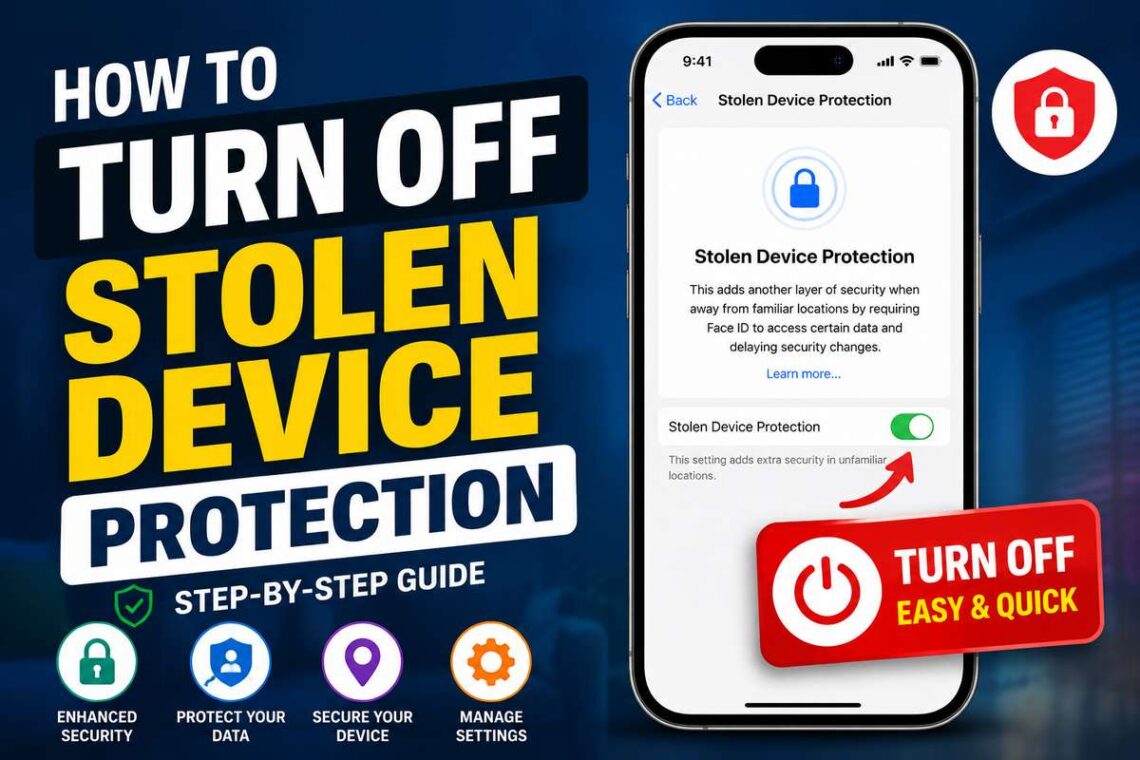
Apple introduced Stolen Device Protection to make iPhones more secure if they are lost or stolen. This feature adds an extra layer of security by requiring Face ID or Touch ID authentication and, in certain situations, a security delay before allowing changes to sensitive settings. While it’s an excellent safeguard against theft, there are times when you may want to disable it such as when selling your iPhone, troubleshooting an issue, or if you simply prefer not to use the feature.
If you’re wondering how to turn off stolen device protection, this guide will walk you through every step. You’ll also learn what the feature does, when it makes sense to disable it, and the potential security risks involved.
What Is Stolen Device Protection?
Stolen Device Protection is a security feature available on iPhones running iOS 17.3 or later. It helps protect your personal information if someone steals your unlocked iPhone and knows your device passcode.
Normally, a passcode can be used to change many important settings. With Stolen Device Protection enabled, Apple requires biometric authentication (Face ID or Touch ID) for sensitive actions and may also enforce a one-hour security delay when you’re away from familiar locations like your home or workplace.
This makes it much harder for thieves to access your Apple ID, saved passwords, payment information, or security settings.
Why Would You Want to Turn It Off?
Although the feature improves security, there are situations where disabling it may be appropriate.
Some common reasons include:
- Selling or giving away your iPhone.
- Trading in your device.
- Troubleshooting Face ID or Touch ID issues.
- Changing security settings without waiting for the security delay.
- Personal preference.
Before disabling it, remember that you’ll lose the extra protection designed to safeguard your personal data.
What You Need Before You Start
Before turning off the feature, make sure you have:
- Your iPhone unlocked.
- Face ID or Touch ID working properly.
- Your Apple ID credentials available if needed.
- A stable internet connection (recommended).
If you’re away from a familiar location, you may need to complete Apple’s one-hour security delay before the setting can be changed.
How to Turn Off Stolen Device Protection
Follow these simple steps.
Step 1: Open the Settings App
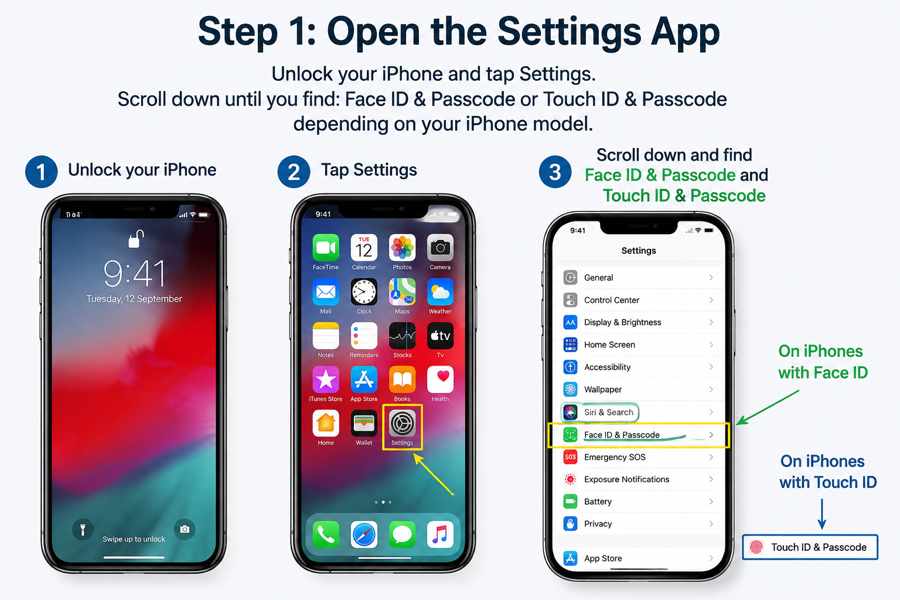
Unlock your iPhone and tap Settings.
Scroll down until you find:
Face ID & Passcode
or
Touch ID & Passcode
depending on your iPhone model.
Step 2: Enter Your Passcode
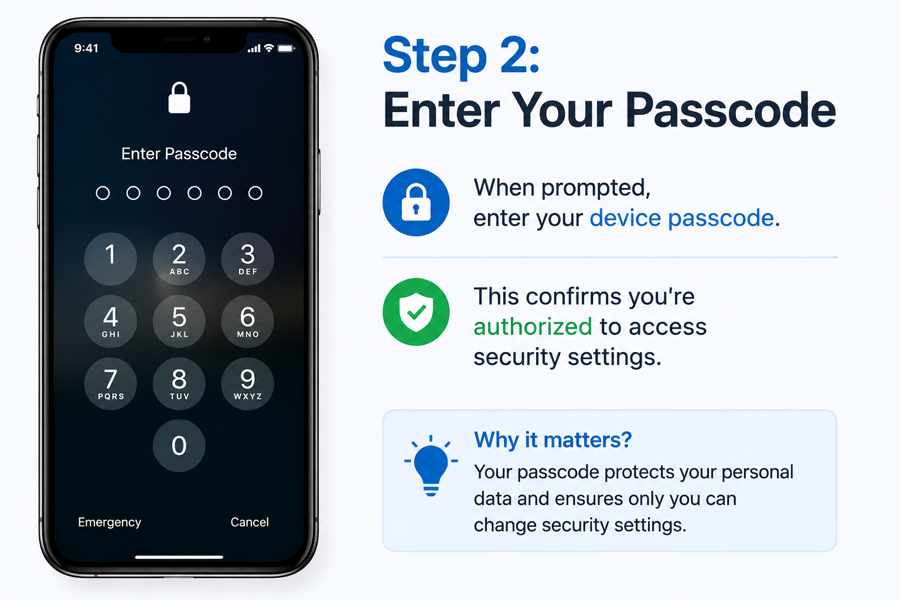
When prompted, enter your device passcode.
This confirms you’re authorized to access security settings.
Step 3: Find Stolen Device Protection
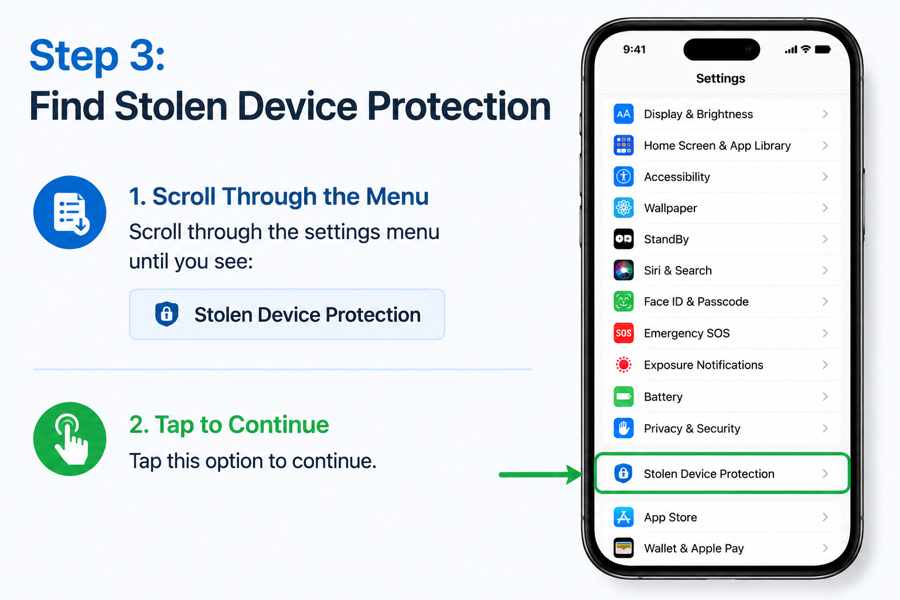
Scroll through the menu until you see:
Stolen Device Protection
Tap this option to continue.
Step 4: Turn Off the Feature
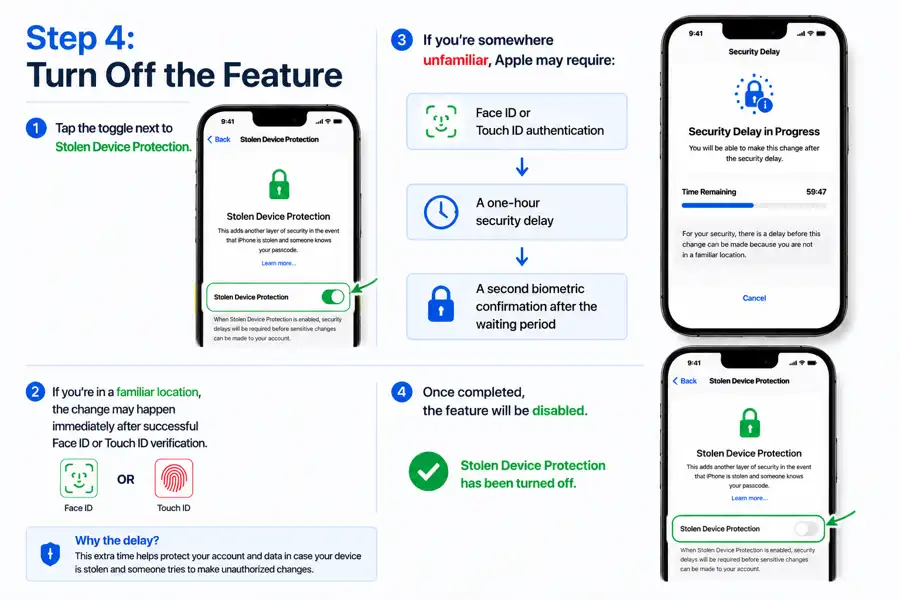
Tap the toggle next to Stolen Device Protection.
If you’re in a familiar location, the change may happen immediately after successful Face ID or Touch ID verification.
If you’re somewhere unfamiliar, Apple may require:
- Face ID or Touch ID authentication
- A one-hour security delay
- A second biometric confirmation after the waiting period
Once completed, the feature will be disabled.
Why Does Apple Require a Security Delay?
The one-hour delay is intentional.
Imagine someone steals your unlocked iPhone while watching you enter your passcode.
Without this delay, they could quickly:
- Change your Apple ID password.
- Disable Find My iPhone.
- Remove Activation Lock.
- Access saved passwords.
- Change security settings.
The waiting period gives legitimate owners time to notice the theft and mark the device as lost.
What Happens After You Turn It Off?
Once disabled:
- Security delays are removed.
- Sensitive settings can be changed using your passcode.
- Apple ID security changes become easier.
- Device management becomes faster.
However, your iPhone becomes less protected if it falls into the wrong hands.
Should You Disable Stolen Device Protection?
For most users, the answer is no.
The feature provides valuable protection with very little inconvenience during normal daily use.
Consider disabling it only if:
- You’re selling your device.
- You’re transferring ownership.
- You’re performing advanced troubleshooting.
- Apple Support specifically recommends it.
Otherwise, keeping it enabled is generally the safer choice.
What If You Can’t Turn It Off?
If the option doesn’t work, try these solutions.
Update iOS
Go to:
Settings → General → Software Update
Install any available updates.
Check Face ID or Touch ID
The feature requires biometric authentication.
If Face ID or Touch ID isn’t working properly, resolve that issue first.
Wait for the Security Delay
If you’re away from a trusted location, simply wait until Apple’s required security delay finishes.
Restart Your iPhone
A quick restart often resolves temporary software glitches.
Tips to Keep Your iPhone Secure
Even if you disable Stolen Device Protection, follow these best practices:
- Use a strong passcode.
- Enable Face ID or Touch ID.
- Keep Find My iPhone enabled.
- Turn on two-factor authentication for your Apple ID.
- Install iOS updates regularly.
- Never share your passcode with others.
These simple habits greatly improve your device’s overall security.
Common Mistakes to Avoid
When changing security settings, avoid these errors:
Turning It Off Permanently
If you only need to disable it temporarily, remember to turn it back on afterward.
Ignoring Software Updates
Older versions of iOS may contain security vulnerabilities.
Keeping your iPhone updated ensures you have Apple’s latest protections.
Disabling Multiple Security Features
Avoid turning off Find My iPhone, Face ID, and Stolen Device Protection at the same time unless you’re erasing or transferring the device.
Final Thoughts
Learning how to turn off stolen device protection is straightforward, but deciding whether you should disable it requires careful consideration. Apple designed this feature to protect your most sensitive information if your iPhone is stolen, and for most users, leaving it enabled is the safest option. If you do need to turn it off—for example, before selling your device or troubleshooting a problem—make sure you understand the security trade-offs and re-enable it whenever possible.
Related Guides
- How to Turn Off SOS on iPhone – Learn how to format Microsoft Word documents professionally.
FAQs
1. Can I turn off Stolen Device Protection anytime?
Yes, but if you’re away from a familiar location, Apple may require a one-hour security delay before the feature can be disabled.
2. Does turning it off delete my data?
No. Disabling Stolen Device Protection does not erase any files, photos, or apps.
3. Is Stolen Device Protection available on every iPhone?
No. It requires an iPhone running iOS 17.3 or later with Face ID or Touch ID support.
4. Can I turn it back on later?
Yes. You can re-enable Stolen Device Protection at any time through the same settings menu.
5. Should I leave Stolen Device Protection enabled?
For most users, yes. It provides an important layer of security against theft and unauthorized access.