
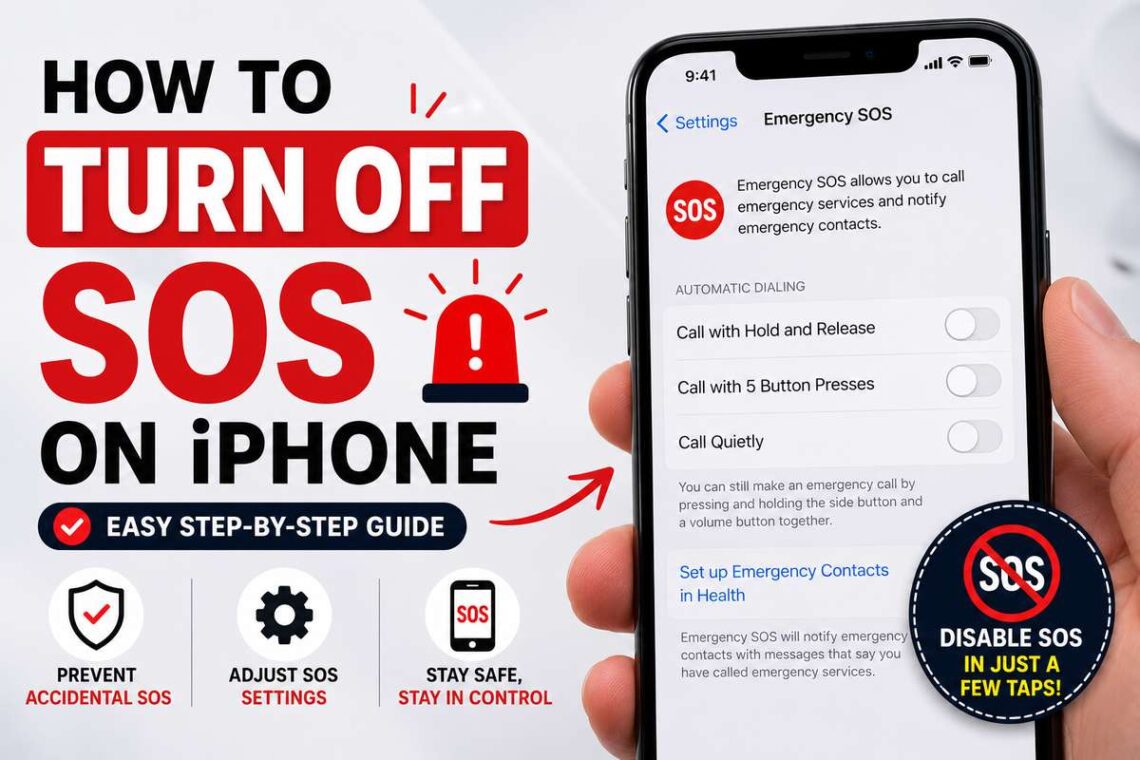
Emergency SOS is one of the most valuable safety features available on the iPhone. It allows users to quickly contact emergency services and notify emergency contacts when they are in danger. While this feature can be life-saving during real emergencies, it can also be activated accidentally, especially if the side button is pressed repeatedly or the phone is carried in a tight pocket or bag.
If your iPhone keeps displaying the Emergency SOS screen or accidentally calls emergency services, you may be wondering how to disable or adjust this feature. The good news is that Apple lets you customize most Emergency SOS settings without completely removing the feature.
In this guide, you’ll learn how to turn off SOS on iPhone, what Emergency SOS does, how to prevent accidental emergency calls, and what settings you should keep enabled for your safety.
What Is Emergency SOS on iPhone?
Emergency SOS is a built-in safety feature available on every modern iPhone. It allows you to quickly call local emergency services without unlocking your device.
Depending on your settings, Emergency SOS can:
- Call emergency services automatically.
- Share your location with emergency contacts.
- Send emergency notifications.
- Display your Medical ID information for first responders.
Apple designed this feature so users can quickly ask for help during dangerous situations.
Why You Might Want to Turn Off SOS
Although Emergency SOS is extremely useful, some users accidentally activate it.
Common reasons include:
- The side button is pressed inside a pocket.
- Volume buttons are squeezed while carrying the phone.
- Children accidentally trigger Emergency SOS.
- The countdown alarm starts unexpectedly.
- Accidental emergency calls are made.
Instead of disabling the entire feature, many people simply turn off automatic calling.
Can You Completely Turn Off Emergency SOS?
Not entirely.
Apple does not allow users to remove Emergency SOS completely because it is considered an important safety feature.
However, you can disable the shortcuts that automatically call emergency services.
This greatly reduces accidental activations while keeping the feature available if you ever truly need it.
How to Turn Off SOS on iPhone
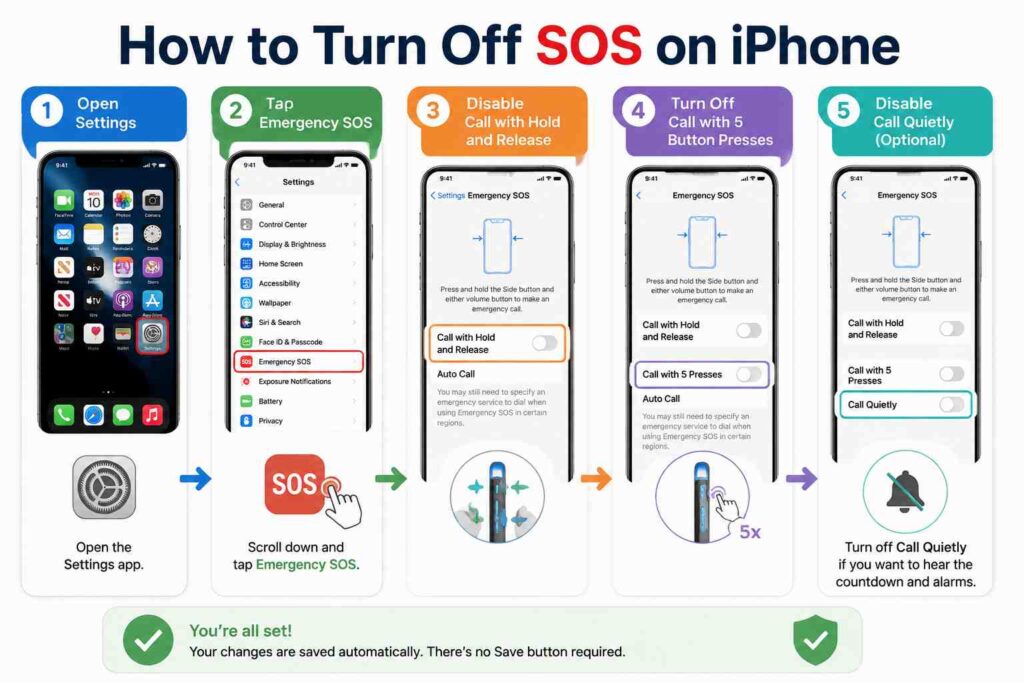
Follow these simple steps.
Step 1: Open Settings
Unlock your iPhone and open the Settings app.
Scroll down until you see Emergency SOS.
Tap it to open the Emergency SOS settings.
Step 2: Disable “Call with Hold and Release”
Locate the option:
Call with Hold and Release
Turn this switch Off.
This prevents emergency calls when you hold the Side button and a volume button.
Step 3: Turn Off “Call with 5 Button Presses”
Next, find:
Call with 5 Presses
Disable this option.
Now repeatedly pressing the Side button five times won’t automatically call emergency services.
Step 4: Disable “Call Quietly” (Optional)
Some iPhone models include:
Call Quietly
If enabled, emergency calls happen without loud alarms.
Turn this off if you prefer hearing the countdown and warning sounds before a call is placed.
Step 5: Exit Settings
Your changes are saved automatically.
There’s no Save button required.
How to Prevent Accidental Emergency Calls
Many accidental SOS calls happen because of how the iPhone is handled.
These tips can help reduce the chances.
Avoid Tight Phone Cases
Some bulky cases press against the Side button continuously.
Choose a case with properly aligned button cutouts.
Be Careful When Carrying Your Phone
Avoid placing your iPhone in a crowded pocket where objects may press the buttons.
Backpacks and handbags can also accidentally trigger the Side button.
Learn the Button Shortcuts
Understanding how Emergency SOS works makes accidental activation less likely.
Most users accidentally trigger it without realizing the Side button combinations.
What Happens If You Accidentally Call Emergency Services?
If your iPhone calls emergency services by mistake:
- Stay on the line.
- Explain that it was accidental.
- Do not simply hang up.
Hanging up may cause emergency responders to call back or dispatch assistance to your location.
How to Stop an SOS Countdown
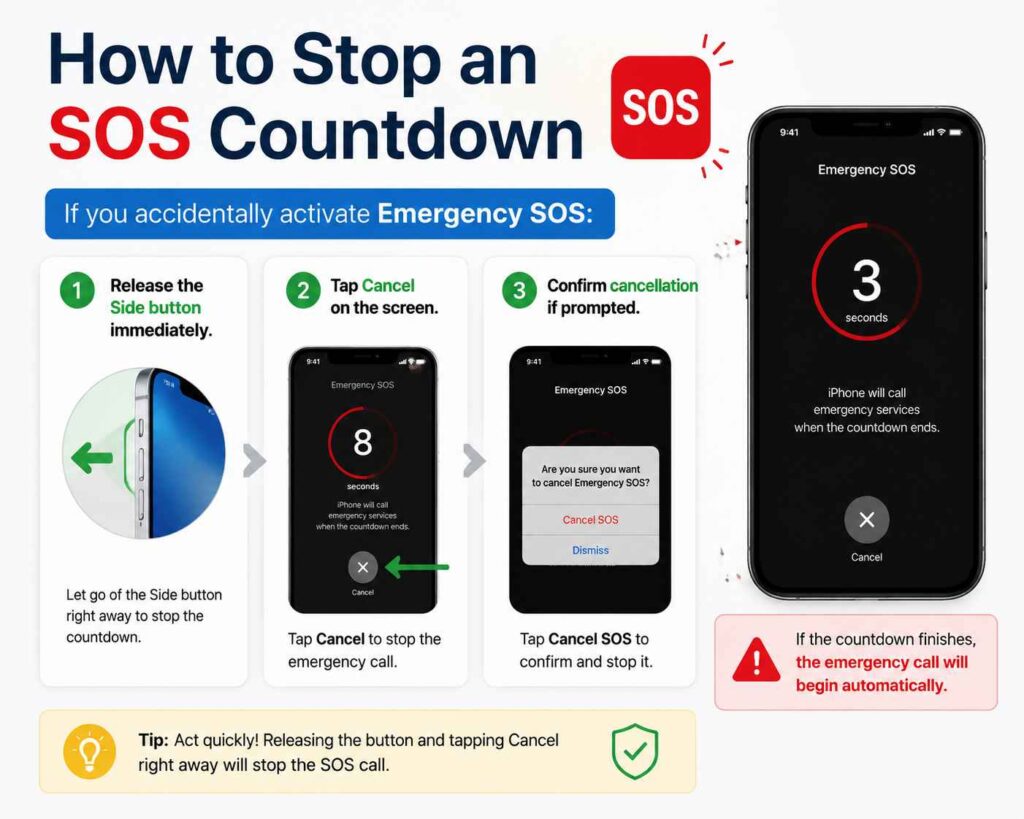
If you accidentally activate Emergency SOS:
- Release the Side button immediately.
- Tap Cancel on the screen.
- Confirm cancellation if prompted.
If the countdown finishes, the emergency call will begin automatically.
Does Turning Off SOS Affect Find My iPhone?
No.
Emergency SOS and Find My are separate features.
Turning off automatic SOS calling does not affect:
- Find My iPhone
- Find My network
- AirTag tracking
- Location sharing
- Lost Mode
These services continue working normally.
Should You Disable Emergency SOS?
For most people, completely disabling automatic calling isn’t necessary.
Instead, consider leaving Emergency SOS enabled while only turning off the shortcuts that cause accidental calls.
This gives you the best balance between convenience and safety.
If you’re elderly, travel frequently, hike alone, or have medical conditions, keeping Emergency SOS available can provide extra peace of mind.
Emergency Contacts Still Matter
Even if you adjust Emergency SOS settings, it’s a good idea to keep your emergency contacts updated.
To review them:
- Open the Health app.
- Tap your profile.
- Select Medical ID.
- Update your emergency contacts if needed.
These contacts may receive your location if Emergency SOS is activated.
Common Problems and Solutions
Sometimes users think Emergency SOS isn’t working correctly when the issue is related to settings.
SOS Keeps Activating
Check whether both automatic calling options are disabled.
Also inspect your phone case for tight button placement.
Emergency SOS Doesn’t Appear
Older iPhone models may have different menu layouts depending on the version of iOS installed.
Updating your iPhone may restore the latest Emergency SOS settings.
Countdown Starts Unexpectedly
Usually, the Side button and Volume button are being pressed together accidentally.
Try carrying your phone differently or changing your protective case.
Tips for Using Emergency SOS Safely
Here are a few simple recommendations:
- Keep your iPhone updated.
- Review your emergency contacts occasionally.
- Learn how Emergency SOS works before an emergency happens.
- Avoid repeatedly pressing the Side button unnecessarily.
- Teach family members how to use Emergency SOS correctly.
These habits help ensure the feature is available when you truly need it.
Final Thoughts
Learning how to turn off SOS on iPhone is mostly about adjusting the automatic calling shortcuts rather than disabling the safety feature itself. Apple intentionally keeps Emergency SOS available because it can save lives during real emergencies. By turning off automatic button shortcuts while keeping the feature accessible, you can prevent accidental calls without sacrificing your personal safety. Spending just a few minutes reviewing your Emergency SOS settings can help you avoid unnecessary emergency calls while ensuring your iPhone is ready if you ever need immediate assistance.
FAQs
1. Can I completely turn off Emergency SOS on my iPhone?
No. Apple does not allow the Emergency SOS feature to be fully disabled, but you can turn off its automatic calling shortcuts.
2. Why does my iPhone keep calling SOS accidentally?
This usually happens when the Side button and Volume button are pressed together or the Side button is pressed five times.
3. Does disabling SOS affect Find My iPhone?
No. Find My iPhone and Emergency SOS are separate features and work independently.
4. How do I stop an Emergency SOS countdown?
Release the buttons immediately and tap Cancel before the countdown ends.
5. Should I leave Emergency SOS enabled?
Yes. Most users should keep the feature available but disable automatic calling if accidental activations are common.



3 Comments on “How to Turn Off SOS on iPhone: A Complete Step-by-Step Guide”