

If you’ve ever used a Mac, you’ve probably experienced an app that suddenly stops responding. The spinning beach ball appears, clicks no longer work, and the application refuses to close. While this can be frustrating, it doesn’t usually mean there’s something wrong with your Mac. In most cases, you simply need to force quit the frozen application.
Knowing how to force quit on Mac is an essential troubleshooting skill that every Mac user should learn. Whether you’re using a MacBook Air, MacBook Pro, iMac, or Mac Studio, macOS provides several ways to close an unresponsive app without restarting your computer.
This guide explains every method, when to use each one, and what to do if force quitting doesn’t solve the problem.
What Does Force Quit Mean on a Mac?
Force quitting is the process of immediately closing an application that has stopped responding. Unlike clicking the normal Quit option, force quitting tells macOS to terminate the app even if it isn’t responding to commands.
It’s similar to ending a task in Windows using Task Manager.
Keep in mind that any unsaved work inside the app may be lost, so force quit should only be used when the application won’t close normally.
If you use an iPhone alongside your Mac, you may also want to learn How to Convert Picture to PDF on iPhone for quickly creating PDFs without extra apps.
When Should You Force Quit an App?
You should consider force quitting when:
- The app freezes completely.
- You see the spinning beach ball for an extended period.
- The application won’t respond to clicks.
- Menus stop working.
- You cannot close the app normally.
- The program uses excessive system resources.
If an app is still responding, it’s always better to quit it normally first.
Method 1: Use the Apple Menu
This is the easiest and most common method.
Step 1: Click the Apple Logo

Click the Apple () menu in the top-left corner of your screen.
Step 2: Choose “Force Quit”
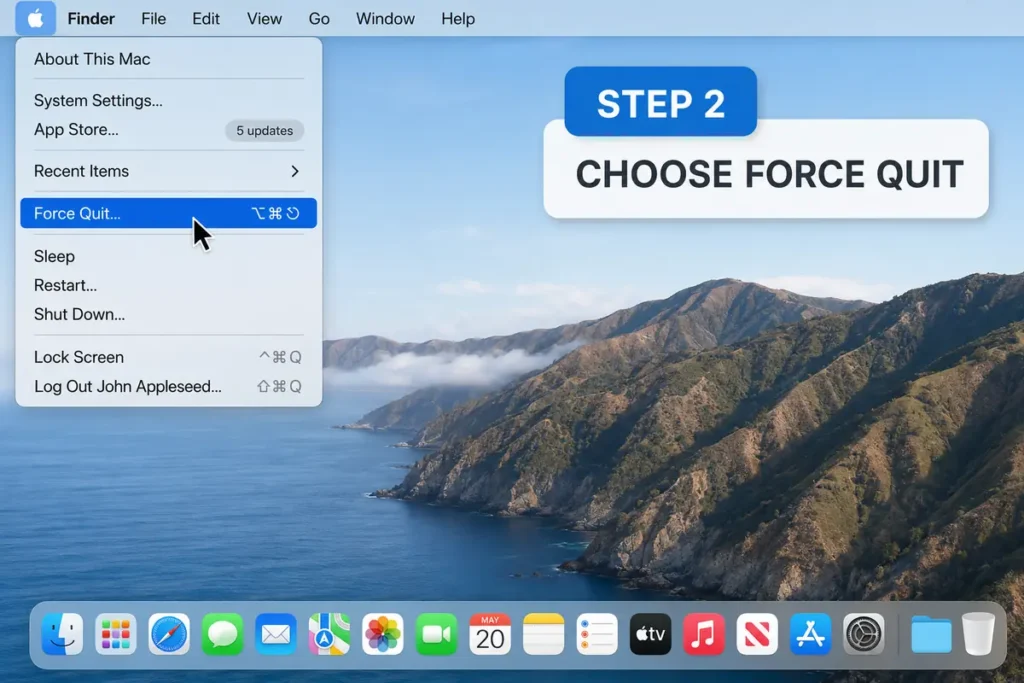
Click Force Quit from the drop-down menu.
A window listing all currently open applications will appear.
Step 3: Select the Frozen App
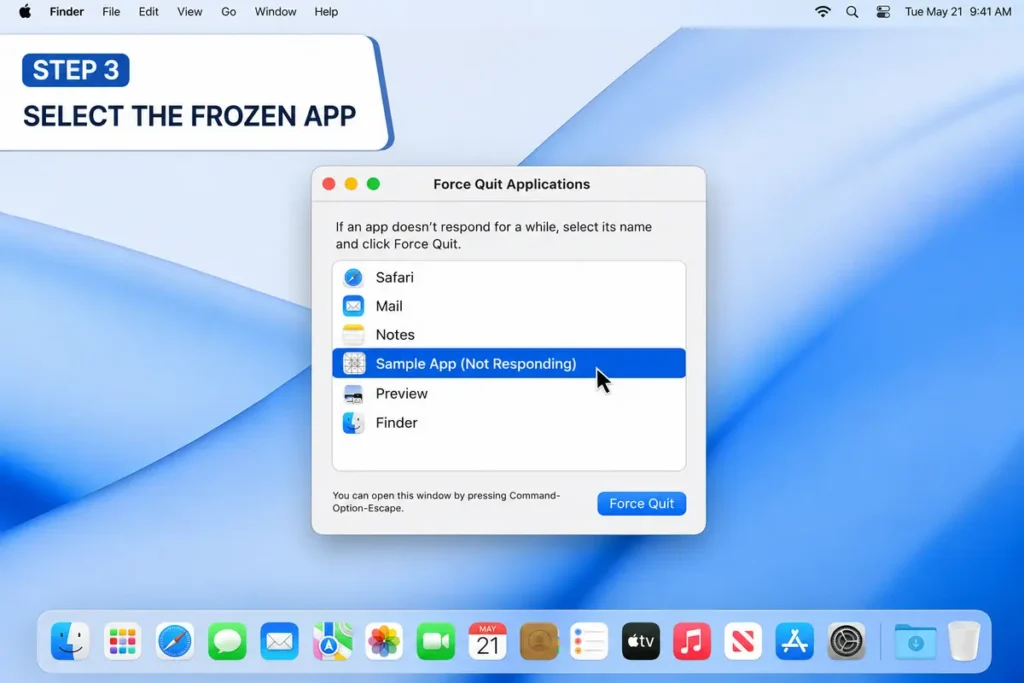
Click the application that’s not responding.
macOS often labels frozen apps with “(Not Responding)”.
Step 4: Click Force Quit
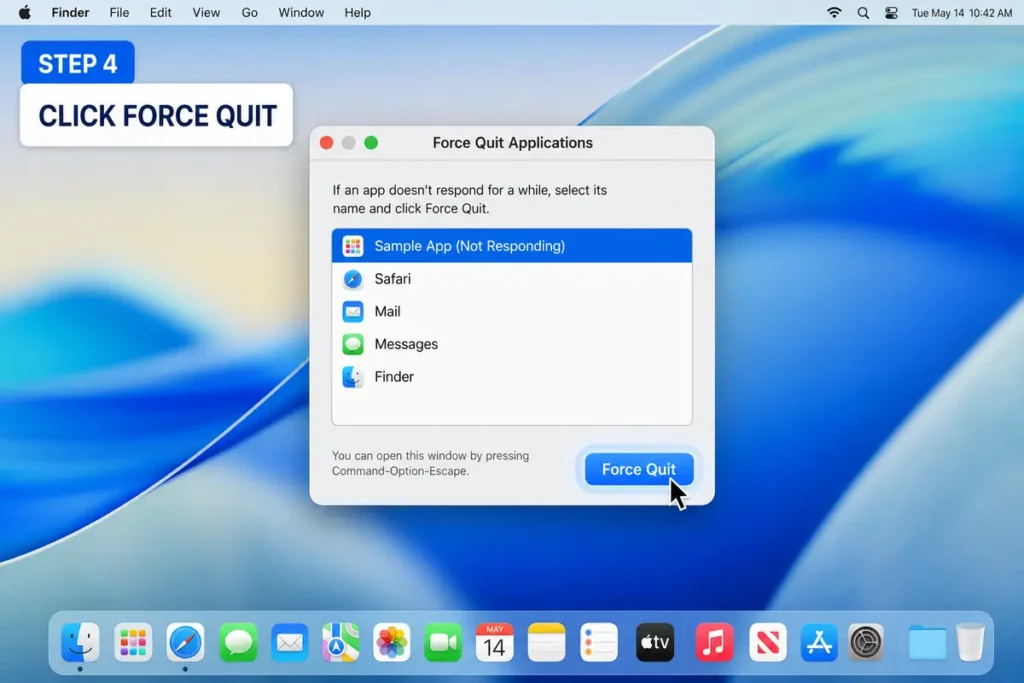
Press the Force Quit button.
Confirm your choice if prompted.
The application should close immediately.
Managing multiple online accounts? Our guide on How to Deactivate Facebook Account explains how to temporarily disable your profile while keeping your data safe.
Method 2: Use the Keyboard Shortcut
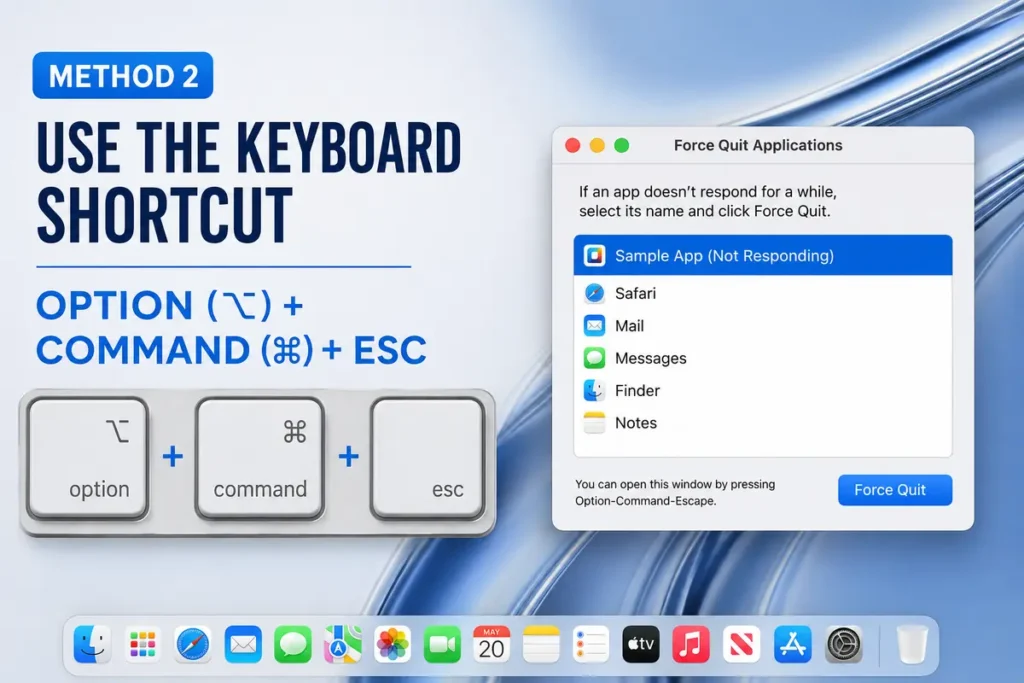
The fastest method is using the built-in keyboard shortcut.
Press:
Option (⌥) + Command (⌘) + Esc
This instantly opens the Force Quit Applications window.
Select the frozen app and click Force Quit.
Many Mac users prefer this shortcut because it works even when an app completely freezes.
Method 3: Force Quit Using the Dock
If the app icon is still visible in the Dock, you can close it directly.
Step 1: Hold the Option Key

Press and hold the Option key.
Step 2: Right-Click the App
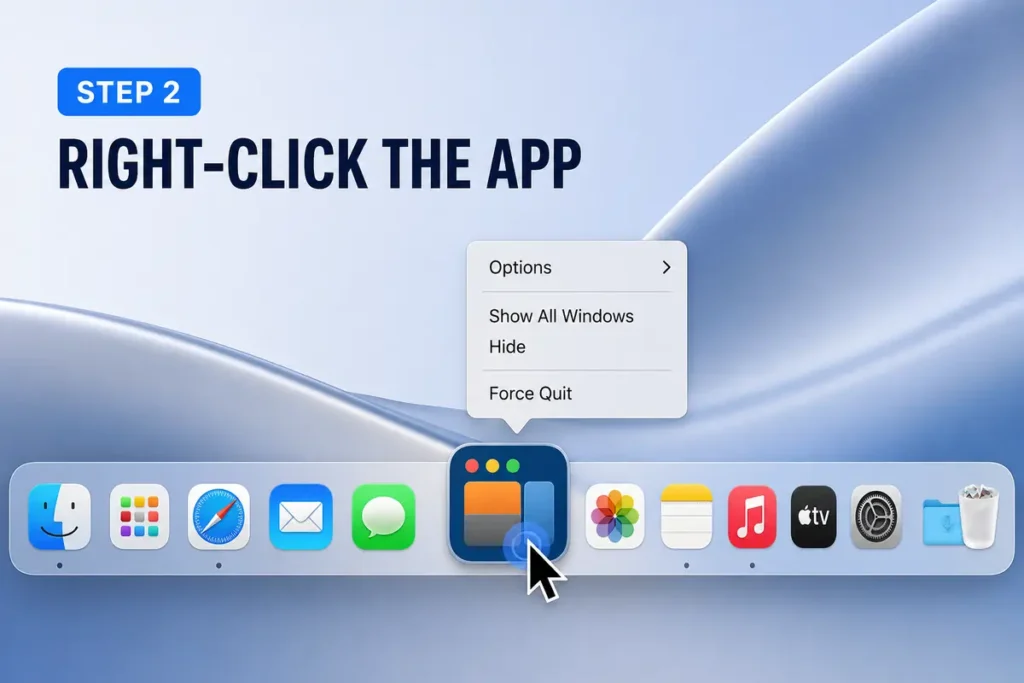
Right-click (or Control-click) the frozen application’s Dock icon.
Step 3: Choose Force Quit
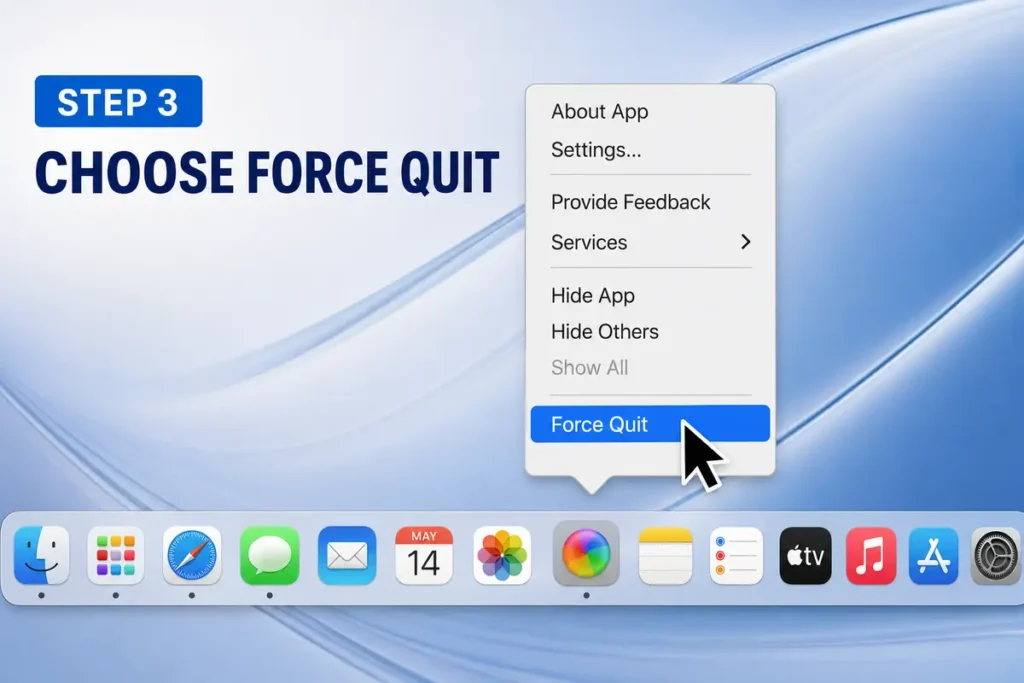
Instead of “Quit,” you’ll see Force Quit.
Click it to close the application.
Method 4: Use Activity Monitor
Activity Monitor is macOS’s built-in system monitoring tool.
It works similarly to Windows Task Manager.
Step 1: Open Activity Monitor
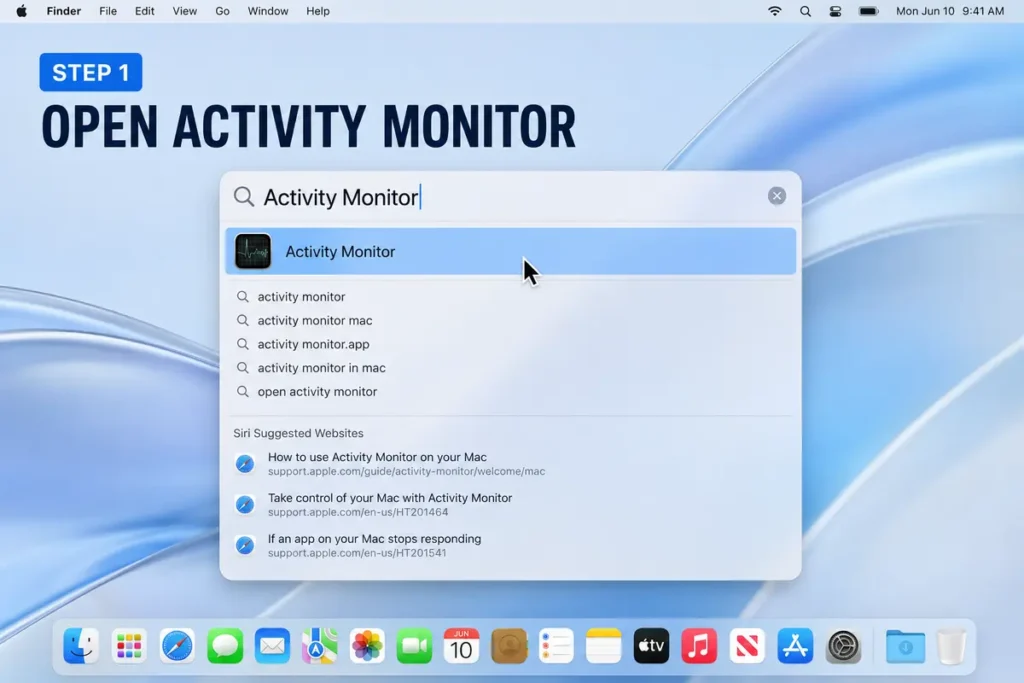
You can open it by:
- Spotlight Search
- Launchpad
- Applications → Utilities
Step 2: Find the App

Locate the application in the process list.
You can use the search bar to find it quickly.
Step 3: Select the Process
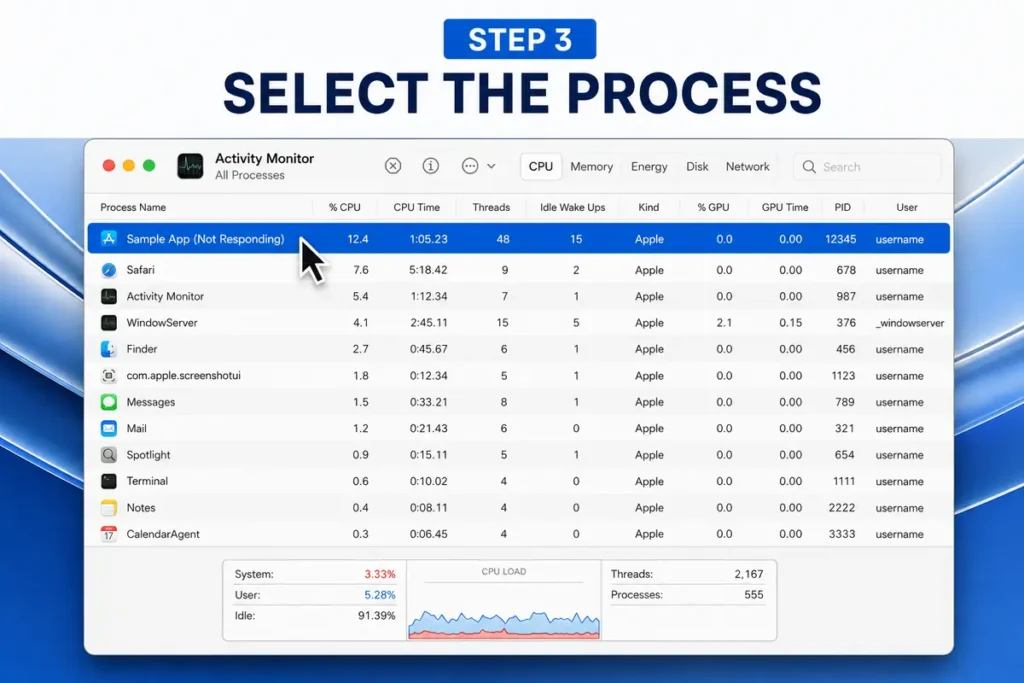
Click the application once.
Step 4: Click the X Button

At the top of the window, click the Stop (X) button.
Choose Force Quit.
The application will terminate immediately.
Cleaning up old online accounts? Follow our tutorial on How to Delete Reddit Account for a complete walkthrough.
Method 5: Force Quit Using Terminal
Advanced users can also use Terminal.
Step 1: Open Terminal
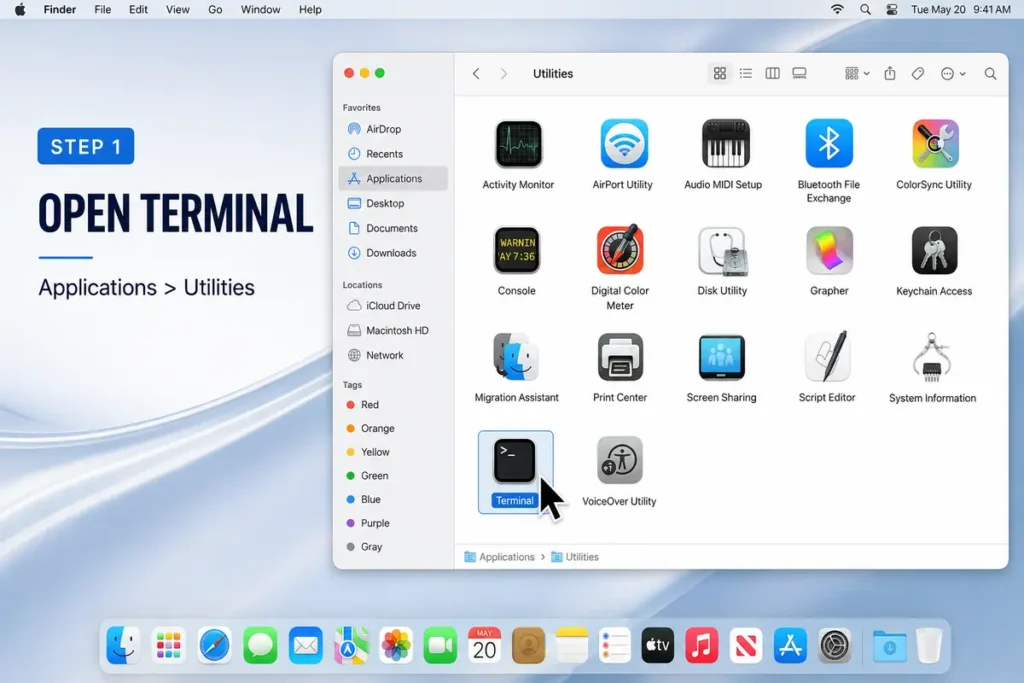
Go to:
Applications → Utilities → Terminal
Step 2: Find the Process
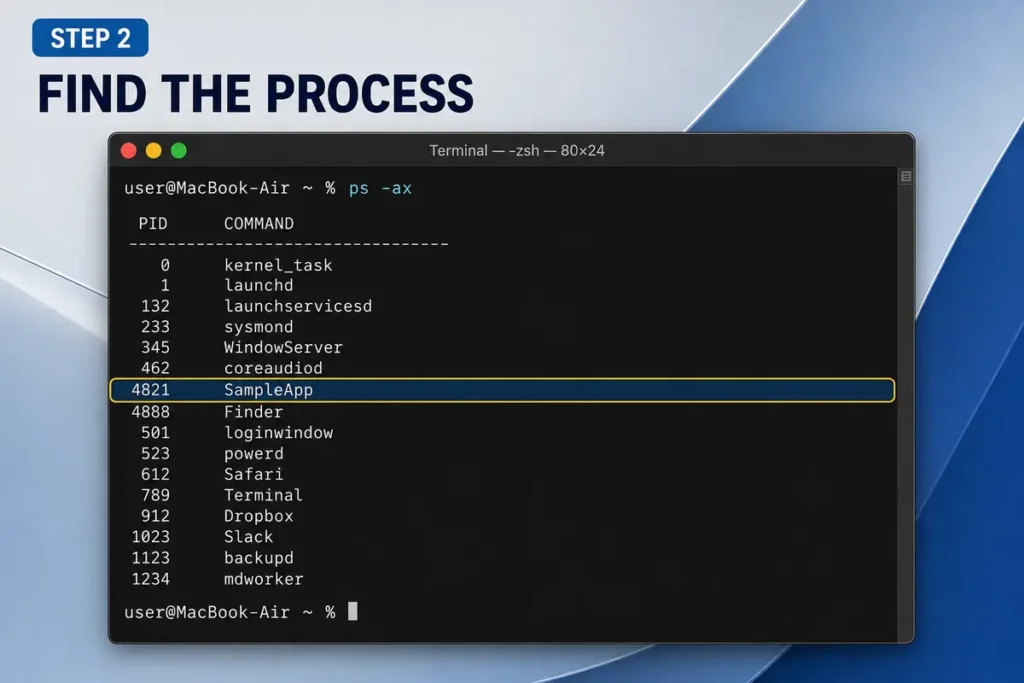
Type:
ps -axFind the application’s process ID (PID).
Step 3: End the Process
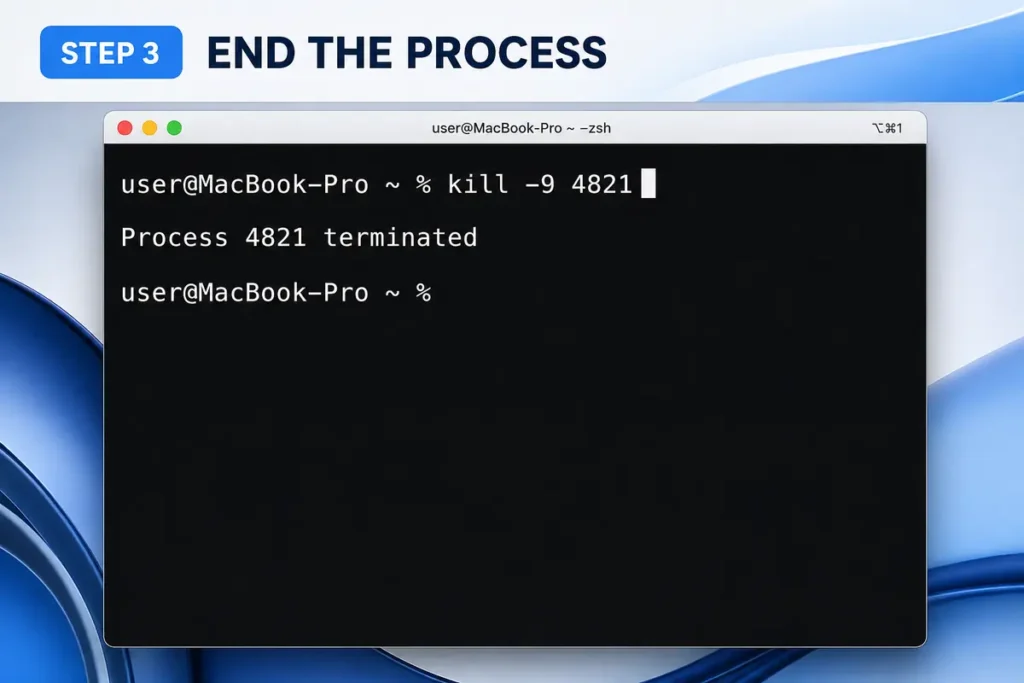
Run:
kill -9 PIDReplace PID with the actual process number.
The app closes instantly.
Method 6: Restart Your Mac
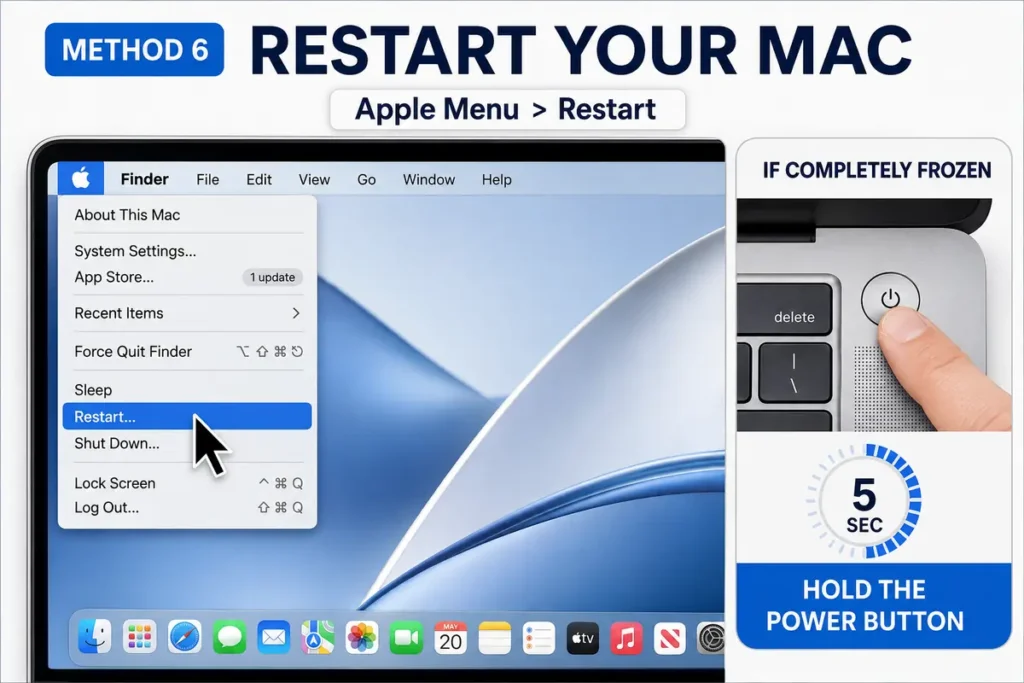
If nothing works, restarting your Mac may be necessary.
Click:
Apple Menu → Restart
If your Mac is completely frozen, press and hold the power button for several seconds until it shuts down.
Wait a few seconds before turning it back on.
Why Do Apps Freeze?
Applications may stop responding for several reasons.
Common causes include:
- Software bugs
- Insufficient RAM
- Corrupted files
- Outdated apps
- Compatibility issues
- Heavy CPU usage
- Background processes
Occasional freezing is normal, but repeated crashes may require further troubleshooting.
What Happens After Force Quitting?
When you force quit:
- The app closes immediately.
- Unsaved changes may be lost.
- Other applications continue running normally.
- Your Mac itself usually isn’t affected.
After reopening the app, it may ask whether you’d like to restore previous documents.
How to Prevent Apps from Freezing
Although you can’t prevent every crash, these tips help reduce the chances.
- Keep macOS updated.
- Update your applications regularly.
- Restart your Mac occasionally.
- Close apps you aren’t using.
- Avoid running too many programs at once.
- Keep enough free storage space.
- Monitor memory usage in Activity Monitor.
These habits help your Mac run smoothly over time.
Does Force Quitting Damage Your Mac?
No.
Force quitting is a built-in macOS feature designed specifically for frozen applications.
It won’t harm your Mac.
The only downside is that unsaved work inside the application may be lost.
What If the App Keeps Freezing?
If the same app freezes repeatedly:
- Update the application.
- Check for macOS updates.
- Reinstall the app.
- Delete corrupted preferences.
- Contact the developer.
- Check whether your Mac meets the app’s system requirements.
Persistent crashes often indicate a software issue rather than a hardware problem.
Final Thoughts
Learning how to force quit on Mac can save you time whenever an application becomes unresponsive. Whether you use the Apple menu, keyboard shortcut, Dock, Activity Monitor, or Terminal, macOS provides several reliable ways to close frozen apps without restarting your entire computer. If freezing becomes a regular problem, keeping your software updated and monitoring system resources can help prevent future issues and keep your Mac running smoothly.
If you enjoy gaming on your Mac or PC, don’t miss our guide on How to Connect PS5 Controller to PC for easy wired and Bluetooth setup.
FAQs
1. What is the shortcut to force quit on a Mac?
Press Option + Command + Esc.
2. Will force quitting delete my files?
No, but any unsaved work inside the app may be lost.
3. Is Activity Monitor like Task Manager?
Yes. Activity Monitor lets you monitor and force quit processes on macOS.
4. Can I force quit Finder?
Yes. Finder can also be restarted using the Force Quit window if needed.
5. Why does my Mac keep freezing?
Repeated freezing may be caused by outdated software, insufficient memory, or application bugs.
🍎 Related Apple & Mac Guides
Looking for more Apple and Mac tutorials? Continue with these helpful step-by-step guides:





One comment on “How to Force Quit on Mac: 6 Easy Ways to Close Frozen Apps”