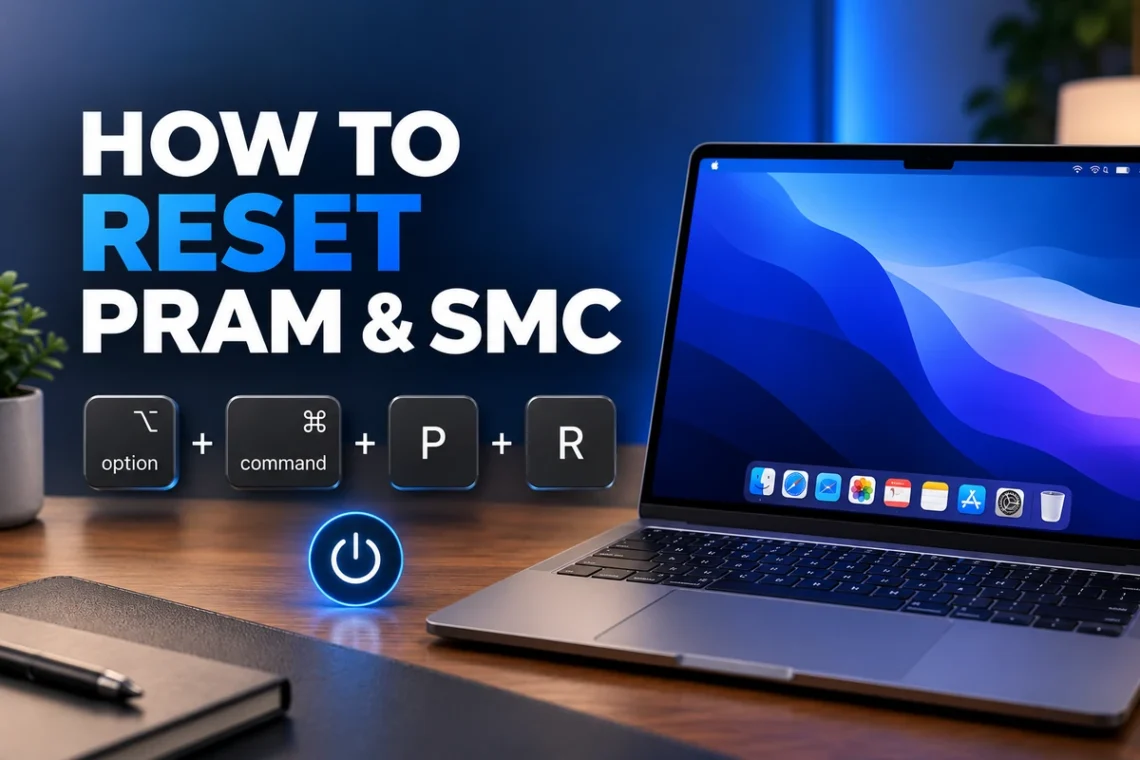
Mac problems can sometimes appear without warning. Your computer may have unusual startup behavior, incorrect display settings, sound problems, charging issues, or fans that seem to run differently than expected. In some cases, resetting certain low-level settings can help resolve these problems without reinstalling macOS or changing complicated system configurations.
If you are searching for how to reset PRAM and SMC, the correct method depends mainly on which Mac you own. Older Intel-based Macs allow users to manually reset NVRAM and the System Management Controller, while Apple Silicon Macs handle these functions differently.
This guide explains how PRAM, NVRAM, and SMC work, how to reset them on compatible Intel Macs, what to do on Apple Silicon models, and when these troubleshooting steps may be useful.
What Are PRAM, NVRAM, and SMC?
PRAM stands for Parameter Random Access Memory. Older Macs used PRAM to store certain system settings so the computer could access them quickly during startup.
Modern Intel Macs generally use NVRAM, or Non-Volatile Random-Access Memory, instead. Although people still commonly search for a “PRAM reset,” the procedure usually refers to resetting NVRAM on newer Intel-based Macs.
NVRAM can store settings related to areas such as startup disk selection, speaker volume, screen resolution, and other startup-related preferences.
The SMC, or System Management Controller, is different. On Intel Macs, it helps control several hardware-related functions, including power management, battery charging, thermal behavior, sleep and wake functions, status lights, and some keyboard or fan-related behavior.
When Should You Reset PRAM or NVRAM?
You normally should not reset NVRAM unless you are troubleshooting a specific Mac problem.
A reset may be useful when your Intel Mac experiences problems such as:
- Incorrect startup disk selection
- Unexpected speaker volume settings
- Strange display resolution behavior
- Problems related to startup settings
- Certain startup-related errors that continue after a normal restart
Before resetting anything, try restarting your Mac normally. Many temporary macOS problems disappear after a regular restart.
How to Reset PRAM and NVRAM on an Intel Mac
The traditional PRAM or NVRAM reset is mainly intended for Intel-based Macs.
Step 1: Shut Down Your Mac
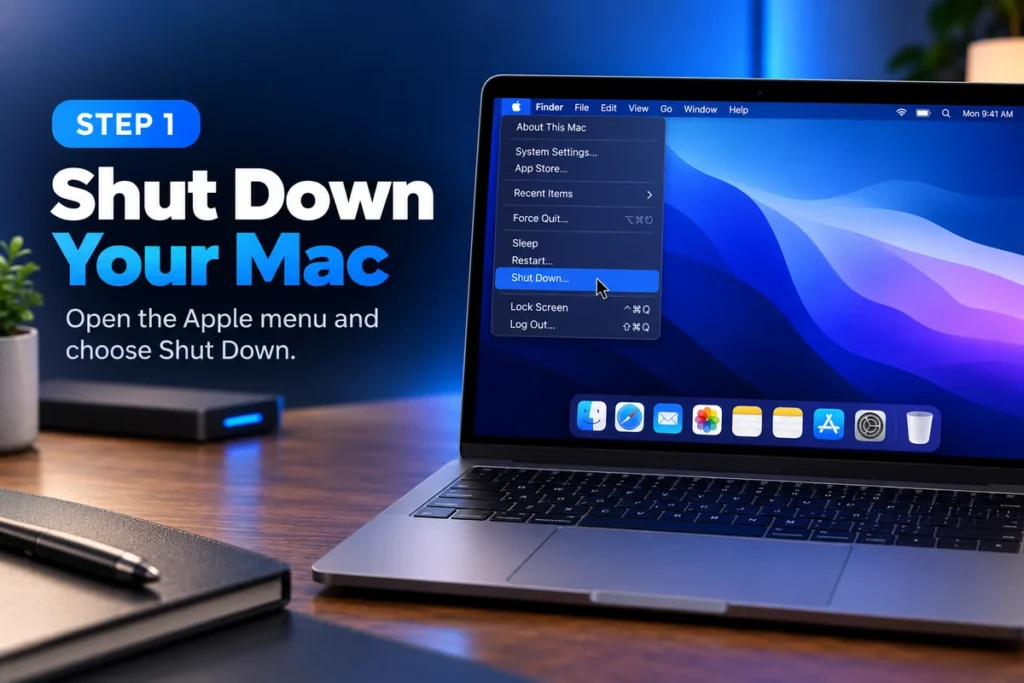
Open the Apple menu in the top-left corner of the screen.
Select:
Shut Down
Wait until the Mac turns off completely.
Step 2: Turn the Mac Back On
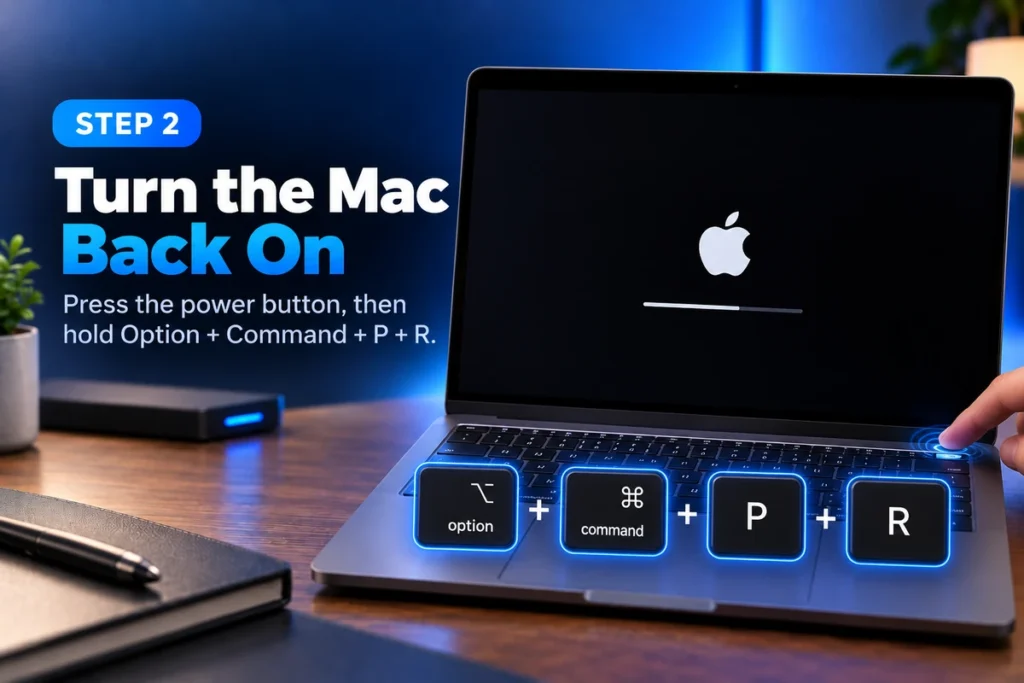
Press the power button to start your Mac.
Immediately after turning it on, press and hold:
Option + Command + P + R
Keep all four keys pressed together.
Step 3: Keep Holding the Keys

Continue holding the keys for about 20 seconds.
During this time, your Mac may appear to restart.
On some older Mac models, you may hear the startup sound more than once. On Macs with an Apple T2 Security Chip, the Apple logo may appear and disappear during the process.
Step 4: Release the Keys
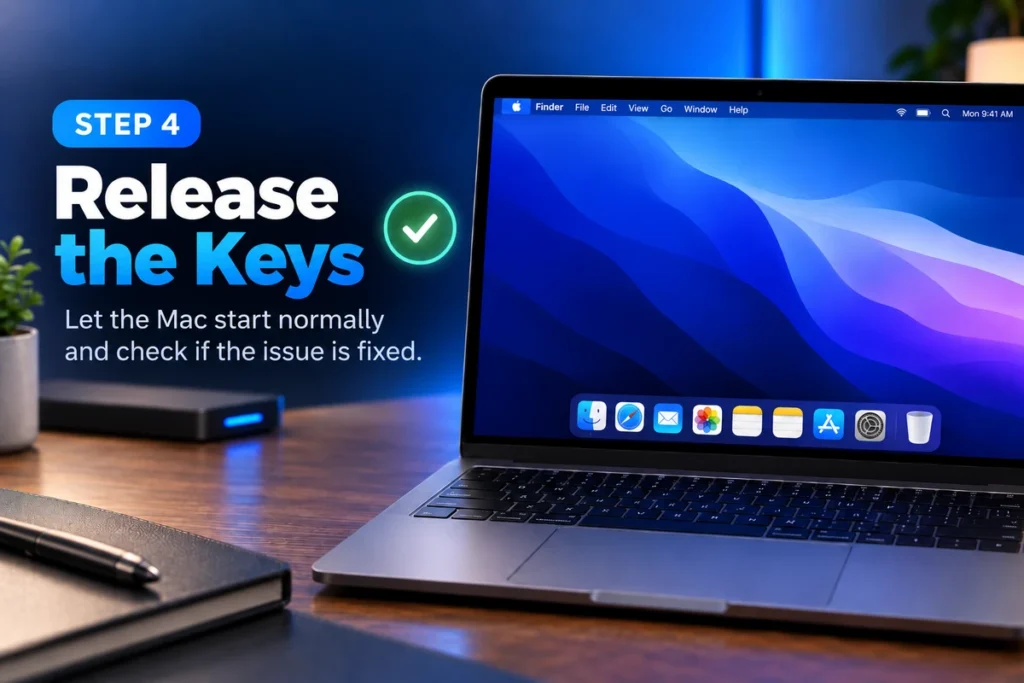
After approximately 20 seconds, release the keys.
Allow your Mac to start normally.
Once macOS loads, check whether the problem you were troubleshooting has been resolved.
What Happens After an NVRAM Reset?
Resetting NVRAM does not normally delete personal files, applications, documents, photos, or other stored data.
However, some system preferences may return to default settings.
For example, you may need to check settings related to:
- Startup disk
- Speaker volume
- Display resolution
- Time zone
- Other startup-related preferences
If something looks different after the reset, open System Settings and review the relevant options.
What Is an SMC Reset?
An SMC reset is another troubleshooting procedure used on Intel-based Macs.
The System Management Controller helps manage hardware functions that are separate from normal macOS software settings.
Problems sometimes associated with SMC functions can involve:
- Battery charging
- Power behavior
- Sleep and wake functions
- Fans
- Keyboard backlighting
- Status indicator lights
- Thermal management
- Certain external display behavior
- Power button response
The exact SMC reset procedure depends on the type and age of your Intel Mac.
How to Reset SMC on an Intel MacBook With a T2 Security Chip
Some Intel MacBook Air and MacBook Pro models include Apple’s T2 Security Chip.
If your Mac has a T2 chip, use the appropriate reset procedure for that hardware.
First, shut down your Mac completely.
Press and hold the following keys on the built-in keyboard:
Control on the left side
Option (Alt) on the left side
Shift on the right side
Keep these three keys pressed for about seven seconds.
While still holding them, press and hold the power button as well.
Continue holding all four buttons for approximately another seven seconds.
Release all the keys.
Wait a few seconds, then press the power button to turn your Mac on normally.
How to Reset SMC on Older Intel MacBooks
The procedure is different for Intel Mac notebooks that do not use Apple’s T2 Security Chip.
Shut down the Mac.
On the built-in keyboard, press and hold:
Shift + Control + Option
Use the keys on the left side of the keyboard.
While holding those three keys, also press and hold the power button.
Keep all four pressed for approximately 10 seconds.
Release the keys and power button.
Wait briefly, then press the power button again to start the Mac.
What About MacBooks With a Removable Battery?
Very old MacBook models may have batteries that users can physically remove.
For these Macs, the SMC reset process is different.
Shut down the computer.
Disconnect the power adapter.
Remove the battery.
Press and hold the power button for approximately five seconds.
Release the power button.
Reinstall the battery and reconnect the power adapter.
Then press the power button to start the Mac.
Because removable-battery Macs are older devices, hardware condition may also play a role if power or charging problems continue.
How to Reset SMC on an Intel Desktop Mac
Intel desktop Macs such as certain iMac, Mac mini, Mac Pro, and older Mac desktop models generally use a simpler procedure.
Shut down the Mac.
Unplug the power cable from the computer or electrical outlet.
Wait approximately 15 seconds.
Reconnect the power cable.
Wait another few seconds.
Press the power button to turn the Mac back on.
For many Intel desktop models, disconnecting power in this way allows the system’s power-management controller to reset.
How to Reset SMC on an Intel Mac With a T2 Chip
Some Intel desktop Macs with Apple’s T2 Security Chip can also use a power-disconnection method.
Shut down the Mac completely.
Unplug the power cord.
Wait around 15 seconds.
Reconnect the power cord.
Wait several more seconds.
Then press the power button to start the Mac.
If you are unsure whether your Intel Mac includes a T2 Security Chip, check the model information before choosing a reset procedure.
How to Check Whether Your Mac Is Intel or Apple Silicon
Knowing which processor your Mac uses is important because reset procedures differ significantly.
Open the Apple menu and select:
About This Mac
Look for information about the processor or chip.
If you see something such as:
Intel Core i5, Intel Core i7, or another Intel processor
you have an Intel-based Mac.
If you see:
Apple M1, M2, M3, M4, or another Apple chip
you have an Apple Silicon Mac.
This distinction determines whether traditional PRAM/NVRAM and SMC reset instructions apply.
How to Reset PRAM and SMC on Apple Silicon Macs
Apple Silicon Macs work differently from Intel Macs.
Macs using Apple-designed processors do not require the traditional Intel-style SMC reset procedure. Many hardware-management functions that were previously handled by a separate SMC are integrated differently into Apple Silicon systems.
If you are having a power, battery, charging, fan, sleep, or hardware-related problem on an Apple Silicon Mac, start by shutting down the computer completely.
Open:
Apple menu > Shut Down
Allow the Mac to remain off briefly.
Then press the power button to start it again.
A complete shutdown and restart can refresh system-level hardware management without requiring the keyboard combinations used on Intel Macs.
Traditional Option + Command + P + R NVRAM-reset instructions are also primarily associated with Intel Macs and should not be treated as the normal troubleshooting method for Apple Silicon systems.
Restart Your Mac Before Resetting Anything
Before using a PRAM, NVRAM, or SMC reset, try a normal restart first.
Open:
Apple menu > Restart
A restart reloads macOS and clears many temporary software problems.
If the issue disappears after restarting, there is usually no reason to perform additional low-level troubleshooting.
If an app is preventing your Mac from restarting normally, see our guide on how to force quit on Mac before trying the reset again.
Check for macOS Updates
If the same problem continues after restarting or resetting the appropriate system component, check whether a macOS update is available.
Open:
Apple menu > System Settings > General > Software Update
For another useful Apple account guide, see how to change Apple ID country without missing important account requirements.
Allow your Mac to check for updates.
Install an appropriate update if one is available.
Software updates can include fixes for compatibility, power management, hardware behavior, security, and system stability.
Disconnect External Accessories
USB devices and other accessories can sometimes cause behavior that looks like a Mac hardware problem.
Disconnect non-essential accessories such as:
- USB hubs
- External drives
- Printers
- Docking stations
- External displays
- Audio devices
- Third-party chargers or adapters
Restart the Mac and test it again.
If the problem disappears, reconnect accessories one at a time. This can help identify whether a particular device or adapter is contributing to the issue.
What If Resetting PRAM or SMC Does Not Work?
Resetting PRAM, NVRAM, or the SMC is not a universal fix.
If the problem remains, the cause may involve macOS, a damaged preference file, an external accessory, battery health, storage problems, hardware failure, or another system component.
Start with basic troubleshooting:
Restart the Mac.
Install available macOS updates.
Disconnect unnecessary accessories.
Check battery and power connections.
Confirm that the correct startup disk is selected.
Test whether the problem also happens when external devices are disconnected.
If the issue involves persistent charging failures, unexpected shutdowns, display problems, or other serious hardware symptoms, professional diagnostics may be necessary.
If you are also troubleshooting another Apple device, our guide on how to reset iPhone explains the available reset options and when to use them.
Should You Reset PRAM and SMC Regularly?
No.
PRAM, NVRAM, and SMC resets should generally be used as troubleshooting steps rather than routine maintenance.
If your Mac works normally, repeatedly resetting these components provides little benefit and may simply reset preferences that you then need to configure again.
Use the appropriate reset only when the symptoms suggest that it may help and after trying simpler options such as restarting the Mac.
Final Thoughts
Knowing how to reset PRAM and SMC can be useful when troubleshooting certain problems on an Intel-based Mac. For NVRAM, Intel Macs generally use the Option + Command + P + R startup combination, while SMC reset instructions vary depending on whether the Mac has a T2 Security Chip, a non-removable battery, a removable battery, or desktop hardware.
Apple Silicon Macs are different. They do not use the same traditional Intel SMC reset process, so a complete shutdown and restart is usually the more appropriate starting point.
If resetting the correct component does not solve the problem, move on to macOS updates, accessory checks, power troubleshooting, and hardware diagnostics rather than repeatedly performing the same reset.
FAQs
1. Are PRAM and NVRAM the same thing?
They serve a similar purpose. Older Macs used PRAM, while later Macs generally use NVRAM to store certain startup and system settings.
2. Does resetting PRAM delete my files?
No. Resetting PRAM or NVRAM does not normally delete your documents, applications, photos, or other personal files, although some system preferences may reset.
3. How long should I hold Option, Command, P, and R?
On an Intel Mac, hold Option + Command + P + R for approximately 20 seconds during startup before releasing the keys.
4. Can I reset the SMC on an M1 or M2 Mac?
Apple Silicon Macs do not use the traditional Intel-style SMC reset procedure. Shut the Mac down completely and restart it instead.
5. What should I do if resetting PRAM and SMC does not fix my Mac?
Restart the Mac, install available macOS updates, disconnect external accessories, check power connections, and consider hardware diagnostics if the problem continues.