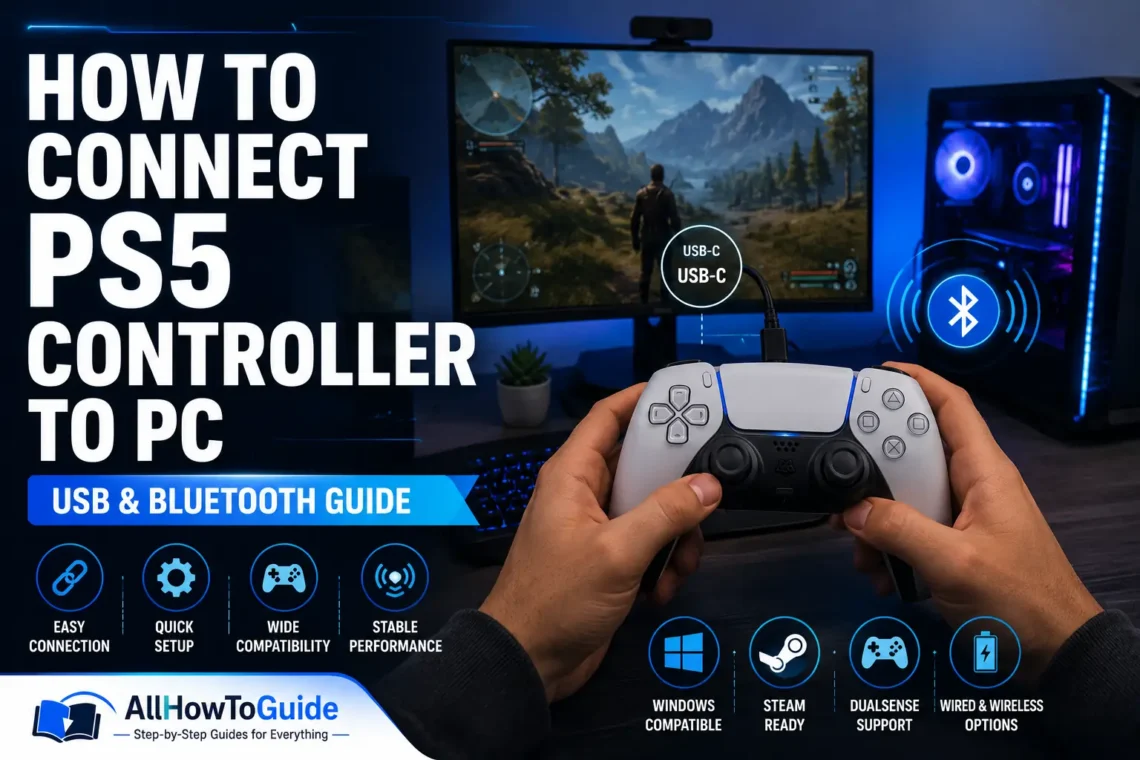
Gaming on a PC gives you access to thousands of titles, but many players still prefer using a controller over a keyboard and mouse. If you’ve recently bought a PlayStation 5 DualSense controller, you might be wondering how to use it with your computer.
The good news is that learning how to connect PS5 controller to PC is easier than many people think. Windows supports the DualSense controller through both USB and Bluetooth, and popular gaming platforms like Steam make setup almost effortless. Some games even support advanced DualSense features, including adaptive triggers and haptic feedback.
In this guide, you’ll learn every available connection method, how to troubleshoot common issues, and how to get the best gaming experience on your Windows PC.
Can You Use a PS5 Controller on a PC?
Yes. The PS5 DualSense controller works very well with Windows PCs.
You can connect it using:
- USB-C cable
- Bluetooth
- Steam
- Third-party software (for additional compatibility)
Most modern PC games recognize the controller automatically, especially if you’re playing through Steam.
If you enjoy gaming tutorials, don’t miss our complete guide on How to Evolve Inkay, which explains the unique evolution method step by step.
What You Need Before Connecting
Before getting started, make sure you have:
- A PS5 DualSense controller
- Windows 10 or Windows 11 PC
- USB-C cable (for wired connection)
- Bluetooth adapter or built-in Bluetooth (for wireless connection)
- Updated Windows drivers
- Charged controller battery
Once everything is ready, you can choose your preferred connection method.
Method 1: Connect Using a USB Cable
The wired method is the easiest and most reliable.
Step 1: Plug in the USB Cable
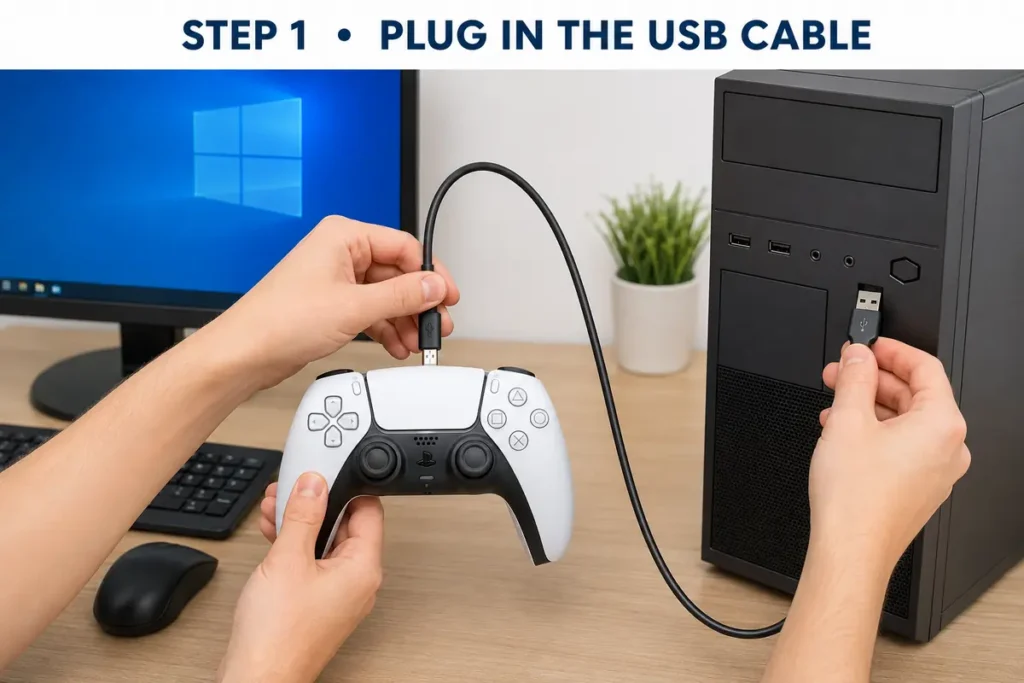
Connect the USB-C end to your PS5 controller.
Plug the USB-A or USB-C end into your PC.
Step 2: Wait for Windows
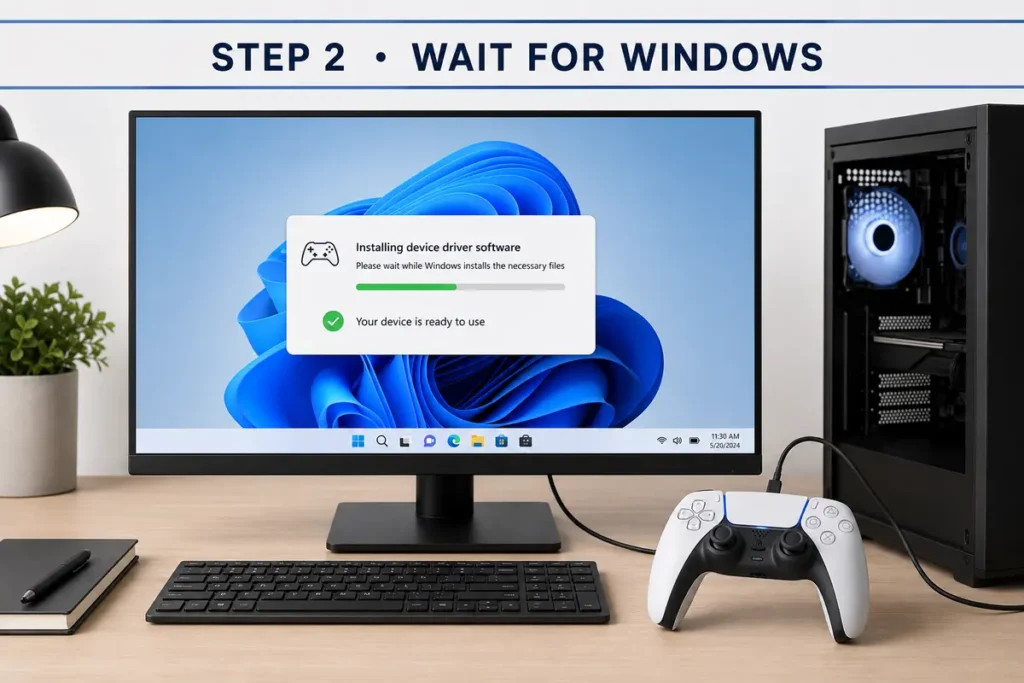
Windows automatically installs the required drivers.
This usually takes only a few seconds.
Step 3: Test the Controller
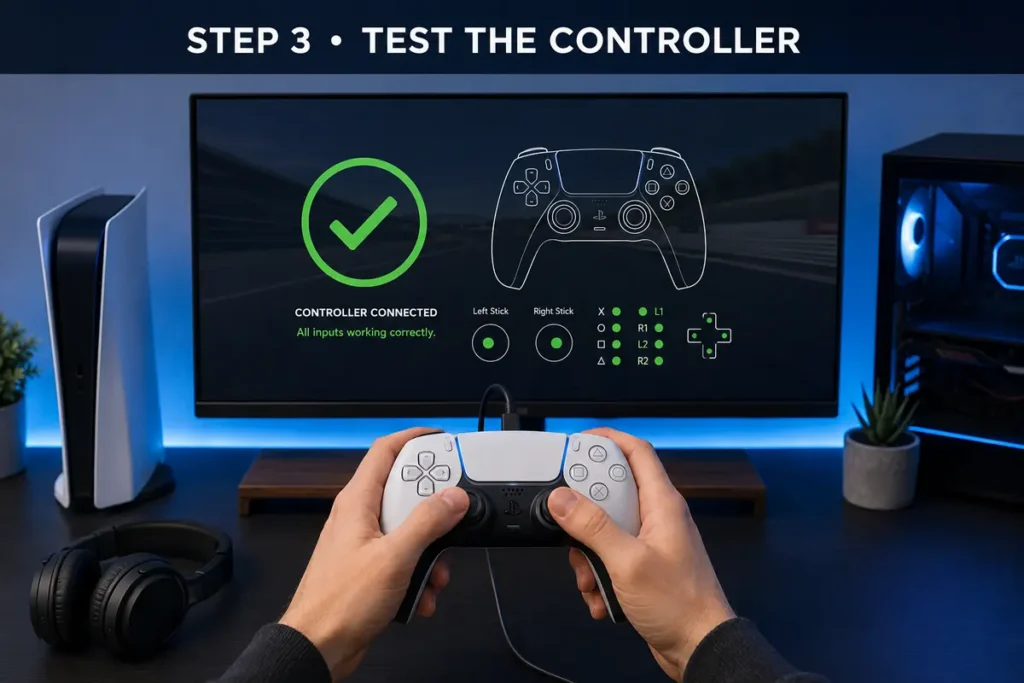
Open your favorite game or Steam.
Most games will recognize the controller immediately.
No additional setup is required for many modern titles.
Want to save screenshots or game images as PDFs? Follow our guide on How to Convert Picture to PDF on iPhone.
Method 2: Connect via Bluetooth
Wireless gaming offers more freedom without cables.
Step 1: Turn On Bluetooth
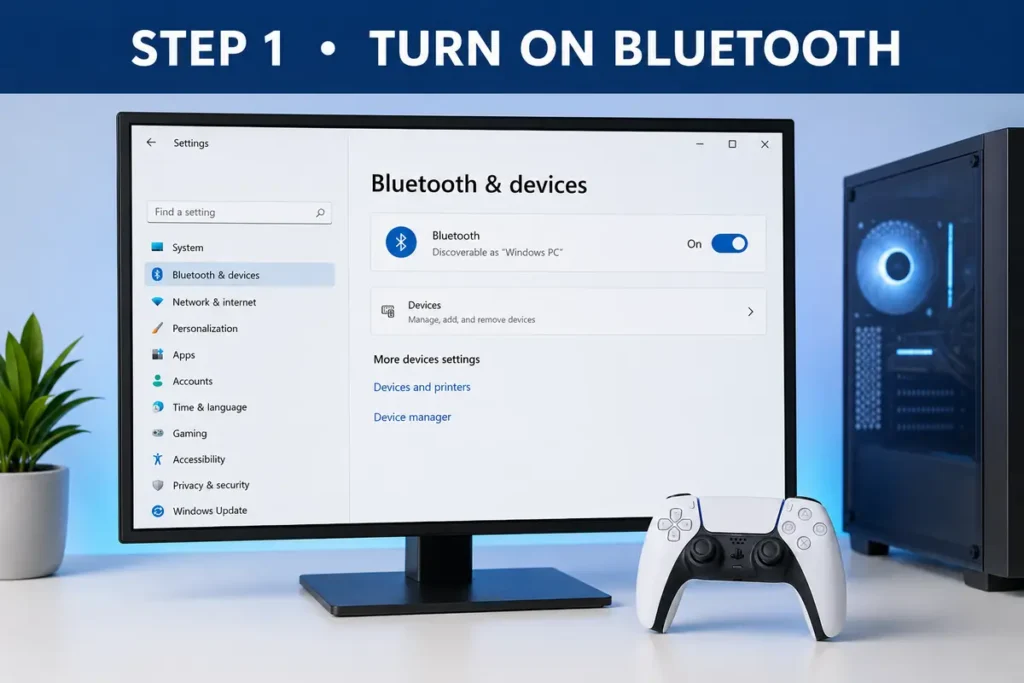
On Windows:
- Open Settings
- Select Bluetooth & Devices
- Turn Bluetooth on
Step 2: Put the Controller into Pairing Mode
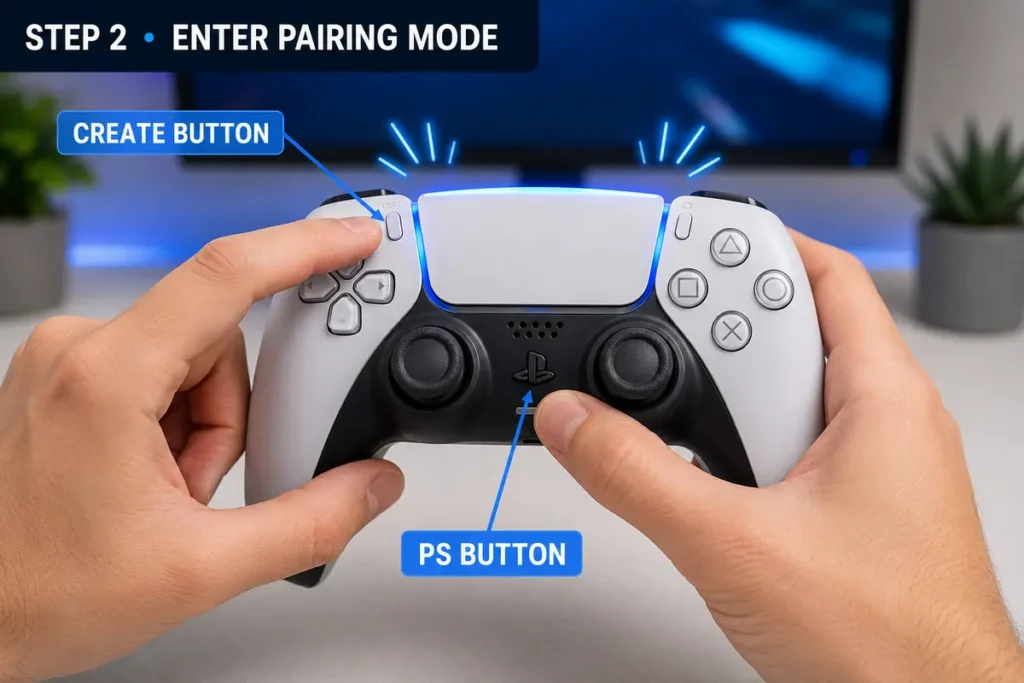
Press and hold:
- Create Button
- PS Button
Hold both buttons until the light bar starts flashing blue.
This means the controller is ready to pair.
Step 3: Pair the Controller
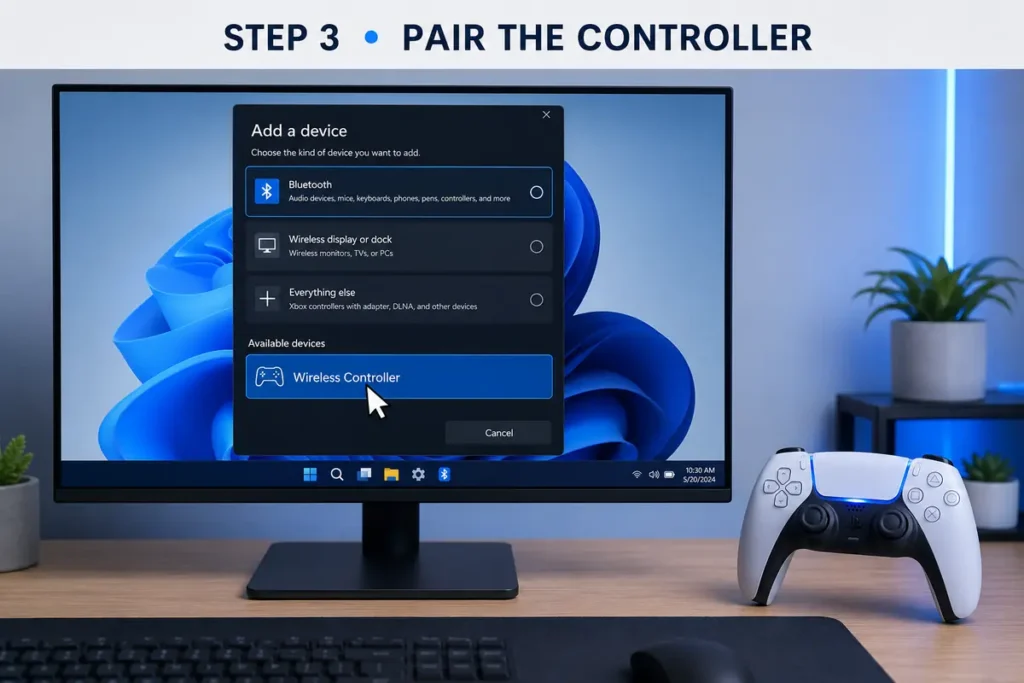
Click:
Add Device → Bluetooth
Select:
Wireless Controller
Windows will complete the pairing process automatically.
Step 4: Start Playing
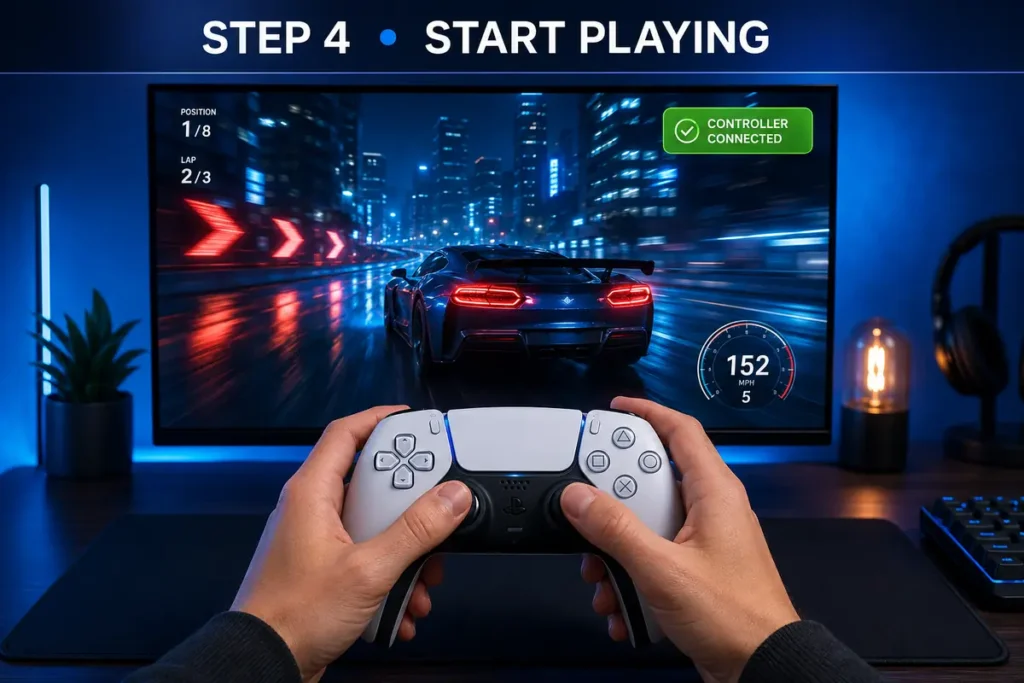
Once connected, launch your favorite game.
The controller should now work wirelessly.
How to Connect Through Steam
Steam offers the best native support for DualSense controllers.
Step 1: Open Steam
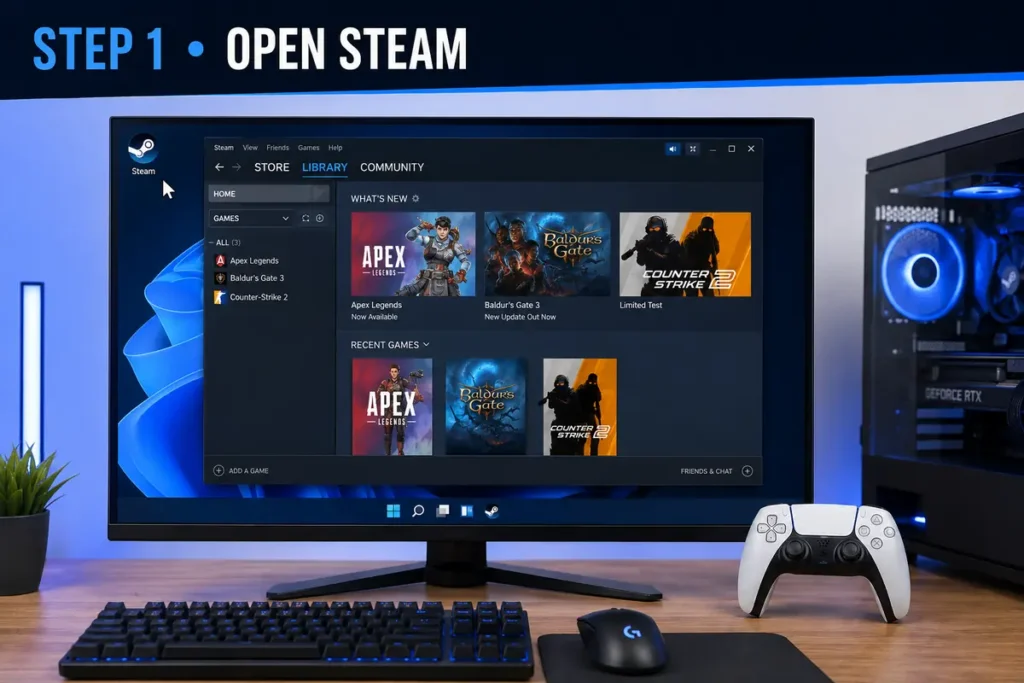
Launch the Steam desktop application.
Step 2: Open Controller Settings
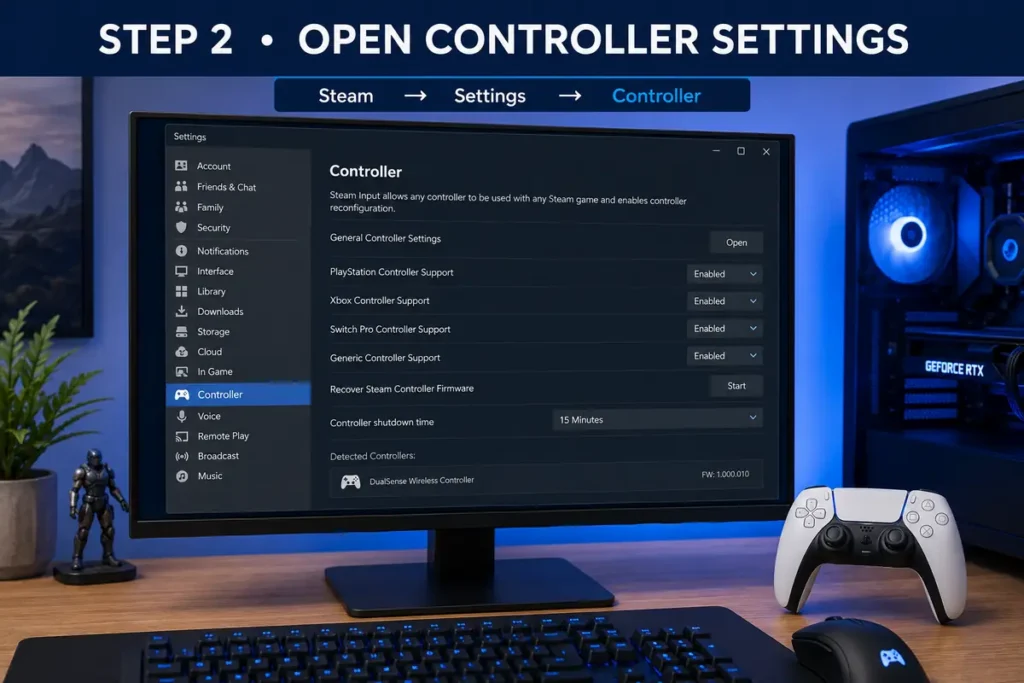
Go to:
Steam → Settings → Controller
Step 3: Enable PlayStation Controller Support
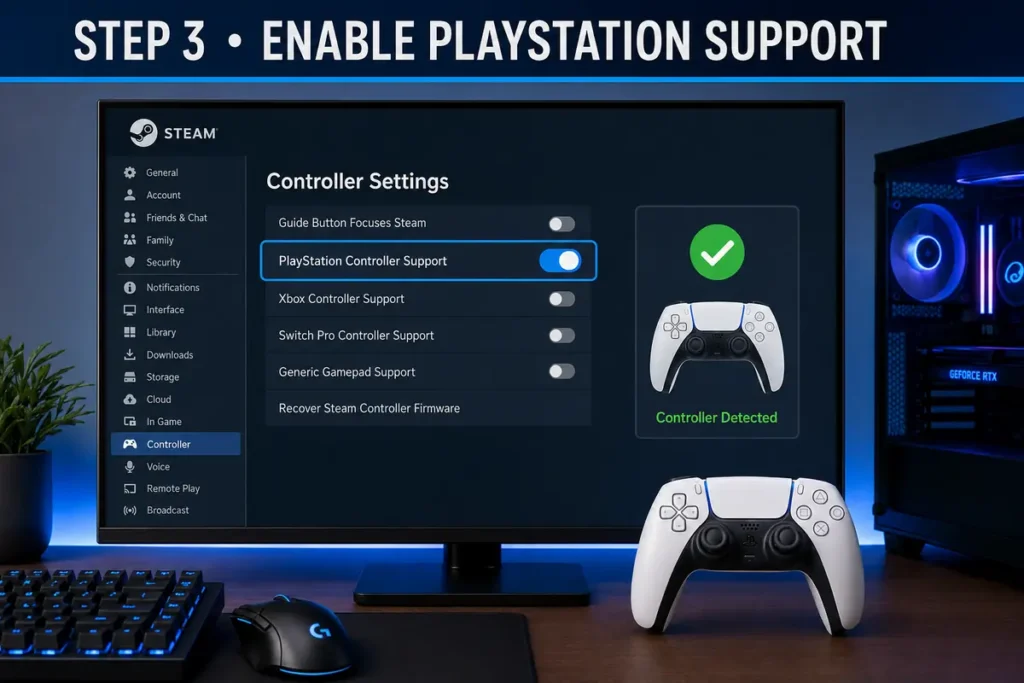
Steam usually detects the controller automatically.
Once enabled, Steam maps controller buttons for compatible games.
Step 4: Launch a Game
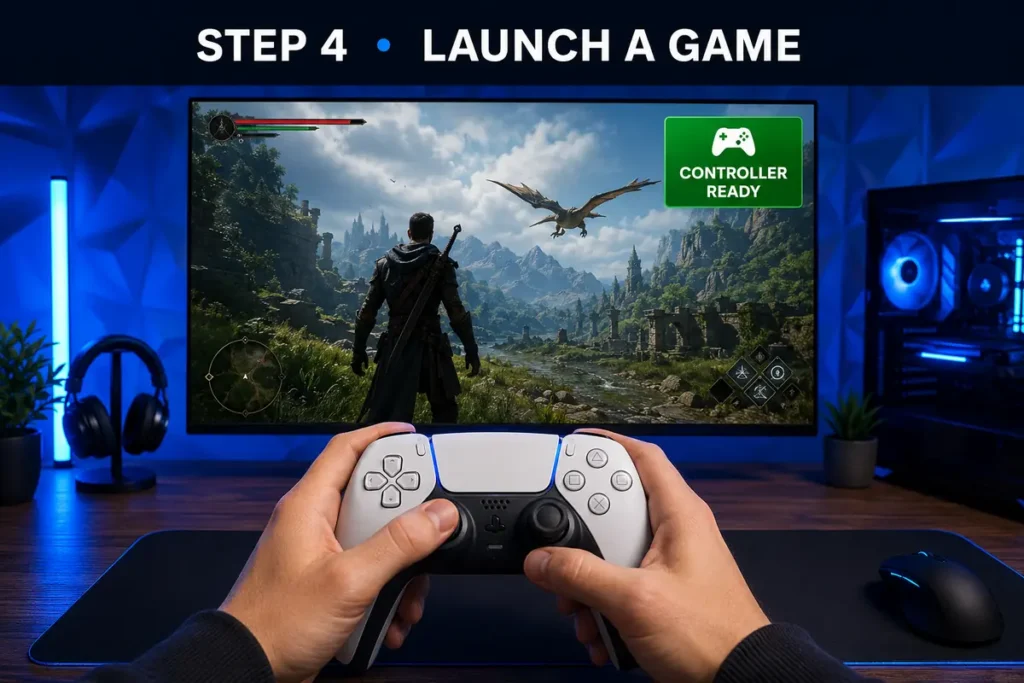
Many Steam games work instantly without additional software.
If you also work with spreadsheets, our tutorial on How to Sum a Column in Excel can help you save time with everyday calculations.
How to Check if the Controller Is Connected
Windows provides an easy way to verify the connection.
Open:
Settings → Bluetooth & Devices
Your controller should appear as:
Wireless Controller
For wired connections, Windows Device Manager will also detect the controller automatically.
Does the PS5 Controller Work on Epic Games?
Yes.
Most Epic Games titles recognize the controller if:
- The game includes native controller support.
- Steam Input is used.
- Additional controller software is installed if necessary.
Some older games may require extra configuration.
Does the PS5 Controller Work on Xbox Game Pass?
Yes.
Many PC Game Pass games support the DualSense controller.
However, button prompts may still display Xbox icons depending on the game.
This doesn’t affect gameplay.
Can You Use Adaptive Triggers on PC?
Yes—but only in certain games.
Supported PC titles include some PlayStation ports such as:
- Marvel’s Spider-Man Remastered
- Ratchet & Clank: Rift Apart
- Returnal
- Horizon Forbidden West (PC version)
Most other games use the controller as a standard gamepad.
Wired vs Bluetooth
Both options have advantages.
Wired Connection
Pros:
- Lower input latency
- No battery concerns
- Stable connection
- Easy setup
Cons:
- Cable required
Bluetooth Connection
Pros:
- Wireless freedom
- Clean gaming setup
- Comfortable for couch gaming
Cons:
- Requires charging
- Slightly higher input delay
For competitive gaming, many players still prefer the wired option.
Common Problems and Solutions
Sometimes the controller doesn’t connect immediately.
Here are the most common fixes.
Bluetooth Can’t Find the Controller
Try:
- Restart Bluetooth.
- Hold Create + PS buttons longer.
- Move closer to the PC.
Controller Doesn’t Respond
Disconnect it.
Reconnect using pairing mode.
Restart the computer if necessary.
Game Doesn’t Detect the Controller
Try:
- Launching through Steam.
- Updating Windows.
- Restarting the game.
- Checking controller settings.
Input Lag
Reduce lag by:
- Using a USB cable.
- Moving closer to the Bluetooth receiver.
- Disconnecting unused Bluetooth devices.
How to Update the PS5 Controller
Sony occasionally releases firmware updates.
You can update the controller by:
- Connecting it to a PS5 console.
- Using Sony’s official DualSense Firmware Updater for Windows.
Keeping firmware updated improves compatibility and stability.
Tips for the Best Gaming Experience
To get the most from your controller:
- Keep Windows updated.
- Charge the controller regularly.
- Use a quality Bluetooth adapter.
- Update Steam.
- Enable controller support inside games.
- Use wired mode for competitive titles.
These simple tips help ensure smooth gameplay.
Is a PS5 Controller Good for PC Gaming?
Absolutely.
Many PC gamers prefer the DualSense because it offers:
- Comfortable ergonomics
- Responsive analog sticks
- Excellent build quality
- Adaptive triggers in supported games
- Reliable wired and wireless connectivity
It has become one of the most popular controllers for Windows gaming.
Final Thoughts
Knowing how to connect PS5 controller to PC gives you more flexibility when gaming. Whether you prefer a wired USB connection for maximum performance or Bluetooth for wireless convenience, Windows makes the setup process quick and straightforward. Steam also adds excellent compatibility, making the DualSense controller an outstanding choice for modern PC gaming. Once connected, you’ll be ready to enjoy your favorite games with comfort and precision.
Managing your online accounts? Learn How to Delete Reddit Account with our simple step-by-step guide.
FAQs
1. Can I connect a PS5 controller to a PC without Bluetooth?
Yes. Simply use a USB-C cable.
2. Does Windows recognize the PS5 controller automatically?
Yes. Modern versions of Windows install the required drivers automatically.
3. Can I play Steam games with a PS5 controller?
Yes. Steam offers excellent native DualSense support.
4. Does every PC game support the PS5 controller?
No. Some older games may require Steam Input or third-party software.
5. Can I use adaptive triggers on PC?
Yes, but only in supported games.
🎮 Related Gaming & Tech Guides
Looking for more helpful gaming and technology tutorials? Continue with these step-by-step guides: