
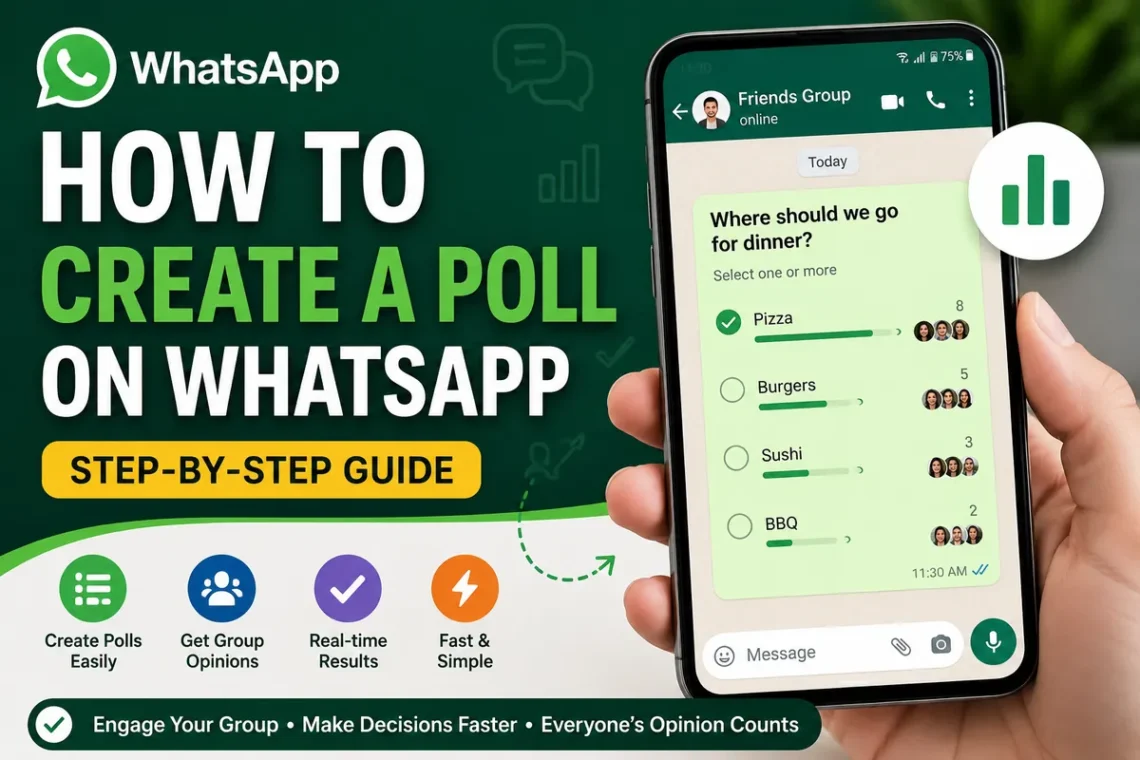
WhatsApp has become much more than a messaging app. Today, millions of people use it to organize family events, plan office meetings, decide on travel dates, and even vote on simple questions. Instead of asking everyone to reply with individual messages, WhatsApp offers a built-in Poll feature that lets group members vote with a single tap.
If you’ve never used this feature before, don’t worry. It’s quick to set up and works on both Android and iPhone. In this guide, you’ll learn how to create a poll on WhatsApp, how polls work, how to edit or delete them, and tips for getting the most accurate responses.
What Is a WhatsApp Poll?
A WhatsApp Poll is an interactive feature that allows people in a chat or group to vote on one or more options.
For example, you can ask:
- Which restaurant should we visit?
- What time should the meeting start?
- Which movie should we watch?
- Which project idea do you prefer?
Instead of reading dozens of replies, WhatsApp automatically counts the votes and displays the results.
Why Use WhatsApp Polls?
Polls make conversations more organized and help groups make decisions faster.
Some common benefits include:
- Quick voting without typing
- Easy-to-read results
- Perfect for families, friends, schools, and workplaces
- No third-party apps required
- Everyone can see the voting results in real time
Whether you’re planning an event or gathering opinions, polls save time and reduce confusion.
Requirements Before Creating a Poll
Before you begin, make sure:
- You’re using the latest version of WhatsApp.
- Your device is connected to the internet.
- The poll feature is available in your region.
- You’re creating the poll in a chat or group where you have permission to send messages.
If you don’t see the Poll option, updating WhatsApp usually solves the problem.
How to Create a Poll on WhatsApp (Android)
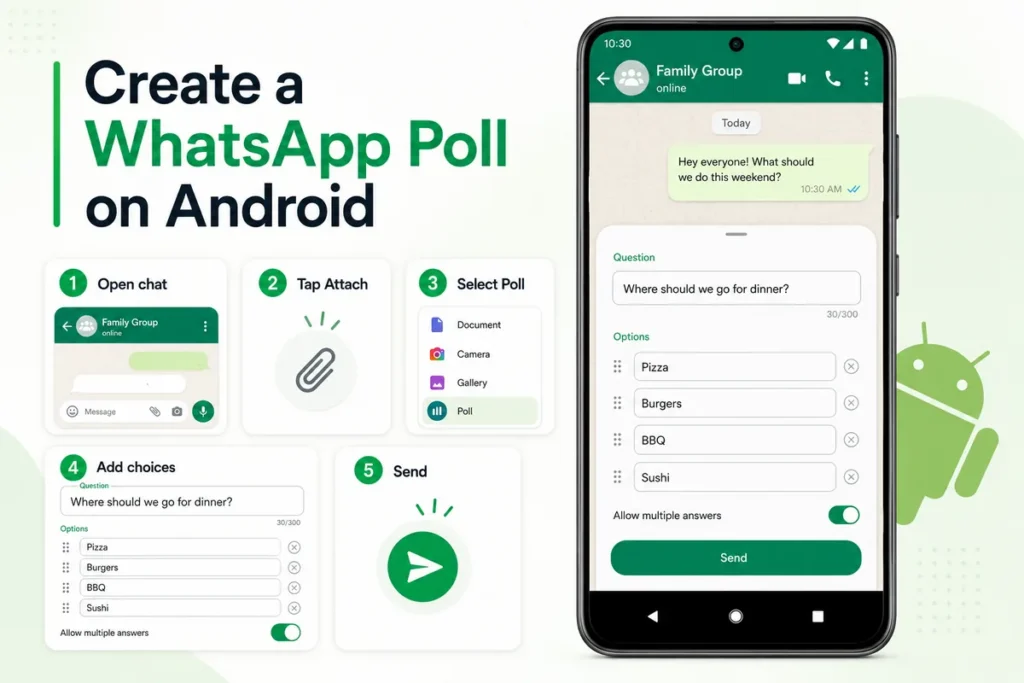
Creating a poll on Android takes only a few steps.
Step 1
Open WhatsApp.
Step 2
Open the group or individual chat where you want to create the poll.
Step 3
Tap the paperclip (Attach) icon.
Step 4
Select Poll.
Step 5
Type your question.
Example:
Where should we go for dinner?
Step 6
Add your answer choices.
You can include several options, such as:
- Pizza
- Burgers
- BBQ
- Sushi
Step 7
Choose whether people can select multiple answers.
Leave it enabled if multiple votes are allowed, or disable it if each person should choose only one option.
Step 8
Tap Send.
Your poll will immediately appear in the chat.
How to Create a Poll on WhatsApp (iPhone)
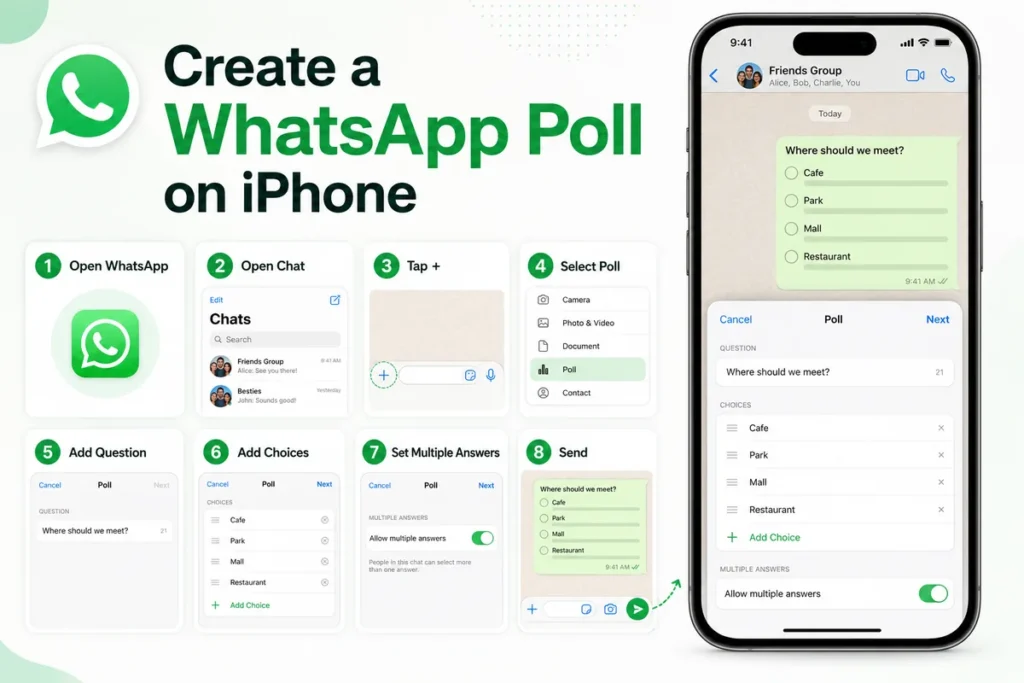
The process is almost identical on iPhone.
Step 1
Open WhatsApp.
Step 2
Open the conversation.
Step 3
Tap the + icon.
Step 4
Select Poll.
Step 5
Enter your question.
Step 6
Add answer choices.
Step 7
Choose whether multiple answers are allowed.
Step 8
Tap Send.
Your contacts can begin voting immediately.
How to Create a Poll on WhatsApp Web
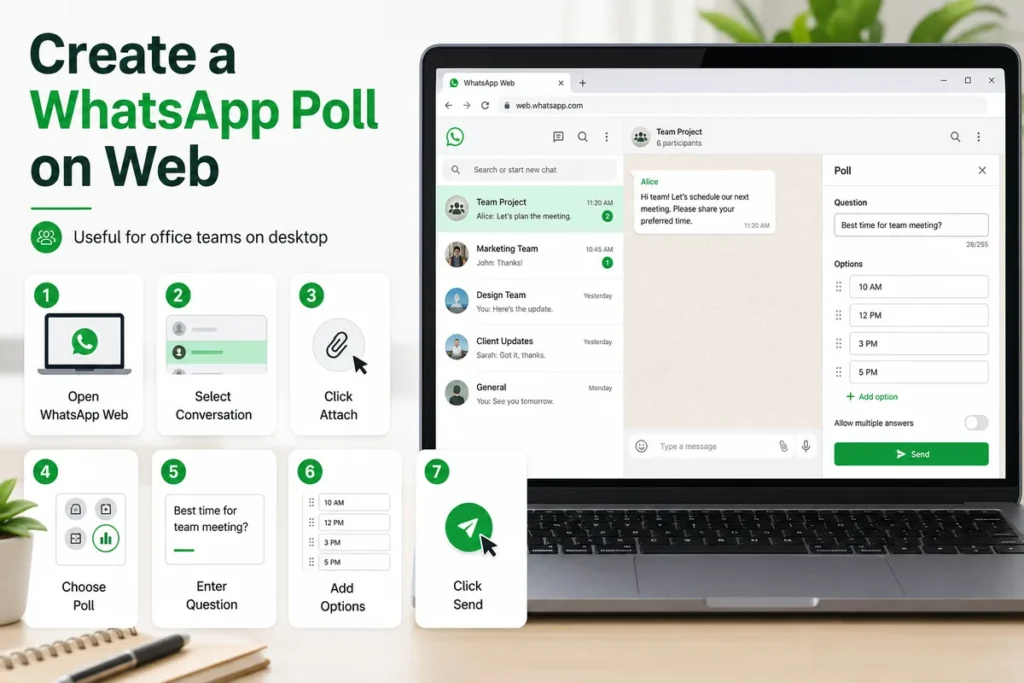
If you prefer using your computer, you can also create polls in WhatsApp Web.
- Open WhatsApp Web.
- Select a conversation.
- Click the Attach icon.
- Choose Poll.
- Enter your question.
- Add answer options.
- Click Send.
This is especially useful for office teams using WhatsApp on desktop.
Can You Allow Multiple Answers?
Yes.
WhatsApp lets you decide whether people can vote for:
- Only one answer
- Multiple answers
For example:
Question:
Which sports do you play?
Options:
- Football
- Cricket
- Basketball
- Tennis
Allowing multiple selections makes sense because many people play more than one sport.
For questions where only one answer is needed, simply turn off multiple answers before sending the poll.
How to Vote in a WhatsApp Poll
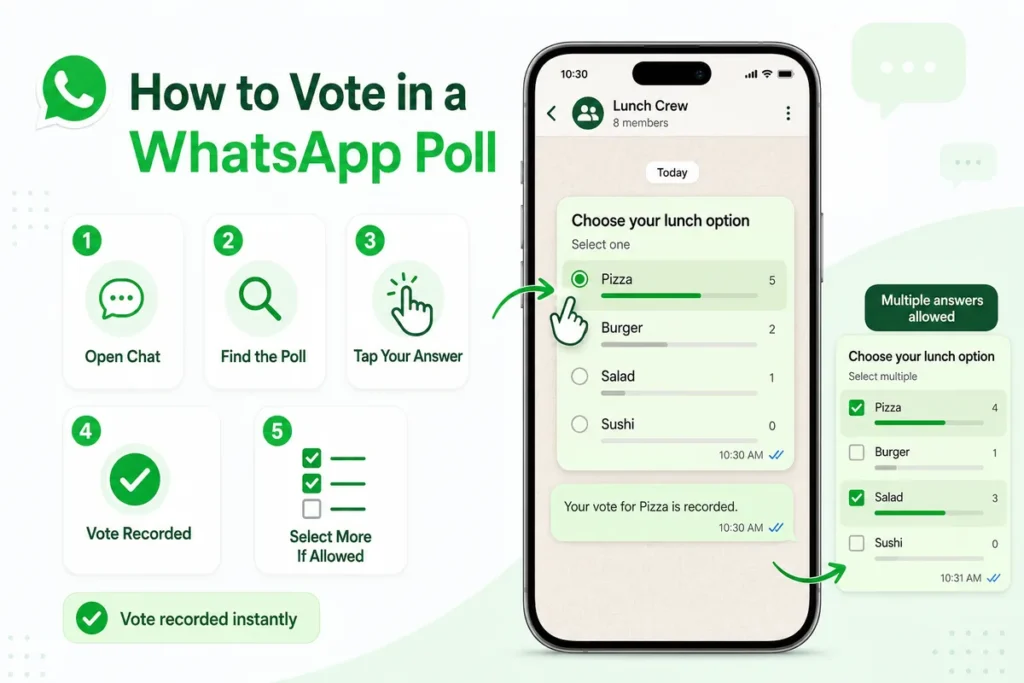
Voting is simple.
- Open the chat.
- Find the poll.
- Tap your preferred answer.
- Your vote is recorded instantly.
If multiple answers are enabled, you can select more than one option.
Can You Change Your Vote?
Yes.
One of the best features of WhatsApp polls is that votes aren’t permanent.
To change your vote:
- Open the poll.
- Remove your previous selection.
- Choose a different answer.
The results update automatically.
How to View Poll Results
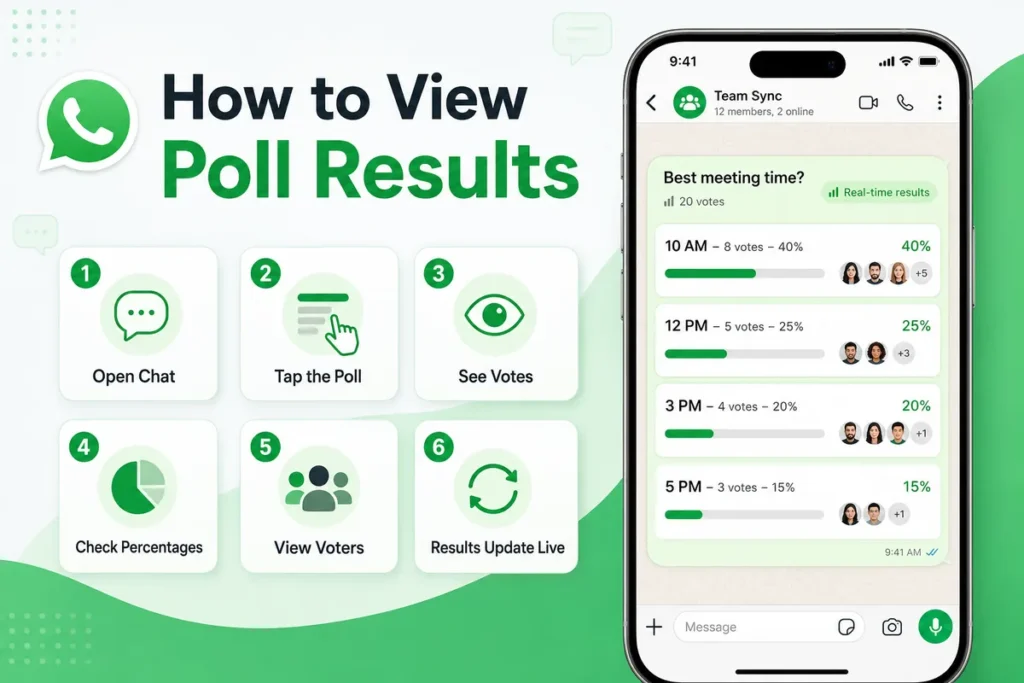
Everyone in the conversation can see the results.
Simply tap the poll to view:
- Number of votes
- Percentage for each option
- Who voted for each answer (depending on privacy settings)
Results update in real time as people continue voting.
How to Delete a WhatsApp Poll
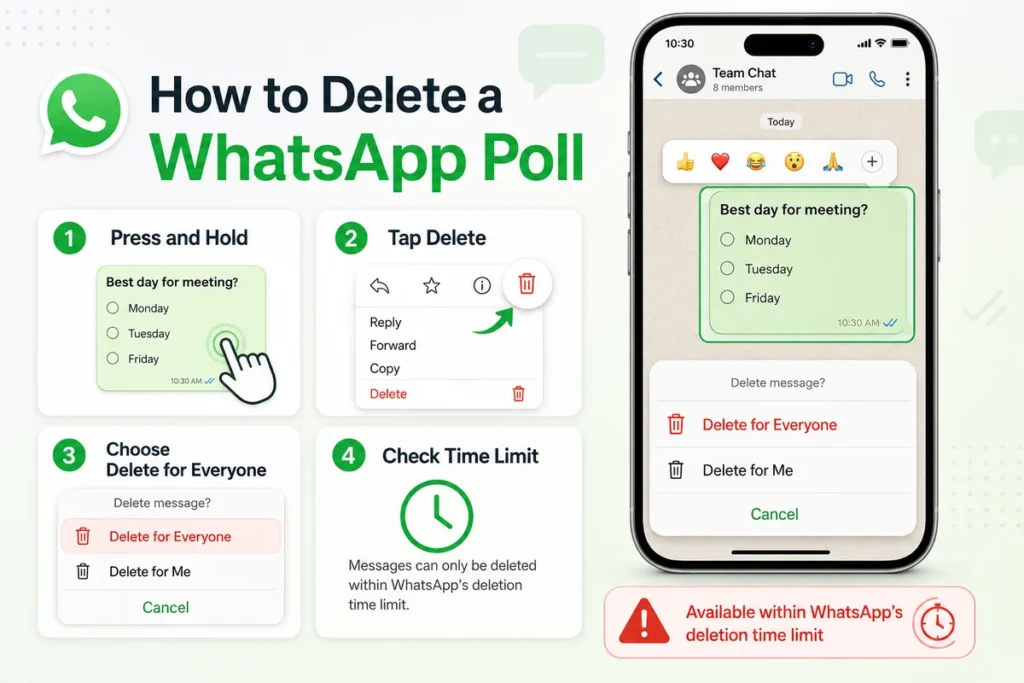
If you created a poll by mistake, you can remove it.
- Press and hold the poll.
- Tap Delete.
- Choose Delete for Everyone if available.
Remember that this option is only available within WhatsApp’s deletion time limit.
Common Reasons the Poll Option Doesn’t Appear
If you can’t find the Poll feature, try these solutions.
Update WhatsApp
Older versions may not include the Poll feature.
Restart the App
Close WhatsApp completely and reopen it.
Check Your Internet Connection
A weak connection may prevent certain features from loading.
Update Your Device
Running the latest version of Android or iOS can improve compatibility.
Wait for the Feature
Some features roll out gradually and may not be available to everyone immediately.
Tips for Creating Better WhatsApp Polls
A well-written poll encourages more people to participate.
Here are a few best practices:
- Keep your question short and clear.
- Avoid confusing answer choices.
- Limit the number of options when possible.
- Use single-answer polls for important decisions.
- Double-check spelling before sending.
Clear questions usually receive faster and more accurate responses.
When Should You Use WhatsApp Polls?
Polls are useful in many situations.
Examples include:
- Planning vacations
- Organizing family gatherings
- Choosing meeting times
- Selecting project ideas
- Classroom discussions
- Event planning
- Sports team scheduling
- Deciding restaurant locations
They’re a quick way to collect opinions without flooding the chat with messages.
Final Thoughts
Learning how to create a poll on WhatsApp is a simple way to make group conversations more organized and interactive. Instead of scrolling through countless replies, you can gather opinions, make decisions, and view results in real time with just a few taps. Whether you’re using Android, iPhone, or WhatsApp Web, the built-in Poll feature helps families, friends, classmates, and coworkers communicate more efficiently.
FAQs
1. Can I create a poll in a private WhatsApp chat?
Yes. Polls can be created in both individual and group chats.
2. Can people select more than one answer?
Yes. You can enable or disable multiple answers before sending the poll.
3. Can I edit a poll after sending it?
No. Once a poll is sent, you can’t edit its question or options. You would need to delete it and create a new one.
4. Is the WhatsApp Poll feature free?
Yes. It’s included with WhatsApp at no extra cost.
5. Can I use polls on WhatsApp Web?
Yes. WhatsApp Web supports creating and participating in polls.



One comment on “How to Create a Poll on WhatsApp: A Complete Step-by-Step Guide”