
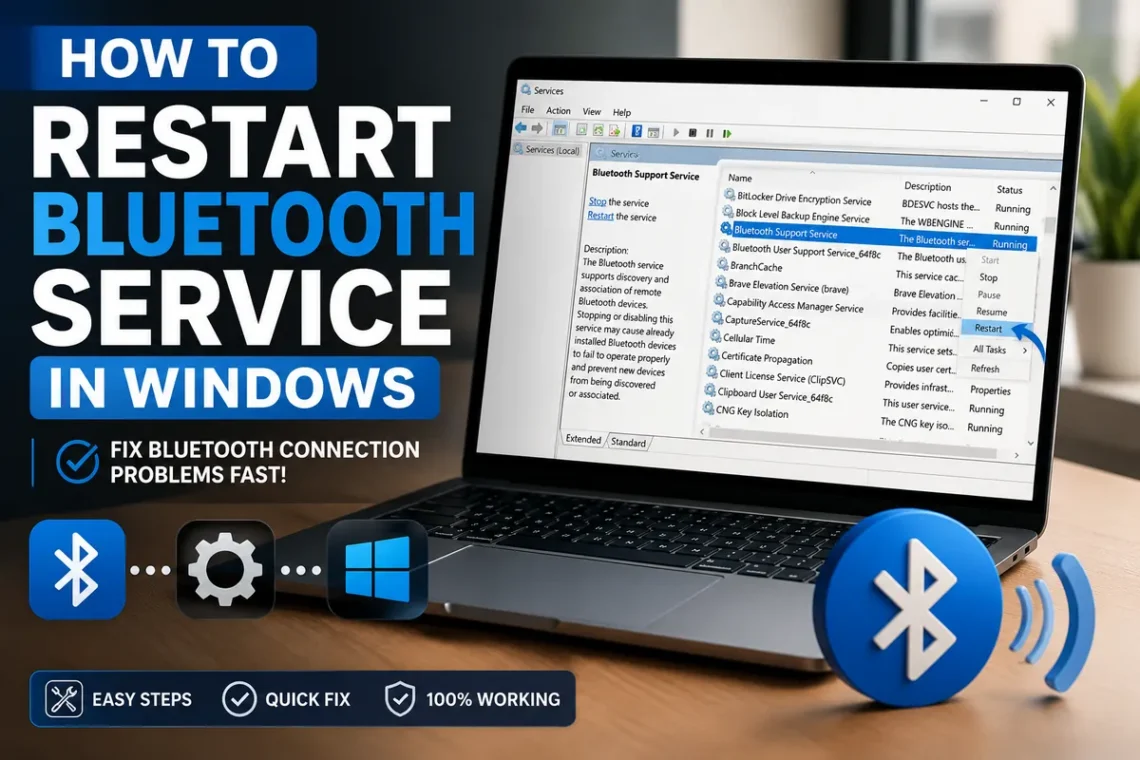
Bluetooth problems on Windows can be surprisingly frustrating. Your headphones may suddenly stop connecting, a wireless mouse might disappear, or a keyboard that worked perfectly yesterday may refuse to pair. Before reinstalling drivers or changing complicated settings, restarting the Bluetooth service is often a simple troubleshooting step worth trying.
If you’re searching for how to restart Bluetooth service Windows, the good news is that Windows includes a built-in Services tool that lets you restart the relevant Bluetooth service in a few clicks. Microsoft specifically recommends restarting the Bluetooth Support Service when Bluetooth connections are frequently dropping.
This guide explains exactly how to do it on Windows 11 and Windows 10, what the Bluetooth service actually does, and what to try if restarting it doesn’t solve the problem.
What Is the Bluetooth Support Service?
The Bluetooth Support Service is a Windows background service that helps the operating system discover and interact with Bluetooth devices.
It works behind the scenes while you connect devices such as:
- Wireless headphones
- Bluetooth speakers
- Keyboards
- Wireless mice
- Game controllers
- Smartphones
- Printers
- Other compatible accessories
When the service encounters a temporary problem, Bluetooth devices may stop connecting or behave unpredictably. Restarting the service gives Windows an opportunity to reload that part of the Bluetooth system without requiring a complete computer restart.
When Should You Restart the Bluetooth Service?
Restarting the service can be useful when Bluetooth suddenly stops working even though your computer normally supports it.
Common situations include:
- Bluetooth devices won’t connect
- Previously paired headphones stop working
- Bluetooth keeps disconnecting
- Windows can’t find a nearby device
- A wireless keyboard or mouse becomes unresponsive
- Bluetooth works after restarting Windows but fails again later
- The Bluetooth settings appear to behave incorrectly
Microsoft also recommends checking power-saving settings and Bluetooth drivers when connection problems continue.
How to Restart Bluetooth Service in Windows
The quickest method is through the Windows Services utility.
Step 1: Open the Run Dialog
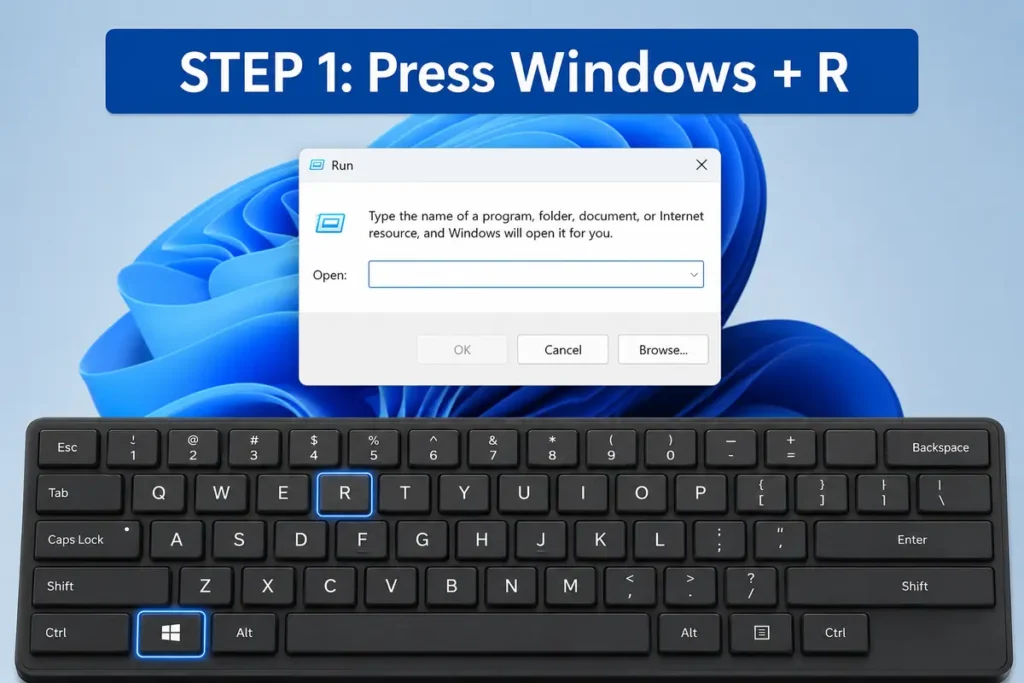
Press Windows + R on your keyboard.
A small Run window will appear.
This shortcut provides a quick way to open Windows system utilities without searching through multiple menus.
Step 2: Open Windows Services
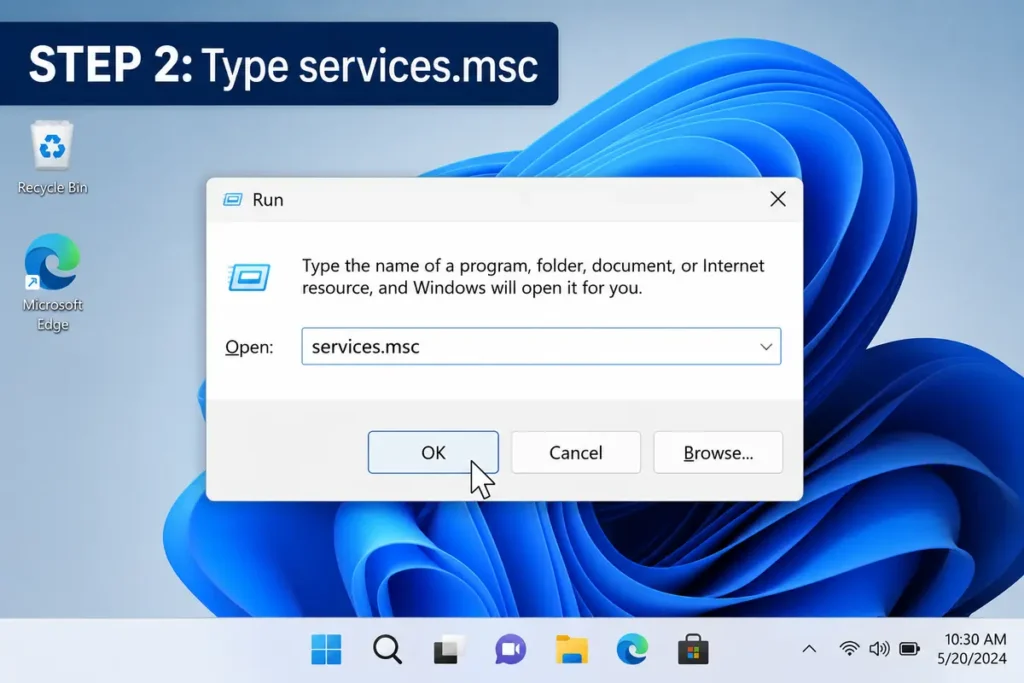
Type:
services.mscinto the Run box.
Press Enter or click OK.
Windows will open the Services window, which contains a long list of background services running on your computer.
Step 3: Find Bluetooth Support Service
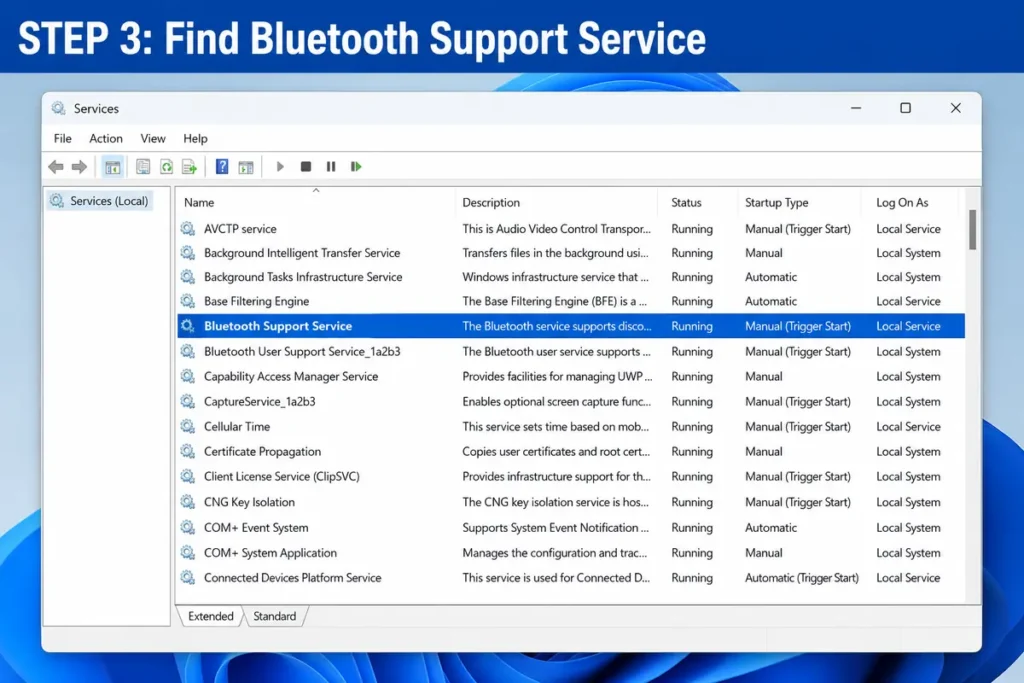
Scroll through the list until you find:
Bluetooth Support Service
The services are normally arranged alphabetically, so you can scroll toward the section beginning with “Bluetooth.”
If you have many services installed, take your time and make sure you select the correct one.
Step 4: Restart the Service
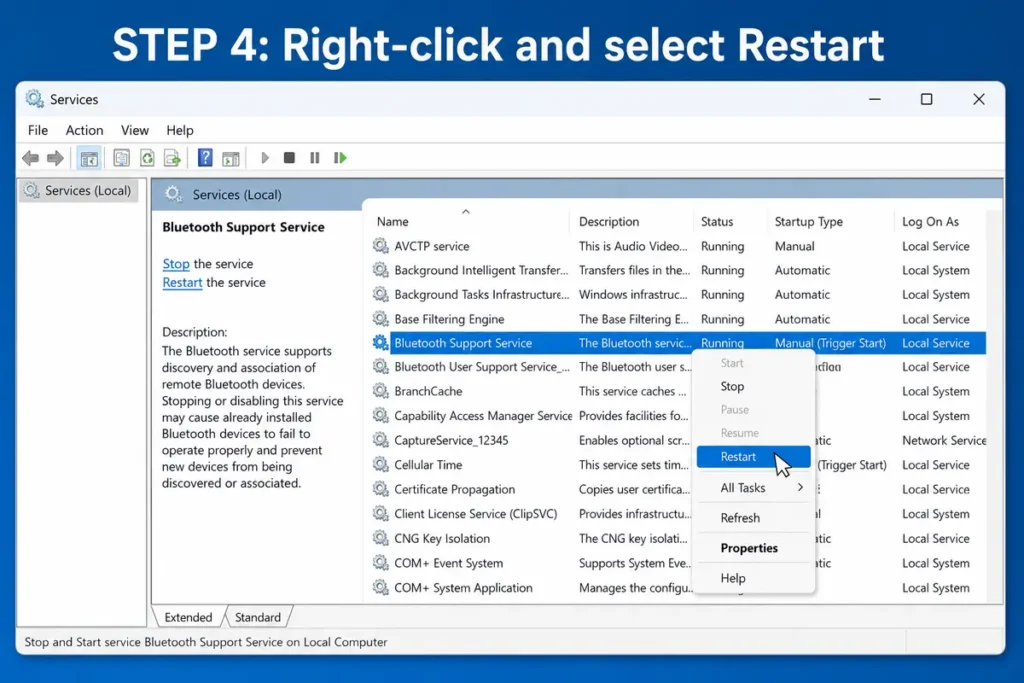
Right-click Bluetooth Support Service.
Choose Restart from the menu.
Windows will stop and start the service again.
Microsoft’s current troubleshooting guidance for Windows 10 and Windows 11 uses this same Services method for restarting the Bluetooth Support Service.
Step 5: Test Your Bluetooth Device
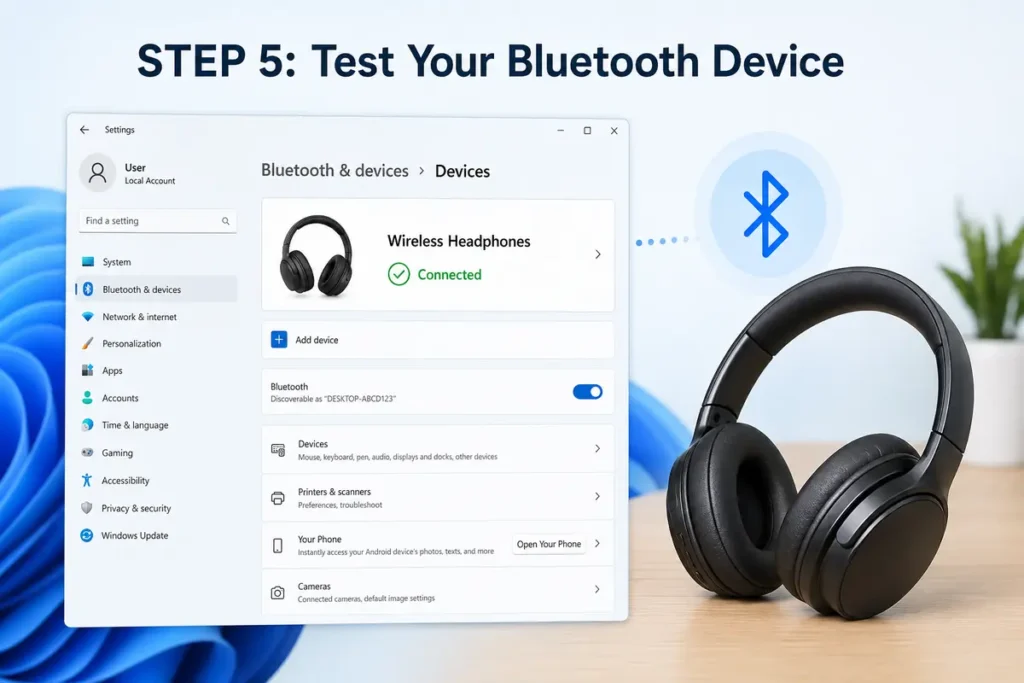
After the service restarts, wait a few seconds.
Then try connecting your Bluetooth device again.
For example, if your wireless headphones stopped connecting, open Bluetooth settings and try selecting the headphones again.
If the connection was caused by a temporary service problem, the device may start working normally without any additional changes.
What If the Restart Option Is Missing?
Sometimes the Restart option may not be available.
This can happen if the service isn’t currently running or if Windows is handling the service differently.
In that situation, right-click Bluetooth Support Service and look for Start.
If Start is available, select it.
Once the service starts, test Bluetooth again.
If another Windows application has also stopped responding, you can learn how to close it properly with our guide on How to Force Quit on Windows.
How to Check the Bluetooth Service Startup Type
You can also check whether Windows is configured to start the Bluetooth service correctly.
Open the Service Properties
Right-click Bluetooth Support Service and select Properties.
Look for the Startup type option.
The available choices can include:
- Automatic
- Automatic (Delayed Start)
- Manual
- Disabled
If the service is disabled, Windows may not be able to start it normally.
Avoid changing service settings unnecessarily, especially if Bluetooth is already working. If you’re troubleshooting a persistent problem, check Microsoft’s current guidance or your PC manufacturer’s support documentation before making additional service changes.
Restart Bluetooth Without Opening Services
Sometimes you don’t need to restart the Windows service at all.
A quick Bluetooth toggle can resolve temporary connection problems.
Windows 11
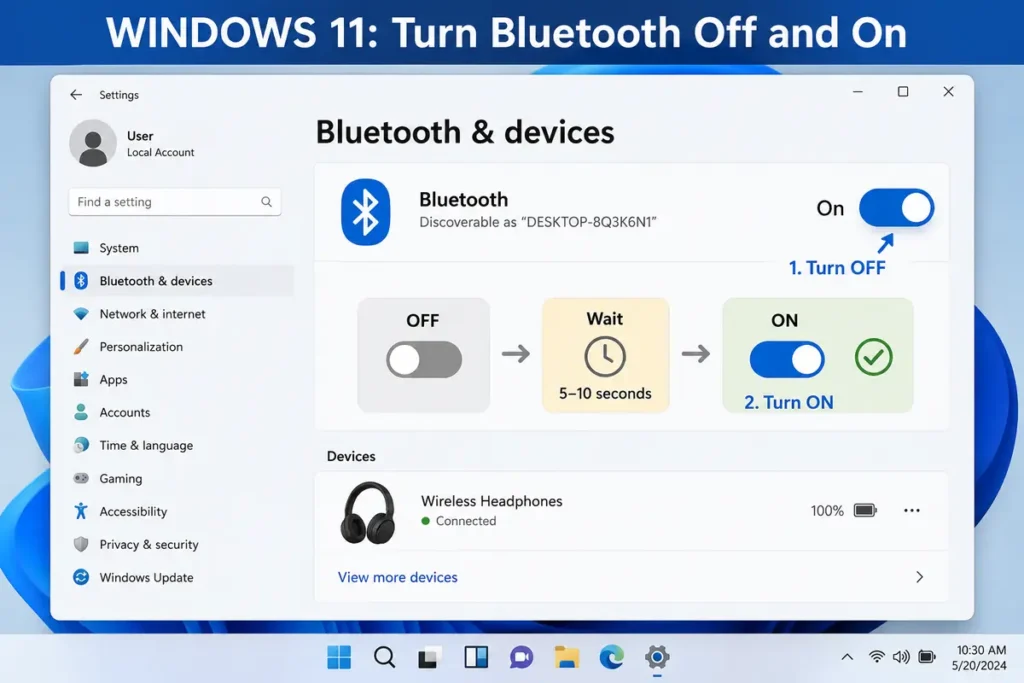
Open Start > Settings > Bluetooth & devices.
Turn Bluetooth off.
Wait several seconds.
Turn Bluetooth back on.
Microsoft notes that turning Bluetooth off and on can reset the connection and may help with Bluetooth problems.
Windows 10
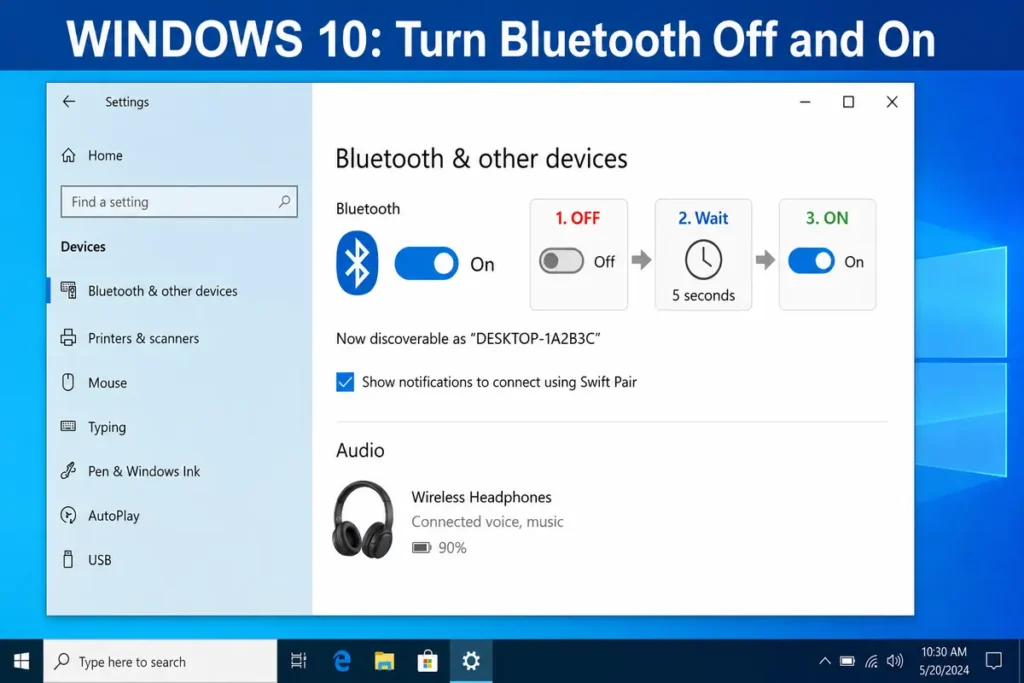
Open Start > Settings > Devices > Bluetooth & other devices.
Turn Bluetooth off.
Wait a few seconds.
Turn it back on.
Then try connecting your device again.
Restart Your Bluetooth Device Too
The problem isn’t always caused by Windows.
Your headphones, mouse, keyboard, or speaker may simply need to restart.
Turn the Bluetooth accessory off.
Wait a few seconds.
Turn it back on.
Make sure it has enough battery and is within a reasonable range of your computer.
Microsoft recommends checking that Bluetooth accessories are powered on, charged, and within range when troubleshooting connection problems.
Remove and Re-Pair the Bluetooth Device
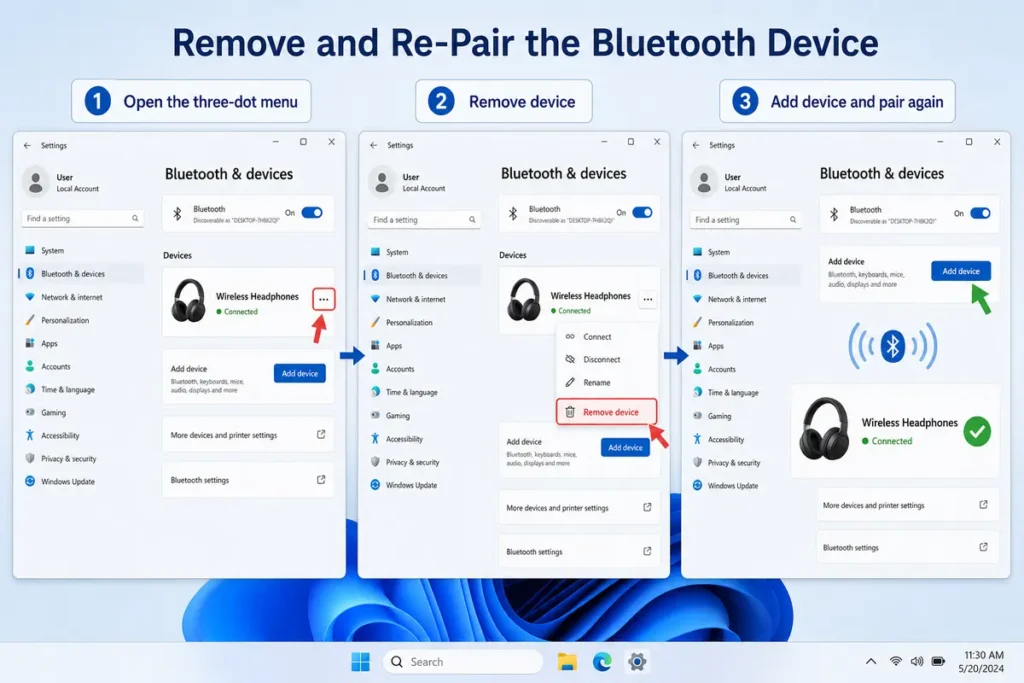
If restarting the service doesn’t help, removing and reconnecting the device is another useful step.
Windows 11
Go to:
Start > Settings > Bluetooth & devices
Find the problematic device.
Select the three-dot menu next to it.
Choose Remove device.
Then select Add device and pair the accessory again.
Microsoft recommends removing and adding a Bluetooth device again when it appears in Windows but refuses to connect.
Check Your Bluetooth Driver
A service restart won’t fix every Bluetooth problem.
If your Bluetooth driver is outdated or incompatible, connection problems can continue.
If you’re troubleshooting hardware or connectivity problems on your PC, it’s also useful to know exactly which hardware you’re working with. See our guide on How to Check Motherboard Model for a quick step-by-step method.
Open Device Manager
Search for Device Manager from the Windows taskbar.
Open it.
Expand the Bluetooth section.
Find your Bluetooth adapter.
Right-click it and select:
Update driver > Search automatically for drivers
Windows will check for an available driver.
Microsoft identifies outdated or incompatible Bluetooth drivers as a common cause of Bluetooth connection problems.
Restart Your Computer
If you’ve restarted the Bluetooth service but the problem remains, restart Windows itself.
Select:
Start > Power > Restart
A complete restart can clear temporary system issues that a service restart doesn’t resolve.
Microsoft also recommends restarting the PC as part of Bluetooth troubleshooting when connection or audio problems continue.
Once your Windows system is running normally again, you can also improve your everyday PC workflow with our guide on How to Sum a Column in Excel.
Run the Windows Bluetooth Troubleshooter
Windows also provides built-in troubleshooting tools.
On Windows 11, Microsoft recommends using the automated Bluetooth troubleshooter through the Get Help app for many Bluetooth problems.
The troubleshooter can check common configuration and connection problems and suggest appropriate fixes.
This is especially useful when you aren’t sure whether the issue comes from the Bluetooth service, driver, settings, or connected device.
What If Bluetooth Is Completely Missing?
If you can’t find Bluetooth anywhere in Windows, restarting the service may not be enough.
First check Settings > Bluetooth & devices.
If Bluetooth isn’t available, Windows may not be detecting a Bluetooth adapter or its driver may not be installed correctly. Microsoft notes that a missing Bluetooth option can indicate that the device doesn’t have a Bluetooth adapter or that the appropriate drivers aren’t installed.
You should then check Device Manager for the Bluetooth adapter.
Reinstall the Bluetooth Adapter
If Bluetooth appears in Device Manager but continues to malfunction, reinstalling the adapter may help.
Open Device Manager.
Expand Bluetooth.
Right-click your Bluetooth adapter.
Select Uninstall device.
Then shut down the computer and turn it back on.
Microsoft explains that Windows can attempt to reinstall the Bluetooth driver automatically after the computer starts.
Only use this step when simpler troubleshooting hasn’t worked.
Check Windows Updates
Windows updates can include driver improvements and fixes for hardware compatibility.
Open:
Start > Settings > Windows Update
Check for available updates.
Install appropriate updates and restart the computer if Windows asks you to.
Keeping Windows and your device drivers reasonably current can help prevent recurring Bluetooth problems.
Keeping your computer updated is only one part of maintaining a reliable PC. If you’re working with spreadsheets regularly, our guide on How to Subtract in Excel covers another useful Windows productivity task.
Why Does Bluetooth Keep Disconnecting?
If restarting the service fixes Bluetooth temporarily but the same issue keeps returning, there’s probably another cause.
Possible reasons include:
- Outdated drivers
- Power-saving settings
- Weak Bluetooth signal
- Low battery
- Interference
- Hardware problems
- Windows configuration issues
Microsoft specifically recommends checking Bluetooth power-management settings and drivers when Bluetooth repeatedly disconnects.
Check Bluetooth Power Management
On some Windows computers, power-saving settings can interfere with Bluetooth connections.
Open Device Manager.
Expand Bluetooth.
Right-click your Bluetooth adapter.
Select Properties.
If a Power Management tab is available, review the setting that allows Windows to turn off the device to save power.
Microsoft recommends disabling this option as a troubleshooting step when Bluetooth repeatedly disconnects.
Looking for more step-by-step computer guides? Check out our tutorials on how to force quit on Windows and how to check your motherboard model for more practical PC troubleshooting tips.
Final Thoughts
Knowing how to restart Bluetooth service Windows gives you a quick troubleshooting option when wireless devices suddenly stop behaving normally. Opening services.msc, locating Bluetooth Support Service, and selecting Restart only takes a few moments and doesn’t require additional software.
If that doesn’t solve the issue, don’t keep restarting the service repeatedly. Move on to the other checks: toggle Bluetooth off and on, restart the accessory, remove and re-pair it, update the Bluetooth driver, run Windows troubleshooting, and check for Windows updates. These steps address several of the common causes of Bluetooth connection problems identified by Microsoft.
FAQs
1. What service controls Bluetooth on Windows?
The main service involved is Bluetooth Support Service. You can manage it through the Windows Services utility by opening services.msc.
2. Will restarting the Bluetooth service delete paired devices?
No. Restarting the service itself doesn’t normally remove your existing Bluetooth pairings.
3. Why does Bluetooth keep disconnecting after I restart the service?
A recurring problem may be related to drivers, power management, interference, device battery, or hardware rather than the service itself.
4. Can I restart Bluetooth without restarting my computer?
Yes. You can restart Bluetooth Support Service through services.msc without rebooting Windows.
5. What should I do if restarting the service doesn’t work?
Try toggling Bluetooth off and on, restarting the Bluetooth accessory, removing and re-pairing the device, updating the Bluetooth driver, and running Windows’ Bluetooth troubleshooting tools.
💻 Related Windows & PC Guides
Having other Windows or computer problems? These step-by-step guides may help:



One comment on “How to Restart Bluetooth Service in Windows: A Step-by-Step Guide”