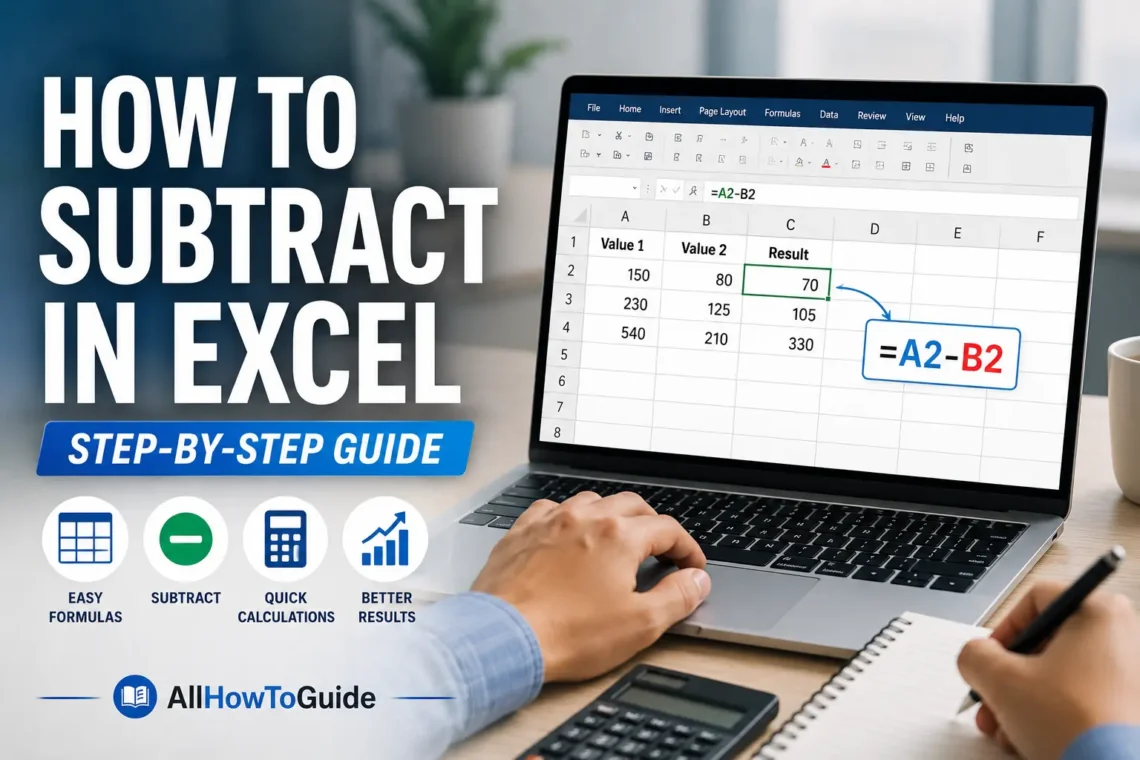
Microsoft Excel is one of the most powerful tools for organizing and analyzing numbers. Whether you’re managing a monthly budget, tracking business expenses, calculating profits, or comparing values, subtraction is one of the most common calculations you’ll perform.
Unlike multiplication or division, Excel doesn’t include a dedicated SUBTRACT function. Instead, subtraction is done using the minus (-) operator in formulas. Once you understand the basics, you can subtract numbers, cells, dates, percentages, and even entire columns in just a few clicks.
In this guide, you’ll learn how to subtract in Excel using different methods, along with practical examples and common mistakes to avoid.
Why Use Excel for Subtraction?
Excel automatically performs calculations and updates results whenever the original numbers change. This makes it much faster and more accurate than using a calculator for large amounts of data.
People commonly subtract values in Excel to:
- Calculate profits and losses
- Track expenses
- Compare monthly sales
- Calculate discounts
- Find differences between dates
- Manage inventory
- Analyze financial reports
Once you know the basics, you can apply subtraction in almost every spreadsheet.
Understanding the Minus Operator
Excel performs subtraction using the minus sign (-).
For example:
=15-7After pressing Enter, Excel returns:
8Every subtraction formula in Excel begins with an equal sign (=).
Method 1: Subtract Numbers Directly
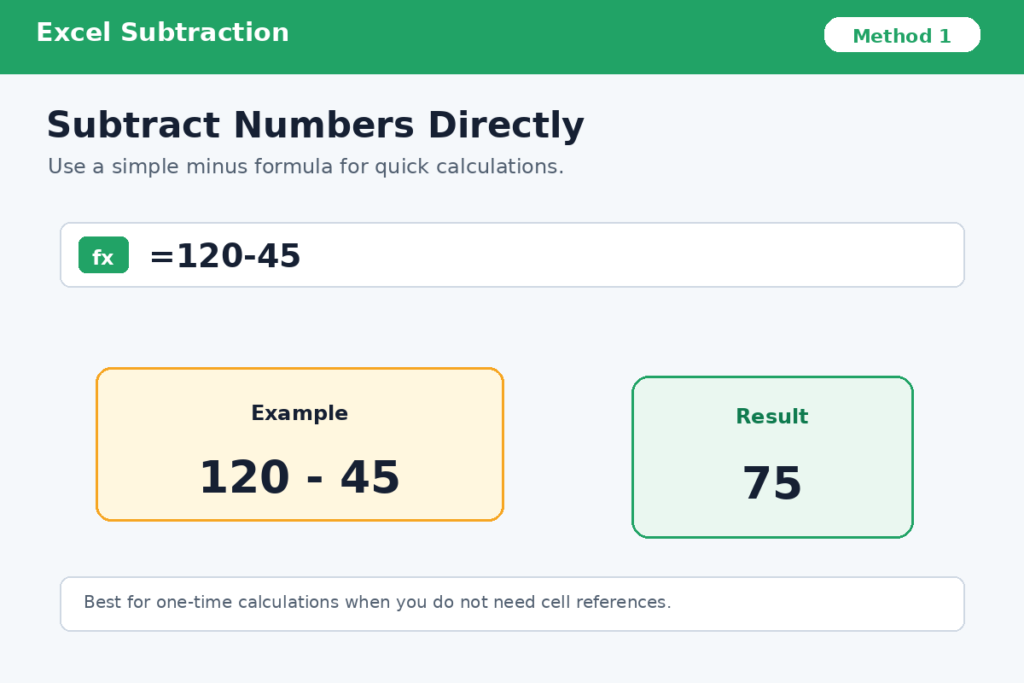
The simplest method is subtracting numbers inside a formula.
Example
Suppose you want to subtract 45 from 120.
Type:
=120-45Press Enter.
Result:
75This method works well for quick calculations.
Method 2: Subtract Cell Values
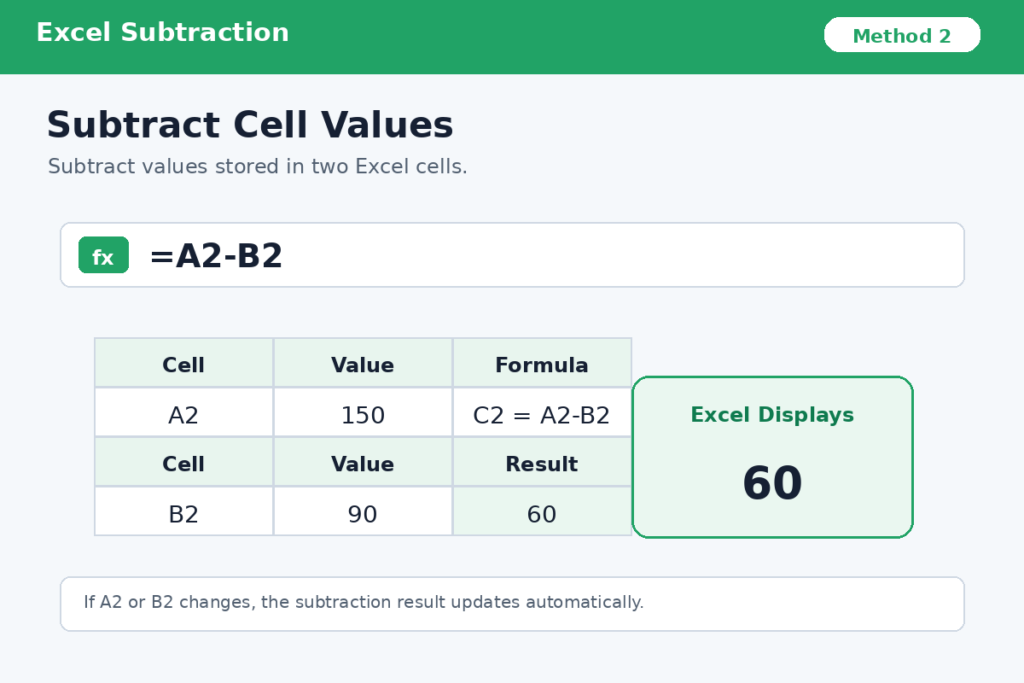
Most Excel users subtract values stored in cells.
Suppose:
| Cell | Value |
|---|---|
| A2 | 150 |
| B2 | 90 |
In cell C2, enter:
=A2-B2Press Enter.
Excel displays:
60This method is useful because if the values in A2 or B2 change, the result updates automatically.
Method 3: Subtract Multiple Cells
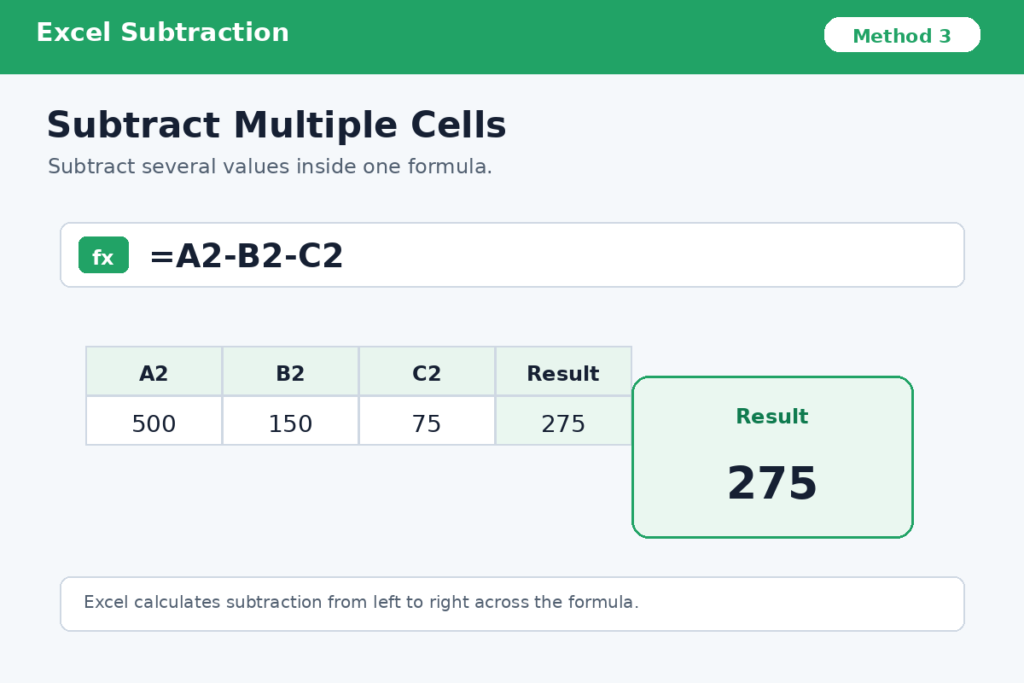
You can subtract several values within one formula.
Example:
| Cell | Value |
|---|---|
| A2 | 500 |
| B2 | 150 |
| C2 | 75 |
Formula:
=A2-B2-C2Result:
275Excel performs the subtraction from left to right.
Method 4: Subtract an Entire Column
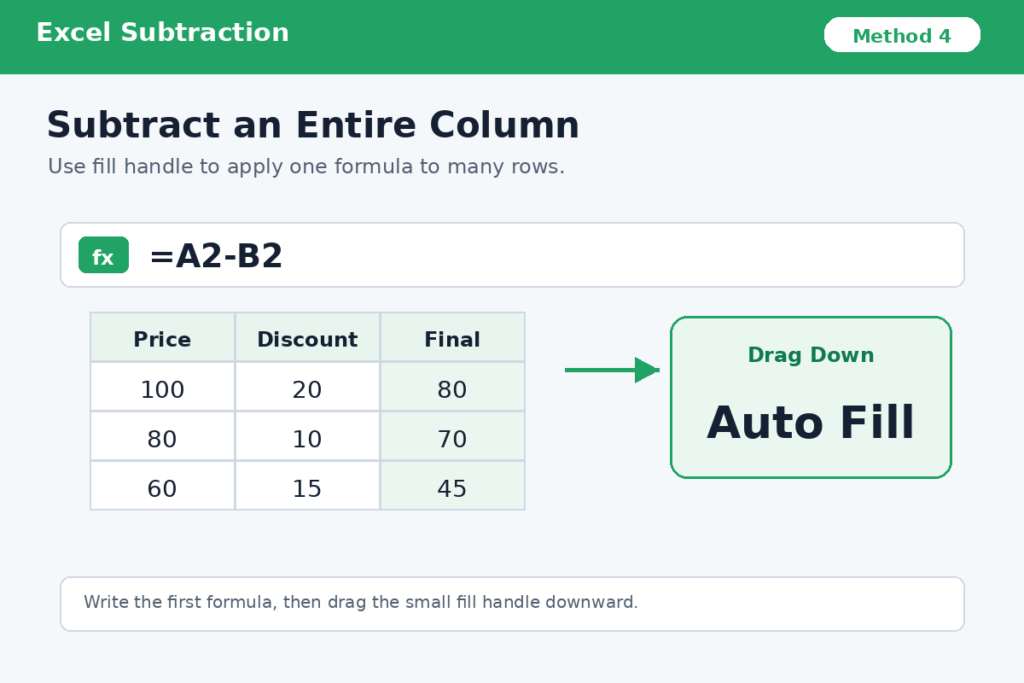
If you have many rows of data, there’s no need to write each formula manually.
Example:
| Price | Discount |
|---|---|
| 100 | 20 |
| 80 | 10 |
| 60 | 15 |
In the first result cell:
=A2-B2Press Enter.
Then drag the fill handle (small square in the bottom-right corner of the cell) downward.
Excel automatically applies the formula to every row.
If you’re creating spreadsheets with data validation, you may also find our guide on How to Create a Drop Down List in Excel helpful. It makes spreadsheets easier to use and reduces data entry mistakes.
Method 5: Subtract Using Paste Special
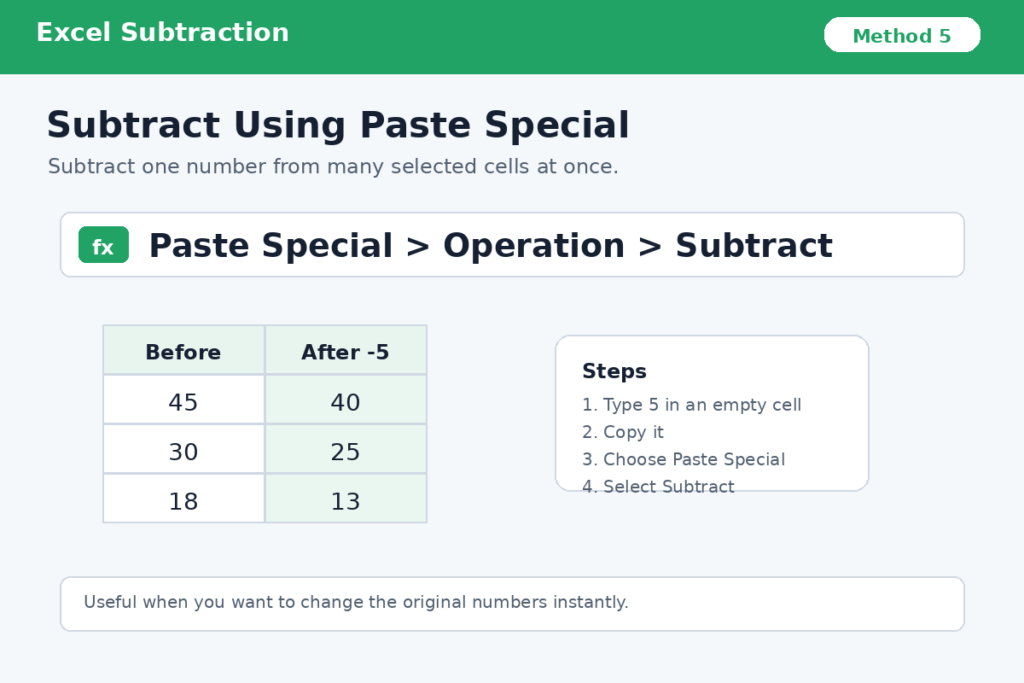
Excel also lets you subtract one value from many cells at once.
Example
Suppose you need to subtract 5 from every value in a column.
- Type 5 into an empty cell.
- Copy that cell.
- Select the numbers you want to change.
- Right-click and choose Paste Special.
- Under Operation, select Subtract.
- Click OK.
Excel subtracts 5 from every selected value instantly.
Method 6: Subtract Dates
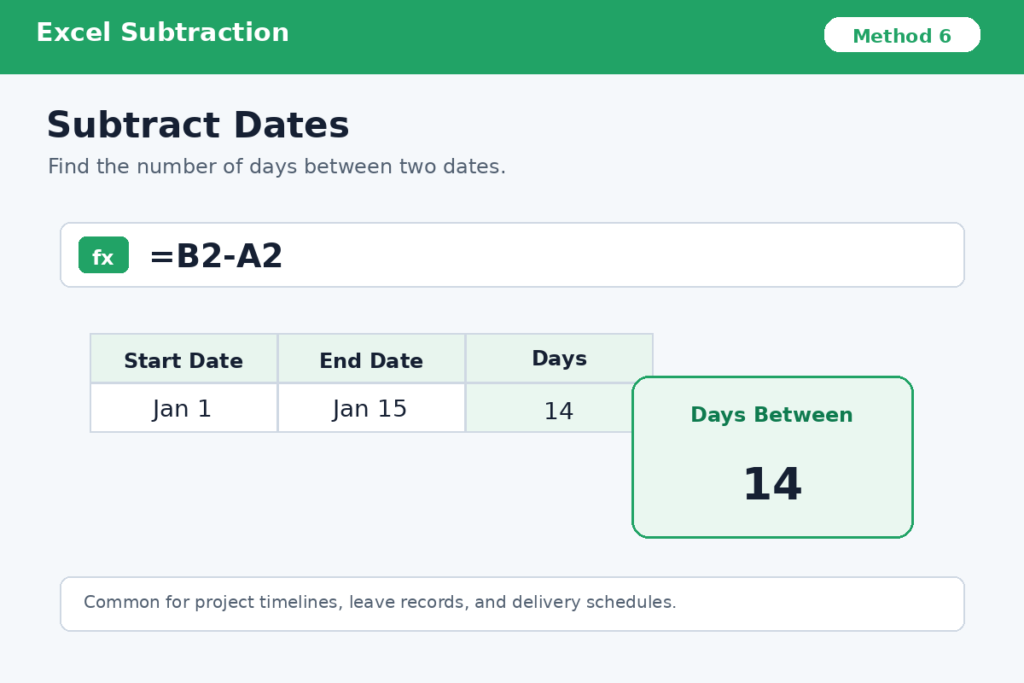
Excel stores dates as numbers, making date subtraction very easy.
Example:
| Start Date | End Date |
|---|---|
| Jan 1 | Jan 15 |
Formula:
=B2-A2Result:
14This tells you the number of days between two dates.
It’s commonly used for project timelines, employee leave, and delivery schedules.
Method 7: Subtract Time Values
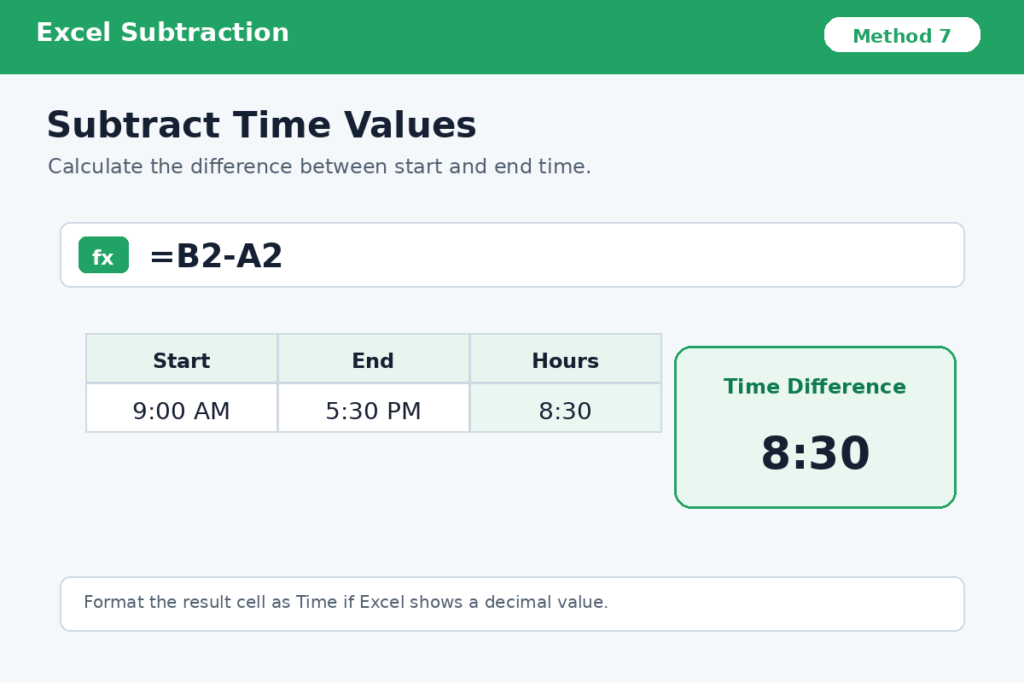
Excel can also subtract times.
Example:
Start:
9:00 AMEnd:
5:30 PMFormula:
=B2-A2Format the result cell as Time if needed.
Excel returns the time difference automatically.
Method 8: Subtract Percentages
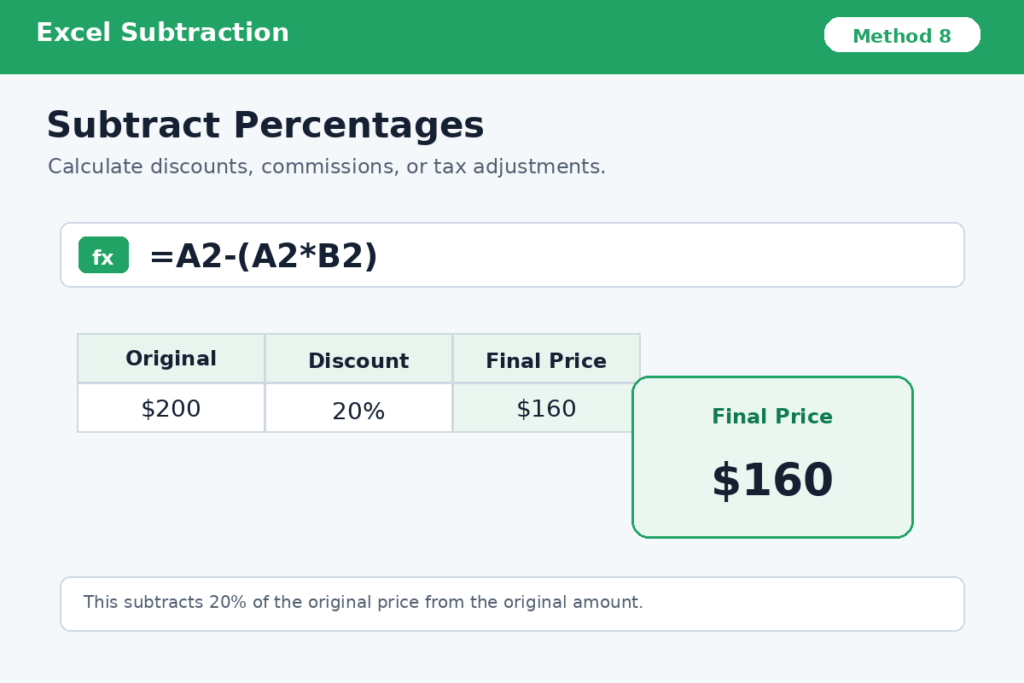
You can subtract percentages using formulas.
Example:
Original price:
$200Discount:
20%Formula:
=A2-(A2*B2)If A2 contains 200 and B2 contains 20%, the result is:
160This method is useful for calculating discounts, commissions, and tax adjustments.
Subtracting Negative Numbers
Subtracting a negative number is the same as adding it.
Example:
=20-(-5)Result:
25Excel follows normal mathematical rules automatically.
Common Errors When Subtracting
Most subtraction errors happen because of simple mistakes.
Watch out for:
Forgetting the Equal Sign
Wrong:
A2-B2Correct:
=A2-B2Text Instead of Numbers
If a cell contains text instead of a number, Excel may return an error or an incorrect result.
Always check that your data is stored as numbers.
Incorrect Cell References
Double-check that you’re subtracting the correct cells before copying formulas down a worksheet.
Extra Spaces
Imported data sometimes includes spaces that prevent Excel from recognizing numbers correctly.
Helpful Tips for Faster Calculations
These simple habits can save time:
- Use AutoFill for large datasets.
- Format cells consistently.
- Label your columns clearly.
- Use tables for organized data.
- Double-check formulas before sharing spreadsheets.
- Keep raw data separate from calculated results.
Good spreadsheet organization makes calculations much easier.
Many people use Excel together with other Microsoft Office apps. If you regularly send spreadsheets by email, check out our guide on How to Schedule Send in Outlook to automatically send emails at the perfect time.
When Should You Use Formulas Instead of Manual Calculations?
Using formulas is almost always the better option because they update automatically whenever your data changes.
For example, if you’re tracking monthly expenses, changing one number instantly updates your totals without any extra work.
That’s one of Excel’s biggest advantages over a basic calculator.
Final Thoughts
Learning how to subtract in Excel is one of the first skills every Excel user should master. Whether you’re subtracting numbers, cell values, dates, times, percentages, or entire columns, Excel makes calculations fast, accurate, and easy to update. By understanding how formulas work and avoiding common mistakes, you’ll be able to build cleaner spreadsheets and save valuable time on everyday tasks.
If you’re working with Microsoft Office documents, you may also want to learn How to Add Page Numbers in Word to create more professional reports and documents.
FAQs
1. Is there a SUBTRACT function in Excel?
No. Excel uses the minus (-) operator instead of a dedicated subtraction function.
2. How do I subtract one cell from another?
Enter a formula such as:
=A2-B2and press Enter.
3. Can Excel subtract dates?
Yes. Simply subtract one date cell from another to calculate the number of days between them.
4. How do I subtract the same number from an entire column?
Use Paste Special → Subtract or create a formula and copy it down the column.
5. Why does Excel show an error when subtracting?
Common causes include missing the equal sign, using text instead of numbers, or referencing the wrong cells.
📚 Related Guides
Want to improve your Microsoft Office and productivity skills? These step-by-step guides can help: