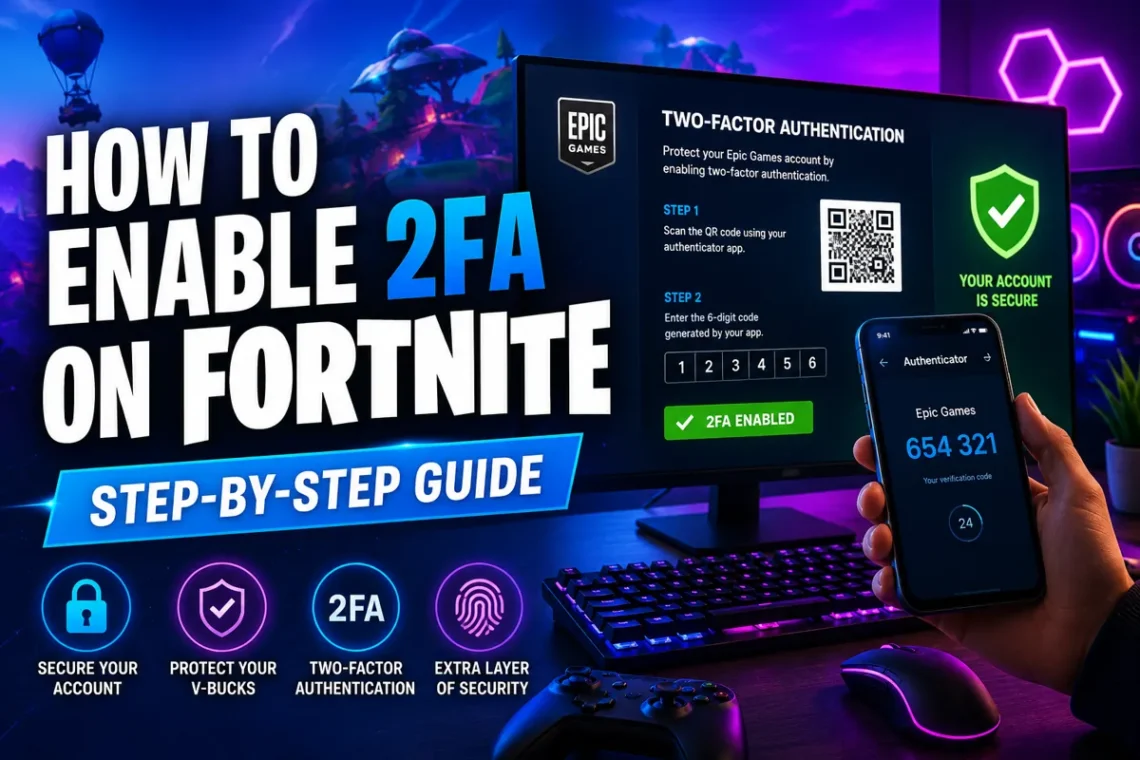
Imagine logging into Fortnite one day only to discover that your favorite skins, V-Bucks, and years of progress are gone. Unfortunately, account theft is more common than many players realize, especially when an account is protected by nothing more than a password.
The good news is that Epic Games offers a simple security feature called Two-Factor Authentication (2FA). It only takes a few minutes to set up, but it adds an extra layer of protection that can stop unauthorized access to your account.
If you’ve never enabled it before, don’t worry. This guide explains how to enable 2FA on Fortnite in simple steps, along with the benefits, common issues, and tips to keep your account safe.
What Is 2FA and Why Does It Matter?
Two-Factor Authentication, often called 2FA, is an extra security step that verifies your identity when you sign in. Instead of relying only on your password, Epic Games asks for a second verification code before allowing access.
Even if someone guesses or steals your password, they won’t be able to log in without that second code.
For Fortnite players, this means better protection for:
- V-Bucks
- Rare skins and cosmetics
- Game progress
- Friends list
- Linked payment methods
- Epic Games account information
Considering how valuable many Fortnite accounts become over time, enabling 2FA is one of the smartest things you can do.
Benefits of Enabling 2FA
Many players enable 2FA simply because it’s recommended, but the advantages go beyond basic security.
Some of the biggest benefits include:
- Better protection against hackers
- Safer online purchases
- More secure account recovery
- Required for Fortnite gifting
- Needed for competitive tournaments
- Greater peace of mind when signing in from new devices
Instead of worrying about losing your account, you can simply enjoy the game.
Before You Start
The setup process is straightforward, but make sure you have the following ready:
- Your Epic Games account login details
- Access to your email address
- A smartphone if you want to use an authenticator app
- A stable internet connection
If your email address hasn’t been verified yet, complete that step first because Epic Games may require it before enabling additional security.
Step 1: Sign In to Your Epic Games Account
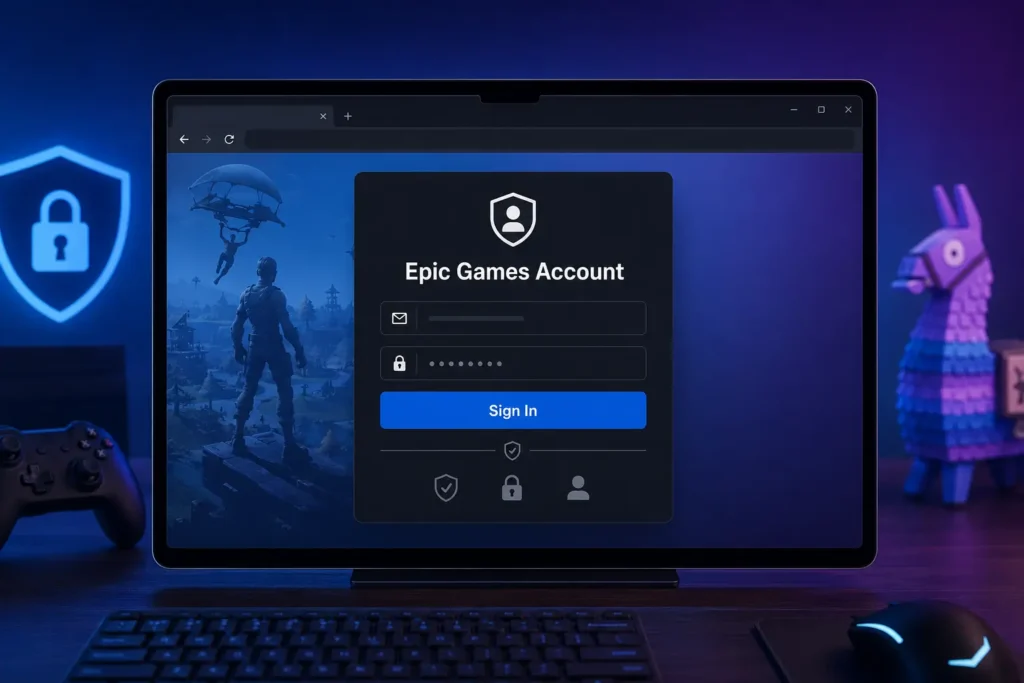
Open your preferred web browser and visit the Epic Games website.
Sign in using the same account connected to your Fortnite profile. Whether you play on PC, PlayStation, Xbox, Nintendo Switch, or mobile, the security settings are managed through your Epic Games account.
Step 2: Open Your Account Settings
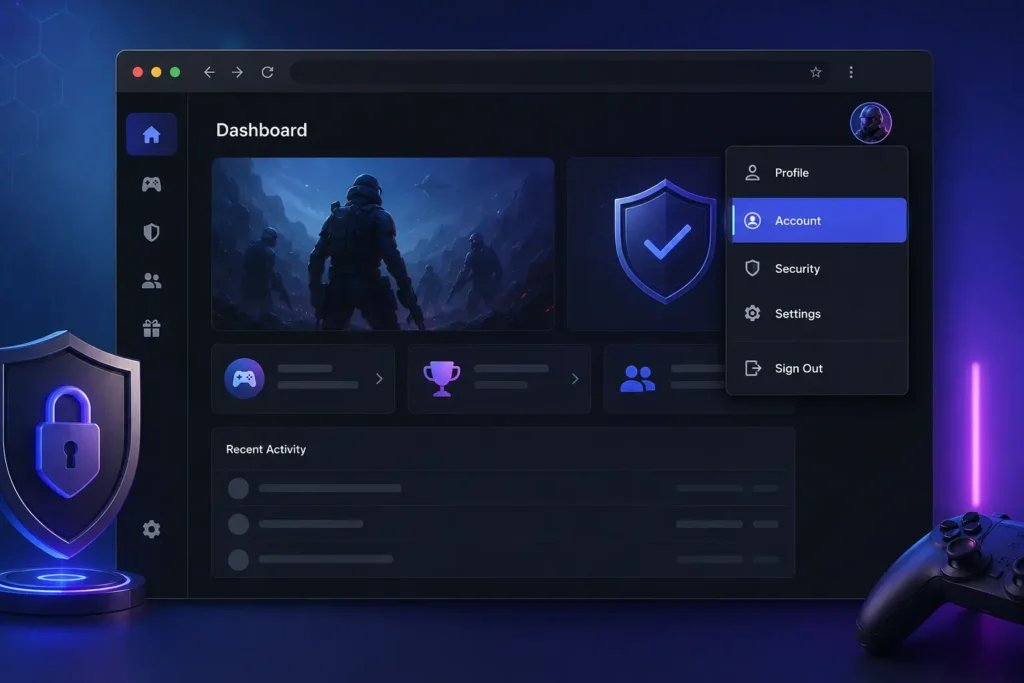
After signing in, click your profile picture in the top-right corner.
From the menu, choose Account.
You’ll now see several account management options.
Step 3: Go to the Password & Security Section
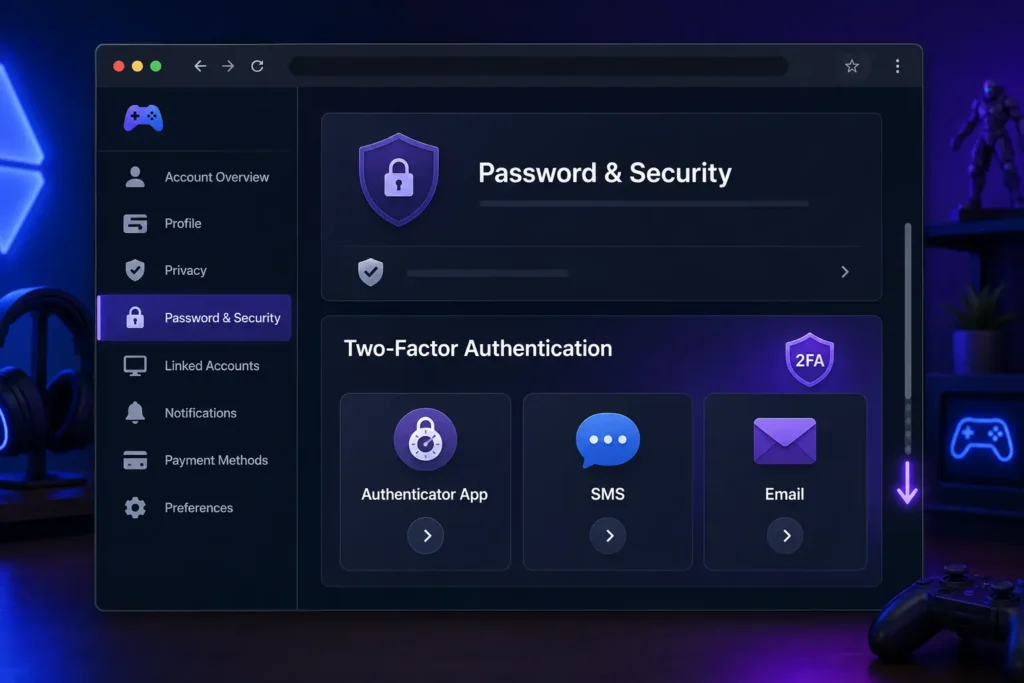
On the left side of the page, click Password & Security.
Scroll down until you reach the Two-Factor Authentication section.
This is where you’ll find the available security methods.
Step 4: Choose the Verification Method That Works Best for You
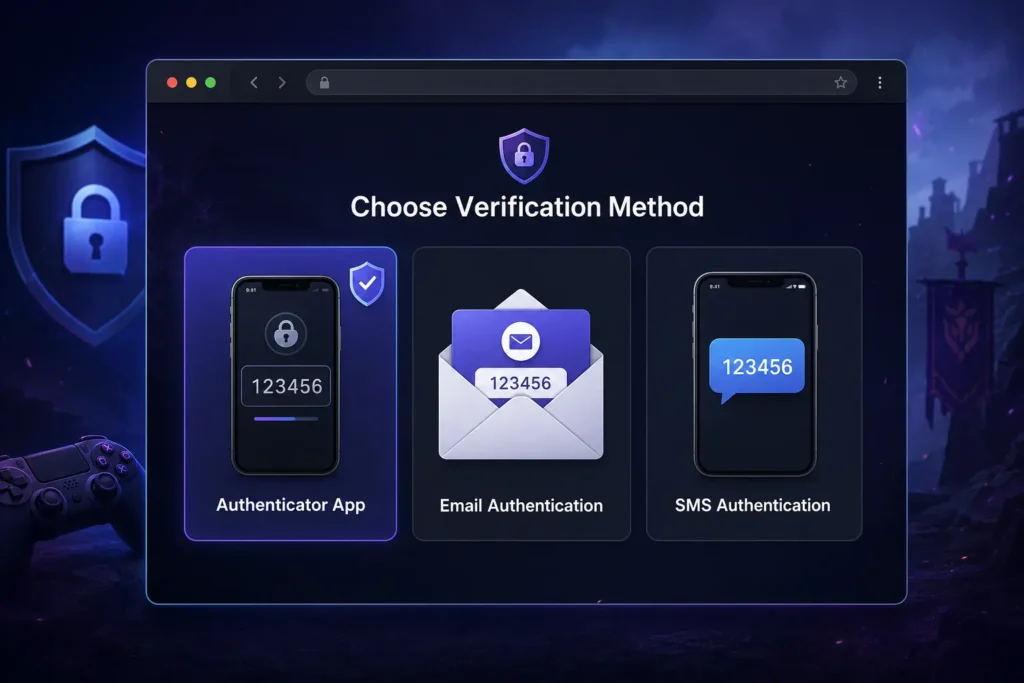
Epic Games gives you several ways to verify your identity.
Authenticator App
This is usually the most secure choice.
Apps such as Google Authenticator, Microsoft Authenticator, or Authy generate a new six-digit code every few seconds.
Since the code is created on your phone instead of being sent through email, it’s generally considered the safest option.
Email Authentication
If you don’t want another app on your phone, email authentication is a great alternative.
Whenever Epic Games needs to verify your identity, a code will be sent to your registered email address.
Simply enter the code to complete the sign-in process.
SMS Authentication
Some players can also receive verification codes by text message.
If this option is available for your account, you can link your mobile number and receive login codes whenever needed.
Step 5: Complete the Verification
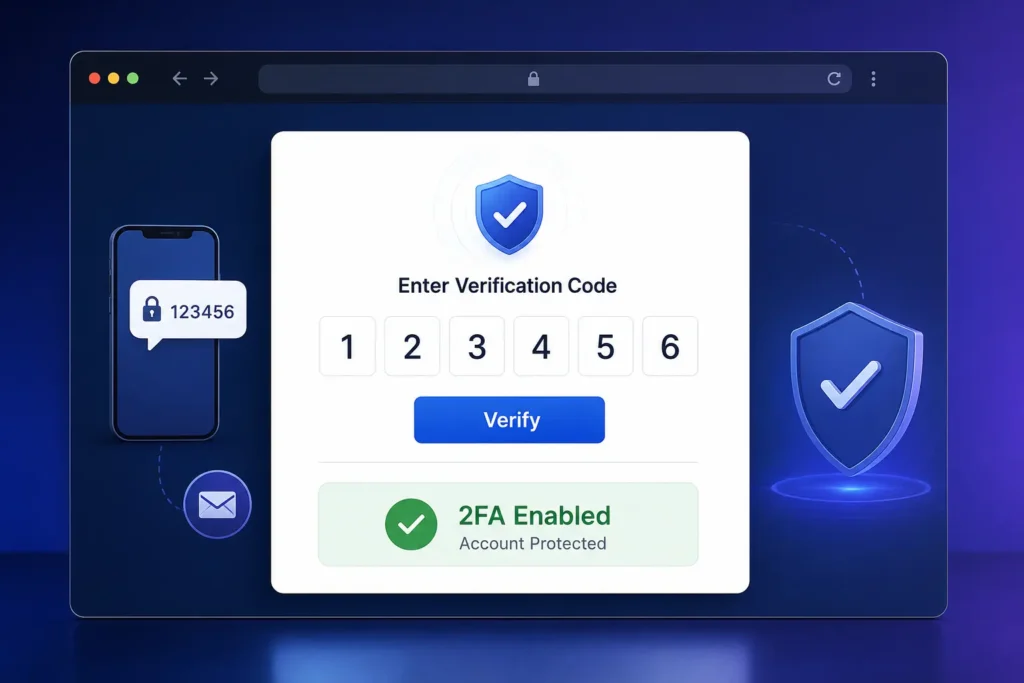
After choosing your preferred method, follow the on-screen instructions.
You’ll receive a verification code through your selected option.
Enter the code correctly, and once it’s accepted, your account will be protected by two-factor authentication.
That’s it—your account is now much more secure.
Which Verification Method Should You Choose?
Every option improves security, but they aren’t all equally strong.
Authenticator App
Best for maximum security
- Fast
- Reliable
- Works even without email access
- Harder for attackers to bypass
Email Verification
Best for casual players
- Easy to set up
- No extra apps required
- Convenient for most users
SMS Verification
Best for convenience
- Quick login
- Simple setup
- Useful if you always have your phone nearby
If security is your top priority, an authenticator app is usually the better choice.
How to Confirm That 2FA Is Working
Once you’ve finished setup, return to the security settings.
The method you selected should now display as Enabled.
You can also sign out of your account and sign back in to test whether Epic Games asks for a verification code.
If it does, everything is working correctly.
Common Problems and How to Fix Them
Most players complete the setup without any issues, but occasionally something goes wrong.
I Didn’t Receive the Email Code
Check your Spam or Junk folder.
If nothing appears after a few minutes, request another code.
My Authenticator Code Doesn’t Work
Make sure your phone’s date and time are set automatically.
Incorrect device time can cause authentication codes to fail.
The 2FA Option Isn’t Showing
This often happens when your email hasn’t been verified.
Verify your email first, then refresh your account settings.
I Lost My Phone
If you used an authenticator app, use your saved backup or recovery options to regain access.
If necessary, contact Epic Games Support for help recovering your account.
Extra Tips to Keep Your Fortnite Account Safe
Even after enabling 2FA, good security habits still matter.
Here are a few simple tips:
- Create a strong, unique password.
- Never share your login details.
- Avoid unofficial V-Bucks generators.
- Ignore suspicious emails asking for your password.
- Update your password regularly.
- Keep your recovery email secure.
Small habits like these can prevent major problems later.
Can You Turn Off 2FA Later?
Yes.
If you ever decide to change your security settings, you can return to your Epic Games account and disable or switch your preferred verification method.
However, turning it off means your account loses an important layer of protection, so it’s usually best to leave it enabled.
Final Thoughts
Learning how to enable 2FA on Fortnite is one of the easiest ways to protect everything you’ve worked hard to earn in the game. Whether you’ve spent years unlocking rare skins or simply want to keep your account secure, enabling two-factor authentication only takes a few minutes and offers long-term peace of mind.
Instead of waiting until your account is compromised, take a few moments today to secure it. It’s a small step that can save you from a big headache in the future.
FAQs
1. Is 2FA free to use on Fortnite?
Yes. Epic Games provides 2FA completely free of charge.
2. Do I need 2FA to send gifts in Fortnite?
Yes. Certain features, including gifting, require two-factor authentication.
3. Which 2FA option is the safest?
An authenticator app offers the highest level of security for most users.
4. Can console players enable 2FA?
Yes. Whether you play on PlayStation, Xbox, Nintendo Switch, or PC, you enable 2FA through your Epic Games account.
5. Will I need a code every time I log in?
Not always. Epic Games usually asks for a verification code when signing in on a new device or when unusual login activity is detected.
📚 Related Guides
Looking for more helpful gaming and tech tutorials? Check out these step-by-step guides: