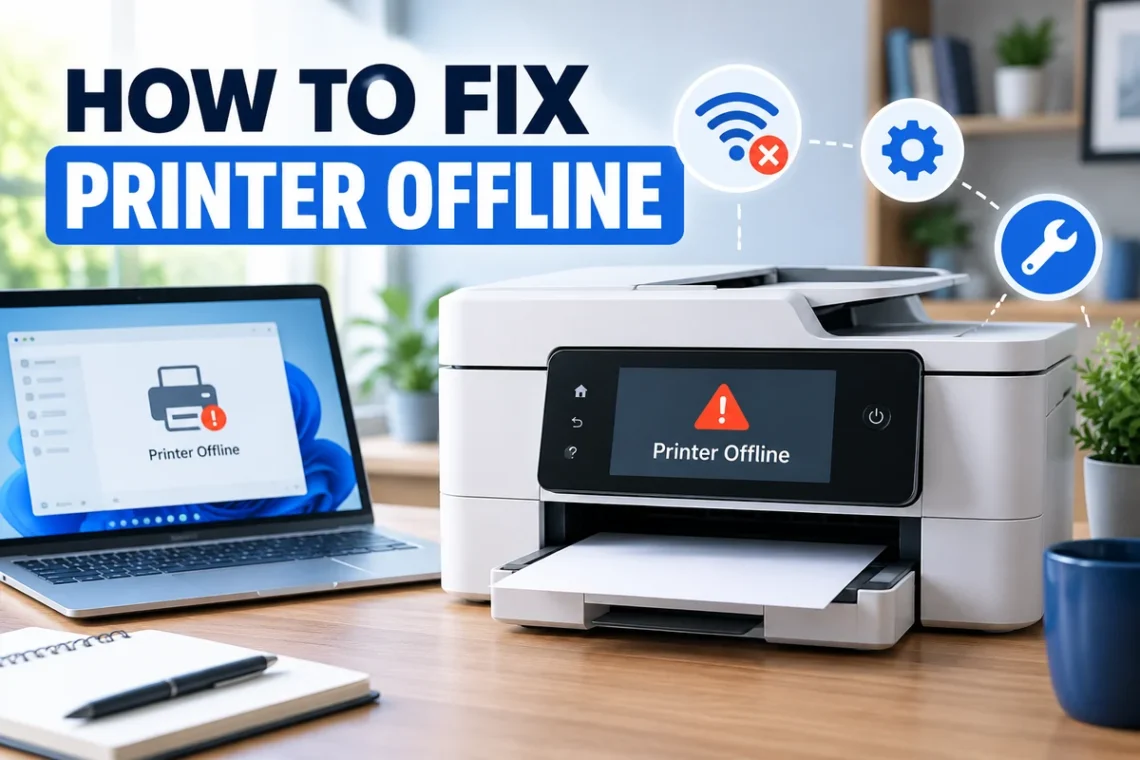
Seeing a Printer Offline message can be frustrating, especially when the printer is switched on and looks ready to work. This problem usually means your computer cannot communicate properly with the printer, even though the printer itself may not have a serious fault.
If you are searching for how to fix printer offline, the good news is that most cases can be solved with a few simple checks. Restarting the printer, checking the connection, disabling offline mode, clearing the print queue, restarting the print spooler, or reinstalling the printer can often restore the connection. This guide explains each method clearly for Windows, Mac, Wi-Fi, and USB printers.
Why Does My Printer Say Offline?
A printer can appear offline when your computer loses communication with it.
This can happen because of a weak Wi-Fi connection, a disconnected USB cable, an incorrect printer setting, a stuck print job, an outdated driver, or a temporary software problem.
Sometimes the printer is connected correctly but Windows or macOS still shows an old offline status.
Before trying advanced troubleshooting, check that the printer is turned on, has paper, has enough ink or toner, and is not displaying an error message.
1. Restart the Printer and Computer
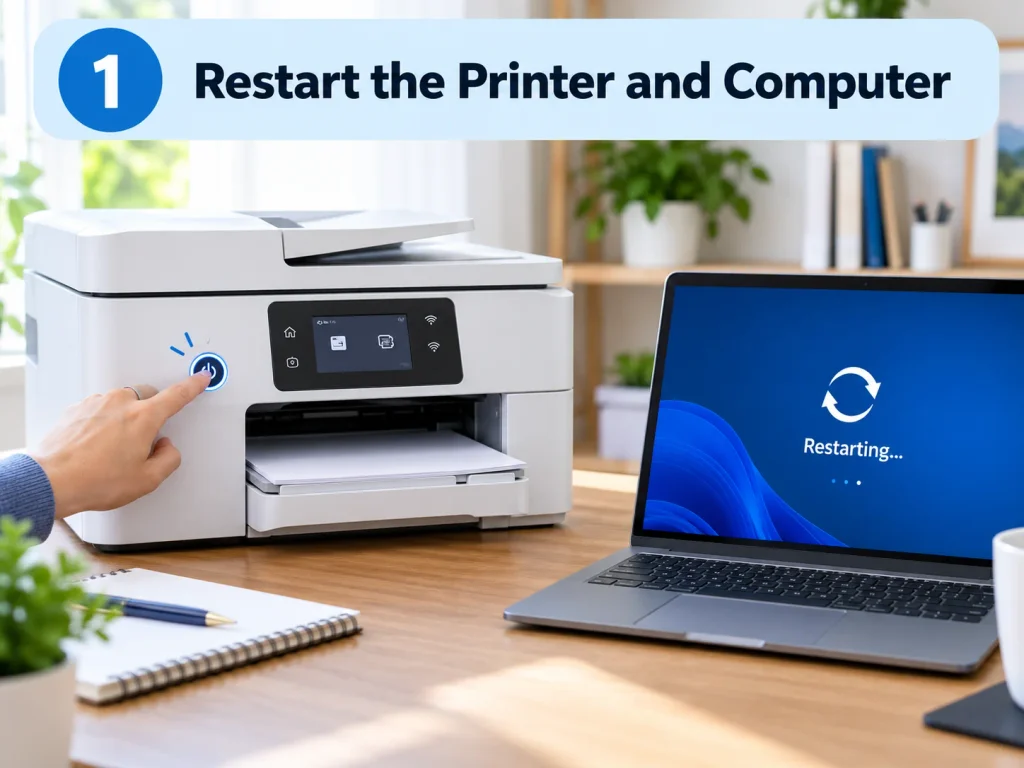
The first fix is also one of the easiest.
Turn off your printer and disconnect its power cable if possible. Wait briefly, reconnect the power, and switch the printer back on.
Then restart your computer.
This can clear temporary connection errors and refresh the communication between the printer and the operating system.
After both devices restart, try printing a test page.
If the printer still shows as offline, continue with the next steps.
2. Check the Printer Connection
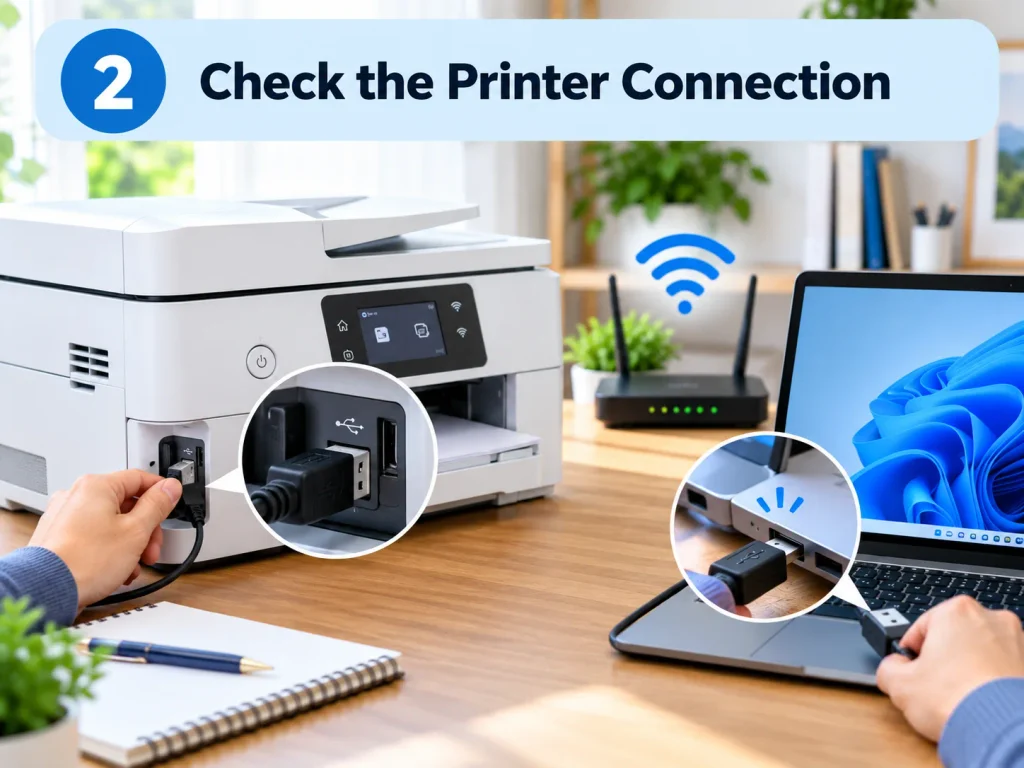
A printer may appear offline simply because the computer cannot reach it.
For a USB printer, check that the cable is firmly connected to both the printer and the computer.
If possible, try a different USB port.
For a wireless printer, make sure the printer is connected to the same Wi-Fi network as your computer.
You can usually check the current network name from the printer’s display or network settings menu.
If the printer recently changed Wi-Fi networks, you may need to reconnect it before printing again.
3. Make Sure the Printer Is Not Set to Offline Mode
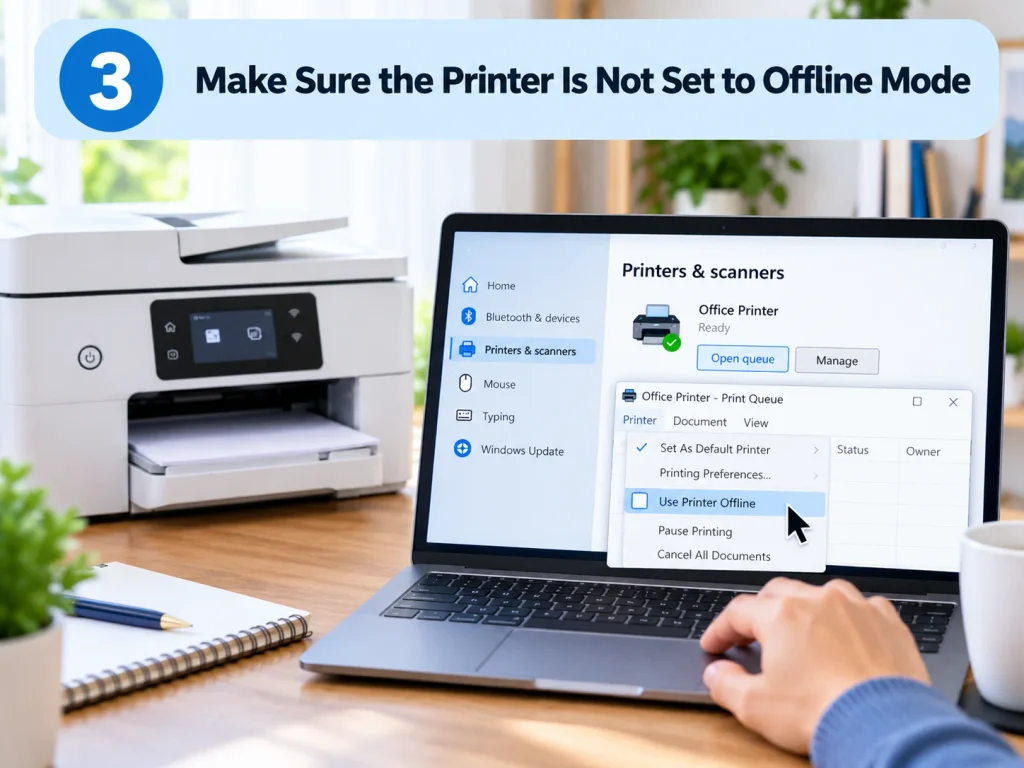
Windows includes a setting that can intentionally place a printer into offline mode.
If this option is enabled, your printer may remain unavailable even when it is connected properly.
Open Settings and go to:
Bluetooth & devices > Printers & scanners
Select your printer and open the print queue.
Depending on your Windows version, open the printer menu and look for Use Printer Offline.
If it is selected, disable it.
You should also make sure Pause Printing is not enabled.
Once these options are turned off, wait a few moments and check whether the printer status changes to ready or online.
4. Set the Correct Printer as Default
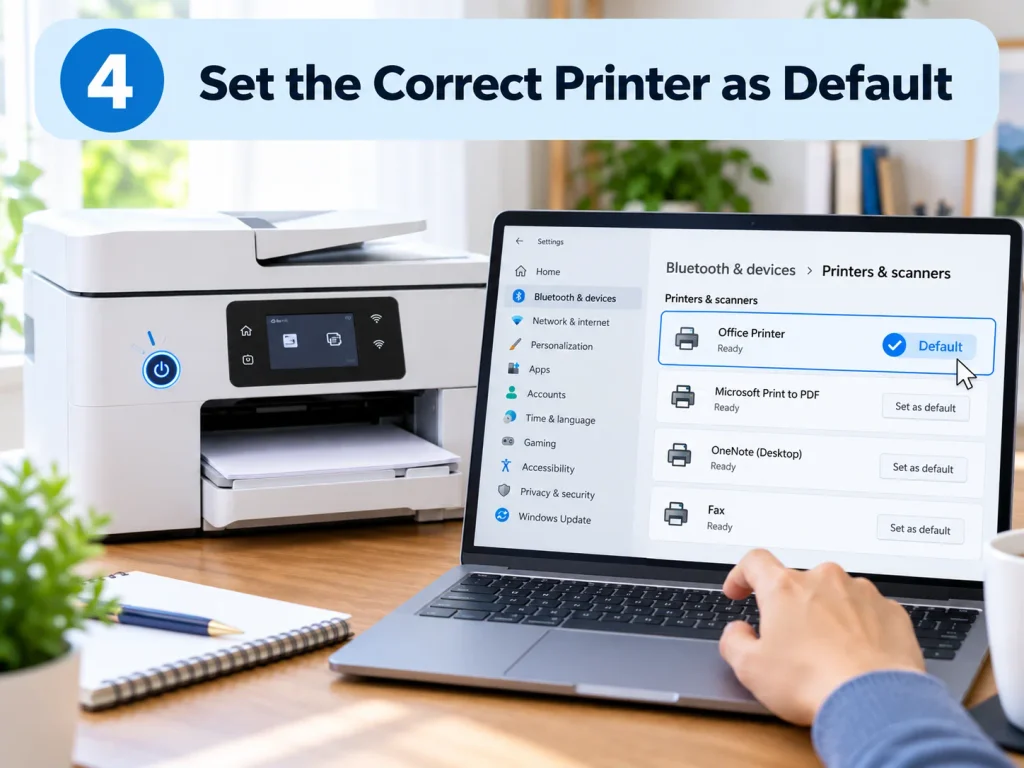
Your computer may be trying to send documents to a different printer.
This is common when several printers, virtual printers, or old printer installations appear in the device list.
Open:
Settings > Bluetooth & devices > Printers & scanners
Select the printer you want to use and choose Set as default, if the option is available.
In some versions of Windows, you may need to disable Let Windows manage my default printer before selecting your own default device.
Try printing again after changing the setting.
5. Clear the Print Queue
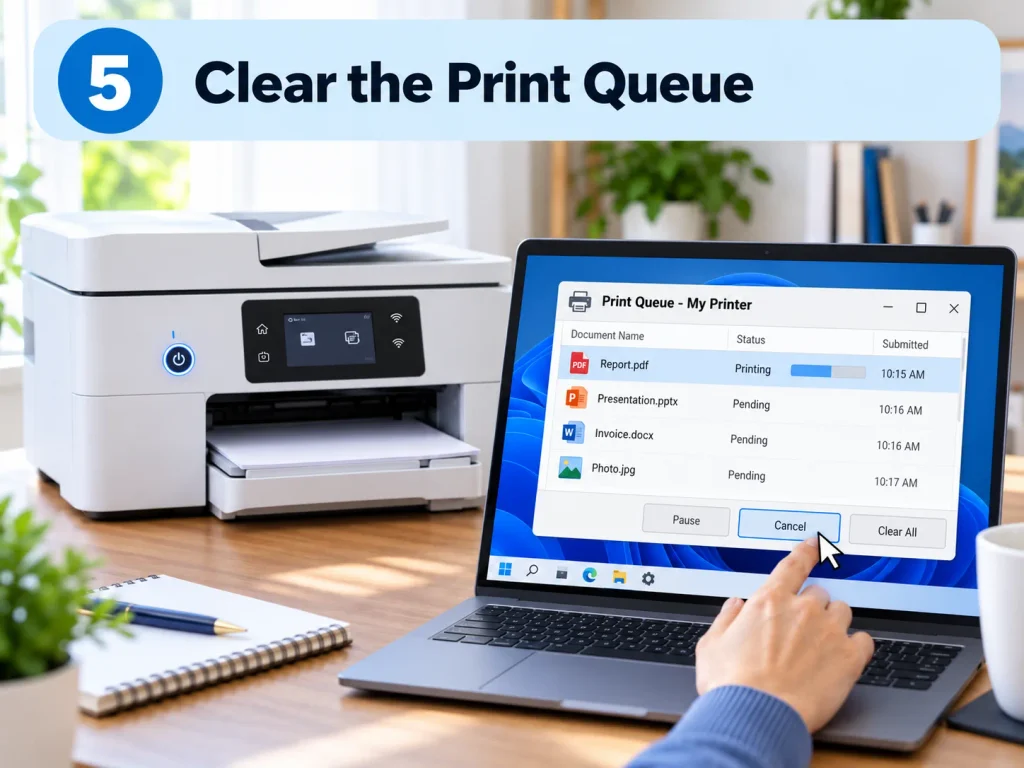
A stuck print job can prevent new documents from printing and may sometimes cause the printer to appear offline.
Open your printer’s print queue.
You may see one or more jobs marked as pending, error, or paused.
Cancel all unnecessary print jobs.
If a document refuses to disappear, restart the computer and check the queue again.
Once the queue is empty, send a small test document to the printer.
If it prints successfully, the problem was likely caused by a blocked print job.
6. Restart the Print Spooler on Windows
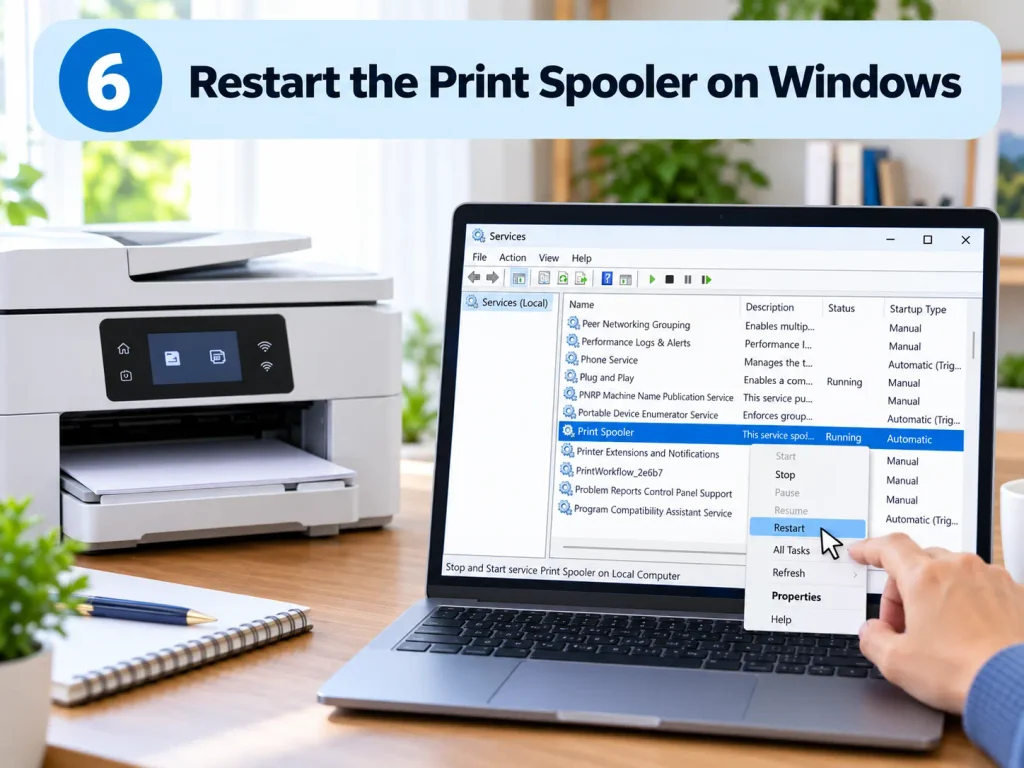
The Print Spooler is a Windows service that manages print jobs.
If it stops working correctly, printers can disappear, remain offline, or refuse to print.
Press Windows + R.
Type:
services.msc
Press Enter.
Find Print Spooler in the services list.
Right-click it and choose Restart.
If the service is stopped, choose Start.
After restarting the Print Spooler, return to your printer settings and check whether the offline message has disappeared.
7. Run the Windows Printer Troubleshooter
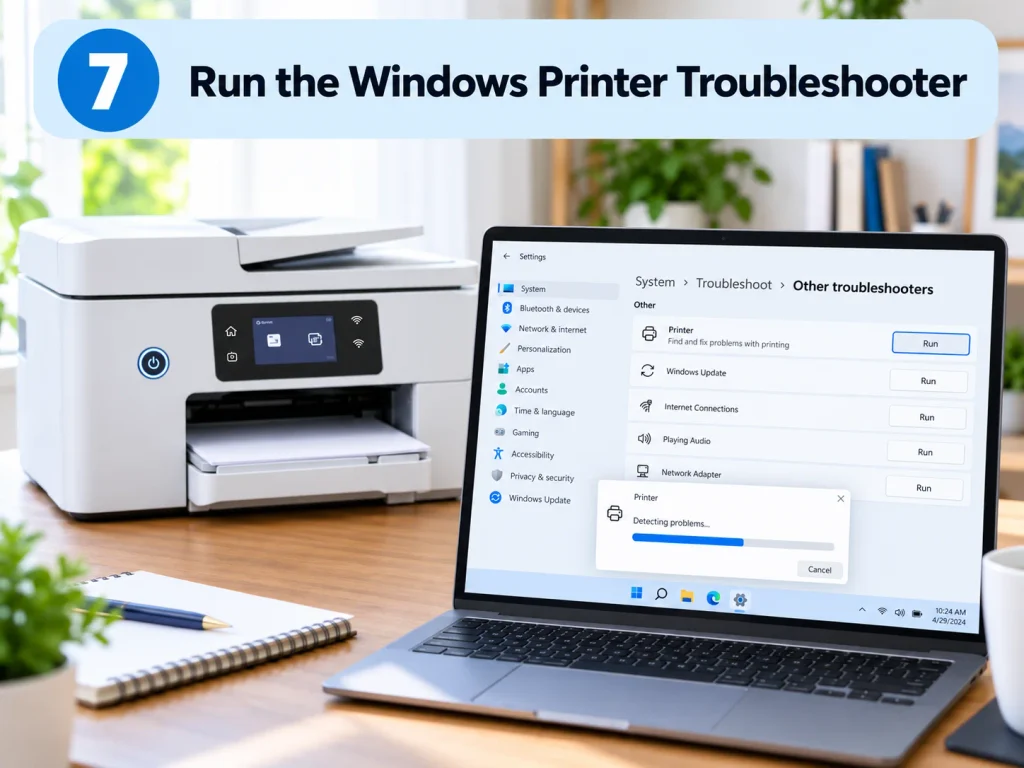
Windows includes built-in troubleshooting tools that can automatically detect some common printer problems.
Open Settings and go to the troubleshooting section for printers.
Depending on your Windows version, this may be available under:
System > Troubleshoot > Other troubleshooters
Look for the printer troubleshooting option and run it.
Windows may check the printer connection, queue, services, and settings.
Apply any recommended fixes and then test the printer again.
8. Remove and Re-Add the Printer
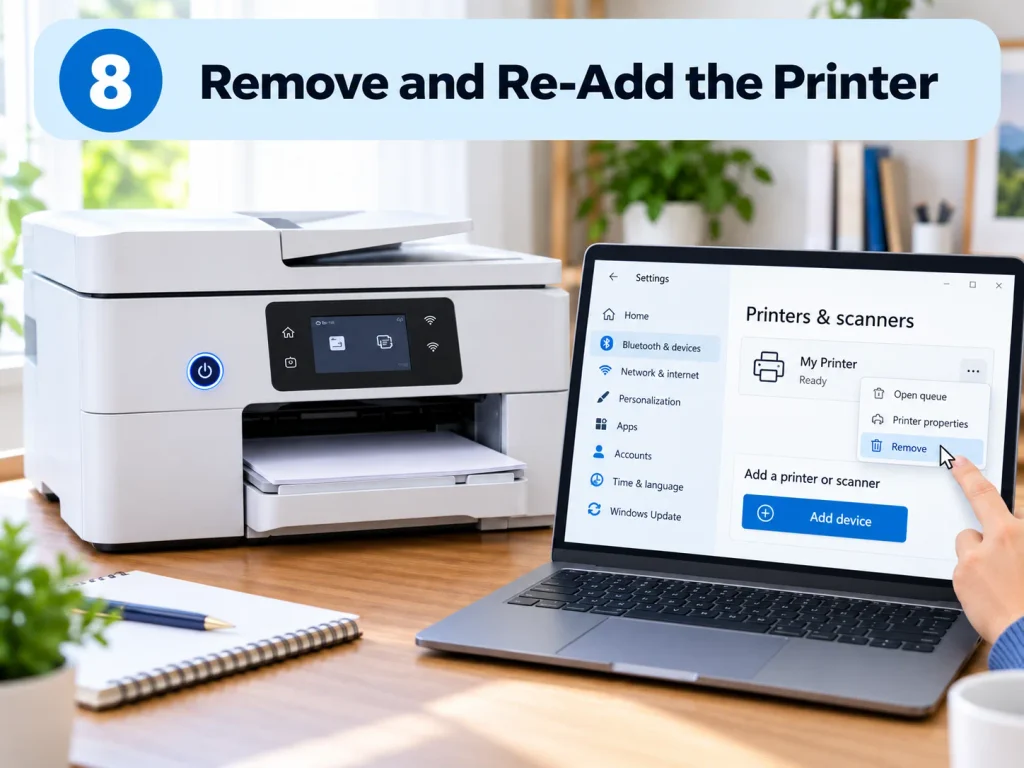
If Windows continues showing the printer as offline, removing and adding it again can refresh the connection.
Open:
Settings > Bluetooth & devices > Printers & scanners
Select the printer and choose Remove.
Restart the printer if necessary.
Then return to Printers & scanners and choose Add device.
Wait for Windows to find the printer and follow the setup instructions.
After reinstalling it, make sure the newly added printer is selected when you print.
9. Update or Reinstall the Printer Driver
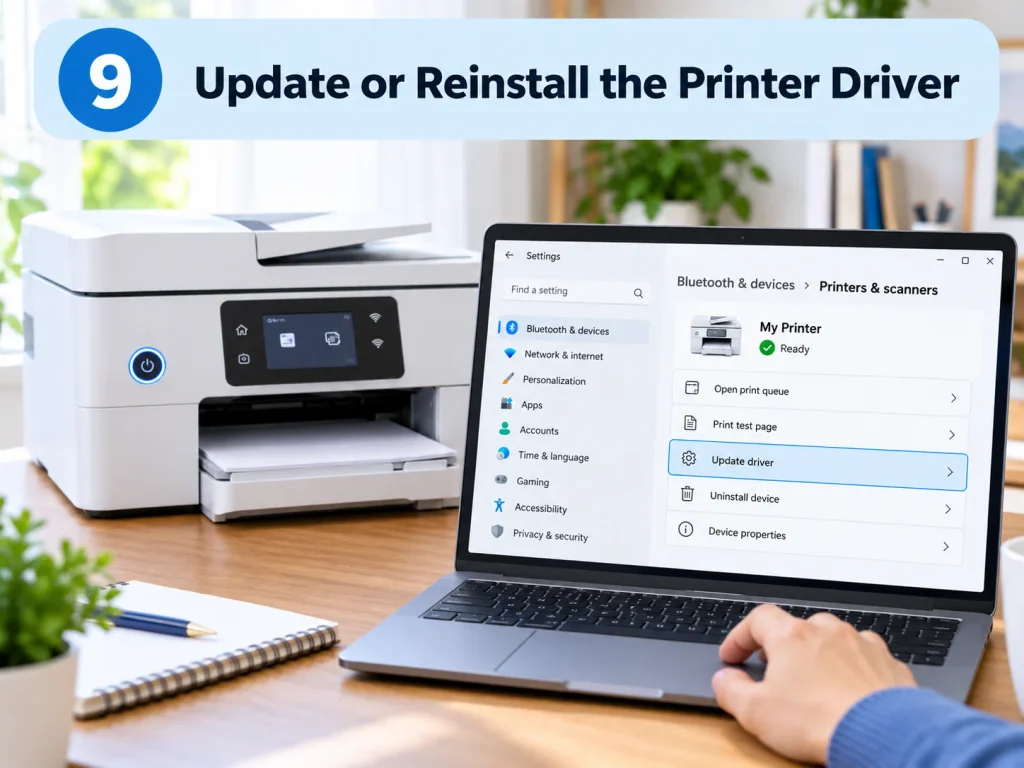
A damaged or outdated printer driver can cause connection problems.
Drivers allow your computer to communicate correctly with the printer.
You can check Windows Update for available driver updates.
You can also open Device Manager, locate the printer, and check for driver options.
For some printer models, the manufacturer may provide its own installation software or driver package.
If updating does not help, removing the printer and reinstalling its current compatible software may solve the problem.
Only install printer drivers from trusted sources.
10. Check the Printer’s Wi-Fi Connection
Wireless printers depend on a stable network connection.
If your Wi-Fi printer keeps going offline, check the signal strength between the printer and the router.
A printer located far from the router may disconnect more frequently.
Restarting the router can also help with temporary network problems.
Make sure the printer and computer are connected to the same local network.
If your router uses separate network names for different Wi-Fi bands, confirm that the printer can communicate properly with devices on your chosen network.
11. Check the Printer’s IP Address
Network printers use an IP address to communicate with computers.
If your router assigns the printer a different IP address, an old printer configuration may stop working.
You can usually find the printer’s current IP address from its network settings menu or by printing a network configuration page.
Compare that address with the printer port configured on your computer.
If the addresses no longer match, removing and re-adding the printer is often the simplest solution.
For business or shared network printers, you may need help from the person managing the network.
12. How to Fix Printer Offline on a Mac
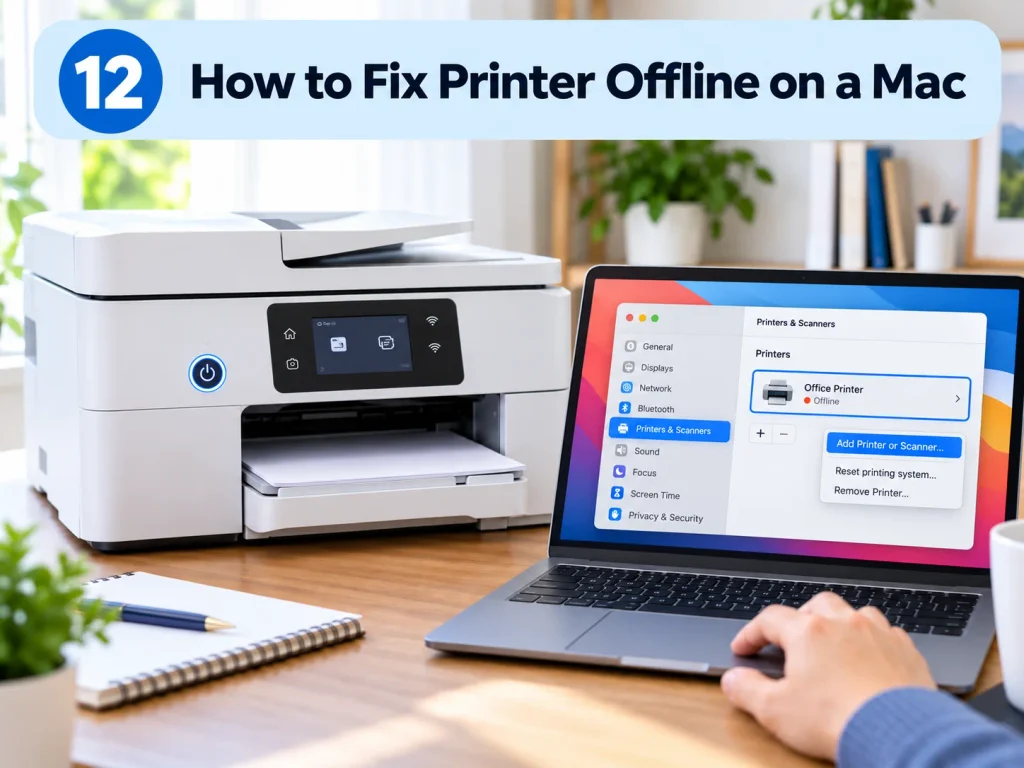
Mac users can experience similar printer offline problems.
First, check that the printer is powered on and connected by USB or to the same Wi-Fi network as the Mac.
Open:
System Settings > Printers & Scanners
Select the printer and check whether it is paused or unavailable.
Open the print queue and remove any stuck jobs.
If the printer still does not work, remove it from Printers & Scanners and add it again.
Restarting both the Mac and printer can also clear temporary communication issues.
13. Why Does My Printer Keep Going Offline?
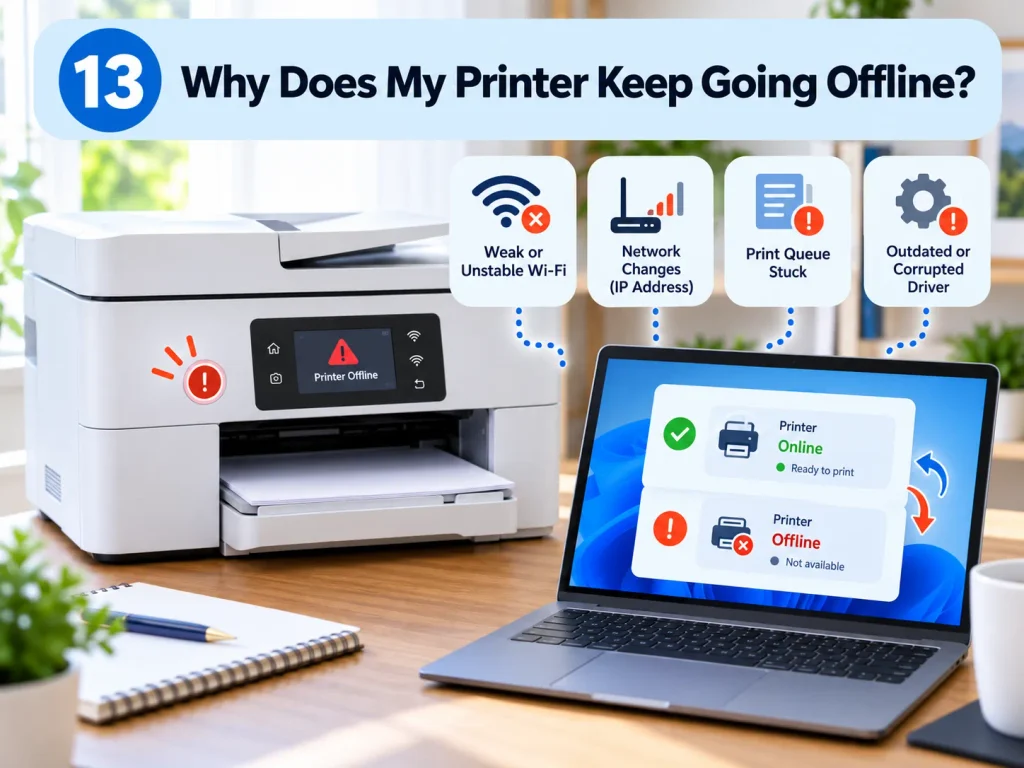
If your printer repeatedly goes offline, the issue may be more than a temporary software error.
Common causes include:
- Weak Wi-Fi signal
- Router connection problems
- Printer power-saving settings
- Changing IP addresses
- Old printer drivers
- Faulty USB cables
- Print spooler errors
- Multiple installations of the same printer
Wireless printers can be especially sensitive to network changes.
If the problem happens regularly, improving the Wi-Fi connection or reinstalling the printer with the correct network settings may provide a more permanent fix.
14. Printer Offline but Connected to Wi-Fi

A printer can be connected to Wi-Fi but still show as offline on your computer.
This usually means the printer has reached the network, but your computer is not communicating with it correctly.
Check that both devices are on the same network.
Then remove any stuck print jobs and restart the Print Spooler if you are using Windows.
You can also remove and reinstall the printer.
If the printer’s IP address changed, re-adding the device may allow your computer to detect its current network address.
15. Printer Offline After Windows Update
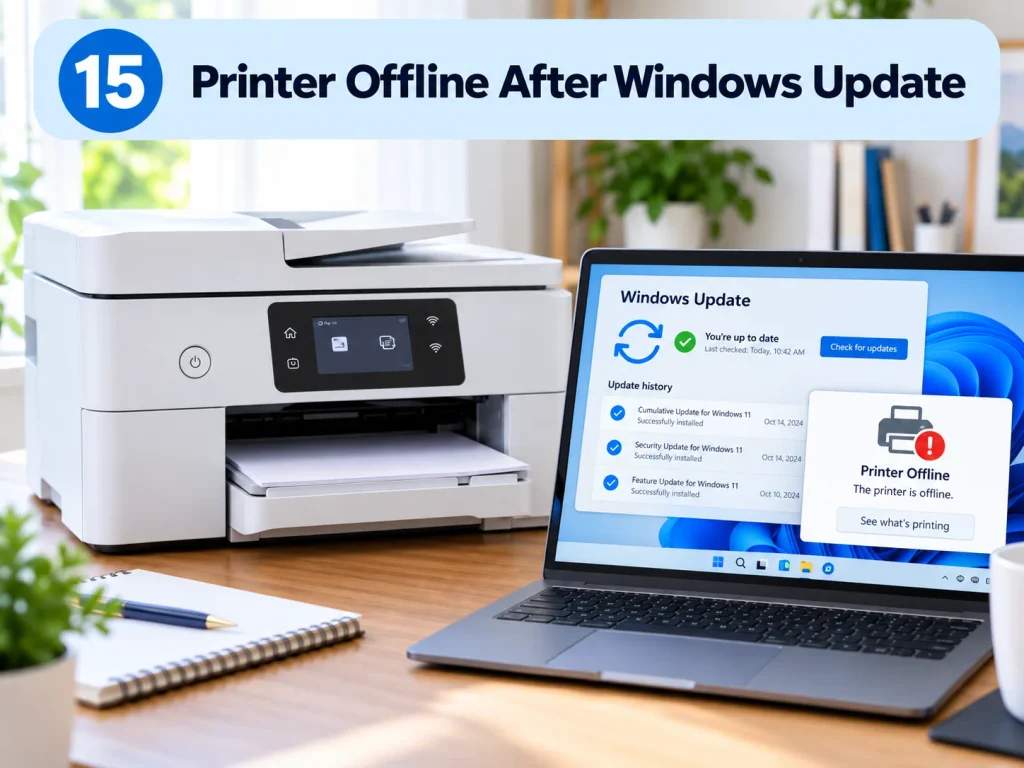
Sometimes printer problems appear after a Windows update.
This can happen if a driver becomes incompatible, a printer port changes, or Windows modifies a printing service.
Start by restarting the computer and printer.
Then check Windows Update again for additional updates.
Open your printer settings and confirm that the correct device is selected.
If the problem remains, reinstalling the printer driver or removing and adding the printer again may restore normal operation.
16. Printer Offline but USB Is Connected
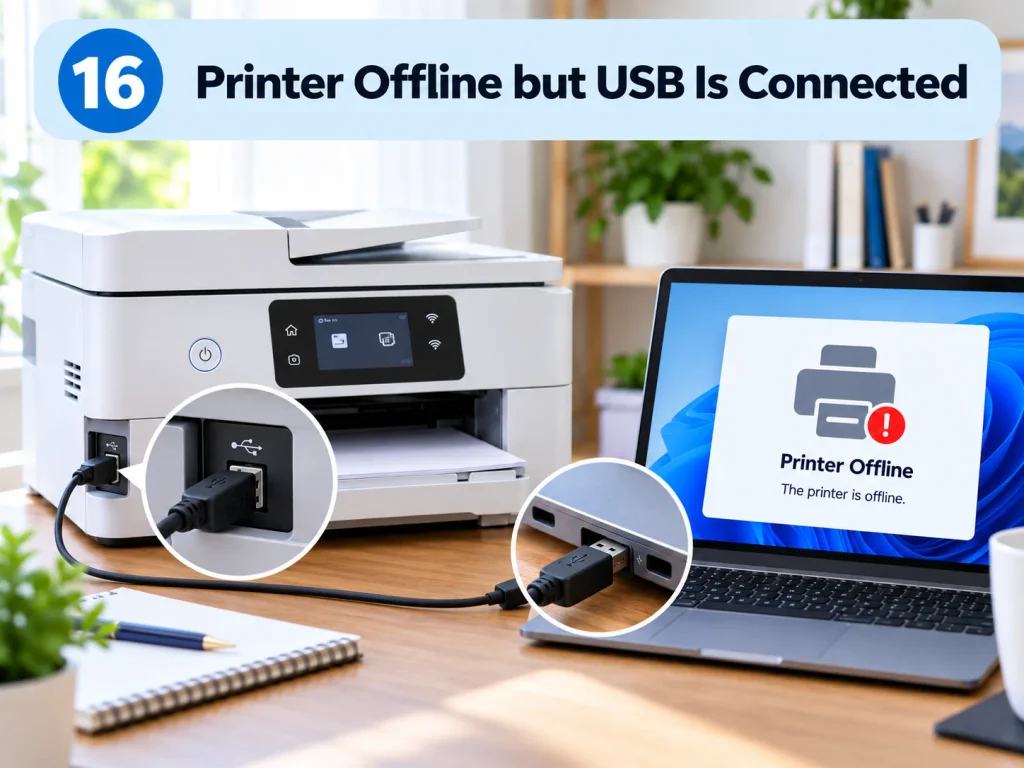
If a USB printer shows offline even though the cable is connected, try a different USB port.
You should also inspect the cable for visible damage.
Disconnect the cable, restart the printer, and reconnect it after Windows finishes loading.
If Windows still cannot communicate with the printer, remove the printer from Printers & scanners and install it again.
A replacement USB cable may also help if the existing cable has become unreliable.
17. When Should You Contact Printer Support?
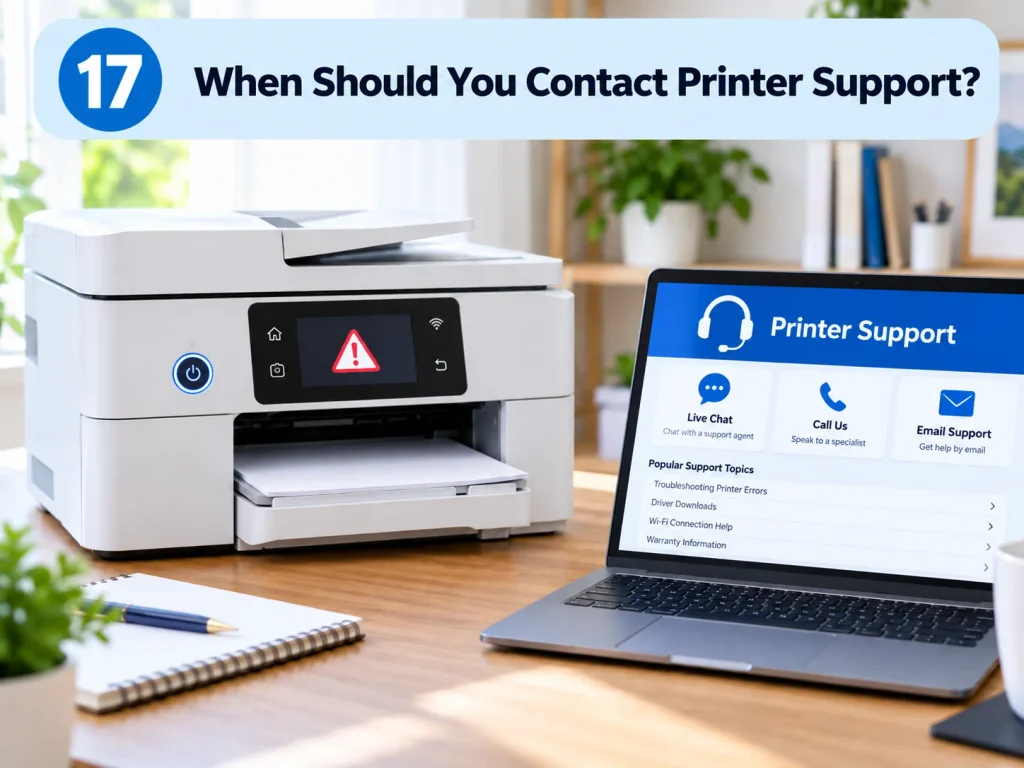
Most offline printer problems can be solved through connection and software troubleshooting.
However, professional support may be useful if the printer displays hardware error codes, repeatedly disconnects from the network, refuses to start, or cannot be detected by multiple computers.
You may also need manufacturer support if the printer requires specialized drivers, firmware updates, or network configuration.
Before contacting support, note your printer model, operating system, connection type, and any error messages shown on the printer or computer.
Final Thoughts
If you need to know how to fix printer offline, start with the simplest solutions first.
Restart the printer and computer, check the Wi-Fi or USB connection, make sure offline mode is disabled, clear the print queue, and confirm the correct printer is selected.
If the problem continues, restart the Print Spooler, remove and re-add the printer, or update the printer driver.
Most offline printer errors are caused by connection or software communication problems rather than serious hardware failure. Working through the fixes in order can help you identify the cause without making unnecessary changes.
FAQs
Why does my printer say offline when it is turned on?
Your computer may not be communicating with the printer correctly. A network issue, USB problem, incorrect setting, stuck print job, or driver error can cause this.
How do I get my printer back online?
Check the printer connection, disable Use Printer Offline, clear the print queue, restart the printer, and confirm the correct printer is selected.
Why is my wireless printer offline?
The printer may have lost its Wi-Fi connection, moved to a different IP address, or be connected to a different network from your computer.
Does restarting the Print Spooler fix an offline printer?
It can. Restarting the Print Spooler often fixes Windows printing problems caused by stuck or unresponsive print services.
Should I reinstall my printer if it keeps showing offline?
Yes, if simpler fixes do not work. Removing and re-adding the printer can refresh its connection, port settings, and device configuration.