
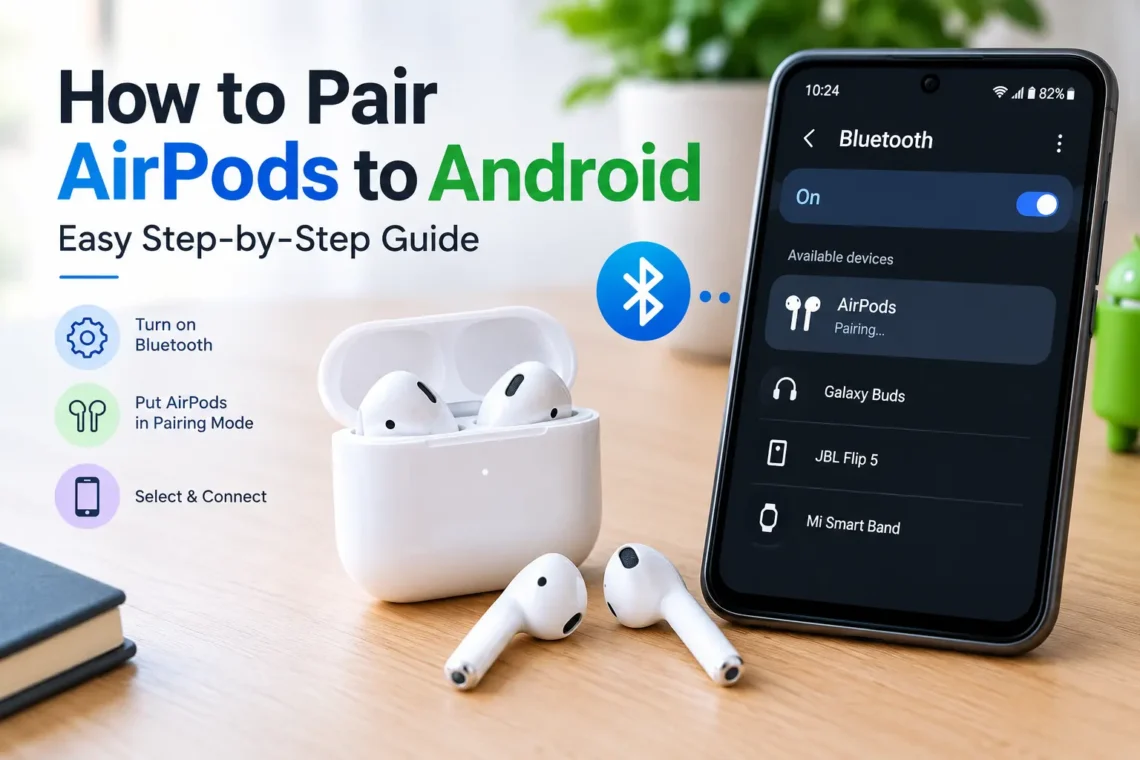
AirPods are designed by Apple, but you can still use them with an Android phone. They work like regular Bluetooth earbuds, so you can connect them to most Android smartphones without installing a special app.
If you have recently bought AirPods and are wondering how to pair AirPods to Android, the process is quite simple. You only need to turn on Bluetooth, put your AirPods into pairing mode, and select them from your phone’s Bluetooth settings.
In this guide, we will explain the complete process step by step. We will also cover what to do if your AirPods do not appear in the Bluetooth list or refuse to connect.
Can You Connect AirPods to an Android Phone?
Yes, AirPods can connect to Android phones through Bluetooth.
Although AirPods are made for Apple devices, their basic audio and microphone functions use standard Bluetooth technology. This means you can pair them with Android phones from brands such as Samsung, Google, OnePlus, Xiaomi, Motorola, and others.
However, some Apple-specific features may not work in the same way on Android. For example, automatic switching between Apple devices and some Siri-related features are designed specifically for Apple’s ecosystem.
For listening to music, watching videos, making calls, and other basic tasks, AirPods can work perfectly well with an Android phone.
How to Pair AirPods to Android
Follow these steps to connect your AirPods to your Android phone.
1. Open Bluetooth Settings on Android
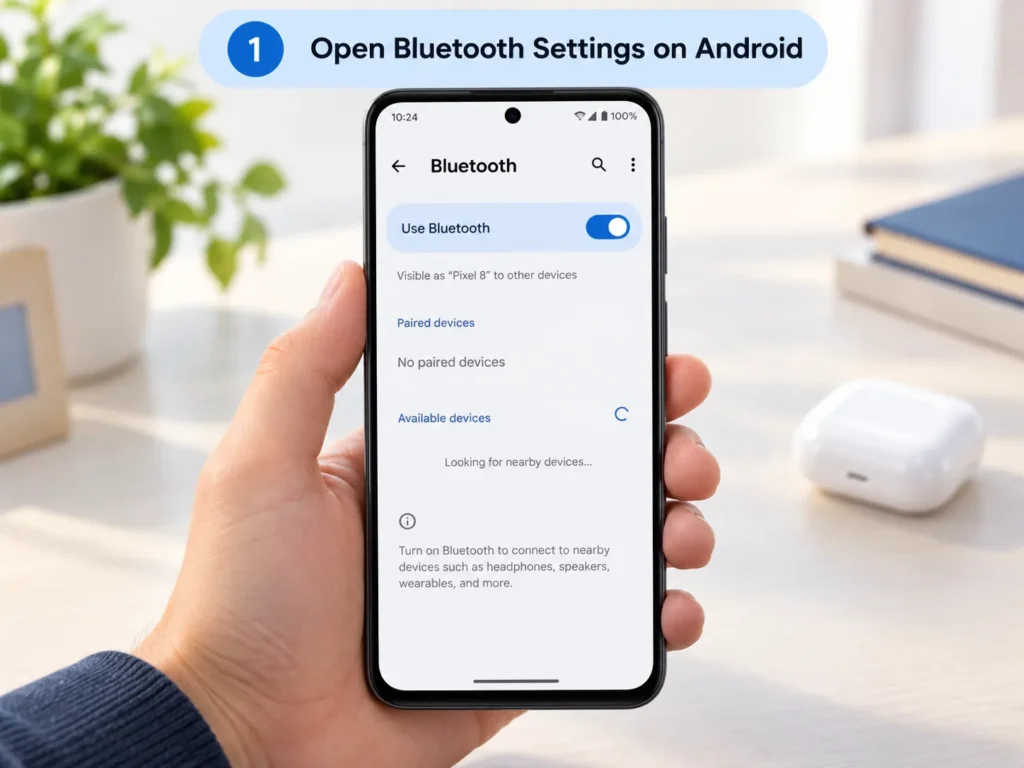
First, unlock your Android phone and open Settings.
Look for Bluetooth. Depending on your Android version or phone manufacturer, you may find it under Connected devices, Connections, or Connected devices & sharing.
Tap Bluetooth and make sure it is turned on.
2. Put Your AirPods in the Charging Case
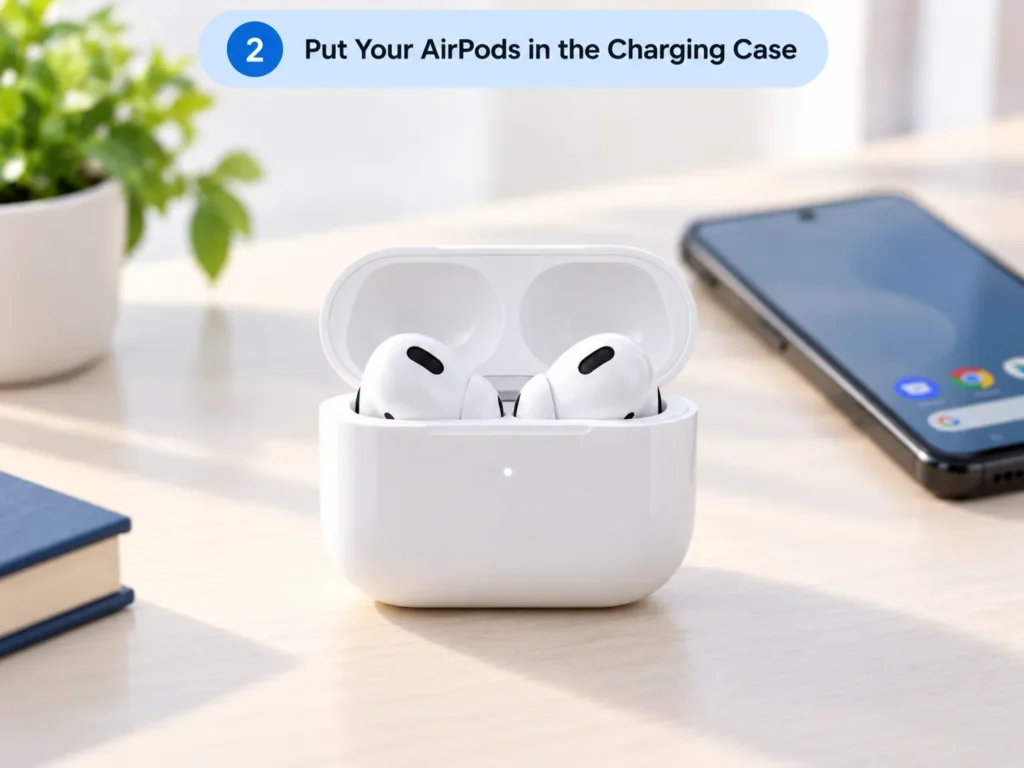
Place both AirPods inside their charging case.
Keep the lid open while you prepare them for pairing.
If the AirPods are already connected to another nearby device, it can sometimes help to disconnect them from that device before trying to pair them with your Android phone.
3. Put the AirPods Into Pairing Mode
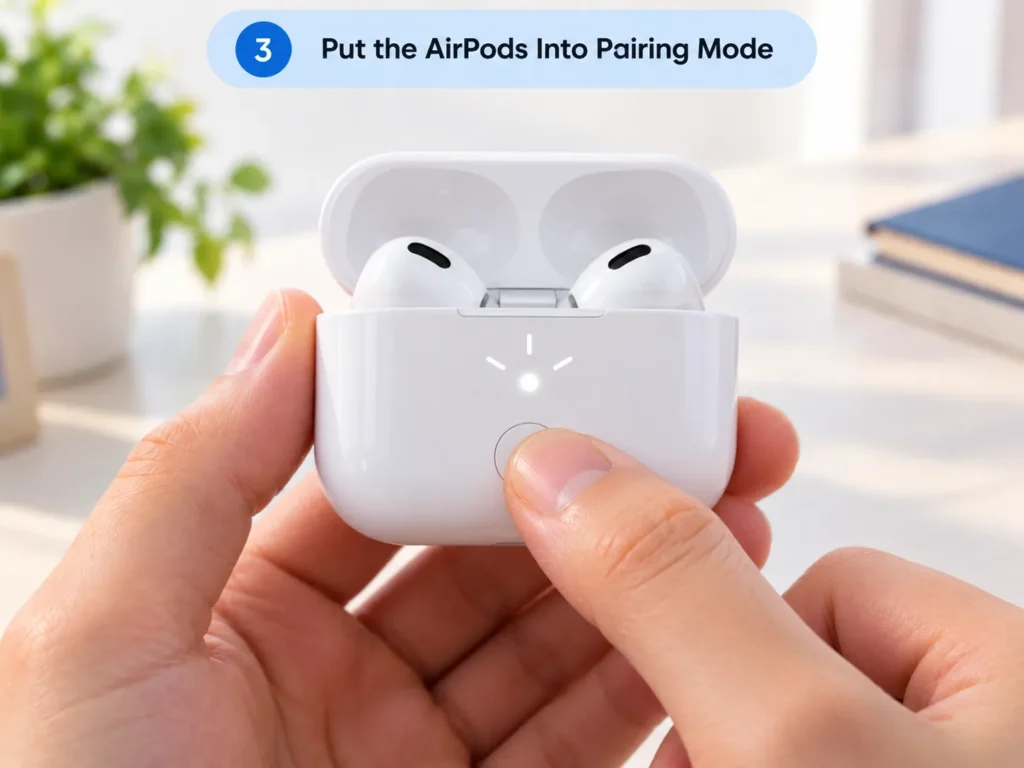
With the AirPods inside the case and the lid open, press and hold the setup button on the back of the case.
Continue holding it until the status light starts flashing white.
The flashing white light indicates that the AirPods are ready to be discovered by a Bluetooth device.
Note: AirPods models with different case designs may have slightly different pairing controls. If your model does not have a traditional rear setup button, follow the pairing instructions specific to that model.
4. Select Your AirPods on Android
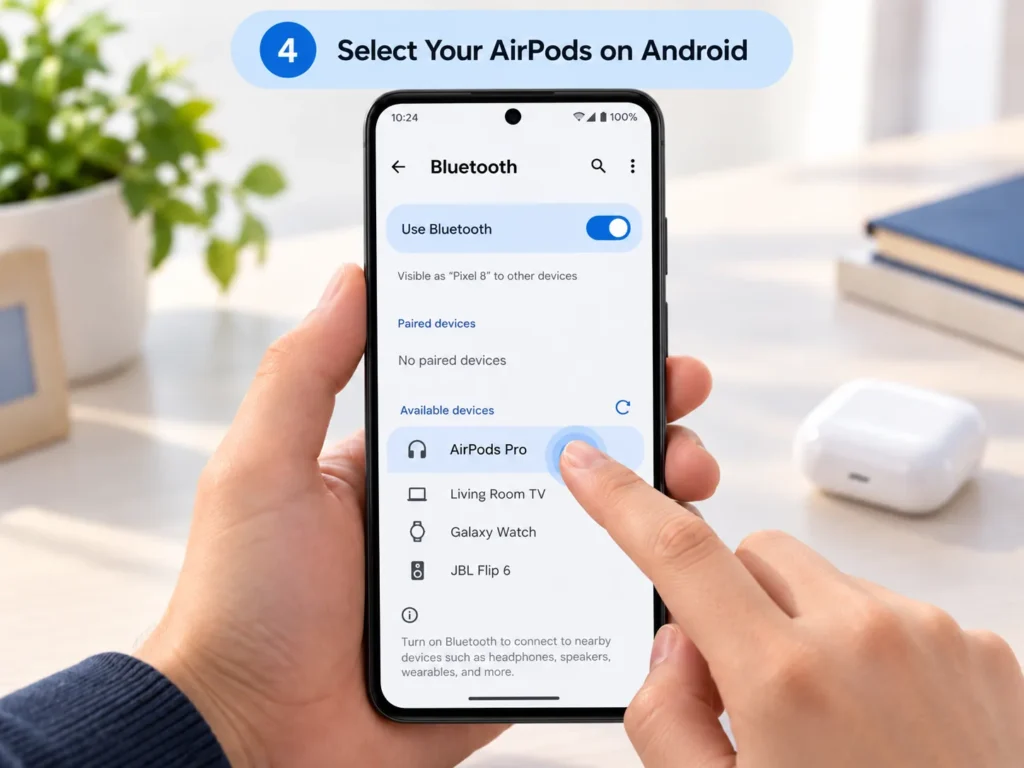
Return to your Android phone’s Bluetooth settings.
Under Available devices, look for your AirPods. They may appear as AirPods, AirPods Pro, or a name you previously assigned to them.
Tap the AirPods name.
Your phone may show a pairing request. If it does, select Pair or OK.
5. Wait for the Connection
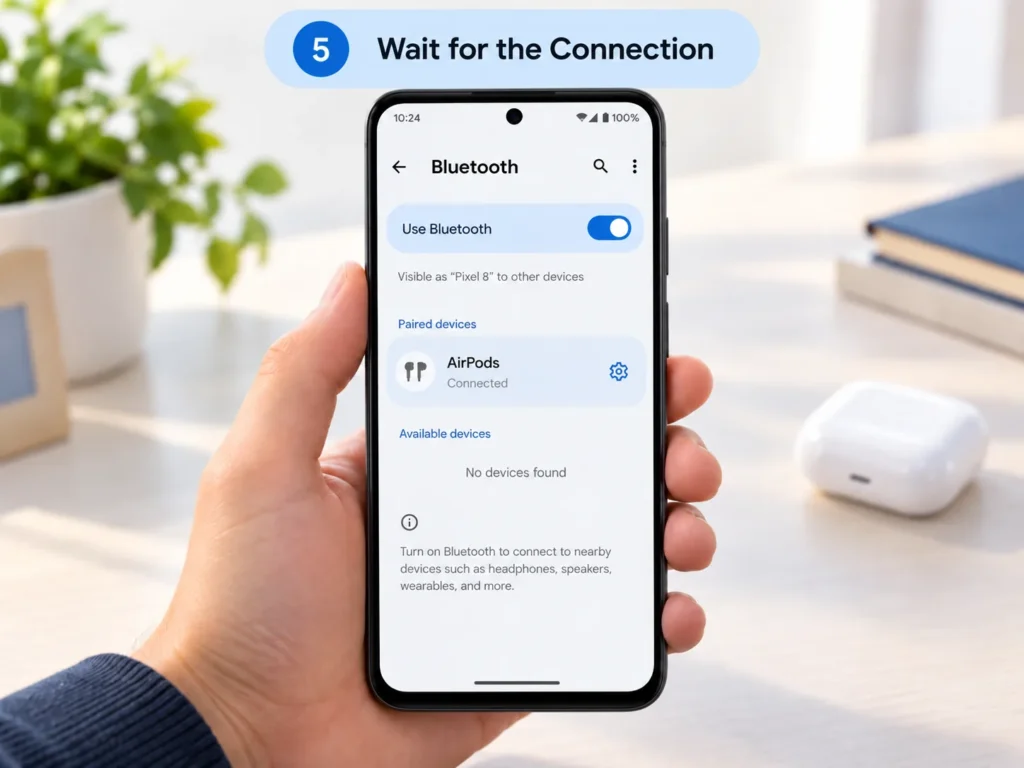
After a few seconds, your AirPods should appear under Paired devices or Connected devices.
You can now play music, watch videos, or make calls using your AirPods.
Once they have been paired, your Android phone will usually remember them. You should not have to repeat the entire setup every time you want to use them.
How to Connect AirPods to Android After Pairing
Once your AirPods have already been paired with your Android phone, reconnecting them is usually easy.
Open the Bluetooth settings on your phone and make sure Bluetooth is enabled. Then open the AirPods case near the phone and select your AirPods from the list of paired devices if they do not connect automatically.
If they are still connected to another device, disconnect them there first.
What to Do If AirPods Do Not Appear on Android
Sometimes your AirPods may not appear in the Bluetooth list. There are several things you can try.
Make Sure Pairing Mode Is Active
The most common reason is that the AirPods are not in pairing mode.
Put the AirPods in the case, open the lid, and activate pairing mode again. The status light should flash white.
Turn Bluetooth Off and On
Turn Bluetooth off on your Android phone, wait a few seconds, and turn it back on.
Then check the available Bluetooth devices again.
Keep the AirPods Close to Your Phone
Bluetooth works best when devices are relatively close together.
Keep the AirPods case next to your Android phone while pairing them.
Check the AirPods Battery
Low battery can prevent AirPods from connecting properly.
Place the AirPods in their charging case and make sure the case and earbuds have enough charge before trying again.
Restart Your Android Phone
A simple restart can fix temporary Bluetooth problems.
Restart your phone and then try putting the AirPods back into pairing mode.
How to Fix AirPods That Connect but Have No Sound
If your AirPods show as connected but you cannot hear anything, first check your phone’s volume.
You should also check the Bluetooth settings for the connected AirPods. On many Android phones, you can tap the settings icon next to the AirPods and make sure Media audio is enabled.
If you are making a phone call, check that the AirPods are selected as the audio output.
Disconnecting and reconnecting the AirPods can also resolve temporary audio problems.
How to Unpair AirPods From Android
If you no longer want to use your AirPods with your Android phone, you can remove them from your Bluetooth settings.
Go to:
Settings → Bluetooth → AirPods → Forget/Unpair
The exact wording may differ depending on your Android phone.
After removing them, your phone will no longer automatically connect to those AirPods.
What AirPods Features Work on Android?
AirPods can provide basic wireless audio functionality on Android, including:
- Listening to music
- Watching videos
- Making phone calls
- Using the built-in microphone
- Controlling playback through supported AirPods models
However, some features that are deeply integrated with Apple’s ecosystem may not be available or may work differently on Android.
This is because AirPods are primarily designed to work with Apple devices.
Do AirPods Work Well With Android?
Yes, AirPods can work well with Android for basic Bluetooth audio.
If you already own AirPods, there is usually no need to buy a separate pair of earbuds just because you switched to an Android phone.
However, if you are buying new earbuds specifically for Android, you may want to compare AirPods with Android-focused wireless earbuds. Some alternatives offer features that integrate more closely with Android phones.
FAQs
1. Can AirPods connect to Samsung phones?
Yes. Samsung phones support Bluetooth, so you can pair AirPods with them using the Bluetooth settings.
2. Why won’t my AirPods connect to Android?
Make sure the AirPods are charged and in pairing mode. You can also restart Bluetooth, restart your phone, and try pairing them again.
3. Can I use AirPods for calls on Android?
Yes. Once connected, AirPods can generally be used for phone calls and their built-in microphones can be used for voice input.
4. Do AirPods work with Android without an app?
Yes. Basic AirPods Bluetooth functionality does not require a special Android app. You can pair them directly through your phone’s Bluetooth settings.
5. Can I use AirPods with Android and iPhone?
Yes. AirPods can be paired with both Android and Apple devices. However, some Apple-specific features are only available when using AirPods with compatible Apple devices.
🔗 Related Guides
Final Thoughts
Learning how to pair AirPods to Android is much easier than it may seem. Since AirPods use Bluetooth for their basic wireless connection, you can connect them to most Android phones in just a few steps.
Simply turn on Bluetooth, put your AirPods into pairing mode, select them from the available devices, and confirm the connection. If they do not connect, checking the battery, restarting Bluetooth, and putting the AirPods back into pairing mode will usually help.
Once connected, you can enjoy music, videos, and calls without needing an iPhone.



One comment on “How to Pair AirPods to Android: Easy Step-by-Step Guide”