Your iPhone is designed to work smoothly, but even the most reliable devices can occasionally slow down, freeze, or develop software issues. Sometimes apps stop responding, storage becomes cluttered, or you’re preparing to sell your phone and need to erase everything safely. In situations like these, knowing how to reset iPhone can save you time, protect your data, and often solve problems without visiting an Apple Store.
The good news is that resetting an iPhone doesn’t always mean wiping everything from the device. Apple offers several types of resets, each designed for a different purpose. Some simply restart your phone, while others reset settings or completely erase all content.
This guide explains every reset option, when you should use it, and how to perform each one safely without risking your important data.
Understanding the Different Types of iPhone Resets
One of the biggest misconceptions is that every reset deletes your data. That’s not true.
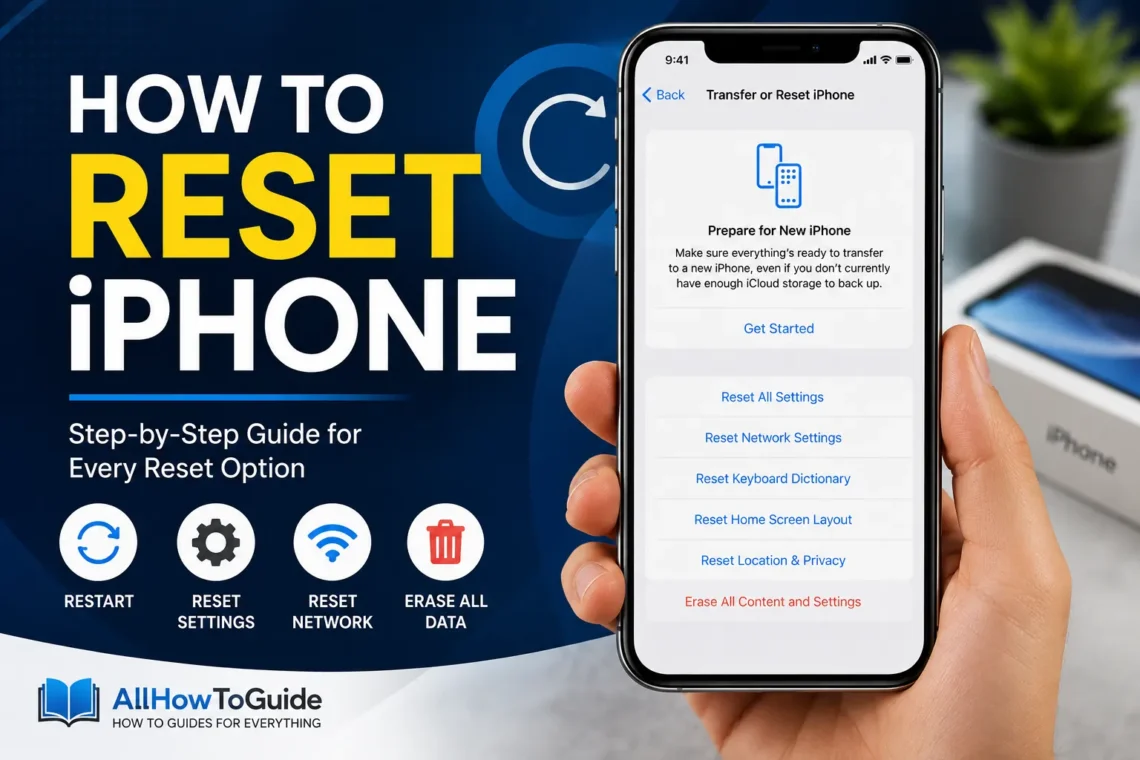
Apple includes several reset options, and each serves a different purpose. Choosing the correct one prevents unnecessary data loss and fixes the problem more efficiently.
Here are the most common reset types:
- Force Restart
- Reset All Settings
- Reset Network Settings
- Erase All Content and Settings (Factory Reset)
Knowing the difference helps you avoid performing a factory reset when a simple restart would solve the issue.
When Should You Reset Your iPhone?
There are several situations where resetting your iPhone makes sense.
You may want to reset your device if:
- Apps keep crashing
- The phone freezes frequently
- Wi-Fi or Bluetooth stops working
- Performance has become unusually slow
- You’re selling or giving away the device
- You’re troubleshooting persistent software issues
- You forgot customized settings and want to restore defaults
If your phone simply feels sluggish, try restarting it first before choosing a more advanced reset option.
Back Up Your iPhone Before Resetting
Before performing any reset that erases data, creating a backup is the most important step.
You can back up your iPhone using:
iCloud Backup
Open:
Settings → Your Name → iCloud → iCloud Backup → Back Up Now
This stores your important information securely in iCloud.
Finder or iTunes
If you use a Mac or Windows PC, connect your iPhone with a USB cable and create a local backup through Finder or iTunes.
A recent backup ensures you can restore your photos, contacts, messages, apps, and settings after the reset.
If you’re planning to keep using your iPhone after the reset, you may also want to learn how to turn off SOS on iPhone if Emergency SOS has been activating accidentally.
Option 1: Force Restart Your iPhone
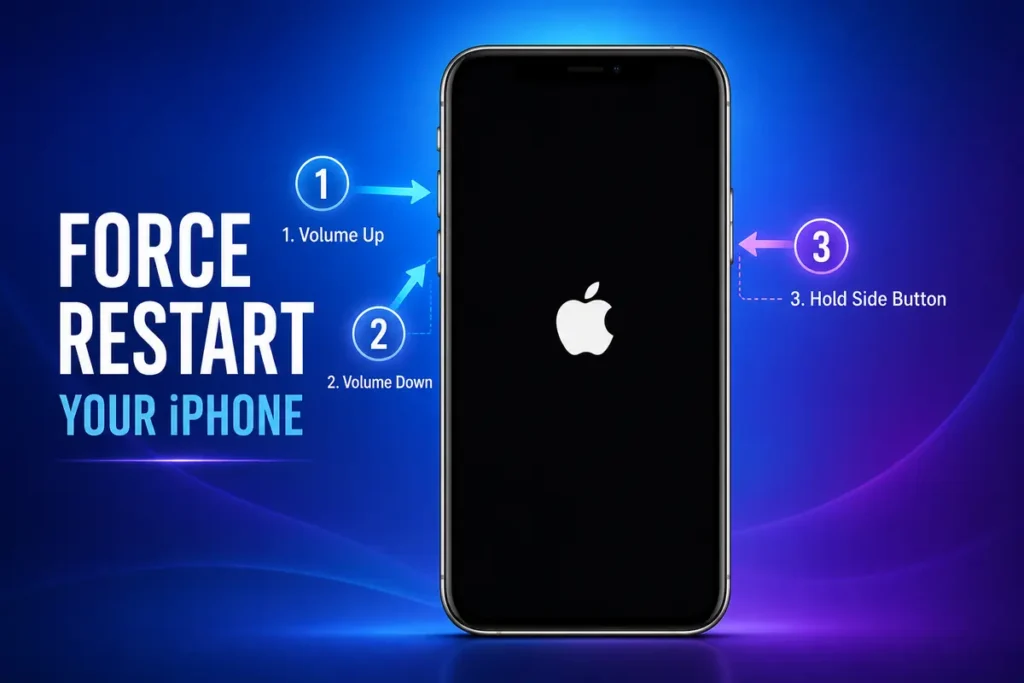
A force restart is useful when your iPhone becomes completely unresponsive.
Unlike a factory reset, this method does not erase any data.
For iPhone 8 and Later
- Press and quickly release the Volume Up button.
- Press and quickly release the Volume Down button.
- Press and hold the Side button.
- Release it when the Apple logo appears.
This process forces the device to restart and often resolves temporary software glitches.
Option 2: Reset All Settings
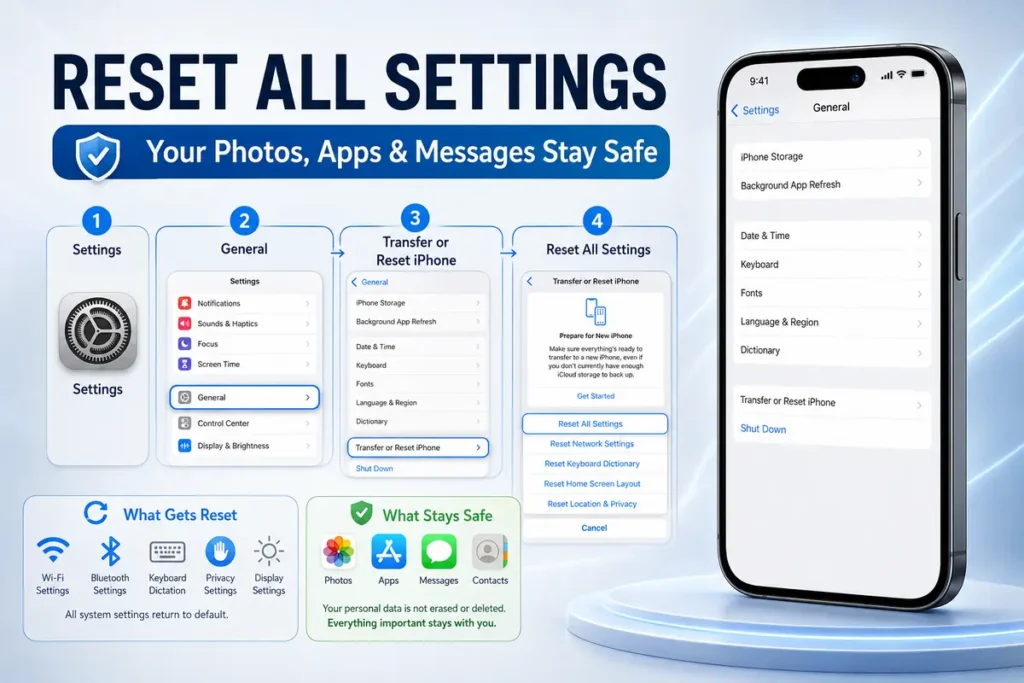
If your iPhone works but certain settings are causing problems, resetting all settings may help.
This option removes:
- Wi-Fi passwords
- Bluetooth settings
- Keyboard preferences
- Privacy settings
- Display settings
However, it does not delete:
- Photos
- Videos
- Apps
- Messages
- Contacts
Steps
- Open Settings.
- Tap General.
- Select Transfer or Reset iPhone.
- Tap Reset.
- Choose Reset All Settings.
- Enter your passcode.
- Confirm the reset.
Your phone will restart with its default system settings.
Option 3: Reset Network Settings
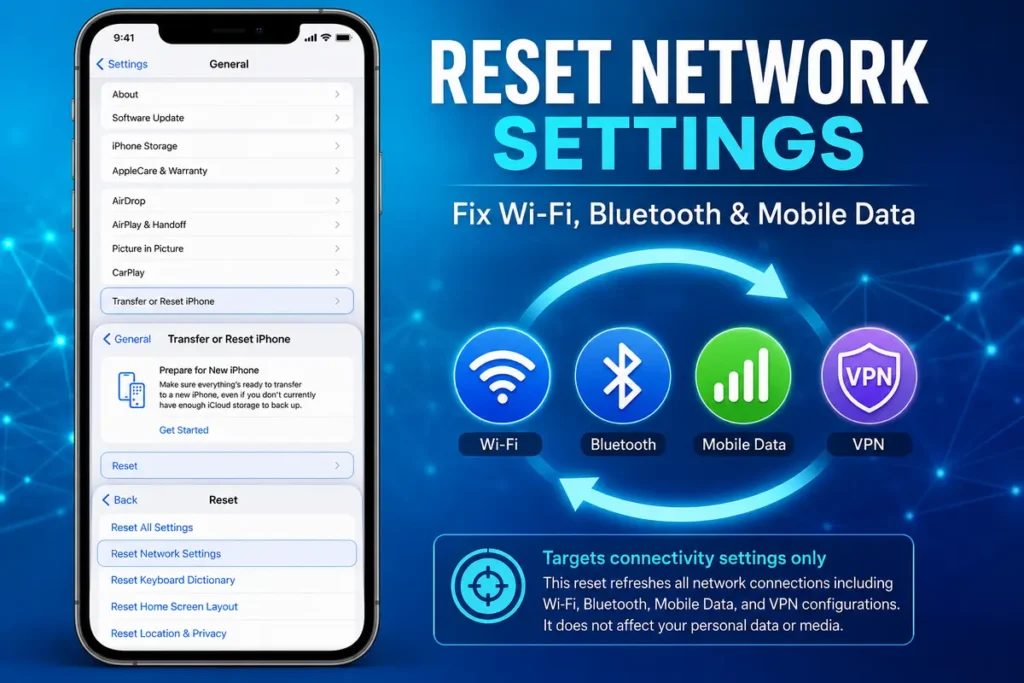
If you’re constantly experiencing Wi-Fi, Bluetooth, or mobile data issues, resetting only the network settings is often enough.
This reset removes:
- Saved Wi-Fi networks
- Bluetooth pairings
- VPN settings
- Cellular preferences
Everything else remains untouched.
Steps
- Open Settings.
- Tap General.
- Choose Transfer or Reset iPhone.
- Tap Reset.
- Select Reset Network Settings.
- Confirm your passcode.
After restarting, reconnect to your Wi-Fi network.
Option 4: Factory Reset Your iPhone
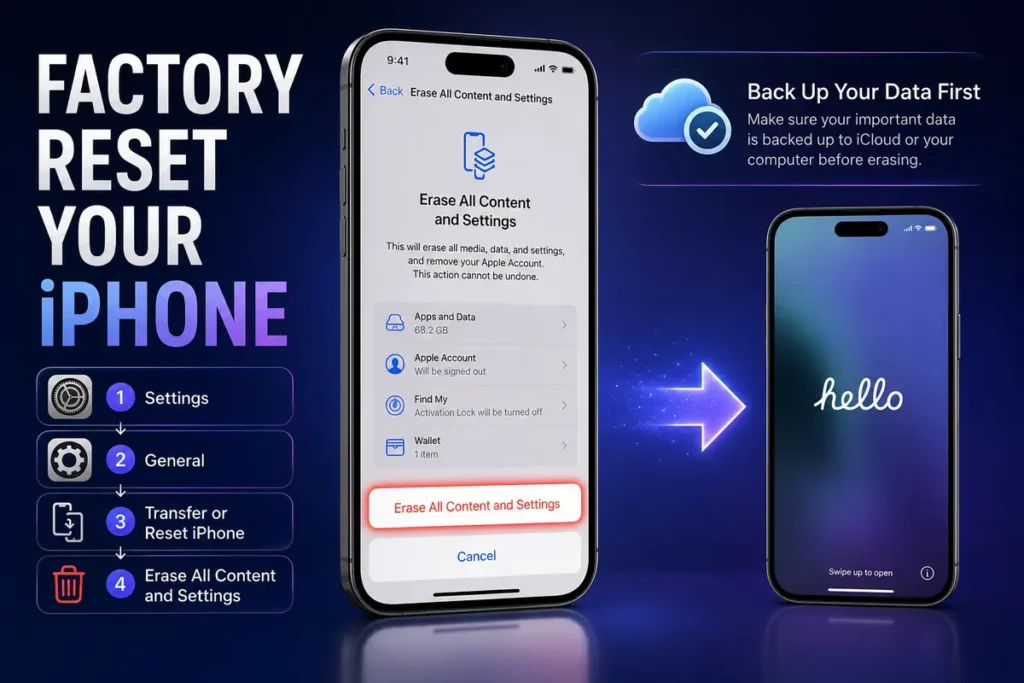
A factory reset completely erases your device and restores it to its original factory condition.
Use this option when:
- Selling your iPhone
- Trading it in
- Giving it to someone else
- Starting fresh after serious software problems
Before proceeding, always make sure you’ve backed up your data.
Steps
- Open Settings.
- Tap General.
- Select Transfer or Reset iPhone.
- Tap Erase All Content and Settings.
- Review the information shown.
- Tap Continue.
- Enter your passcode.
- Enter your Apple ID password if requested.
- Wait while the iPhone erases itself.
Once complete, the setup screen will appear as if the device were brand new.
Before selling your device, it’s also a good idea to review how to turn off Stolen Device Protection to make sure the next owner can set up the phone without issues.
How Long Does an iPhone Reset Take?
The time depends on the type of reset you’re performing.
Approximate times include:
- Force Restart: Less than one minute
- Reset All Settings: Around 5–10 minutes
- Network Reset: 2–5 minutes
- Factory Reset: 10–30 minutes
Large amounts of stored data may increase the total time required.
What Happens After a Factory Reset?
After the reset finishes, you’ll see Apple’s welcome screen.
From here, you can:
- Set up the device as new
- Restore from an iCloud backup
- Restore from a computer backup
- Transfer data from another iPhone
If you’re selling the device, stop at the welcome screen so the next owner can complete the setup themselves.
After setting up your iPhone again, you can follow our guide on how to convert pictures to PDF on iPhone to make everyday document sharing even easier.
Common Mistakes to Avoid
Resetting an iPhone is simple, but a few mistakes can create unnecessary problems.
Skipping the Backup
Always back up important files before performing a factory reset.
Forgetting Your Apple ID Password
You’ll need your Apple ID credentials if Activation Lock is enabled.
Choosing the Wrong Reset Option
Many users erase their entire phone when they only needed to reset network settings.
Interrupting the Reset
Avoid turning off the device while it’s resetting.
Tips to Keep Your iPhone Running Smoothly
You won’t always need to reset your phone if you keep it well maintained.
Helpful habits include:
- Install iOS updates regularly.
- Delete unused apps.
- Keep enough free storage available.
- Restart the phone every few weeks.
- Clear unnecessary files and downloads.
- Use trusted apps from the App Store.
These simple practices help maintain better performance over time.
Final Thoughts
Knowing how to reset iPhone gives you a practical solution for everything from minor software glitches to preparing your device for a new owner. Whether you need a quick force restart, a settings reset, or a complete factory reset, choosing the correct option makes the process faster and prevents unnecessary data loss. Before performing any reset that erases information, remember to create a backup so you can restore your important files whenever needed.
FAQs
1. Does resetting an iPhone delete everything?
Only a factory reset erases all content. Other reset options keep your personal data intact.
2. Can I reset my iPhone without losing photos?
Yes. Use Reset All Settings or create a backup before performing a factory reset.
3. How long does a factory reset take?
Most factory resets finish within 10–30 minutes.
4. Do I need my Apple ID to factory reset my iPhone?
Yes, if Find My iPhone and Activation Lock are enabled.
5. Should I reset my iPhone before selling it?
Yes. Always erase all content and settings after backing up your data and signing out of your Apple ID.
📱 Related iPhone Guides
Continue learning with these helpful iPhone tutorials: