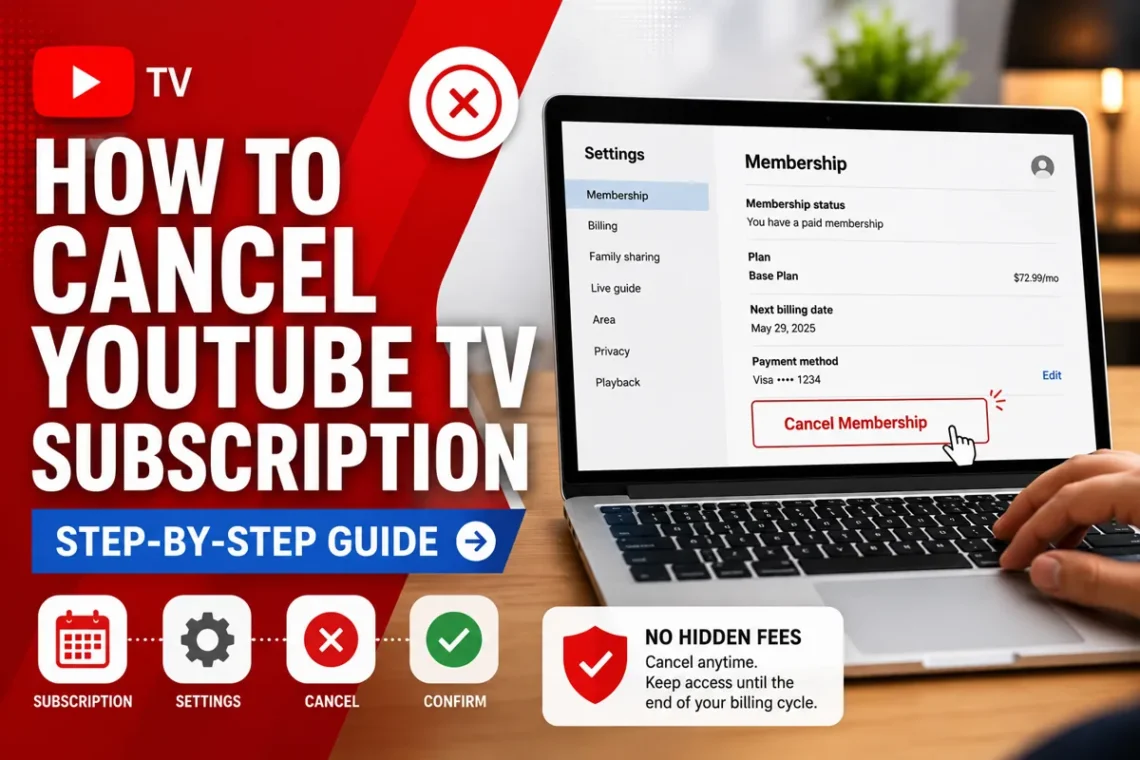
Streaming services make it easy to watch live TV, sports, movies, and news without a traditional cable subscription. However, there may come a time when you decide YouTube TV no longer fits your budget or viewing habits. Whether you’re switching to another streaming platform, taking a break, or simply trying to reduce monthly expenses, canceling your subscription is a straightforward process.
The good news is that you won’t lose access immediately after canceling. Your membership remains active until the end of your current billing period, giving you plenty of time to enjoy the service before it officially ends.
In this guide, you’ll learn how to cancel YouTube TV subscription on different devices, what happens after cancellation, how to pause your membership instead, and answers to common questions users often have.
Reasons You Might Want to Cancel YouTube TV
Everyone has different reasons for ending a subscription. Some of the most common include:
- Reducing monthly expenses
- Switching to another streaming service
- Not watching live TV regularly
- Moving to a location where YouTube TV isn’t available
- Finishing a sports season or favorite TV series
- Trying a different entertainment option
Whatever your reason, the cancellation process only takes a few minutes.
Things to Know Before You Cancel
Before canceling your subscription, it’s helpful to understand how YouTube TV handles memberships.
Here are a few important points:
- Your subscription remains active until the current billing cycle ends.
- You won’t receive a refund for unused days unless required by local laws.
- Your recordings and preferences may be retained for a limited period if you decide to return later.
- You can reactivate your membership at any time using the same Google account.
Knowing these details helps you avoid surprises after canceling.
How to Cancel YouTube TV Subscription on a Web Browser
The easiest way to manage your membership is through a web browser.
Step 1: Sign In
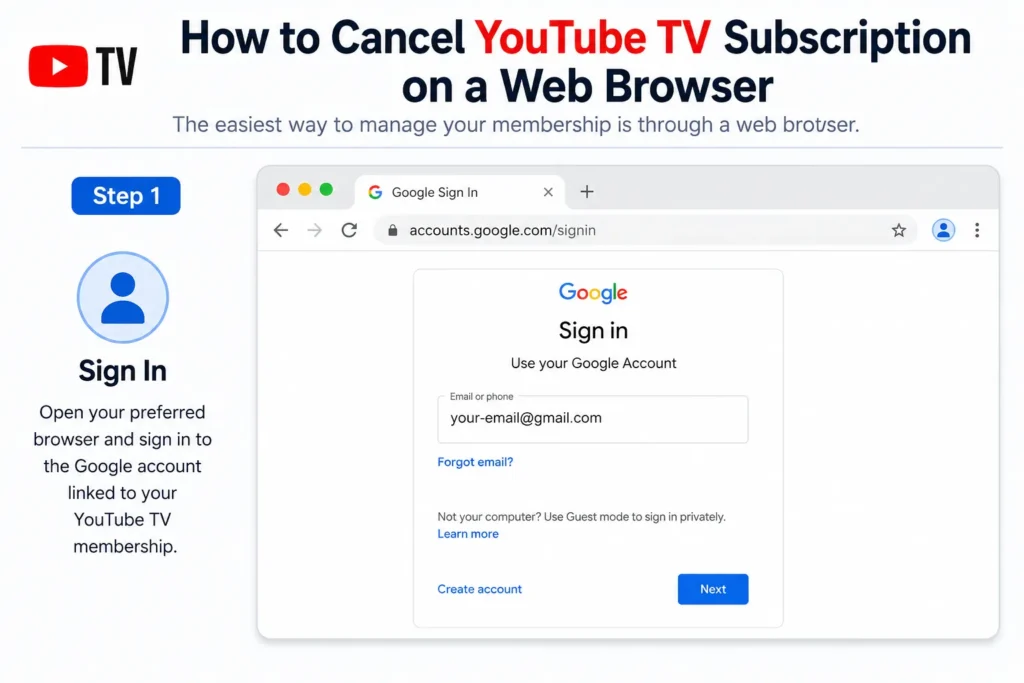
Open your preferred browser and sign in to the Google account linked to your YouTube TV membership.
Step 2: Open Settings
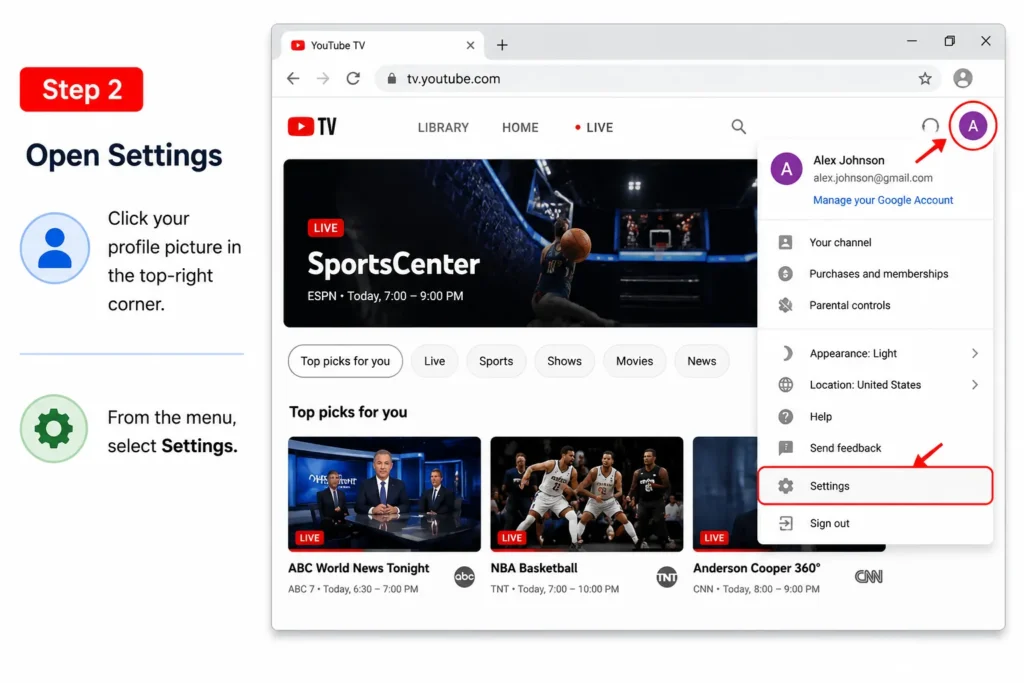
Click your profile picture in the top-right corner.
From the menu, select Settings.
Step 3: Choose Membership
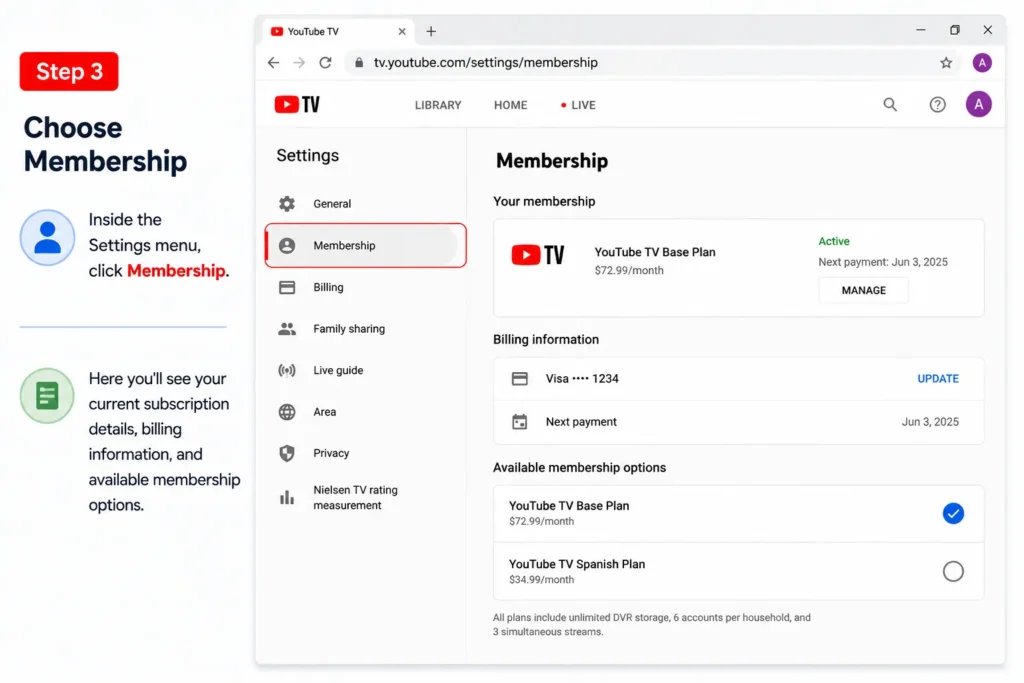
Inside the Settings menu, click Membership.
Here you’ll see your current subscription details, billing information, and available membership options.
Step 4: Select Manage Membership
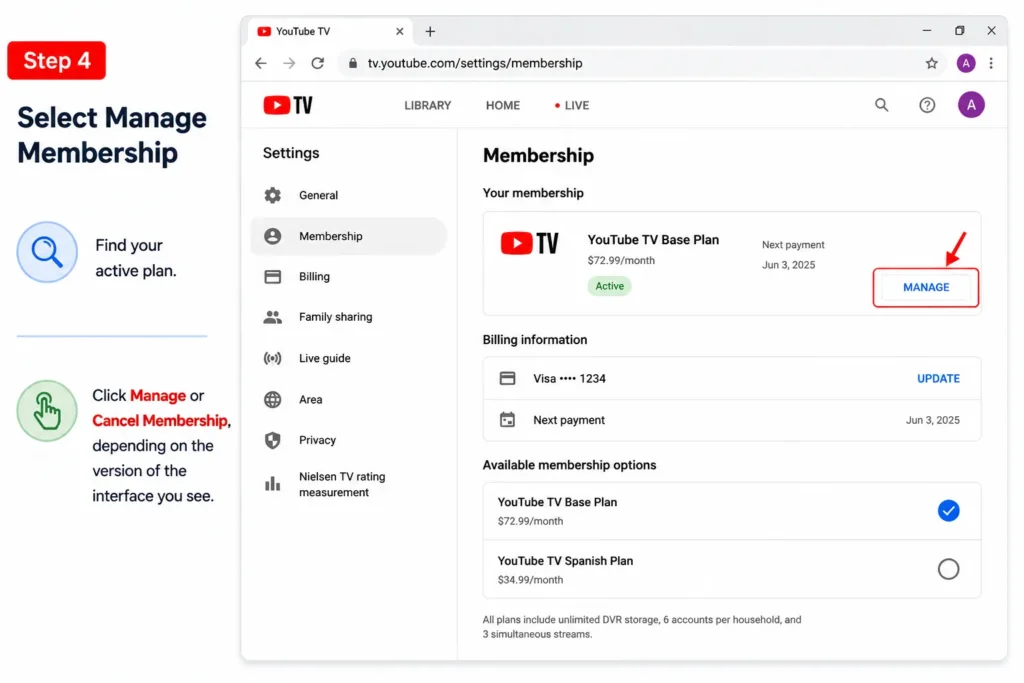
Find your active plan.
Click Manage or Cancel Membership, depending on the version of the interface you see.
Step 5: Confirm Your Cancellation
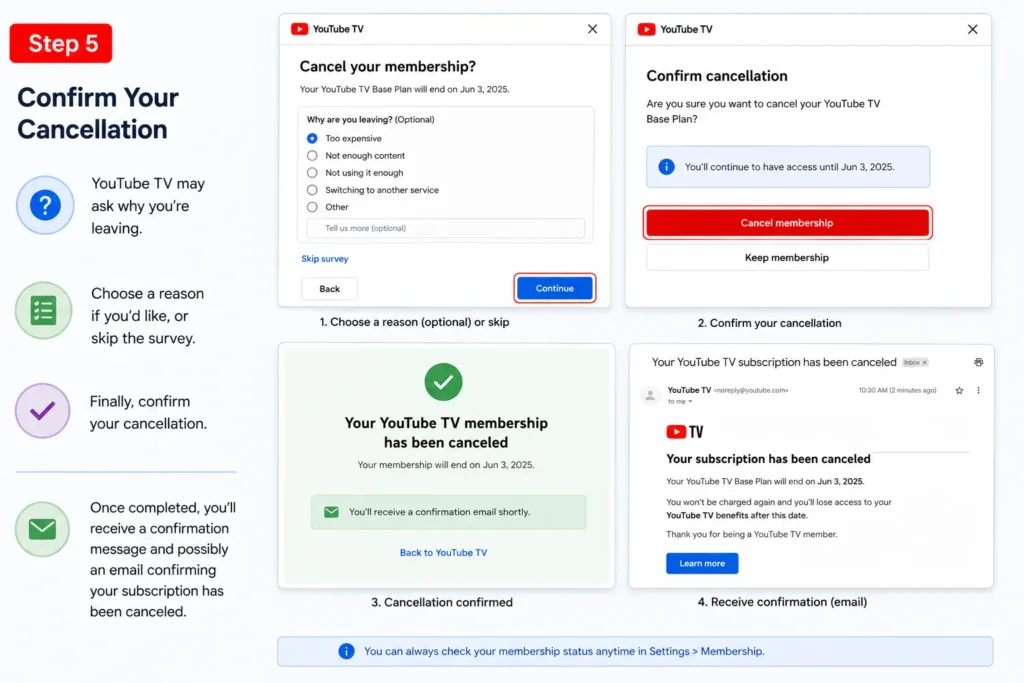
YouTube TV may ask why you’re leaving.
Choose a reason if you’d like, or skip the survey.
Finally, confirm your cancellation.
Once completed, you’ll receive a confirmation message and possibly an email confirming your subscription has been canceled.
How to Cancel Using the Mobile App
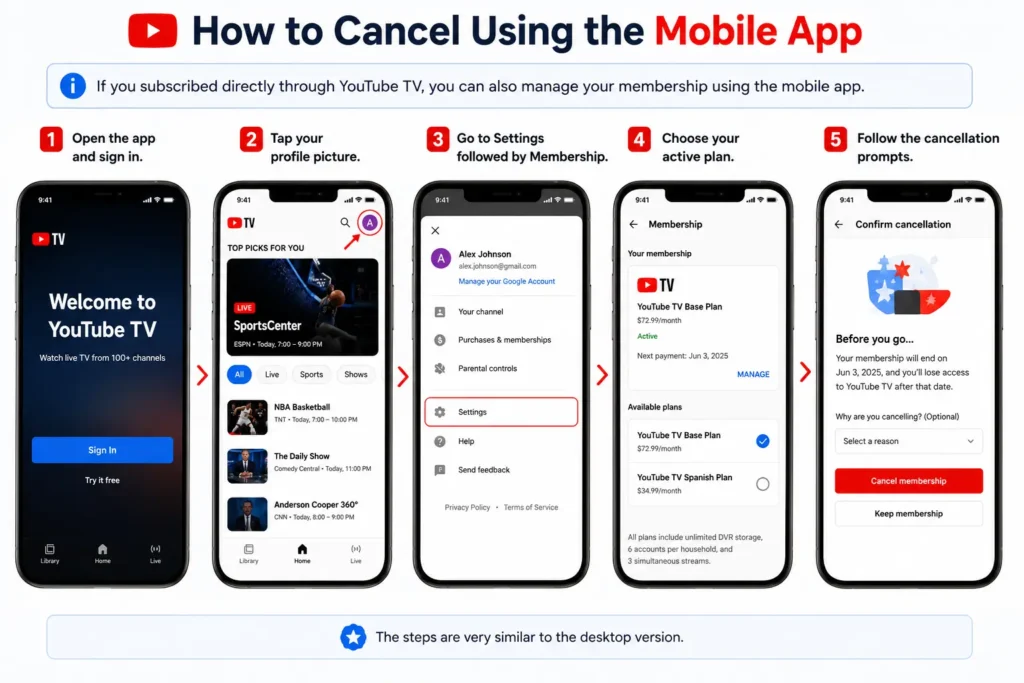
If you subscribed directly through YouTube TV, you can also manage your membership using the mobile app.
Open the app and sign in.
Tap your profile picture.
Go to Settings followed by Membership.
Choose your active plan and follow the cancellation prompts.
The steps are very similar to the desktop version.
Canceling Through Apple or Google Play
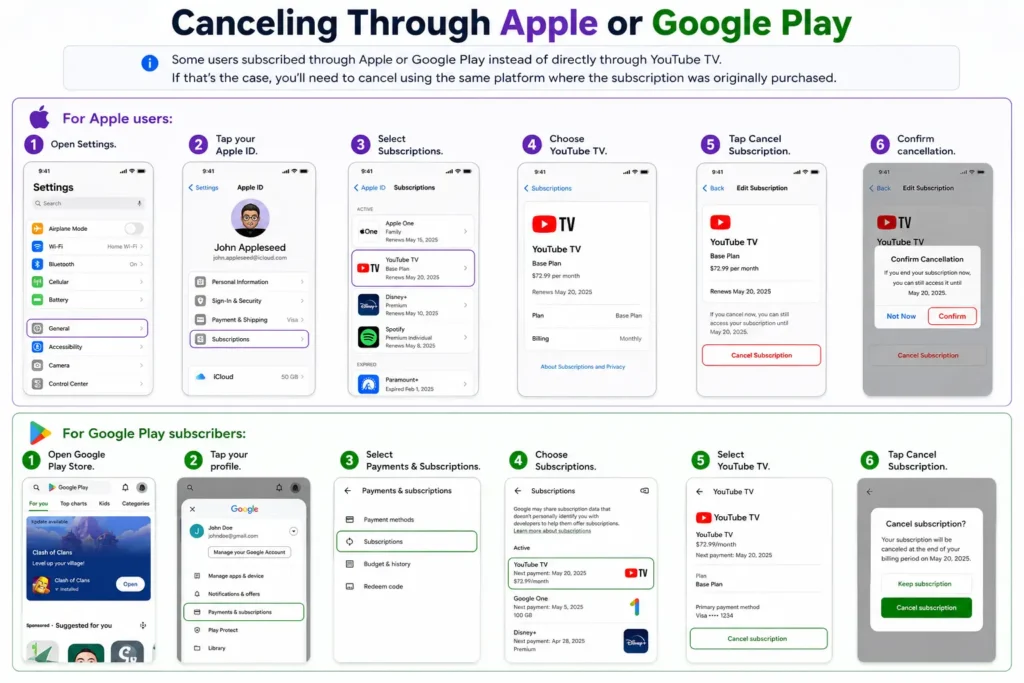
Some users subscribed through Apple or Google Play instead of directly through YouTube TV.
If that’s the case, you’ll need to cancel using the same platform where the subscription was originally purchased.
For Apple users:
- Open Settings.
- Tap your Apple ID.
- Select Subscriptions.
- Choose YouTube TV.
- Tap Cancel Subscription.
For Google Play subscribers:
- Open Google Play Store.
- Tap your profile.
- Select Payments & Subscriptions.
- Choose Subscriptions.
- Select YouTube TV.
- Tap Cancel Subscription.
What Happens After You Cancel?
Many people worry they’ll lose access immediately.
Fortunately, that’s not how YouTube TV works.
After cancellation:
- You can continue watching until your billing period expires.
- Your monthly payments stop after the current cycle.
- Your account remains available if you want to reactivate later.
- Some settings and recordings may still be available if you return within a certain period.
This makes it easy to come back without starting completely from scratch.
Should You Pause Instead of Cancel?
If you’re only taking a short break, pausing your membership might be a better option.
Pausing allows you to:
- Stop monthly charges temporarily.
- Keep your account.
- Resume your subscription later without setting everything up again.
This option is especially useful if you’re traveling or temporarily reducing expenses.
Common Problems During Cancellation
Although the process is usually simple, a few issues can confuse users.
Can’t Find the Cancel Button
This usually means your subscription was purchased through another platform like Apple or Google Play.
Check where you originally subscribed.
You’re Still Being Charged
Verify whether you’re still within the current billing cycle.
If the payment continues after your renewal date, review your subscription status to make sure cancellation was completed successfully.
Multiple Google Accounts
Many people accidentally sign into the wrong Google account.
If you don’t see an active membership, sign out and try another account you may have used during registration.
Tips Before Ending Your Subscription
Before you cancel, consider these quick tips:
- Finish watching any shows you’re interested in.
- Review your next billing date.
- Decide whether pausing better fits your situation.
- Check for promotional offers before leaving.
- Save any important account information if needed.
A few minutes of planning can prevent unnecessary frustration later.
Can You Restart Your Membership?
Yes.
If you change your mind, simply sign back into your account and reactivate your subscription.
In many cases, your viewing preferences and library information are restored, making it easy to continue where you left off.
Final Thoughts
Learning how to cancel YouTube TV subscription is simple once you know where to find the membership settings. Whether you’re cutting monthly costs, switching streaming services, or just taking a break, the process only takes a few minutes. Before canceling, consider whether pausing your membership better suits your needs. If you do decide to cancel, you’ll still have access until your current billing period ends, giving you time to enjoy the service without interruption.
FAQs
1. Will I lose access immediately after canceling?
No. You can continue watching until your current billing period expires.
2. Can I restart my YouTube TV subscription later?
Yes. You can reactivate your membership whenever you want.
3. Is there a cancellation fee?
No. YouTube TV does not charge a cancellation fee.
4. Can I cancel from my phone?
Yes. You can cancel using the YouTube TV app or through your subscription provider.
5. Is pausing better than canceling?
If you only need a temporary break, pausing may be a better option because it lets you resume your membership more easily.
📚 Related Guides
Looking for more helpful streaming and tech tutorials? Check out these step-by-step guides: