
Microsoft Excel is one of the most popular tools for organizing, analyzing, and calculating data. Whether you’re tracking expenses, managing inventory, creating budgets, or analyzing business reports, you’ll often need to add numbers together. Learning how to sum a column in Excel is one of the first and most useful skills every Excel user should master.
Fortunately, Excel offers several quick and easy ways to total a column. You can use AutoSum, the SUM function, keyboard shortcuts, or even convert your data into a table for automatic calculations. This guide explains every method step by step so you can choose the one that works best for your needs.
Why Summing a Column Is Important
Adding a column manually may work for a few numbers, but it quickly becomes inefficient as your spreadsheet grows.
Using Excel’s built-in functions helps you:
- Save time
- Reduce calculation errors
- Update totals automatically
- Work with large datasets
- Improve productivity
Once you learn the proper methods, calculating totals becomes almost effortless.
Understanding the SUM Function
The SUM function adds together the numbers within a selected range of cells.
It ignores blank cells and automatically updates whenever the data changes.
For example, if your numbers are in cells A2 through A10, Excel adds every value inside that range to produce a total.
The SUM function is one of the most commonly used formulas in Excel because it’s simple, accurate, and flexible.
Method 1: Use AutoSum
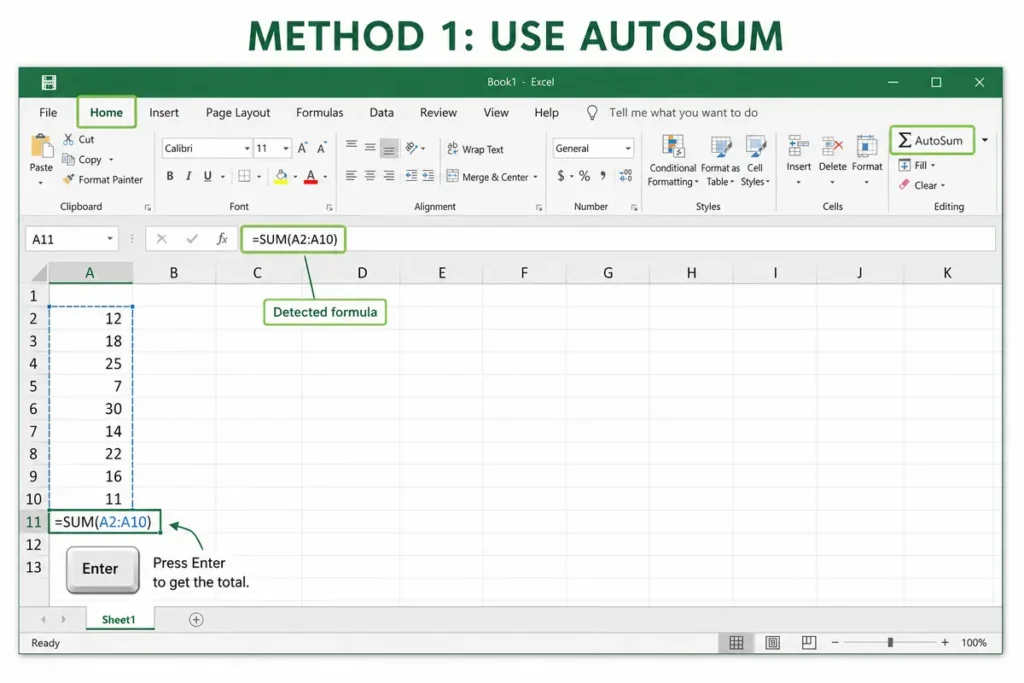
The fastest way to total a column is by using AutoSum.
Step 1: Select the Cell Below Your Numbers
Click the empty cell directly beneath the last number in your column.
Step 2: Open AutoSum
Go to the Home tab.
Click the AutoSum (Σ) button.
Excel usually detects the correct range automatically.
Step 3: Press Enter
After confirming the highlighted cells are correct, press Enter.
Excel immediately displays the total.
This method works well for most simple worksheets.
Method 2: Type the SUM Formula Manually
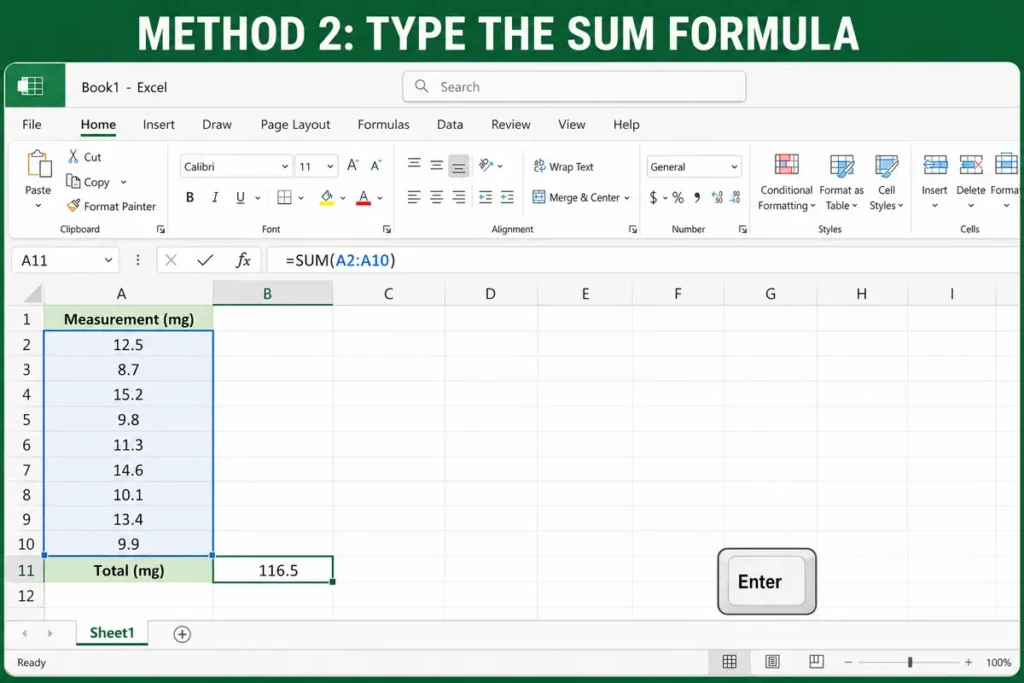
Sometimes you’ll want more control over the selected range.
Step 1: Choose the Result Cell
Click the cell where you want the total to appear.
Step 2: Enter the Formula
Type:
=SUM(A2:A10)Replace A2:A10 with your own range.
Step 3: Press Enter
Excel calculates the total instantly.
This approach is especially useful when your numbers aren’t located in one continuous block.
Once you’re comfortable adding values, the next useful spreadsheet skill is subtraction. Our guide on How to Subtract in Excel explains several easy methods for calculating differences between numbers.
Method 3: Sum an Entire Column
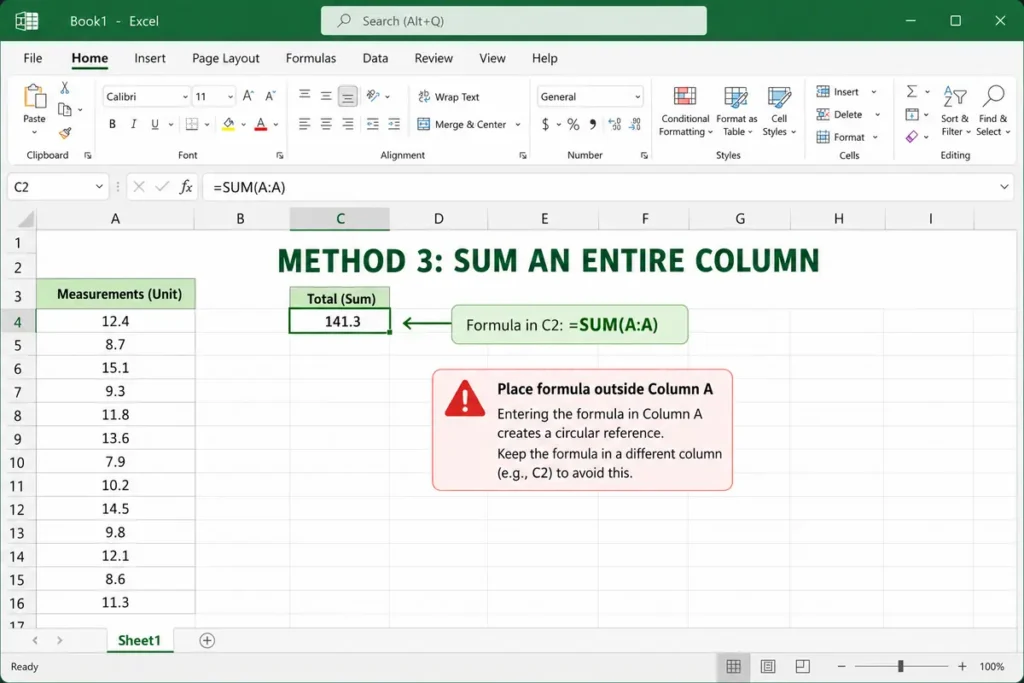
If your data changes frequently, summing the whole column can save time.
Type:
=SUM(A:A)This tells Excel to total every numeric value in Column A.
Be careful not to place the formula inside the same column being summed, as this creates a circular reference.
Method 4: Use the Status Bar
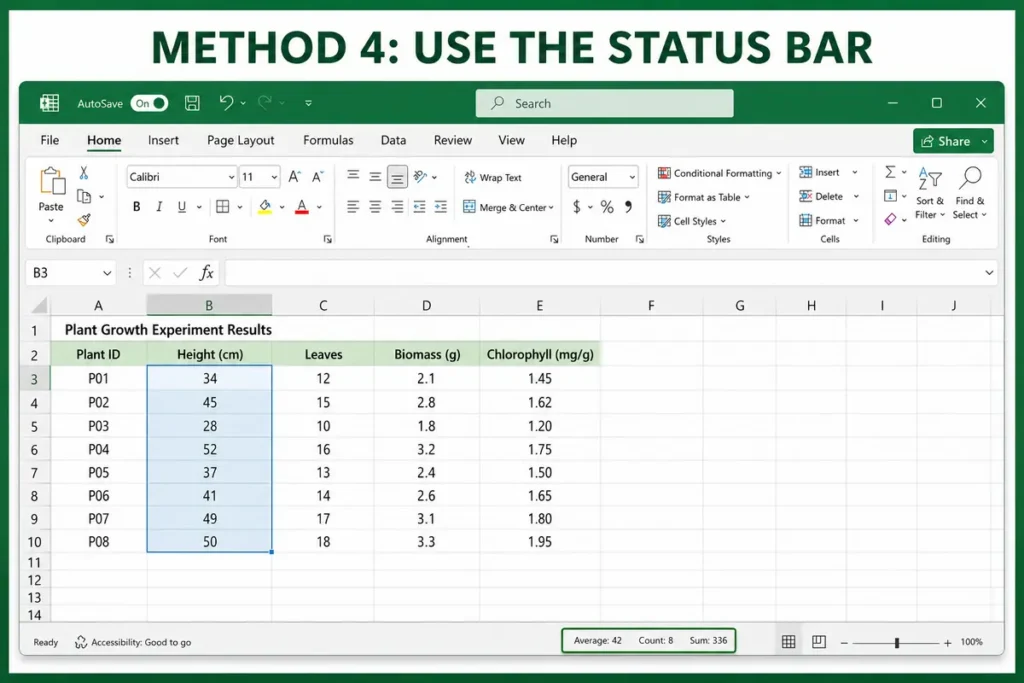
Sometimes you only need a quick total without inserting a formula.
Simply:
- Highlight the cells.
- Look at the bottom-right corner of Excel.
The status bar displays:
- Sum
- Average
- Count
This is helpful when reviewing data without modifying your worksheet.
Method 5: Sum Multiple Columns
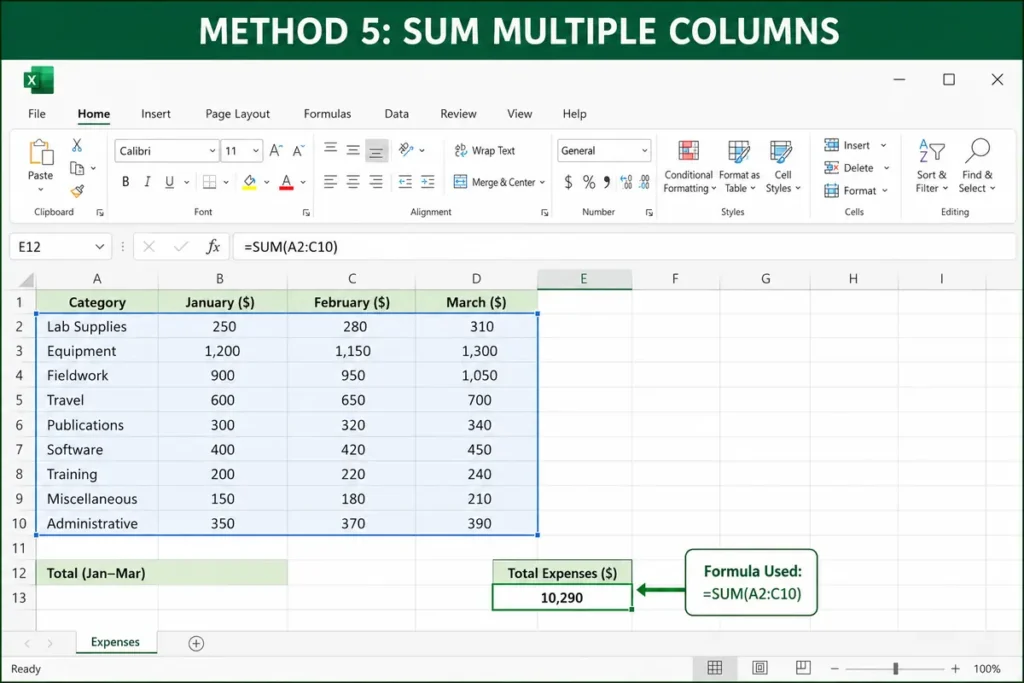
You can total several columns at once.
For example:
=SUM(A2:C10)This adds every number contained within Columns A through C.
It’s useful for expense reports, sales data, and financial spreadsheets.
Method 6: Sum Non-Adjacent Cells
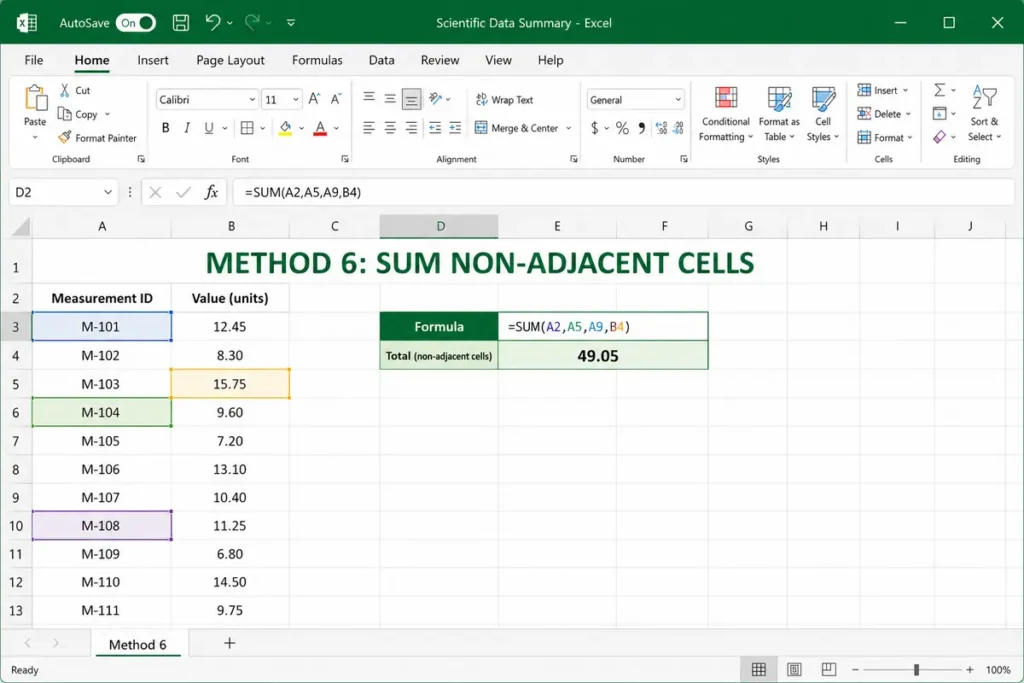
You aren’t limited to continuous ranges.
You can write:
=SUM(A2,A5,A9,B4)Excel adds only the specified cells.
This method is ideal when selecting individual values from different locations.
Method 7: Use Excel Tables
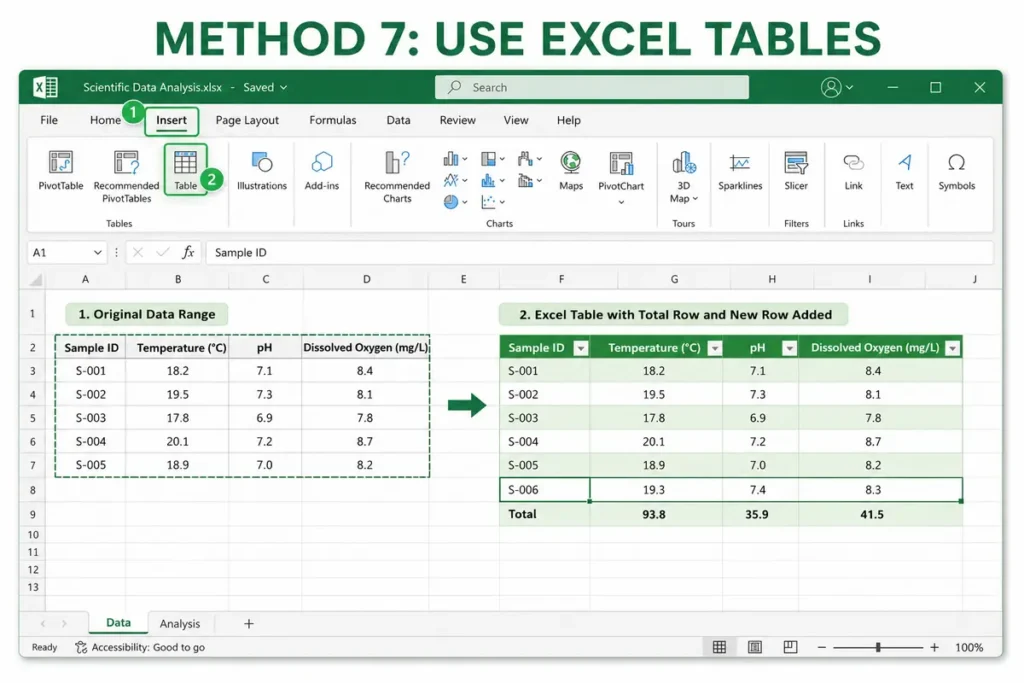
If your spreadsheet grows regularly, convert it into a table.
To do this:
- Select your data.
- Click Insert.
- Choose Table.
Tables automatically expand as you add new rows, making totals easier to maintain.
Keyboard Shortcut for AutoSum
Keyboard shortcuts save valuable time.
Windows:
Alt + =
Mac:
Use the AutoSum button from the toolbar.
The shortcut instantly inserts the SUM function for the selected range.
Common Mistakes to Avoid
Even experienced Excel users occasionally run into problems.
Selecting the Wrong Range
Always double-check that every intended cell is highlighted.
Including Text
Text isn’t added by the SUM function, but mixed data can sometimes cause confusion.
Using Incorrect Cell References
Typing the wrong range results in inaccurate totals.
Forgetting New Rows
If you use fixed ranges, newly added rows won’t automatically be included.
Using Excel Tables helps solve this problem.
What If the SUM Function Doesn’t Work?
If your formula returns zero or produces an unexpected result, check these common issues.
Numbers Stored as Text
Numbers imported from other software sometimes become text.
Convert them into numeric values before using SUM.
Hidden Spaces
Extra spaces may prevent Excel from recognizing values correctly.
Formula Errors
Check for:
- Missing parentheses
- Incorrect cell references
- Typing mistakes
Calculation Mode
Ensure Excel is set to Automatic Calculation under Formulas > Calculation Options.
Tips for Working with Large Spreadsheets
As your worksheets become larger, organization becomes increasingly important.
Helpful tips include:
- Label every column clearly.
- Avoid blank rows inside datasets.
- Keep related information together.
- Format numbers consistently.
- Use tables whenever possible.
- Double-check formulas before sharing reports.
These habits reduce mistakes and improve readability.
If you want to make data entry easier and reduce mistakes, consider using drop-down lists. Learn how in our tutorial on How to Create a Drop Down List in Excel.
When Should You Use SUM Instead of Manual Addition?
While you could type:
=A2+A3+A4+A5The SUM function is almost always the better choice because:
- It’s shorter.
- Easier to edit.
- Works with large ranges.
- Updates automatically.
- Makes spreadsheets cleaner.
For most situations, SUM is the recommended solution.
Final Thoughts
Learning how to sum a column in Excel is one of the most valuable skills for anyone who works with spreadsheets. Whether you use AutoSum, the SUM function, keyboard shortcuts, or Excel Tables, each method helps you calculate totals quickly and accurately. As your spreadsheets become more complex, these techniques will save time, reduce errors, and make your work much more efficient.
FAQs
1. What is the easiest way to sum a column in Excel?
The AutoSum button is the quickest option for most users.
2. Can I sum an entire column?
Yes. You can use:
=SUM(A:A)to total every number in Column A.
3. Why is my SUM formula returning zero?
Your numbers may be stored as text or the selected range may be incorrect.
4. Does SUM ignore blank cells?
Yes. Blank cells are ignored automatically.
5. Can I total multiple columns together?
Yes. A formula like =SUM(A2:C10) adds every value within that range.
📊 Related Excel & Office Guides
Want to improve your Microsoft Office skills? Check out these beginner-friendly tutorials: