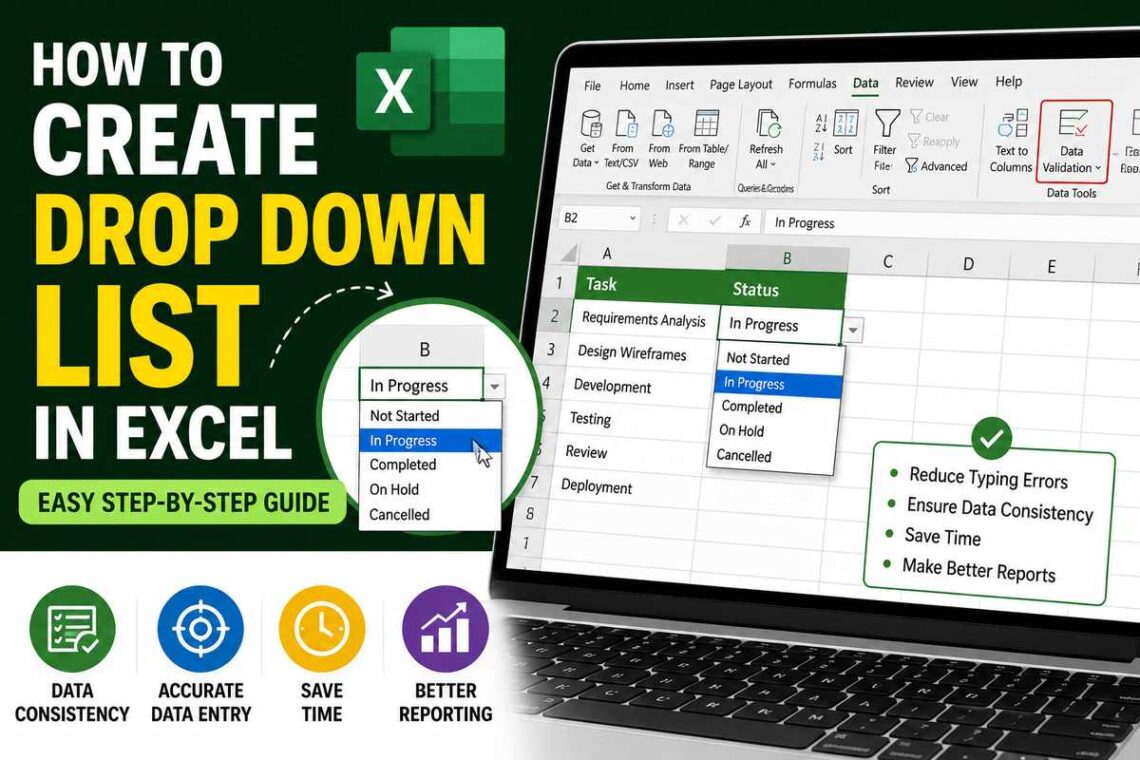
Microsoft Excel is one of the most powerful tools for organizing, analyzing, and managing data. Whether you’re creating employee records, sales reports, inventory lists, attendance sheets, or project trackers, keeping your data accurate is essential. One simple feature that helps reduce typing errors and improves consistency is the drop-down list.
A drop-down list lets users choose a value from a predefined set of options instead of typing manually. This makes spreadsheets cleaner, faster to use, and much less prone to mistakes. It’s especially useful when multiple people edit the same workbook.
In this guide, you’ll learn how to create drop down list in Excel, customize it, edit existing lists, troubleshoot common issues, and discover practical ways to use this feature in everyday spreadsheets.
What Is a Drop-Down List in Excel?
A drop-down list is a menu that appears inside a cell, allowing users to select one of several predefined values.
Instead of typing entries repeatedly, users simply click the arrow and choose an option.
For example, a drop-down list could contain:
- Pending
- In Progress
- Completed
This ensures everyone uses the same values, making data easier to sort, filter, and analyze.
Why Use a Drop-Down List?
Drop-down lists improve both speed and accuracy.
Some major benefits include:
- Reduces typing mistakes
- Keeps data consistent
- Makes spreadsheets easier to use
- Saves time during data entry
- Simplifies filtering and reporting
- Creates a more professional workbook
Whether you’re managing personal tasks or business records, drop-down lists help maintain organized data.
Before You Begin
Before creating a drop-down list, decide what options users should be able to choose.
Example:
- Yes
- No
- Maybe
Or:
- High
- Medium
- Low
Having your choices prepared makes the setup process much easier.
How to Create Drop Down List in Excel
The easiest method uses Excel’s built-in Data Validation feature.
Step 1: Enter Your List Items
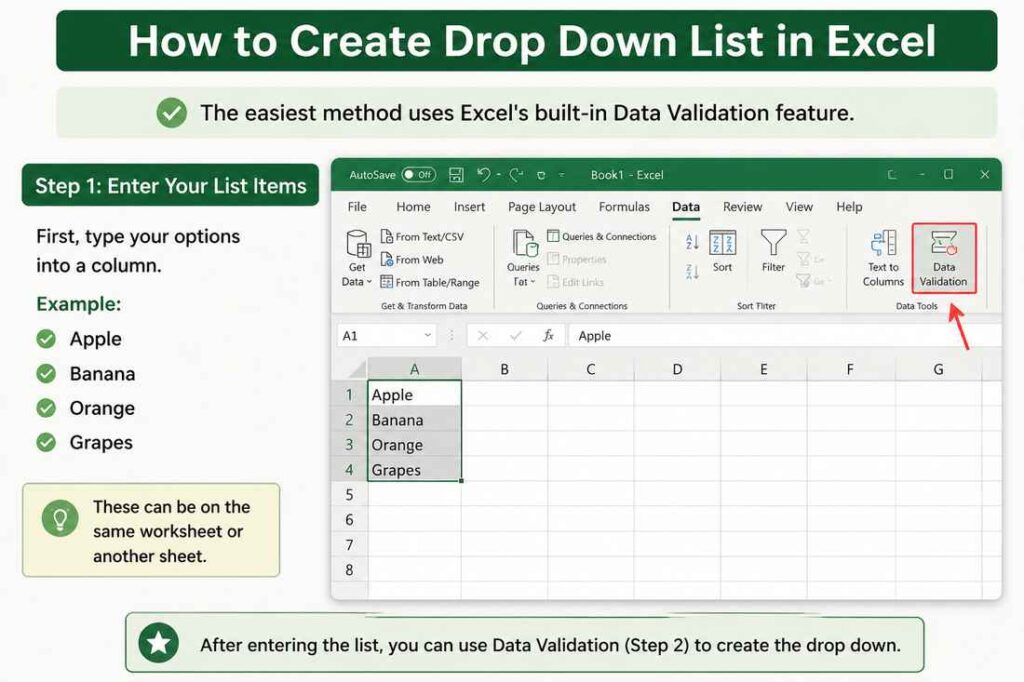
First, type your options into a column.
Example:
Apple
Banana
Orange
Grapes
These can be on the same worksheet or another sheet.
Step 2: Select the Cell
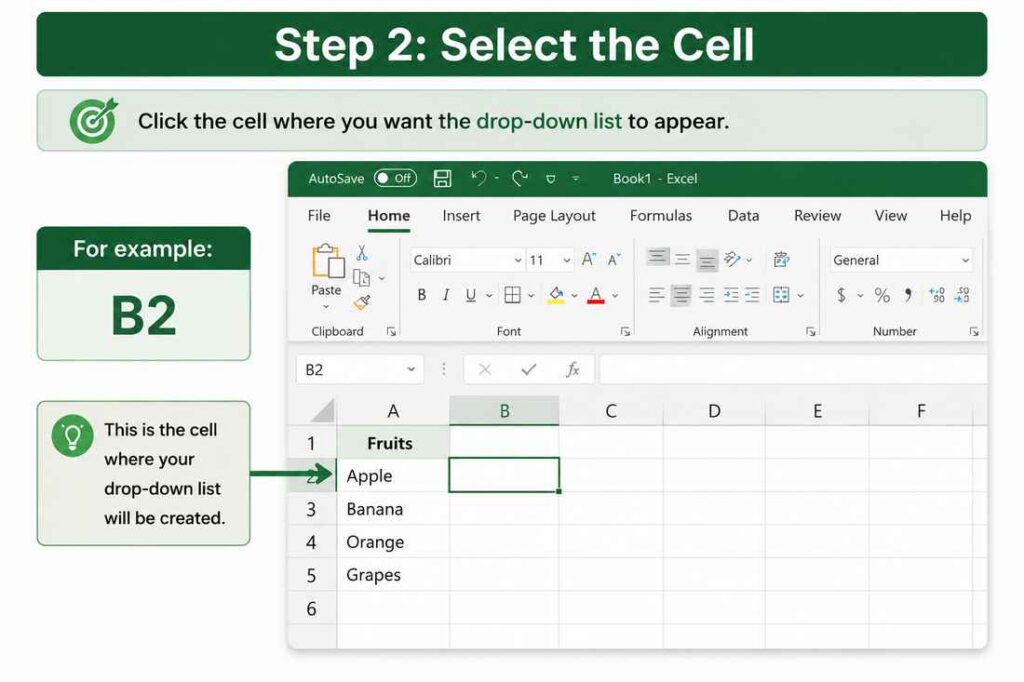
Click the cell where you want the drop-down list to appear.
For example:
B2
Step 3: Open the Data Tab
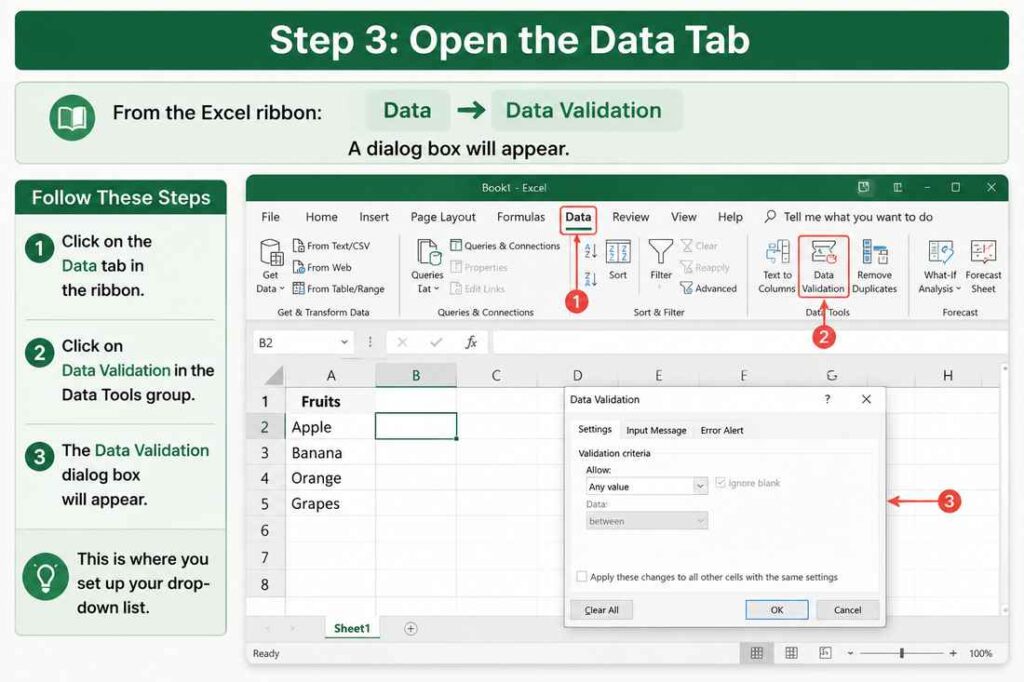
From the Excel ribbon:
Data → Data Validation
A dialog box will appear.
Step 4: Choose “List”
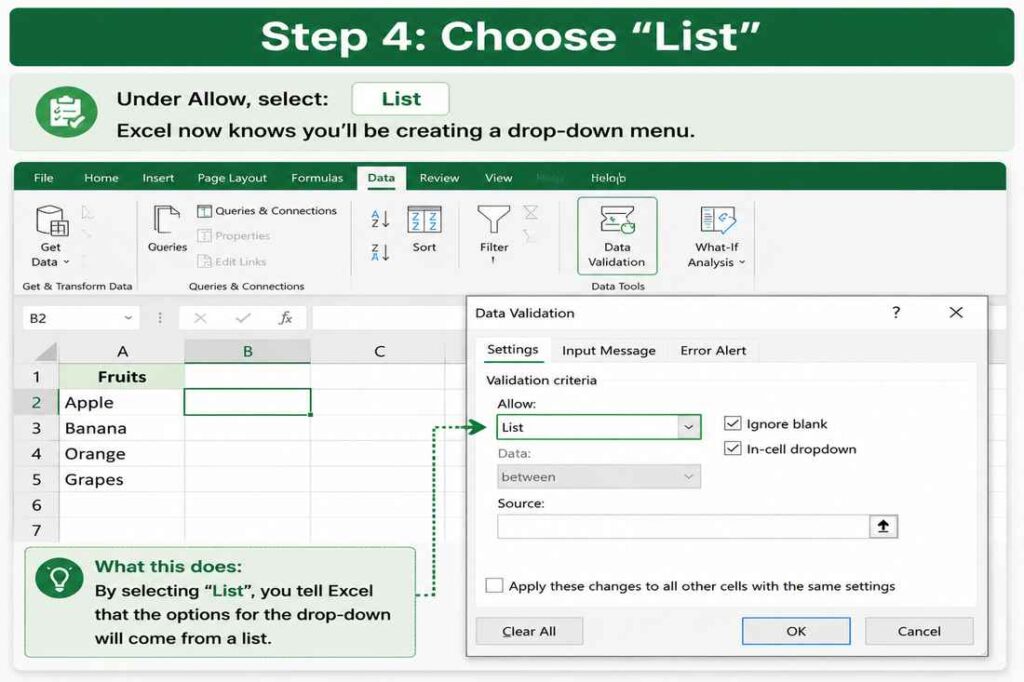
Under Allow, select:
List
Excel now knows you’ll be creating a drop-down menu.
Step 5: Select the Source
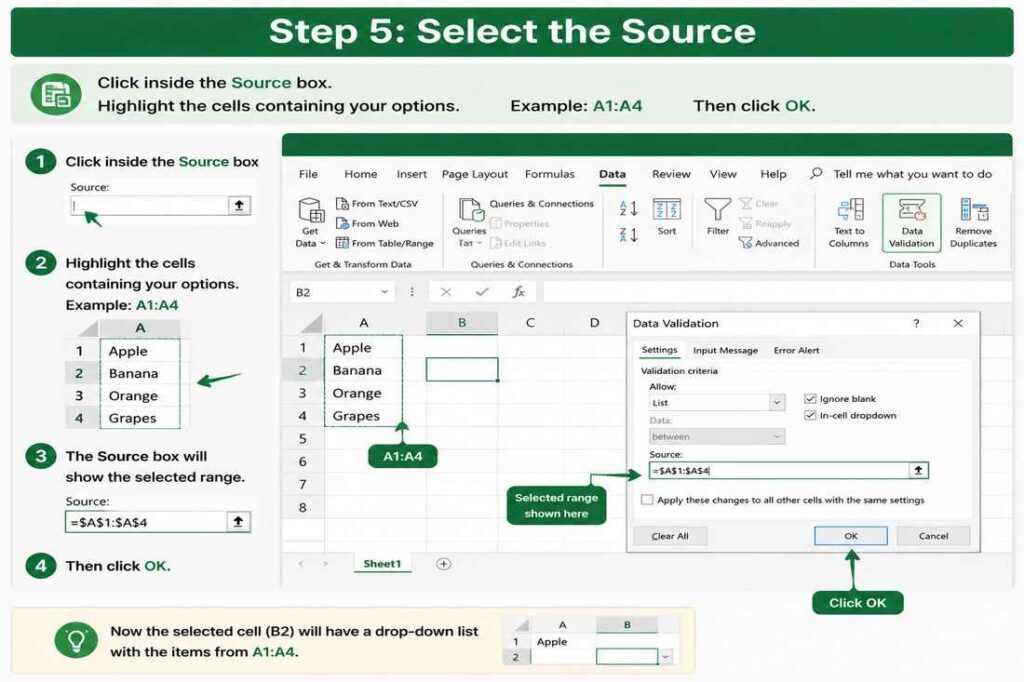
Click inside the Source box.
Highlight the cells containing your options.
Example:
A1:A4Then click OK.
Step 6: Test the Drop-Down List
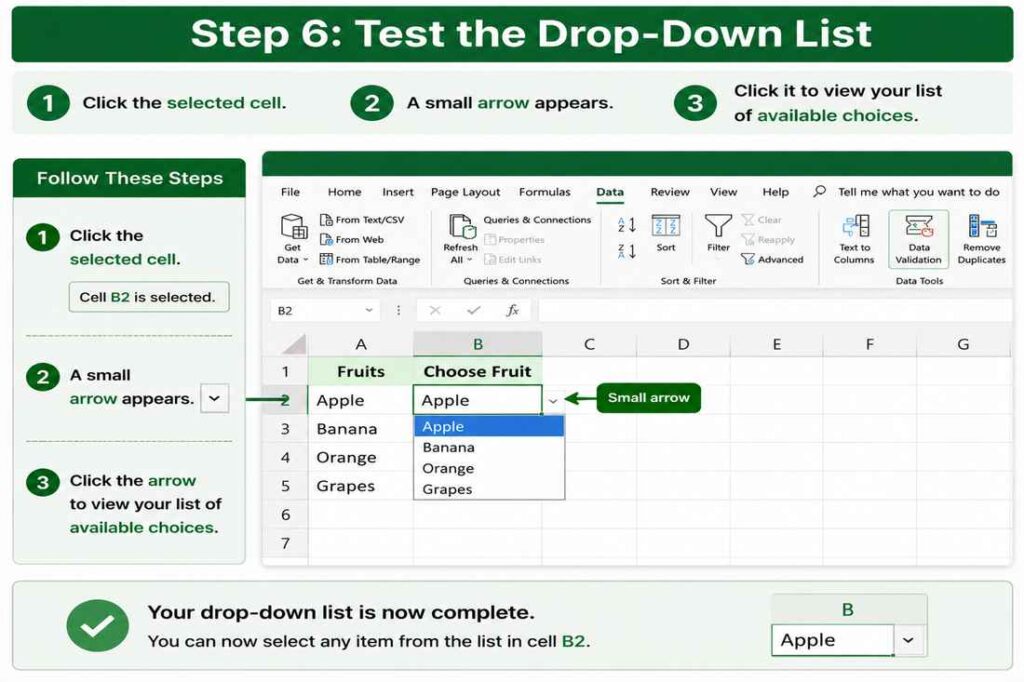
Click the selected cell.
A small arrow appears.
Click it to view your list of available choices.
Your drop-down list is now complete.
Creating a Drop-Down List by Typing Items
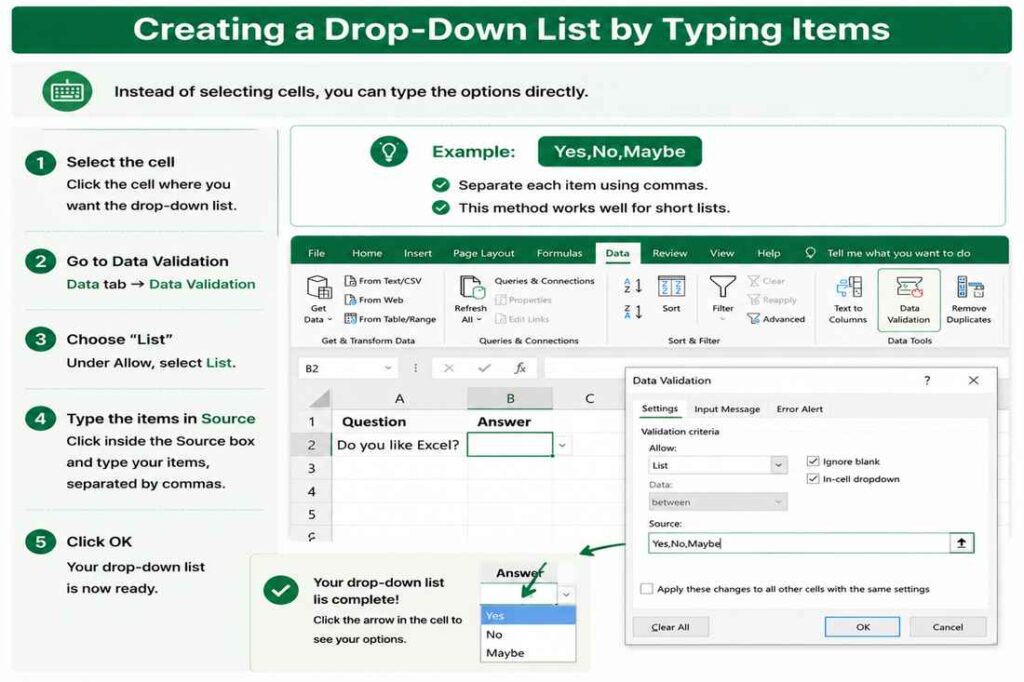
Instead of selecting cells, you can type the options directly.
Example:
Yes,No,MaybeSeparate each item using commas.
This method works well for short lists.
How to Edit a Drop-Down List
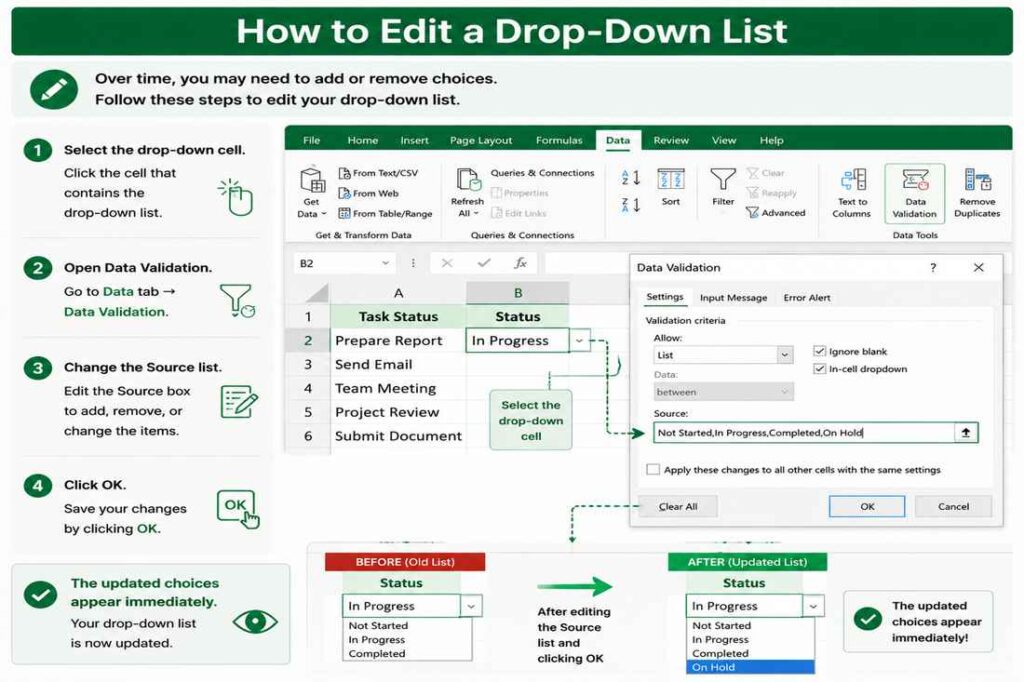
Over time, you may need to add or remove choices.
To edit:
- Select the drop-down cell.
- Open Data Validation.
- Change the Source list.
- Click OK.
The updated choices appear immediately.
How to Add More Items
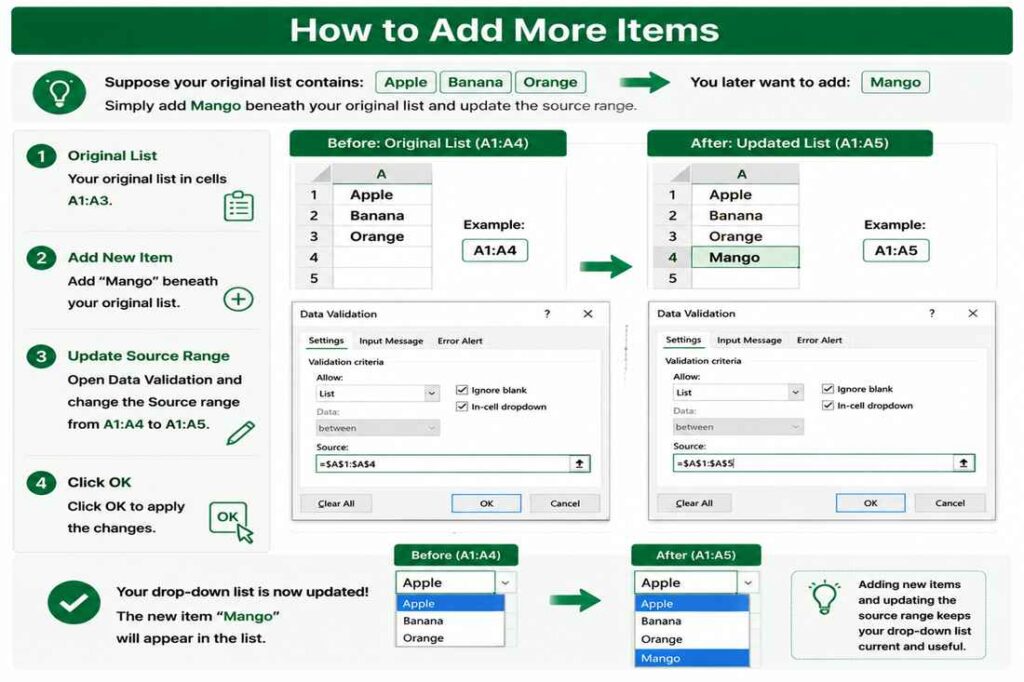
Suppose your original list contains:
- Apple
- Banana
- Orange
You later want to add:
- Mango
Simply add Mango beneath your original list and update the source range.
Example:
A1:A4becomes
A1:A5How to Delete a Drop-Down List
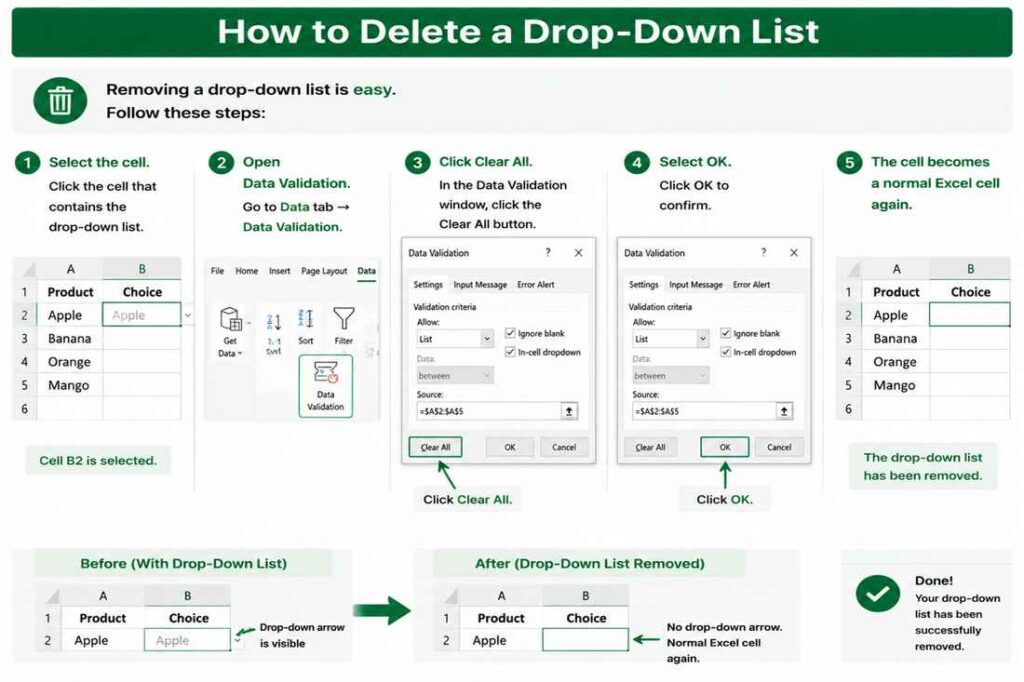
Removing a drop-down list is easy.
Follow these steps:
- Select the cell.
- Open Data Validation.
- Click Clear All.
- Select OK.
The cell becomes a normal Excel cell again.
Creating a Dynamic Drop-Down List
If your list grows regularly, manually updating the source can become inconvenient.
A dynamic list automatically includes new items as they’re added.
One popular method is converting your list into an Excel Table.
Steps:
- Select your list.
- Press Ctrl + T.
- Create the table.
- Use the table as your Data Validation source.
Now new entries can be included more easily as your data expands.
Using Named Ranges
Another professional approach is using Named Ranges.
To create one:
- Highlight your list.
- Click the Name Box.
- Type a name like:
DepartmentsPress Enter.
Then use:
=Departmentsinside the Data Validation source.
Named ranges make large workbooks easier to manage.
Where Drop-Down Lists Are Commonly Used
Drop-down menus are useful in many situations.
Examples include:
Employee Forms
- HR
- Sales
- Marketing
- Finance
Inventory Sheets
- In Stock
- Out of Stock
- Ordered
School Records
- Present
- Absent
- Late
Project Tracking
- Not Started
- In Progress
- Completed
Customer Status
- New
- Active
- Closed
These standardized choices improve reporting and reduce errors.
Common Problems and Solutions
Even experienced Excel users occasionally encounter issues.
Drop-Down Arrow Doesn’t Appear
Check that Data Validation is still applied.
Also ensure the In-cell dropdown option remains enabled.
New Items Don’t Show
Update the source range or use a dynamic table.
Users Can Still Type Other Values
Enable the Error Alert feature within Data Validation to restrict invalid entries.
Copying Removes the Drop-Down
Use Paste Special → Validation when copying cells.
This preserves the drop-down settings.
Best Practices
To keep your spreadsheets clean and reliable:
- Keep option names short.
- Avoid duplicate entries.
- Organize source lists on a separate worksheet.
- Use tables for growing lists.
- Use named ranges in larger workbooks.
- Protect worksheets if necessary.
- Review lists periodically.
These habits make your spreadsheets easier to maintain.
Final Thoughts
Learning how to create drop down list in Excel is one of the simplest ways to improve the quality of your spreadsheets. By limiting data entry to predefined choices, you reduce mistakes, speed up workflows, and create more consistent records. Whether you’re building a simple personal tracker or a complex business workbook, drop-down lists help make your Excel files more organized, accurate, and user-friendly. Once you become familiar with Data Validation, you’ll likely use this feature in nearly every spreadsheet you create.
Related Guides
- How to Add Page Numbers in Word – Learn how to format Microsoft Word documents professionally.
FAQs
1. What is a drop-down list in Excel?
A drop-down list lets users select a value from predefined options instead of typing manually.
2. Can I edit a drop-down list later?
Yes. Open Data Validation, update the source list, and save the changes.
3. How do I remove a drop-down list?
Select the cell, open Data Validation, click Clear All, and then click OK.
4. Can I create a drop-down list without another worksheet?
Yes. You can type the list items directly into the Data Validation source box using commas.
5. Why isn’t my drop-down arrow showing?
Make sure Data Validation is applied correctly and that the In-cell dropdown option is enabled.