
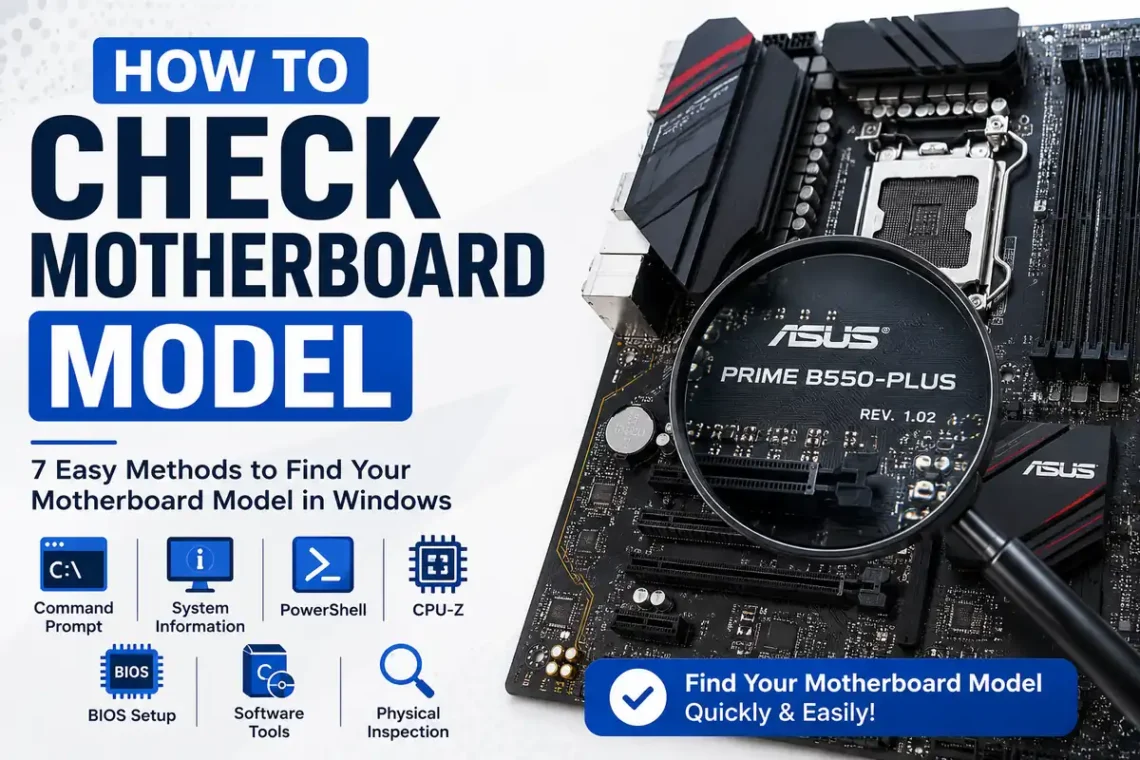
Whether you’re upgrading your PC, installing new hardware, updating your BIOS, or troubleshooting compatibility issues, knowing your motherboard model is essential. Many users aren’t sure where to find this information, especially if they built their computer years ago or purchased a pre-built desktop.
Fortunately, Windows provides several easy ways to identify your motherboard without opening your computer. You can also check it physically if software methods don’t work.
In this guide, you’ll learn how to check motherboard model using built-in Windows tools, Command Prompt, PowerShell, System Information, third-party software, and physical inspection.
Why You Might Need to Know Your Motherboard Model
Your motherboard is the main circuit board that connects every major component inside your computer. Knowing its model helps you make informed decisions when upgrading or repairing your PC.
Common reasons include:
- Upgrading your CPU or RAM
- Finding compatible hardware
- Downloading motherboard drivers
- Updating the BIOS
- Troubleshooting hardware problems
- Checking supported storage devices
- Installing expansion cards
Without the correct motherboard model, downloading the wrong BIOS or drivers could create unnecessary problems.
Method 1: Check the Motherboard Model Using Command Prompt
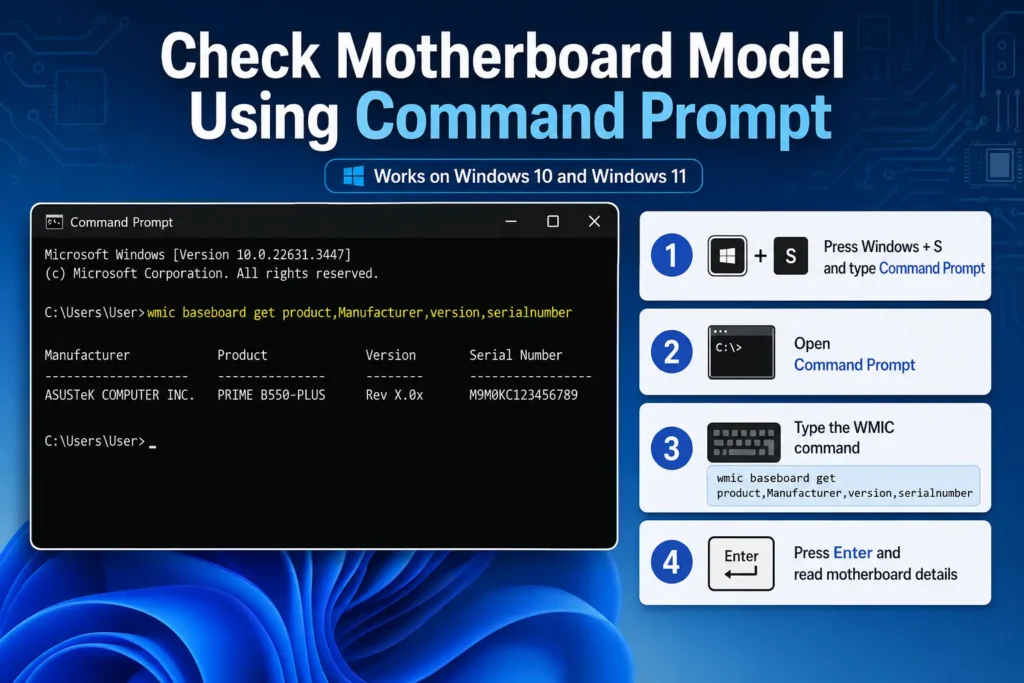
One of the quickest ways is through Command Prompt.
Step 1
Press Windows + S and type Command Prompt.
Step 2
Open Command Prompt.
Step 3
Type the following command:
wmic baseboard get product,Manufacturer,version,serialnumberStep 4
Press Enter.
You’ll see information similar to:
- Manufacturer
- Product (Motherboard Model)
- Version
- Serial Number
This method works on most Windows 10 and Windows 11 computers.
Method 2: Use Windows System Information
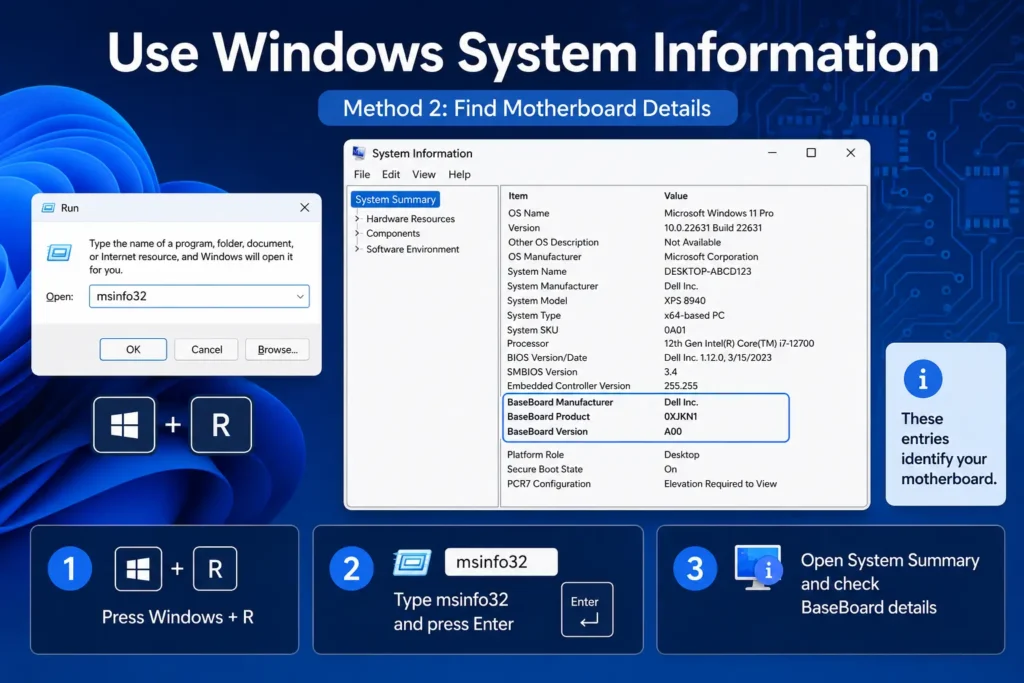
Windows includes a built-in tool called System Information.
Step 1
Press Windows + R.
Step 2
Type:
msinfo32Press Enter.
Step 3
Under System Summary, look for:
- BaseBoard Manufacturer
- BaseBoard Product
- BaseBoard Version
These entries identify your motherboard.
Method 3: Check with PowerShell
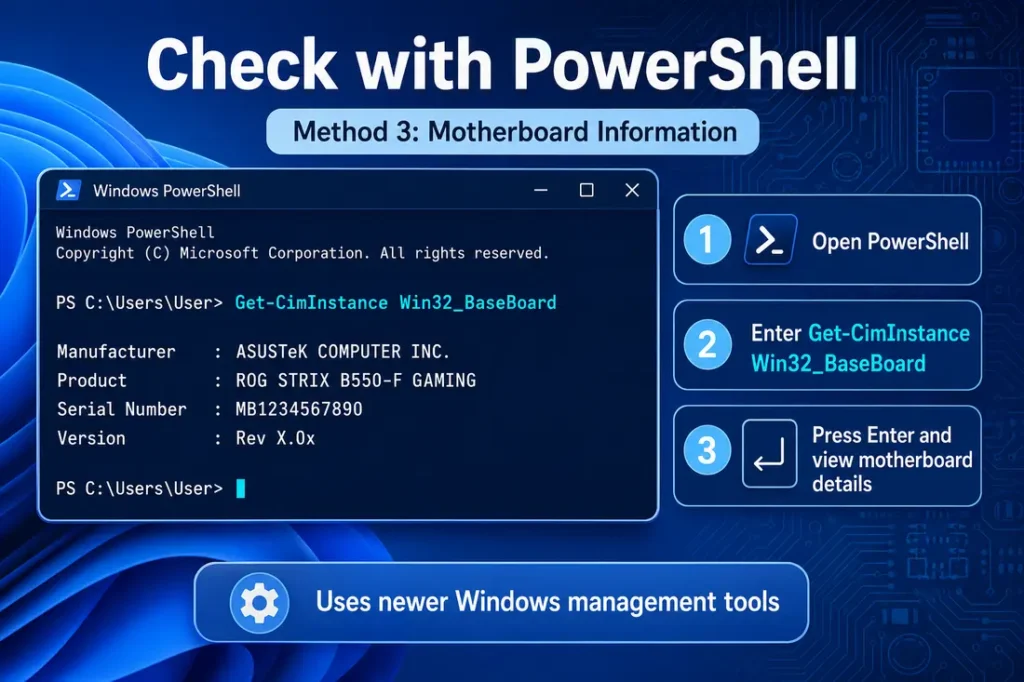
PowerShell can also display motherboard information.
Open PowerShell and enter:
Get-CimInstance Win32_BaseBoardPress Enter.
The command displays:
- Manufacturer
- Product
- Serial Number
- Version
This method provides the same information as Command Prompt but uses newer Windows management tools.
Method 4: Use DirectX Diagnostic Tool
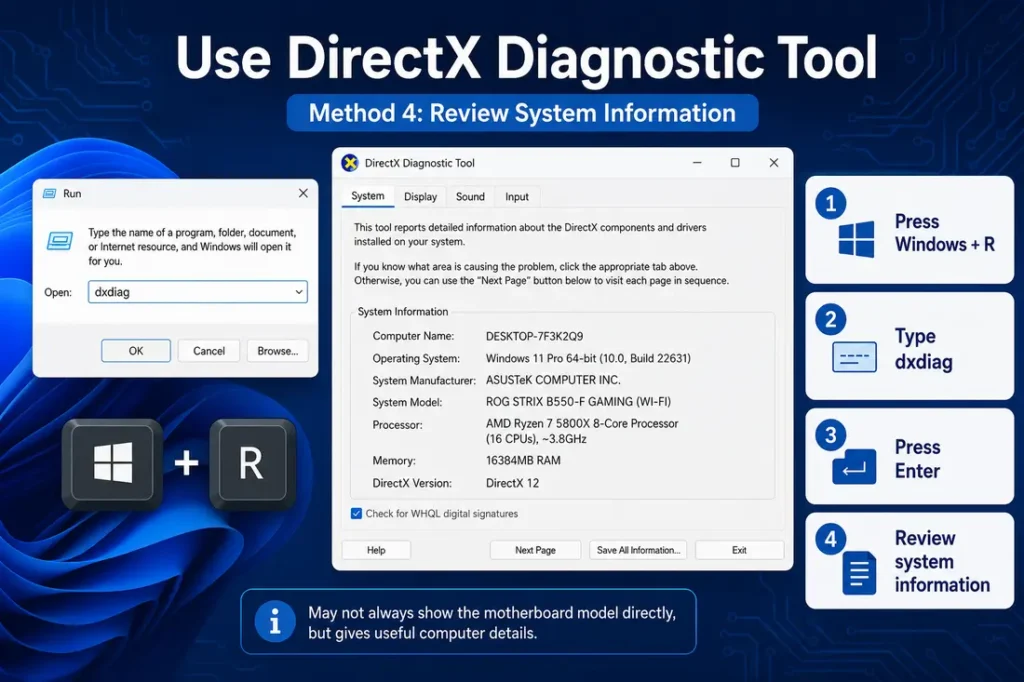
Although the DirectX Diagnostic Tool mainly provides hardware information, it can help identify your system details.
- Press Windows + R.
- Type dxdiag.
- Press Enter.
- Review the system information.
While it may not always display the motherboard model directly, it provides useful details about your computer.
Method 5: Check Using CPU-Z
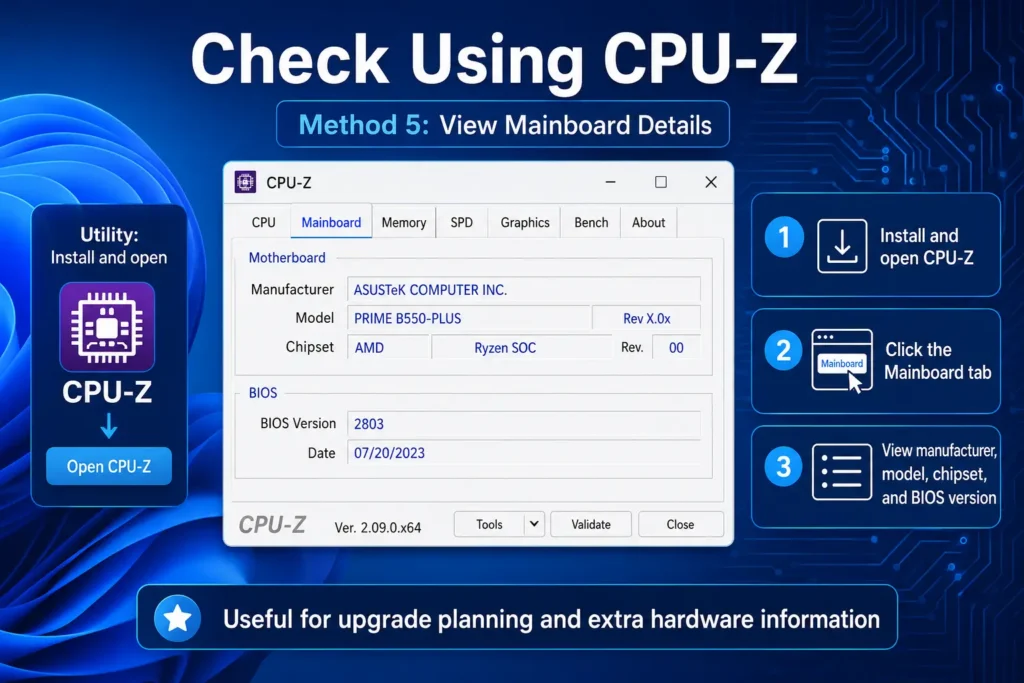
If Windows doesn’t show complete information, CPU-Z is one of the most popular free utilities.
After installing CPU-Z:
- Open CPU-Z.
- Click the Mainboard tab.
- View:
- Manufacturer
- Model
- Chipset
- BIOS Version
CPU-Z also provides additional hardware information that’s useful for upgrades.
Method 6: Physically Inspect the Motherboard
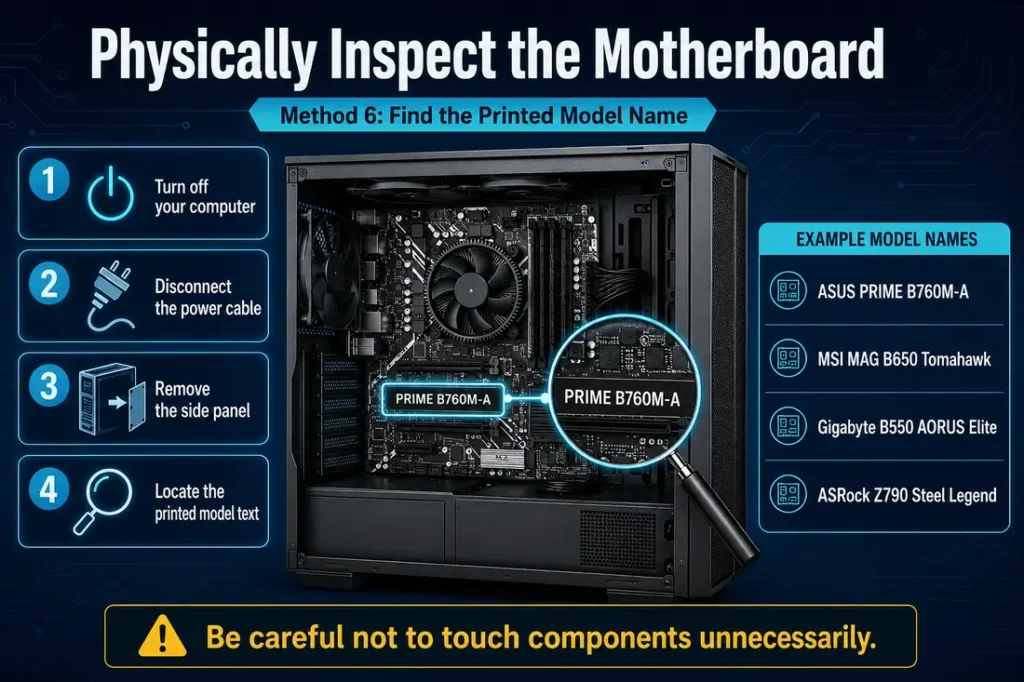
If software methods don’t work, you can check the motherboard itself.
Step 1
Turn off your computer.
Step 2
Disconnect the power cable.
Step 3
Remove the side panel of the computer case.
Step 4
Locate the large printed text on the motherboard.
Most manufacturers print the model between the PCIe slots or near the CPU socket.
Examples include:
- ASUS PRIME B760M-A
- MSI MAG B650 Tomahawk
- Gigabyte B550 AORUS Elite
- ASRock Z790 Steel Legend
Be careful not to touch components unnecessarily while inspecting the motherboard.
Method 7: Check the Original Box or Manual
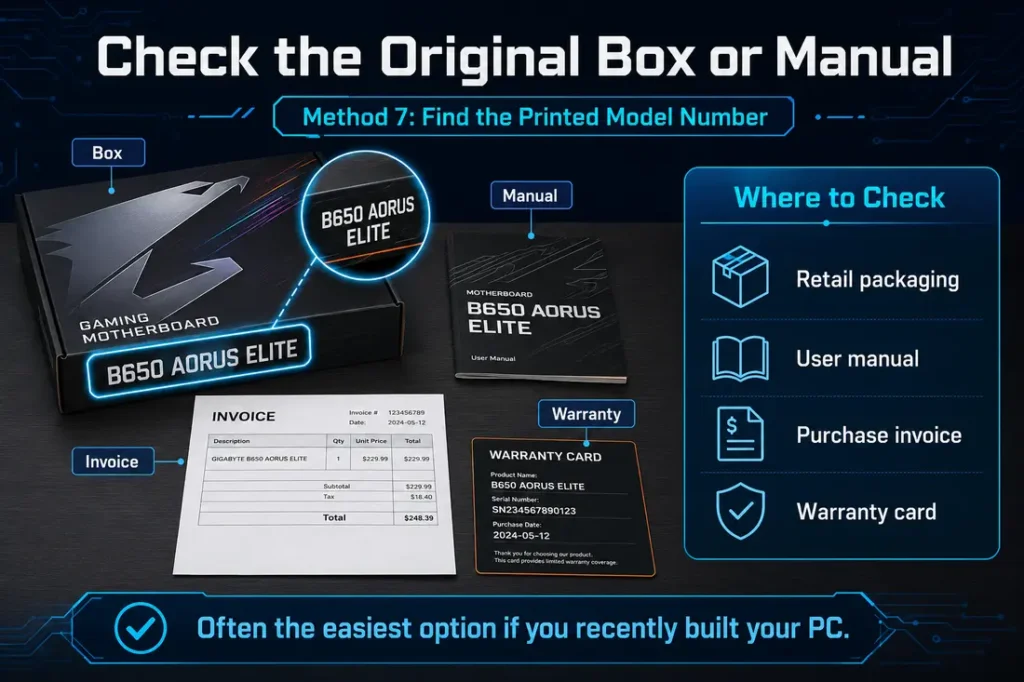
If you still have the motherboard box or computer documentation, the model number is usually printed on:
- Retail packaging
- User manual
- Purchase invoice
- Warranty card
This is often the easiest option if you’ve recently built your PC.
What Information Does the Motherboard Model Tell You?
Your motherboard model provides valuable details, including:
- CPU socket type
- RAM compatibility
- Maximum memory capacity
- PCIe generation support
- M.2 slot availability
- SATA ports
- BIOS updates
- Supported processors
Knowing these specifications helps you avoid purchasing incompatible hardware.
What If Windows Shows “To Be Filled By O.E.M.”?
Some computers display:
To Be Filled By O.E.M.
This usually means the motherboard information wasn’t programmed by the manufacturer.
In this case, try:
- CPU-Z
- Physical inspection
- BIOS setup
- Manufacturer support software
These methods often reveal the correct model.
How to Check Motherboard Model on a Laptop
Laptop users can also identify the motherboard.
Use:
- Command Prompt
- PowerShell
- System Information
If these don’t help, visit the laptop manufacturer’s support page and enter your laptop’s serial number. The support page usually lists the motherboard specifications.
Tips Before Upgrading Your Motherboard
Before purchasing new hardware:
- Verify CPU compatibility.
- Check the maximum supported RAM.
- Confirm your BIOS version.
- Ensure your power supply meets the requirements.
- Check case compatibility for motherboard size (ATX, Micro-ATX, Mini-ITX).
Taking a few minutes to confirm compatibility can save you time and money.
Common Mistakes to Avoid
Many users make small mistakes when identifying their motherboard.
Avoid these common issues:
- Downloading drivers for a different motherboard revision.
- Confusing the chipset with the motherboard model.
- Ignoring BIOS version requirements.
- Buying unsupported RAM.
- Assuming every motherboard supports the latest processors.
Always verify your exact model before making upgrades.
Final Thoughts
Learning how to check motherboard model is an important skill for anyone who maintains or upgrades a computer. Whether you’re installing new RAM, replacing your processor, updating your BIOS, or troubleshooting hardware, identifying your motherboard correctly ensures you download the right drivers and choose compatible components. With built-in Windows tools like Command Prompt, PowerShell, and System Information, along with utilities such as CPU-Z and a simple physical inspection, finding your motherboard model is quick and straightforward.
FAQs
1. Can I check my motherboard model without opening my PC?
Yes. Command Prompt, PowerShell, and System Information can usually display it.
2. Is CPU-Z free?
Yes. CPU-Z is free for personal use and provides detailed motherboard information.
3. Why does Windows not show my motherboard model?
Some manufacturers leave the motherboard information blank. In that case, use CPU-Z or inspect the motherboard physically.
4. Can I find my motherboard model in the BIOS?
Yes. Many BIOS or UEFI menus display the motherboard model on the main screen.
5. Why do I need to know my motherboard model?
It helps you install compatible hardware, update the BIOS safely, and download the correct drivers.





One comment on “How to Check Motherboard Model: A Complete Step-by-Step Guide”