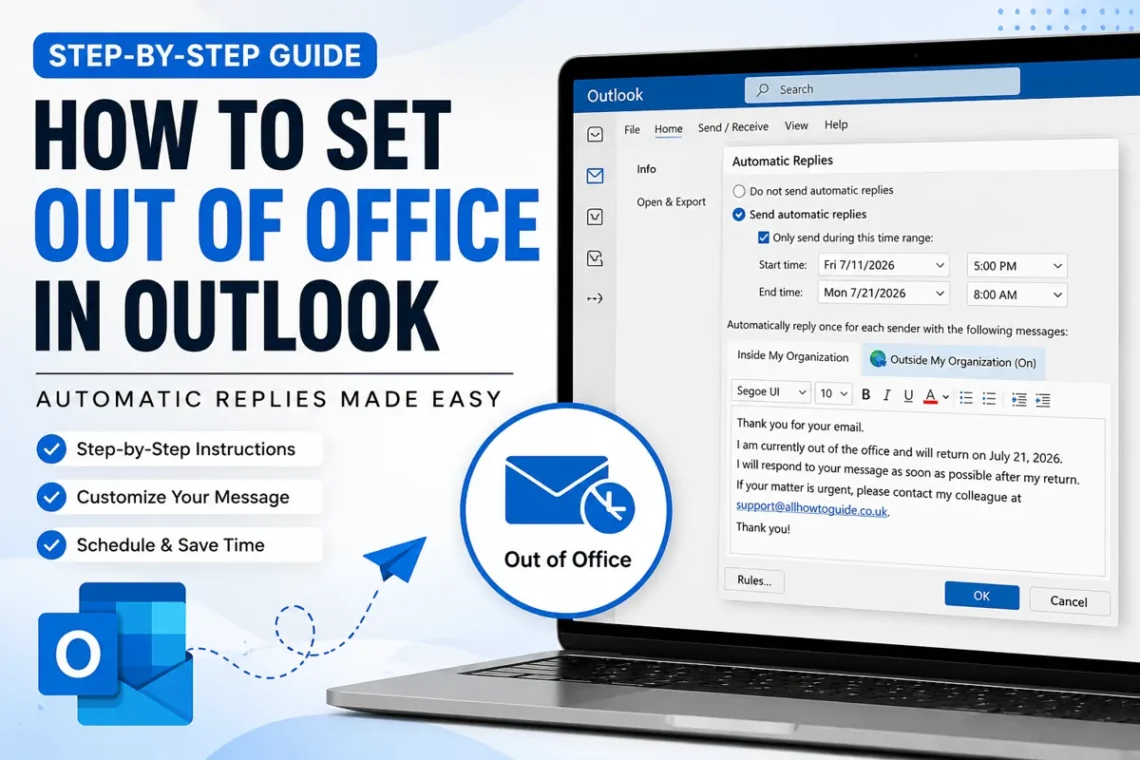
If you’re going on vacation, taking sick leave, or simply won’t be available to reply to emails, setting an automatic Out of Office message in Outlook is one of the easiest ways to keep colleagues, clients, and contacts informed.
Many people only discover this feature when they need it urgently, but Outlook makes it simple to automatically respond to incoming emails while you’re away. Whether you use Outlook on Windows, Mac, the web, or the mobile app, you can create an automatic reply in just a few minutes.
In this guide, you’ll learn how to set out of office in Outlook, customize automatic replies, schedule them in advance, and troubleshoot common issues.
What Is the Out of Office Feature in Outlook?
The Out of Office feature, also known as Automatic Replies, automatically sends a response to anyone who emails you while you’re unavailable.
Instead of manually replying to every email, Outlook sends your pre-written message, letting people know:
- You’re away from work.
- When you’ll return.
- Who to contact in your absence.
- Whether you’ll have limited access to email.
This feature is especially useful for vacations, business trips, holidays, and extended leave.
Why Should You Use Out of Office in Outlook?
Setting an automatic reply offers several benefits.
- Keeps clients informed.
- Prevents missed communication.
- Sets clear expectations.
- Reduces follow-up emails.
- Provides an alternate contact if needed.
It’s a professional way to manage email while you’re away.
How to Set Out of Office in Outlook on Windows
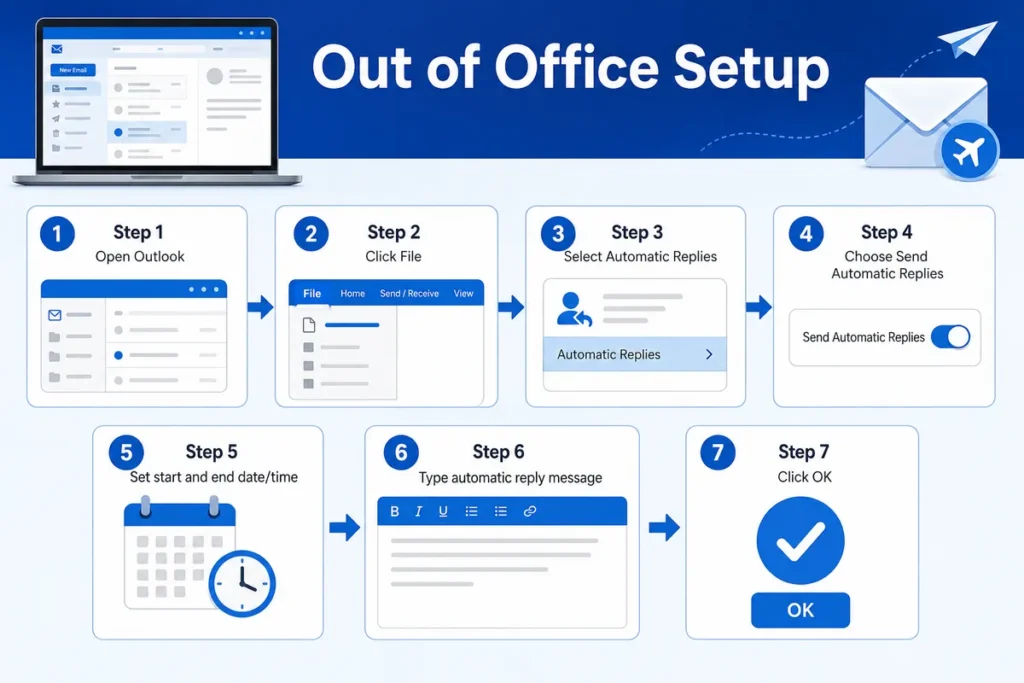
If you’re using the Outlook desktop application on Windows, follow these steps.
Step 1
Open Microsoft Outlook.
Step 2
Click File in the upper-left corner.
Step 3
Select Automatic Replies (Out of Office).
Step 4
Choose Send Automatic Replies.
Step 5
(Optional) Check Only send during this time range.
Choose your:
- Start date
- Start time
- End date
- End time
Step 6
Type your automatic reply message.
Example:
Thank you for your email. I am currently out of the office and will return on July 20. I will respond as soon as possible after I return.
Step 7
Click OK.
Your Out of Office reply is now active.
How to Set Out of Office in Outlook on the Web
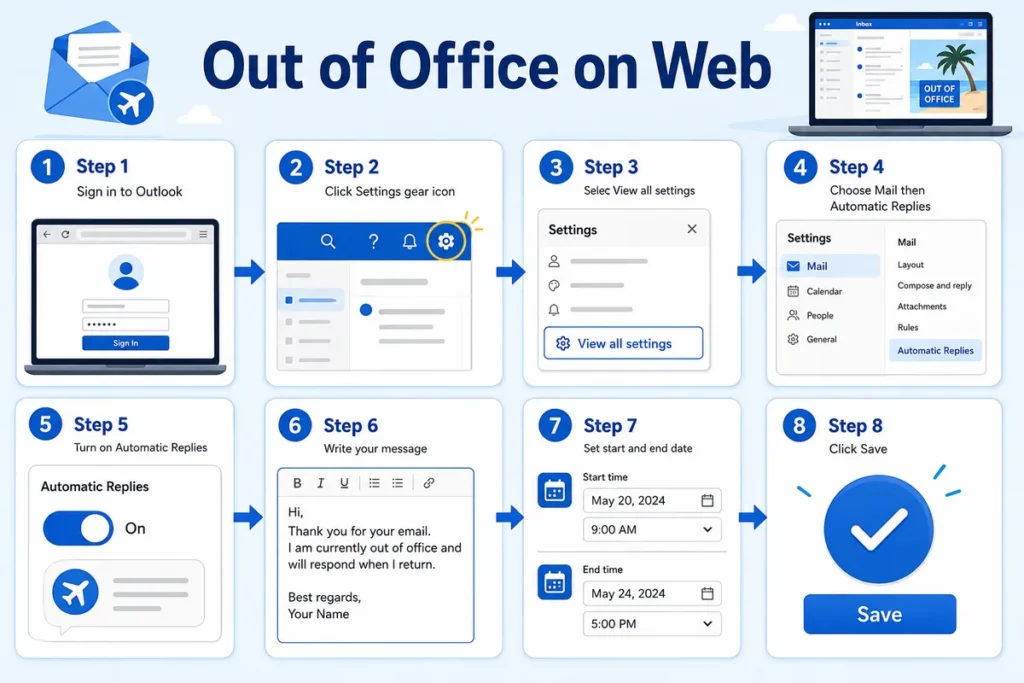
If you use Outlook in a web browser:
Step 1
Sign in to Outlook.
Step 2
Click the Settings (⚙️) icon.
Step 3
Select View all Outlook settings.
Step 4
Choose:
Mail → Automatic Replies
Step 5
Turn on:
Automatic Replies
Step 6
Write your message.
Step 7
(Optional)
Set:
- Start date
- End date
Step 8
Click Save.
How to Set Out of Office in Outlook on Mac
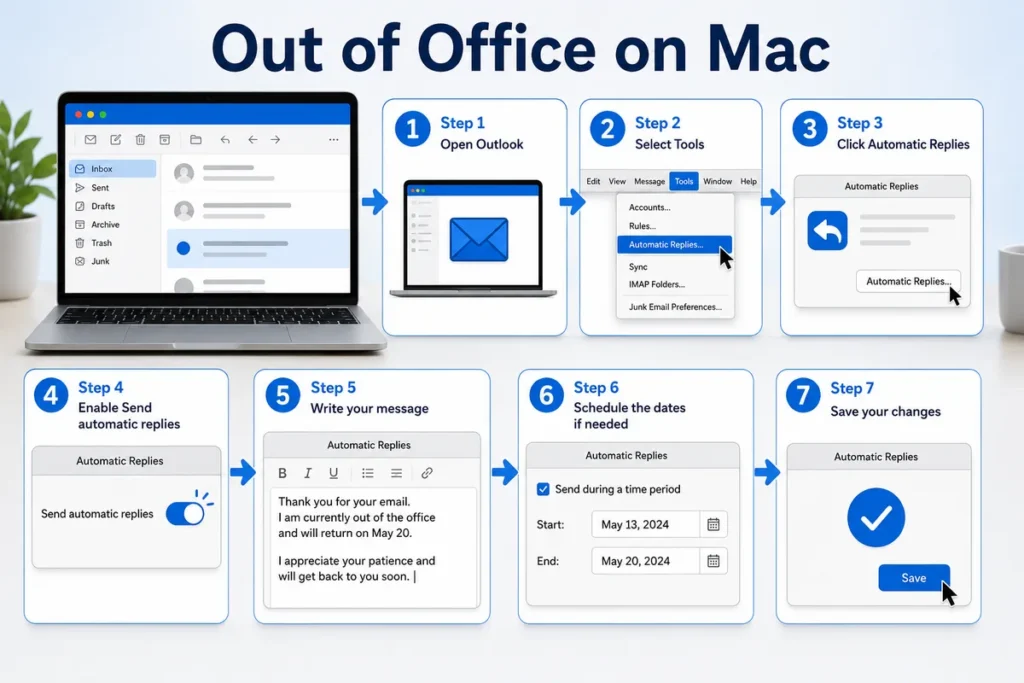
The Mac version is also simple.
- Open Outlook.
- Select Tools.
- Click Automatic Replies.
- Enable Send automatic replies.
- Write your message.
- Schedule the dates if needed.
- Save your changes.
How to Set Out of Office in the Outlook Mobile App
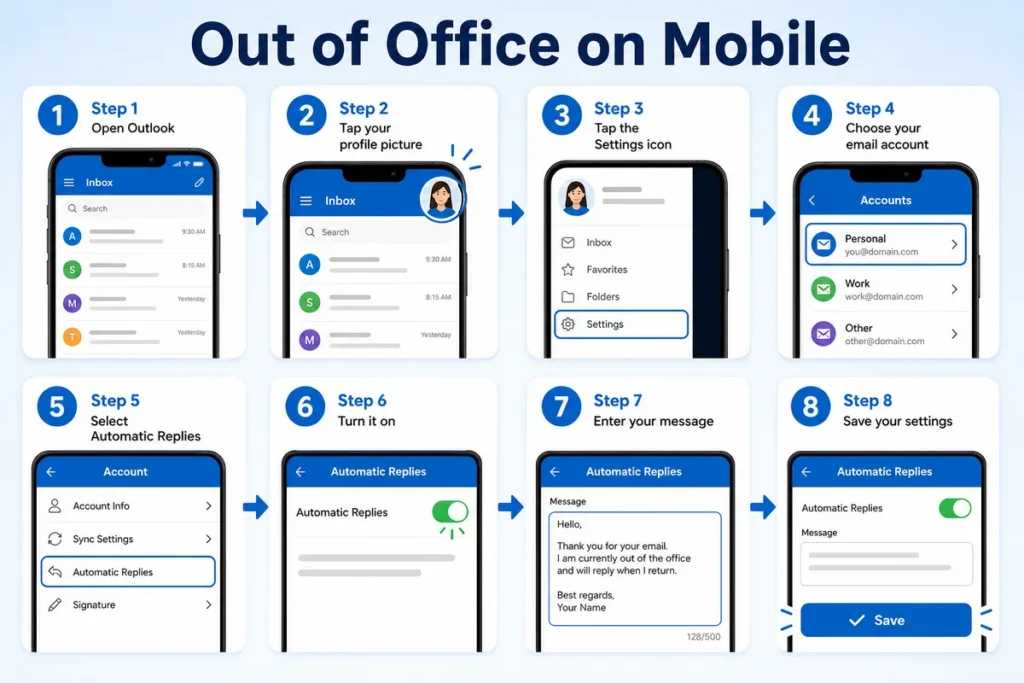
The Outlook mobile app also supports automatic replies.
- Open Outlook.
- Tap your profile picture.
- Tap the Settings icon.
- Choose your email account.
- Select Automatic Replies.
- Turn it on.
- Enter your message.
- Save your settings.
Best Out of Office Message Examples
Example 1
Thank you for your email. I’m currently out of the office and will return on July 20. I’ll respond as soon as possible after my return.
Example 2
I am away from work with limited access to email. For urgent matters, please contact my colleague at support@example.com.
Example 3
Thank you for your message. I am currently on leave and will reply when I return.
How to Schedule Automatic Replies
Scheduling helps avoid forgetting to enable or disable your Out of Office message.
Simply choose:
- Start date
- Start time
- End date
- End time
Outlook automatically turns automatic replies on and off according to your schedule.
Common Reasons Why Out of Office Isn’t Working
Sometimes automatic replies don’t work as expected.
Common causes include:
Automatic Replies Disabled
Check that the feature is turned on.
Wrong Email Account
Make sure you’re configuring the correct Outlook account.
Internet or Server Issues
Temporary server problems can delay automatic replies.
Organization Restrictions
Some workplace administrators limit automatic replies for certain accounts.
Tips for Writing a Professional Out of Office Message
A good automatic reply should be short, polite, and informative.
Include:
- Why you’re unavailable (optional)
- Return date
- Alternative contact
- When people can expect a reply
Avoid sharing unnecessary personal details.
Final Thoughts
Learning how to set out of office in Outlook is a valuable skill for anyone who uses email professionally. Whether you’re away for a vacation, business trip, or personal leave, Outlook’s Automatic Replies feature helps keep your contacts informed and ensures clear communication while you’re unavailable. By setting up your message in advance and including the right information, you can enjoy your time away without worrying about missed emails.
FAQs
1. Can I schedule Out of Office replies in Outlook?
Yes. Outlook lets you choose start and end dates for automatic replies.
2. Does Outlook send automatic replies to everyone?
You can choose whether to send replies only to people inside your organization or to external contacts as well.
3. Can I edit my Out of Office message later?
Yes. You can change or disable it at any time.
4. Does Outlook Mobile support Automatic Replies?
Yes. The Outlook mobile app includes the Automatic Replies feature.
5. What should I include in an Out of Office message?
Mention that you’re away, when you’ll return, and who to contact if the matter is urgent.